Final trueSpace 7.61 Beta 8 Unofficial Update

User avatar
trueBlue
Captain
Posts: 5548
Joined: 06 Jul 2009, 22:50
Type the number ten into the box: 10

Re: Final trueSpace 7.61 Beta 8 Unofficial Update

Post by trueBlue »

clintonman wrote: 17 Aug 2019, 18:49
trueBlue wrote: 17 Aug 2019, 18:45
clintonman wrote: 17 Aug 2019, 18:21
How so? Arrow keys aren't mentioned in the description above.
Your keyboard Arrow keys. Not having to use the Ctrl key frees up being able to use the arrow keys.
Still not getting it. How does ctrl keys stop the use of arrow keys?
One less key to use! :mrgreen:
More importantly your Zoom to Selection is by far the best part of your Look at Selection script!
Why not make it easier to use?
tS7 already has a Look at Selection icon with One mouse button click.
I use it for Point Editing all of the time and is fantastic! No harm in at least trying, Right?
User avatar
trueBlue
Captain
Posts: 5548
Joined: 06 Jul 2009, 22:50
Type the number ten into the box: 10

Re: Final trueSpace 7.61 Beta 8 Unofficial Update

Post by trueBlue »

clintonman wrote: 17 Aug 2019, 19:31
trueBlue wrote: 17 Aug 2019, 17:56 ...
New- 4View layout has unique WinGUID toolbars for all four views. No prototype for ortho views.
...
What does this do that not so unique winGUID doesn't do?
The Perspective view's (which is the same window in all of the updated layouts (same WinID)) WinGUID Bar toolbar uses it's Window Frame's WinID and has a prototype.
The Top view's WinGUID Bar toolbar uses it's Window Frame's WinID and does not have a prototype. No Reset.
The Front view's WinGUID Bar toolbar uses it's Window Frame's WinID and does not have a prototype. No Reset.
The Left view's WinGUID Bar toolbar uses it's Window Frame's WinID and does not have a prototype. No Reset.
User avatar
clintonman
Captain
Posts: 5659
Joined: 21 May 2009, 21:08
Type the number ten into the box: 0
Location: California

Re: Final trueSpace 7.61 Beta 8 Unofficial Update

Post by clintonman »

trueBlue wrote: 17 Aug 2019, 19:40
clintonman wrote: 17 Aug 2019, 18:49
trueBlue wrote: 17 Aug 2019, 18:45
Your keyboard Arrow keys. Not having to use the Ctrl key frees up being able to use the arrow keys.
Still not getting it. How does ctrl keys stop the use of arrow keys?
One less key to use! :mrgreen:
More importantly your Zoom to Selection is by far the best part of your Look at Selection script!
Why not make it easier to use?
tS7 already has a Look at Selection icon with One mouse button click.
I use it for Point Editing all of the time and is fantastic! No harm in at least trying, Right?
I'll take a wild guess. Is it that you keep pressing the arrow keys by accident when trying to press the control key? Still don't know what arrow keys have to do with it. Give me some steps so I can see the benefit, otherwise it just looks like change for the sake of change. Maybe it doesn't make any difference, maybe it make it better, maybe it makes it worse, hard to test if I don't know what to do.
Clinton Reese

http://clintons3d.com
User avatar
clintonman
Captain
Posts: 5659
Joined: 21 May 2009, 21:08
Type the number ten into the box: 0
Location: California

Re: Final trueSpace 7.61 Beta 8 Unofficial Update

Post by clintonman »

trueBlue wrote: 17 Aug 2019, 19:52
clintonman wrote: 17 Aug 2019, 19:31
trueBlue wrote: 17 Aug 2019, 17:56 ...
New- 4View layout has unique WinGUID toolbars for all four views. No prototype for ortho views.
...
What does this do that not so unique winGUID doesn't do?
The Perspective view's (which is the same window in all of the updated layouts (same WinID)) WinGUID Bar toolbar uses it's Window Frame's WinID and has a prototype.
The Top view's WinGUID Bar toolbar uses it's Window Frame's WinID and does not have a prototype. No Reset.
The Front view's WinGUID Bar toolbar uses it's Window Frame's WinID and does not have a prototype. No Reset.
The Left view's WinGUID Bar toolbar uses it's Window Frame's WinID and does not have a prototype. No Reset.
So it's for resetting toolbars or something like that?
Clinton Reese

http://clintons3d.com
User avatar
trueBlue
Captain
Posts: 5548
Joined: 06 Jul 2009, 22:50
Type the number ten into the box: 10

Re: Final trueSpace 7.61 Beta 8 Unofficial Update

Post by trueBlue »

clintonman wrote: 17 Aug 2019, 19:55
trueBlue wrote: 17 Aug 2019, 19:40
clintonman wrote: 17 Aug 2019, 18:49
Still not getting it. How does ctrl keys stop the use of arrow keys?
One less key to use! :mrgreen:
More importantly your Zoom to Selection is by far the best part of your Look at Selection script!
Why not make it easier to use?
tS7 already has a Look at Selection icon with One mouse button click.
I use it for Point Editing all of the time and is fantastic! No harm in at least trying, Right?
I'll take a wild guess. Is it that you keep pressing the arrow keys by accident when trying to press the control key? Still don't know what arrow keys have to do with it. Give me some steps so I can see the benefit, otherwise it just looks like change for the sake of change. Maybe it doesn't make any difference, maybe it make it better, maybe it makes it worse, hard to test if I don't know what to do.
Left hand. Two fingers on the Left arrow and Right arrow keyboard keys to select objects.
Right hand. One finger on the mouse's MMB to Zoom to.
When you are zoomed in to an object, it is not easy to select a different object in the view.
User avatar
clintonman
Captain
Posts: 5659
Joined: 21 May 2009, 21:08
Type the number ten into the box: 0
Location: California

Re: Final trueSpace 7.61 Beta 8 Unofficial Update

Post by clintonman »

trueBlue wrote: 17 Aug 2019, 20:15
clintonman wrote: 17 Aug 2019, 19:55
trueBlue wrote: 17 Aug 2019, 19:40
One less key to use! :mrgreen:
More importantly your Zoom to Selection is by far the best part of your Look at Selection script!
Why not make it easier to use?
tS7 already has a Look at Selection icon with One mouse button click.
I use it for Point Editing all of the time and is fantastic! No harm in at least trying, Right?
I'll take a wild guess. Is it that you keep pressing the arrow keys by accident when trying to press the control key? Still don't know what arrow keys have to do with it. Give me some steps so I can see the benefit, otherwise it just looks like change for the sake of change. Maybe it doesn't make any difference, maybe it make it better, maybe it makes it worse, hard to test if I don't know what to do.
Left hand. Two fingers on the Left arrow and Right arrow keyboard keys to select objects.
Right hand. One finger on the mouse's MMB to Zoom to.
When you are zoomed in to an object, it is not easy to select a different object in the view.
Thanks, downloading now.
Clinton Reese

http://clintons3d.com
User avatar
trueBlue
Captain
Posts: 5548
Joined: 06 Jul 2009, 22:50
Type the number ten into the box: 10

Re: Final trueSpace 7.61 Beta 8 Unofficial Update

Post by trueBlue »

clintonman wrote: 17 Aug 2019, 19:57
trueBlue wrote: 17 Aug 2019, 19:52
clintonman wrote: 17 Aug 2019, 19:31

What does this do that not so unique winGUID doesn't do?
The Perspective view's (which is the same window in all of the updated layouts (same WinID)) WinGUID Bar toolbar uses it's Window Frame's WinID and has a prototype.
The Top view's WinGUID Bar toolbar uses it's Window Frame's WinID and does not have a prototype. No Reset.
The Front view's WinGUID Bar toolbar uses it's Window Frame's WinID and does not have a prototype. No Reset.
The Left view's WinGUID Bar toolbar uses it's Window Frame's WinID and does not have a prototype. No Reset.
So it's for resetting toolbars or something like that?
clintonman wrote: 17 Aug 2019, 19:31What does this do that not so unique winGUID doesn't do?
Each View's Frame has different WinIDs. Each View's toolbar uses its Frame's WinID in the commands.
Meaning the view does not have to be in focus. It only works in that view. Period!
Here is the commands for the New View window's toolbar for an example:

Code: Select all

//		{653BCA02-BC52-4FAD-AD04-6BC2AD9B25B7}

function Execute(params)
{
//  WinGUID_Bar - New View command
WindowsManager.CloseWindow("/Project/Windows Manager Space/New View");RsFileIO.LoadObject(System.GetMainDir() + '\\scripts\\preobjects\\New View.RsObj', "/Project/Windows Manager Space");Node.Value("/Project/Windows Manager Space/New View", "WinID") = "{653BCA02-BC52-4FAD-AD04-6BC2AD9B25B7}";WindowsManager.Activate();WindowsManager.UpdateWindowsStructure();
;WindowsManager.Activate()


// New View Bar
D3DView.SwitchEyeCameraType('{653BCA02-BC52-4FAD-AD04-6BC2AD9B25B7}', '0');WindowsManager.Activate() //Perspective
D3DView.SwitchEyeCameraType('{653BCA02-BC52-4FAD-AD04-6BC2AD9B25B7}', '3');WindowsManager.Activate() //Left
D3DView.SwitchEyeCameraType('{653BCA02-BC52-4FAD-AD04-6BC2AD9B25B7}', '4');WindowsManager.Activate() //Right
D3DView.SwitchEyeCameraType('{653BCA02-BC52-4FAD-AD04-6BC2AD9B25B7}', '6');WindowsManager.Activate() //Front
D3DView.SwitchEyeCameraType('{653BCA02-BC52-4FAD-AD04-6BC2AD9B25B7}', '5');WindowsManager.Activate() //Back
D3DView.SwitchEyeCameraType('{653BCA02-BC52-4FAD-AD04-6BC2AD9B25B7}', '2');WindowsManager.Activate() //Top
D3DView.SwitchEyeCameraType('{653BCA02-BC52-4FAD-AD04-6BC2AD9B25B7}', '1');WindowsManager.Activate() //Bottom
D3DView.SwitchEyeCameraType('{653BCA02-BC52-4FAD-AD04-6BC2AD9B25B7}', '7');WindowsManager.Activate() //Isometric

RsTool.SetNearestOrthoView('{653BCA02-BC52-4FAD-AD04-6BC2AD9B25B7}');WindowsManager.Activate()  //Nearest ortho

D3DView.LoadRAPreset('', -1.0, -1.0, 'Solid','{653BCA02-BC52-4FAD-AD04-6BC2AD9B25B7}');WindowsManager.Activate()
D3DView.LoadRAPreset('', -1.0, -1.0, 'Wire','{653BCA02-BC52-4FAD-AD04-6BC2AD9B25B7}');WindowsManager.Activate()
D3DView.LoadRAPreset('', -1.0, -1.0, 'None','{653BCA02-BC52-4FAD-AD04-6BC2AD9B25B7}');WindowsManager.Activate()

D3DView.LoadRAPreset('', 1.0, 0.0, '', '{653BCA02-BC52-4FAD-AD04-6BC2AD9B25B7}');WindowsManager.Activate() //Opaque
D3DView.LoadRAPreset('', 1.0, 1.0, '', '{653BCA02-BC52-4FAD-AD04-6BC2AD9B25B7}');WindowsManager.Activate() //OpaqueWire
D3DView.LoadRAPreset('', 0.5, 0.0, '', '{653BCA02-BC52-4FAD-AD04-6BC2AD9B25B7}');WindowsManager.Activate()  /Trans
D3DView.LoadRAPreset('', 0.5, 0.0, '', '{653BCA02-BC52-4FAD-AD04-6BC2AD9B25B7}');WindowsManager.Activate()  /TransWire
D3DView.LoadRAPreset('', 0.0, 1.0, '', '{653BCA02-BC52-4FAD-AD04-6BC2AD9B25B7}');WindowsManager.Activate()  /Wire

RsTool.ResetView('{653BCA02-BC52-4FAD-AD04-6BC2AD9B25B7}');WindowsManager.Activate()

RsTool.LookAtSelection('{653BCA02-BC52-4FAD-AD04-6BC2AD9B25B7}');WindowsManager.Activate()
RsTool.SelectNextObj();RsTool.LookAtSelection('{653BCA02-BC52-4FAD-AD04-6BC2AD9B25B7}');WindowsManager.Activate() //RMB Command  Help Text Look at Selection / Look at next object

D3DView.SetActiveCamera("", '{653BCA02-BC52-4FAD-AD04-6BC2AD9B25B7}');WindowsManager.Activate()


RsFileIO.LoadObject(System.GetMainDir() + '\\scripts\\preobjects\\Frame Window New View.RsObj', "/Project/Windows Manager Space");
WinID = WindowsManager.GetWorkWindow();
RsFileIO.LoadObject(System.GetMainDir() + '\\Scripts\\preobjects\\NewViewBar.RsObj', WinID);
WindowsManager.ActivateFrame(WinID);
WindowsManager.Activate();
WindowsManager.UpdateWindowsStructure();
}
clintonman wrote: 17 Aug 2019, 19:31So it's for resetting toolbars or something like that?
A prototype is a saved toolbar in the Toolbar Prototypes Encapsulator.
I did not save prototypes for the ortho view's toolbars, by design, so there is no Reset. They are saved with the Layout.
User avatar
clintonman
Captain
Posts: 5659
Joined: 21 May 2009, 21:08
Type the number ten into the box: 0
Location: California

Re: Final trueSpace 7.61 Beta 8 Unofficial Update

Post by clintonman »

trueBlue wrote: 17 Aug 2019, 20:37
clintonman wrote: 17 Aug 2019, 19:57
trueBlue wrote: 17 Aug 2019, 19:52
The Perspective view's (which is the same window in all of the updated layouts (same WinID)) WinGUID Bar toolbar uses it's Window Frame's WinID and has a prototype.
The Top view's WinGUID Bar toolbar uses it's Window Frame's WinID and does not have a prototype. No Reset.
The Front view's WinGUID Bar toolbar uses it's Window Frame's WinID and does not have a prototype. No Reset.
The Left view's WinGUID Bar toolbar uses it's Window Frame's WinID and does not have a prototype. No Reset.
So it's for resetting toolbars or something like that?
clintonman wrote: 17 Aug 2019, 19:31What does this do that not so unique winGUID doesn't do?
Each View's Frame has different WinIDs. Each View's toolbar uses its Frame's WinID in the commands.
Meaning the view does not have to be in focus. It only works in that view. Period!
Here is the commands for the New View window's toolbar for an example:

Code: Select all

//		{653BCA02-BC52-4FAD-AD04-6BC2AD9B25B7}

function Execute(params)
{
//  WinGUID_Bar - New View command
WindowsManager.CloseWindow("/Project/Windows Manager Space/New View");RsFileIO.LoadObject(System.GetMainDir() + '\\scripts\\preobjects\\New View.RsObj', "/Project/Windows Manager Space");Node.Value("/Project/Windows Manager Space/New View", "WinID") = "{653BCA02-BC52-4FAD-AD04-6BC2AD9B25B7}";WindowsManager.Activate();WindowsManager.UpdateWindowsStructure();
;WindowsManager.Activate()


// New View Bar
D3DView.SwitchEyeCameraType('{653BCA02-BC52-4FAD-AD04-6BC2AD9B25B7}', '0');WindowsManager.Activate() //Perspective
D3DView.SwitchEyeCameraType('{653BCA02-BC52-4FAD-AD04-6BC2AD9B25B7}', '3');WindowsManager.Activate() //Left
D3DView.SwitchEyeCameraType('{653BCA02-BC52-4FAD-AD04-6BC2AD9B25B7}', '4');WindowsManager.Activate() //Right
D3DView.SwitchEyeCameraType('{653BCA02-BC52-4FAD-AD04-6BC2AD9B25B7}', '6');WindowsManager.Activate() //Front
D3DView.SwitchEyeCameraType('{653BCA02-BC52-4FAD-AD04-6BC2AD9B25B7}', '5');WindowsManager.Activate() //Back
D3DView.SwitchEyeCameraType('{653BCA02-BC52-4FAD-AD04-6BC2AD9B25B7}', '2');WindowsManager.Activate() //Top
D3DView.SwitchEyeCameraType('{653BCA02-BC52-4FAD-AD04-6BC2AD9B25B7}', '1');WindowsManager.Activate() //Bottom
D3DView.SwitchEyeCameraType('{653BCA02-BC52-4FAD-AD04-6BC2AD9B25B7}', '7');WindowsManager.Activate() //Isometric

RsTool.SetNearestOrthoView('{653BCA02-BC52-4FAD-AD04-6BC2AD9B25B7}');WindowsManager.Activate()  //Nearest ortho

D3DView.LoadRAPreset('', -1.0, -1.0, 'Solid','{653BCA02-BC52-4FAD-AD04-6BC2AD9B25B7}');WindowsManager.Activate()
D3DView.LoadRAPreset('', -1.0, -1.0, 'Wire','{653BCA02-BC52-4FAD-AD04-6BC2AD9B25B7}');WindowsManager.Activate()
D3DView.LoadRAPreset('', -1.0, -1.0, 'None','{653BCA02-BC52-4FAD-AD04-6BC2AD9B25B7}');WindowsManager.Activate()

D3DView.LoadRAPreset('', 1.0, 0.0, '', '{653BCA02-BC52-4FAD-AD04-6BC2AD9B25B7}');WindowsManager.Activate() //Opaque
D3DView.LoadRAPreset('', 1.0, 1.0, '', '{653BCA02-BC52-4FAD-AD04-6BC2AD9B25B7}');WindowsManager.Activate() //OpaqueWire
D3DView.LoadRAPreset('', 0.5, 0.0, '', '{653BCA02-BC52-4FAD-AD04-6BC2AD9B25B7}');WindowsManager.Activate()  /Trans
D3DView.LoadRAPreset('', 0.5, 0.0, '', '{653BCA02-BC52-4FAD-AD04-6BC2AD9B25B7}');WindowsManager.Activate()  /TransWire
D3DView.LoadRAPreset('', 0.0, 1.0, '', '{653BCA02-BC52-4FAD-AD04-6BC2AD9B25B7}');WindowsManager.Activate()  /Wire

RsTool.ResetView('{653BCA02-BC52-4FAD-AD04-6BC2AD9B25B7}');WindowsManager.Activate()

RsTool.LookAtSelection('{653BCA02-BC52-4FAD-AD04-6BC2AD9B25B7}');WindowsManager.Activate()
RsTool.SelectNextObj();RsTool.LookAtSelection('{653BCA02-BC52-4FAD-AD04-6BC2AD9B25B7}');WindowsManager.Activate() //RMB Command  Help Text Look at Selection / Look at next object

D3DView.SetActiveCamera("", '{653BCA02-BC52-4FAD-AD04-6BC2AD9B25B7}');WindowsManager.Activate()


RsFileIO.LoadObject(System.GetMainDir() + '\\scripts\\preobjects\\Frame Window New View.RsObj', "/Project/Windows Manager Space");
WinID = WindowsManager.GetWorkWindow();
RsFileIO.LoadObject(System.GetMainDir() + '\\Scripts\\preobjects\\NewViewBar.RsObj', WinID);
WindowsManager.ActivateFrame(WinID);
WindowsManager.Activate();
WindowsManager.UpdateWindowsStructure();
}
clintonman wrote: 17 Aug 2019, 19:31So it's for resetting toolbars or something like that?
A prototype is a saved toolbar in the Toolbar Prototypes Encapsulator.
I did not save prototypes for the ortho view's toolbars, by design, so there is no Reset. They are saved with the Layout.
I see, nicely done.
Clinton Reese

http://clintons3d.com
User avatar
clintonman
Captain
Posts: 5659
Joined: 21 May 2009, 21:08
Type the number ten into the box: 0
Location: California

Re: Final trueSpace 7.61 Beta 8 Unofficial Update

Post by clintonman »

trueBlue wrote: 17 Aug 2019, 17:56 ...
New - Camera FOV widget
RMB click in 3D Space resets all view's FOV to 0.500 and scene Camera to 1.000
...
Don't see it.
RMB click in 3D view, nothing.
Open new 3D view RMB click, nothing.
Select camera, RMB click on it, nothing.
Clinton Reese

http://clintons3d.com
User avatar
trueBlue
Captain
Posts: 5548
Joined: 06 Jul 2009, 22:50
Type the number ten into the box: 10

Re: Final trueSpace 7.61 Beta 8 Unofficial Update

Post by trueBlue »

clintonman wrote: 17 Aug 2019, 19:31I see, nicely done.
Thanks! Lots of time to create these unique toobars. :cry:
User avatar
trueBlue
Captain
Posts: 5548
Joined: 06 Jul 2009, 22:50
Type the number ten into the box: 10

Re: Final trueSpace 7.61 Beta 8 Unofficial Update

Post by trueBlue »

clintonman wrote: 17 Aug 2019, 20:55
trueBlue wrote: 17 Aug 2019, 17:56 ...
New - Camera FOV widget
RMB click in 3D Space resets all view's FOV to 0.500 and scene Camera to 1.000
...
Don't see it.
RMB click in 3D view, nothing.
Open new 3D view RMB click, nothing.
Select camera, RMB click on it, nothing.
I saw that too and said WTF!
Until I used my LMB drag to change it's FOV and the RMB click in 3D Space to Reset it!
User avatar
clintonman
Captain
Posts: 5659
Joined: 21 May 2009, 21:08
Type the number ten into the box: 0
Location: California

Re: Final trueSpace 7.61 Beta 8 Unofficial Update

Post by clintonman »

trueBlue wrote: 17 Aug 2019, 20:15
clintonman wrote: 17 Aug 2019, 19:55
trueBlue wrote: 17 Aug 2019, 19:40
One less key to use! :mrgreen:
More importantly your Zoom to Selection is by far the best part of your Look at Selection script!
Why not make it easier to use?
tS7 already has a Look at Selection icon with One mouse button click.
I use it for Point Editing all of the time and is fantastic! No harm in at least trying, Right?
I'll take a wild guess. Is it that you keep pressing the arrow keys by accident when trying to press the control key? Still don't know what arrow keys have to do with it. Give me some steps so I can see the benefit, otherwise it just looks like change for the sake of change. Maybe it doesn't make any difference, maybe it make it better, maybe it makes it worse, hard to test if I don't know what to do.
Left hand. Two fingers on the Left arrow and Right arrow keyboard keys to select objects.
Right hand. One finger on the mouse's MMB to Zoom to.
When you are zoomed in to an object, it is not easy to select a different object in the view.
I don't see anything wrong with the change. The arrow keys thing has no benefit for me since I don't work that way. I like the single click over the double click, that's the selling point for me. :bananathumb:
Clinton Reese

http://clintons3d.com
User avatar
clintonman
Captain
Posts: 5659
Joined: 21 May 2009, 21:08
Type the number ten into the box: 0
Location: California

Re: Final trueSpace 7.61 Beta 8 Unofficial Update

Post by clintonman »

trueBlue wrote: 17 Aug 2019, 21:00
clintonman wrote: 17 Aug 2019, 20:55
trueBlue wrote: 17 Aug 2019, 17:56 ...
New - Camera FOV widget
RMB click in 3D Space resets all view's FOV to 0.500 and scene Camera to 1.000
...
Don't see it.
RMB click in 3D view, nothing.
Open new 3D view RMB click, nothing.
Select camera, RMB click on it, nothing.
I saw that too and said WTF!
Until I used my LMB drag to change it's FOV and the RMB click in 3D Space to Reset it!
Still don't see anything here.
Clinton Reese

http://clintons3d.com
User avatar
trueBlue
Captain
Posts: 5548
Joined: 06 Jul 2009, 22:50
Type the number ten into the box: 10

Re: Final trueSpace 7.61 Beta 8 Unofficial Update

Post by trueBlue »

clintonman wrote: 17 Aug 2019, 21:05 I don't see anything wrong with the change. The arrow keys thing has no benefit for me since I don't work that way. I like the single click over the double click, that's the selling point for me. :bananathumb:
Yep! One less keyboard key and one less MMB click. Simple.
Did you try the Shift + MMB click Zoom to All?
User avatar
trueBlue
Captain
Posts: 5548
Joined: 06 Jul 2009, 22:50
Type the number ten into the box: 10

Re: Final trueSpace 7.61 Beta 8 Unofficial Update

Post by trueBlue »

clintonman wrote: 17 Aug 2019, 21:07
trueBlue wrote: 17 Aug 2019, 21:00
clintonman wrote: 17 Aug 2019, 20:55
Don't see it.
RMB click in 3D view, nothing.
Open new 3D view RMB click, nothing.
Select camera, RMB click on it, nothing.
I saw that too and said WTF!
Until I used my LMB drag to change it's FOV and the RMB click in 3D Space to Reset it!
Still don't see anything here.
Capture.PNG
Right click the Camera FOV to bring up the Eye cam.
LMB drag to change FOV.
RMB click in 3D Space.

Select view from scene camera.
LMB drag to change FOV.
RMB click in 3D Space.

Maybe I need to reset the Gesture. I'll check.
Edit: Reapplied the update and it works.
Did you reset the default context after applying the update?
Edit2: Downloaded the update from here. Reapplied the update and it works.
User avatar
clintonman
Captain
Posts: 5659
Joined: 21 May 2009, 21:08
Type the number ten into the box: 0
Location: California

Re: Final trueSpace 7.61 Beta 8 Unofficial Update

Post by clintonman »

trueBlue wrote: 17 Aug 2019, 21:16
clintonman wrote: 17 Aug 2019, 21:07
trueBlue wrote: 17 Aug 2019, 21:00
I saw that too and said WTF!
Until I used my LMB drag to change it's FOV and the RMB click in 3D Space to Reset it!
Still don't see anything here.
Capture.PNG
Right click the Camera FOV to bring up the Eye cam.
LMB drag to change FOV.
RMB click in 3D Space.

Select view from scene camera.
LMB drag to change FOV.
RMB click in 3D Space.

Maybe I need to reset the Gesture. I'll check.
Edit: Reapplied the update and it works.
Did you reset the default context after applying the update?
Edit2: Downloaded the update from here. Reapplied the update and it works.
The trick is the press the camera fov BUTTON, not the camera.
Clinton Reese

http://clintons3d.com
User avatar
clintonman
Captain
Posts: 5659
Joined: 21 May 2009, 21:08
Type the number ten into the box: 0
Location: California

Re: Final trueSpace 7.61 Beta 8 Unofficial Update

Post by clintonman »

Face to Face Snapping Update:

exclude lights and cameras from face snapping
fixed inconsistent point edit mode entry and exit
status line feedback

right click copy changes:
directly copy inside truespace instead of saving and loading from disk
save reference to source face selection and restore it so future copies only need to select the destination face
Attachments
Face Snap.RsObj
(141.37 KiB) Downloaded 197 times
Clinton Reese

http://clintons3d.com
User avatar
trueBlue
Captain
Posts: 5548
Joined: 06 Jul 2009, 22:50
Type the number ten into the box: 10

Re: Final trueSpace 7.61 Beta 8 Unofficial Update

Post by trueBlue »

Awesome!
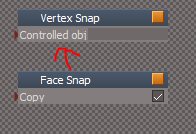
Is there a way to make the Face Snap button disabled like the Vertex Snap button is as shown on the far right?
Capture.PNG
Capture.PNG (4.97 KiB) Viewed 3681 times
I tried setting the TagAlias like you did the Vertex Snap button, but that did not work.
I think your are missing the Controlled objects?
Capture2.PNG
Capture2.PNG (3.84 KiB) Viewed 3676 times
Edit: Tried that too, but that did not work. Oh well :roll:

As is you get the Alert if two objects are not selected when you select it with the LMB and or RMB.
User avatar
clintonman
Captain
Posts: 5659
Joined: 21 May 2009, 21:08
Type the number ten into the box: 0
Location: California

Re: Final trueSpace 7.61 Beta 8 Unofficial Update

Post by clintonman »

trueBlue wrote: 18 Aug 2019, 14:52 ...

As is you get the Alert if two objects are not selected when you select it with the LMB and or RMB.
I couldn't find any way to do the button thing.
Face snapping only works when 2 objects are selected.
Clinton Reese

http://clintons3d.com
User avatar
trueBlue
Captain
Posts: 5548
Joined: 06 Jul 2009, 22:50
Type the number ten into the box: 10

Re: Final trueSpace 7.61 Beta 8 Unofficial Update

Post by trueBlue »

clintonman wrote: 18 Aug 2019, 16:28
trueBlue wrote: 18 Aug 2019, 14:52 ...

As is you get the Alert if two objects are not selected when you select it with the LMB and or RMB.
I couldn't find any way to do the button thing.
Face snapping only works when 2 objects are selected.
I think I know why now. It is not a Widget.
User avatar
trueBlue
Captain
Posts: 5548
Joined: 06 Jul 2009, 22:50
Type the number ten into the box: 10

Re: Final trueSpace 7.61 Beta 8 Unofficial Update

Post by trueBlue »

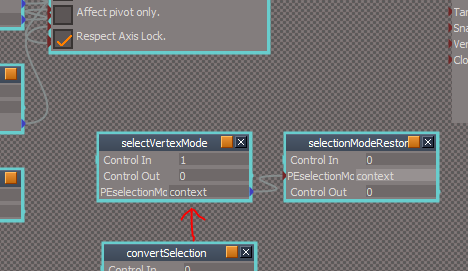
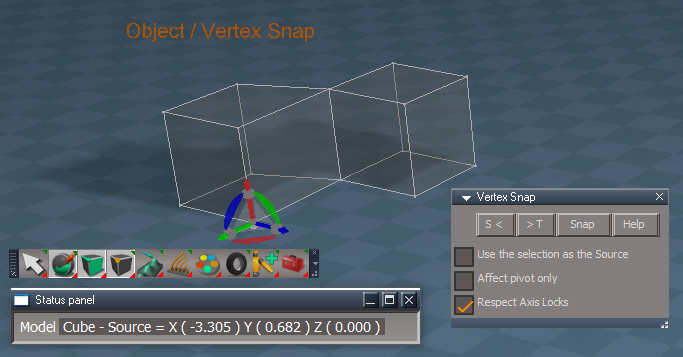
clintonman wrote: 17 Aug 2019, 18:29 Vertex Snap Bug Fixes:

error in getPoint2 script in the case where 2 items are not selected first. was locking out all other use cases including object mode snapping
added 3 missing nodes from original script for automatically converting the selection to points which removes limitation of only allowing vertex selections
added second page of help to account for object snapping
changed widget title "Vertex Snap" to "Object/Vertex Snap"
widget "S<" was not bold like ">T"
I would suggest you change PEselectionMode = face to PEselectionMode = context
Attachments
Capture.PNG
User avatar
clintonman
Captain
Posts: 5659
Joined: 21 May 2009, 21:08
Type the number ten into the box: 0
Location: California

Re: Final trueSpace 7.61 Beta 8 Unofficial Update

Post by clintonman »

trueBlue wrote: 20 Aug 2019, 17:01
clintonman wrote: 17 Aug 2019, 18:29 Vertex Snap Bug Fixes:

error in getPoint2 script in the case where 2 items are not selected first. was locking out all other use cases including object mode snapping
added 3 missing nodes from original script for automatically converting the selection to points which removes limitation of only allowing vertex selections
added second page of help to account for object snapping
changed widget title "Vertex Snap" to "Object/Vertex Snap"
widget "S<" was not bold like ">T"
I would suggest you change PEselectionMode = face to PEselectionMode = context
It's not setting the mode, it's reading the current mode to be restored later.
Clinton Reese

http://clintons3d.com
User avatar
clintonman
Captain
Posts: 5659
Joined: 21 May 2009, 21:08
Type the number ten into the box: 0
Location: California

Re: Final trueSpace 7.61 Beta 8 Unofficial Update

Post by clintonman »

Protect Workspace final version (I think)

I finally got a good test using the D3D render script with the ProtectWorkspace script

Only change for the ProtectWorkspace was to move the restore button code into a script and to fix a bug by setting the restore ReturnTo to be blank when the button is pressed.
Attachments
ProtectWorkspace.RsObj
(122.8 KiB) Downloaded 176 times
Clinton Reese

http://clintons3d.com
User avatar
trueBlue
Captain
Posts: 5548
Joined: 06 Jul 2009, 22:50
Type the number ten into the box: 10

Re: Final trueSpace 7.61 Beta 8 Unofficial Update

Post by trueBlue »

clintonman wrote: 20 Aug 2019, 17:16
trueBlue wrote: 20 Aug 2019, 17:01
clintonman wrote: 17 Aug 2019, 18:29 Vertex Snap Bug Fixes:

error in getPoint2 script in the case where 2 items are not selected first. was locking out all other use cases including object mode snapping
added 3 missing nodes from original script for automatically converting the selection to points which removes limitation of only allowing vertex selections
added second page of help to account for object snapping
changed widget title "Vertex Snap" to "Object/Vertex Snap"
widget "S<" was not bold like ">T"
I would suggest you change PEselectionMode = face to PEselectionMode = context
It's not setting the mode, it's reading the current mode to be restored later.
I know. For me anyway it works better if you set it to context, before you save the widget.
The NAVbar, in it's original state, the default is context.
When I use it the way you have it, it changes it to face.
So then your in face mode. I have to change it to either point or edge. If it was context, you have the capability to select either or. Even though you can use it in face mode, it breaks the work flow if you are moving points.
If you are not understanding me, I can only suggest that you change it to context, save the widget, and try it both ways.
User avatar
clintonman
Captain
Posts: 5659
Joined: 21 May 2009, 21:08
Type the number ten into the box: 0
Location: California

Re: Final trueSpace 7.61 Beta 8 Unofficial Update

Post by clintonman »

trueBlue wrote: 20 Aug 2019, 18:35
clintonman wrote: 20 Aug 2019, 17:16
trueBlue wrote: 20 Aug 2019, 17:01
I would suggest you change PEselectionMode = face to PEselectionMode = context
It's not setting the mode, it's reading the current mode to be restored later.
...
When I use it the way you have it, it changes it to face.
...
It's not supposed to do that, so it must be a bug. I'll check it out.

Edit: When I start in context it stays in context. I'll need complete steps to see what you're seeing and expect to see.
Clinton Reese

http://clintons3d.com
User avatar
trueBlue
Captain
Posts: 5548
Joined: 06 Jul 2009, 22:50
Type the number ten into the box: 10

Re: Final trueSpace 7.61 Beta 8 Unofficial Update

Post by trueBlue »

clintonman wrote: 20 Aug 2019, 19:12
trueBlue wrote: 20 Aug 2019, 18:35
clintonman wrote: 20 Aug 2019, 17:16
It's not setting the mode, it's reading the current mode to be restored later.
...
When I use it the way you have it, it changes it to face.
...
It's not supposed to do that, so it must be a bug. I'll check it out.

Edit: When I start in context it stays in context. I'll need complete steps to see what you're seeing and expect to see.
Took me awhile to figure out how I am getting in this situation.
I was exiting PE mode while still using Vertex Snap.
In this instance I was in point mode.
That is what was stumping me as I lost my ability to select in context mode.
As soon as I exit Vertex Snap it does resort back to context.
So all is well.
User avatar
clintonman
Captain
Posts: 5659
Joined: 21 May 2009, 21:08
Type the number ten into the box: 0
Location: California

Re: Final trueSpace 7.61 Beta 8 Unofficial Update

Post by clintonman »

Good. I hope to finish the Yafaray changes soon. I just have to take the D3D Render workspace protection and adapt it the the YafaRay animation loop.
Clinton Reese

http://clintons3d.com
User avatar
trueBlue
Captain
Posts: 5548
Joined: 06 Jul 2009, 22:50
Type the number ten into the box: 10

Re: Final trueSpace 7.61 Beta 8 Unofficial Update

Post by trueBlue »

Sounds Good!
As a test I added Activity.Run(System.ThisOwner() + "/selectionModeRestore")
to the bottom of the Snap script. That seems to work. Not sure of any consequences though.
User avatar
clintonman
Captain
Posts: 5659
Joined: 21 May 2009, 21:08
Type the number ten into the box: 0
Location: California

Re: Final trueSpace 7.61 Beta 8 Unofficial Update

Post by clintonman »

Getting some mixed signals.
Post ended with "...All is well".
Next post "...added Activity.Run ...That seems to work..."
Clinton Reese

http://clintons3d.com
User avatar
trueBlue
Captain
Posts: 5548
Joined: 06 Jul 2009, 22:50
Type the number ten into the box: 10

Re: Final trueSpace 7.61 Beta 8 Unofficial Update

Post by trueBlue »

This is just a test ( :idea: )...
You can return to your normally planned programing. :mrgreen:
User avatar
clintonman
Captain
Posts: 5659
Joined: 21 May 2009, 21:08
Type the number ten into the box: 0
Location: California

Re: Final trueSpace 7.61 Beta 8 Unofficial Update

Post by clintonman »

Roger that.
Clinton Reese

http://clintons3d.com
User avatar
clintonman
Captain
Posts: 5659
Joined: 21 May 2009, 21:08
Type the number ten into the box: 0
Location: California

Re: Final trueSpace 7.61 Beta 8 Unofficial Update

Post by clintonman »

Just finished all the YafaRay changes I had planed. It is working with modelspace and protects workspace. Basically, I don't have any more tS changes in the works. :D
Clinton Reese

http://clintons3d.com
User avatar
trueBlue
Captain
Posts: 5548
Joined: 06 Jul 2009, 22:50
Type the number ten into the box: 10

Re: Final trueSpace 7.61 Beta 8 Unofficial Update

Post by trueBlue »

Sounds good, I have updated a few things and the last thing to do is include your YafaRa4tSv9.5
Changes since last update:

Background/Look at Selection
Changed the commands for all of the Look at Selection to :

Code: Select all

RsTool.LookAtSelection('%WIN_ID%');RsTool.LookAtSelection('{2C152F81-45A2-4035-8896-9E49D60C8A7A}')
This was neccessary for the new WinGUID_Bar with the addition of some Zoom to Selection buttons.

WinGUID_Bar
Added tS7.61 original commands to all of the WinID commands, so that they work with a selected view too. Same as above.
Added a Zoom to Selection button with a RMB Zoom to next Object, and a Zoom to next Object button with a RMB Zoom to All.

Cameras
Fixed the YafaRay Camera and all of the YafaRay Libraries that included the camera.
User avatar
trueBlue
Captain
Posts: 5548
Joined: 06 Jul 2009, 22:50
Type the number ten into the box: 10

Re: Final trueSpace 7.61 Beta 8 Unofficial Update

Post by trueBlue »

New trueSpace 7.61 Beta 8 Unofficial Update 5 'Beta'
Version 5 - 9/3/2019
Removed due to update
User avatar
clintonman
Captain
Posts: 5659
Joined: 21 May 2009, 21:08
Type the number ten into the box: 0
Location: California

Re: Final trueSpace 7.61 Beta 8 Unofficial Update

Post by clintonman »

Installed, no problems found.
Clinton Reese

http://clintons3d.com
User avatar
trueBlue
Captain
Posts: 5548
Joined: 06 Jul 2009, 22:50
Type the number ten into the box: 10

Re: Final trueSpace 7.61 Beta 8 Unofficial Update

Post by trueBlue »

Desktop panel - Widgets
Camera check box is linked to the Object Navigation check box.
Fix in the next update.

Unless I am missing something setting an Axis with the Axis widget is not very precise.
Discovered that if you select the Object's Pivot node, you can then set it precisely using the Info Panel.
Any ideas on a user friendly solution to this?
Fix the Axis widget to move in an exact amount and or a Preference panel with settings to set the Pivot?
User avatar
clintonman
Captain
Posts: 5659
Joined: 21 May 2009, 21:08
Type the number ten into the box: 0
Location: California

Re: Final trueSpace 7.61 Beta 8 Unofficial Update

Post by clintonman »

trueBlue wrote: 03 Sep 2019, 01:03 Desktop panel - Widgets
Camera check box is linked to the Object Navigation check box.
Fix in the next update.

Unless I am missing something setting an Axis with the Axis widget is not very precise.
Discovered that if you select the Object's Pivot node, you can then set it precisely using the Info Panel.
Any ideas on a user friendly solution to this?
Fix the Axis widget to move in an exact amount and or a Preference panel with settings to set the Pivot?
I see, looks like the positions of the checkboxes got switched.
Truespace pivot is a weird thing, I don't have any ideas to make that better. That's also the reason for the vertex snap, affect pivot only option.
Clinton Reese

http://clintons3d.com
User avatar
trueBlue
Captain
Posts: 5548
Joined: 06 Jul 2009, 22:50
Type the number ten into the box: 10

Re: Final trueSpace 7.61 Beta 8 Unofficial Update

Post by trueBlue »

clintonman wrote: 03 Sep 2019, 02:51 Truespace pivot is a weird thing, I don't have any ideas to make that better. That's also the reason for the vertex snap, affect pivot only option.
Took me awhile to figure out how to use your Vertex Snap with the Pivot only option.
You have to select the Source and Target before you Snap it. Duh!
BTW... 'Use the selection as the Source' is not working with the shortcuts and 'Affect pivot only'.

This should be a separate tool.
Using your Vertex Snap script renamed to say Axis Pivot Snap
Have 'Affect Pivot Only' enabled and hide ALL the other Attributes
The selected element would be the Target and Source.
Snap, snaps the pivot and shows the Axis widget.
IE: Two LMB clicks.
Even better with no Text Widget and one Keyboard shortcut key, snaps the pivot to the selected element and shows the Axis widget.
Only downside to this method is the Flattening of the mesh. IE: Primitive objects.

BTW... I like using your Vertex Snap with the Keyboard keys much better than the Text Widget. :D
User avatar
clintonman
Captain
Posts: 5659
Joined: 21 May 2009, 21:08
Type the number ten into the box: 0
Location: California

Re: Final trueSpace 7.61 Beta 8 Unofficial Update

Post by clintonman »

trueBlue wrote: 03 Sep 2019, 06:00 ...

BTW... I like using your Vertex Snap with the Keyboard keys much better than the Text Widget. :D
Well, you should pat yourself on the back then and thank stan for fixing the shortcuts. I get the impression you think I created the widgets when it was you how turned my original script into a widget and added the shortcut keys.
Clinton Reese

http://clintons3d.com
User avatar
trueBlue
Captain
Posts: 5548
Joined: 06 Jul 2009, 22:50
Type the number ten into the box: 10

Re: Final trueSpace 7.61 Beta 8 Unofficial Update

Post by trueBlue »

clintonman wrote: 03 Sep 2019, 14:44
trueBlue wrote: 03 Sep 2019, 06:00 ...

BTW... I like using your Vertex Snap with the Keyboard keys much better than the Text Widget. :D
Well, you should pat yourself on the back then and thank stan for fixing the shortcuts. I get the impression you think I created the widgets when it was you how turned my original script into a widget and added the shortcut keys.
LOL...I knew that was coming! :oops: It was fun though using primitive text as a widget / 3D Status messaging thingy. :)
I do not think I changed the original Key changing UI though. Shortcuts? How does your original script work by setting Source, Target, and Snap?
Since my modifications were commented out, let's remove the Text widget, by all means.
User avatar
trueBlue
Captain
Posts: 5548
Joined: 06 Jul 2009, 22:50
Type the number ten into the box: 10

Re: Final trueSpace 7.61 Beta 8 Unofficial Update

Post by trueBlue »

I found another issue with Model and Workspace Lights.
I have only tested the Infinite light so far but I bet this happens to the other lights besides the Spot light (because it is a widget?).
If you select an Infinite light and RMB click in 3D Space, you are allowed to PE the light shape.

So what do you think about changing the Flatten History command?

Code: Select all

//		Flatten history button
if(!Node.IsCamera(Node.FirstSelected()) && !Node.IsLight(Node.FirstSelected()))
MeshModifiers.FlattenNodes('')
Also there is the Reset Axis command but I am not sure if this needs to change.

Code: Select all

//		Reset Axis button
if(!Node.IsCamera(Node.FirstSelected()) && !Node.IsLight(Node.FirstSelected()))
MeshModifiers.FlattenAxes('');
Have not been able to turn the above scripts into a button command yet.

Code: Select all

if(!Node.IsCamera(Node.FirstSelected()) && !Node.IsLight(Node.FirstSelected());MeshModifiers.FlattenNodes('');
This creates an error!
User avatar
clintonman
Captain
Posts: 5659
Joined: 21 May 2009, 21:08
Type the number ten into the box: 0
Location: California

Re: Final trueSpace 7.61 Beta 8 Unofficial Update

Post by clintonman »

trueBlue wrote: 03 Sep 2019, 16:17
clintonman wrote: 03 Sep 2019, 14:44
trueBlue wrote: 03 Sep 2019, 06:00 ...

BTW... I like using your Vertex Snap with the Keyboard keys much better than the Text Widget. :D
Well, you should pat yourself on the back then and thank stan for fixing the shortcuts. I get the impression you think I created the widgets when it was you how turned my original script into a widget and added the shortcut keys.
LOL...I knew that was coming! :oops: It was fun though using primitive text as a widget / 3D Status messaging thingy. :)
I do not think I changed the original Key changing UI though. Shortcuts? How does your original script work by setting Source, Target, and Snap?
Since my modifications were commented out, let's remove the Text widget, by all means.
Image
Like I said, no widget.
If you're going to remove the visible widget then we need to bring the old panel back so I don't have to memorize a bunch of shortcut keys.
Clinton Reese

http://clintons3d.com
User avatar
trueBlue
Captain
Posts: 5548
Joined: 06 Jul 2009, 22:50
Type the number ten into the box: 10

Re: Final trueSpace 7.61 Beta 8 Unofficial Update

Post by trueBlue »

clintonman wrote: 03 Sep 2019, 16:56
trueBlue wrote: 03 Sep 2019, 16:17
clintonman wrote: 03 Sep 2019, 14:44
Well, you should pat yourself on the back then and thank stan for fixing the shortcuts. I get the impression you think I created the widgets when it was you how turned my original script into a widget and added the shortcut keys.
LOL...I knew that was coming! :oops: It was fun though using primitive text as a widget / 3D Status messaging thingy. :)
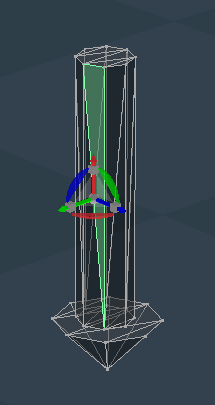
I do not think I changed the original Key changing UI though. Shortcuts? How does your original script work by setting Source, Target, and Snap?
Since my modifications were commented out, let's remove the Text widget, by all means.
Image
Like I said, no widget.
If you're going to remove the visible widget then we need to bring the old panel back so I don't have to memorize a bunch of shortcut keys.
Yes I just downloaded the original, no shortcuts either.
User avatar
clintonman
Captain
Posts: 5659
Joined: 21 May 2009, 21:08
Type the number ten into the box: 0
Location: California

Re: Final trueSpace 7.61 Beta 8 Unofficial Update

Post by clintonman »

trueBlue wrote: 03 Sep 2019, 16:36 I found another issue with Model and Workspace Lights.
I have only tested the Infinite light so far but I bet this happens to the other lights besides the Spot light (because it is a widget?).
If you select an Infinite light and RMB click in 3D Space, you are allowed to PE the light shape.

So what do you think about changing the Flatten History command?

Code: Select all

//		Flatten history button
if(!Node.IsCamera(Node.FirstSelected()) && !Node.IsLight(Node.FirstSelected()))
MeshModifiers.FlattenNodes('')
Also there is the Reset Axis command but I am not sure if this needs to change.

Code: Select all

//		Reset Axis button
if(!Node.IsCamera(Node.FirstSelected()) && !Node.IsLight(Node.FirstSelected()))
MeshModifiers.FlattenAxes('');
Have not been able to turn the above scripts into a button command yet.

Code: Select all

if(!Node.IsCamera(Node.FirstSelected()) && !Node.IsLight(Node.FirstSelected());MeshModifiers.FlattenNodes('');
This creates an error!
I don't see any real effect on the cameras and lights. What are you seeing to make you want to change it?
Clinton Reese

http://clintons3d.com
User avatar
trueBlue
Captain
Posts: 5548
Joined: 06 Jul 2009, 22:50
Type the number ten into the box: 10

Re: Final trueSpace 7.61 Beta 8 Unofficial Update

Post by trueBlue »

Would be nice if the lights were not allowed to be Point Edited.
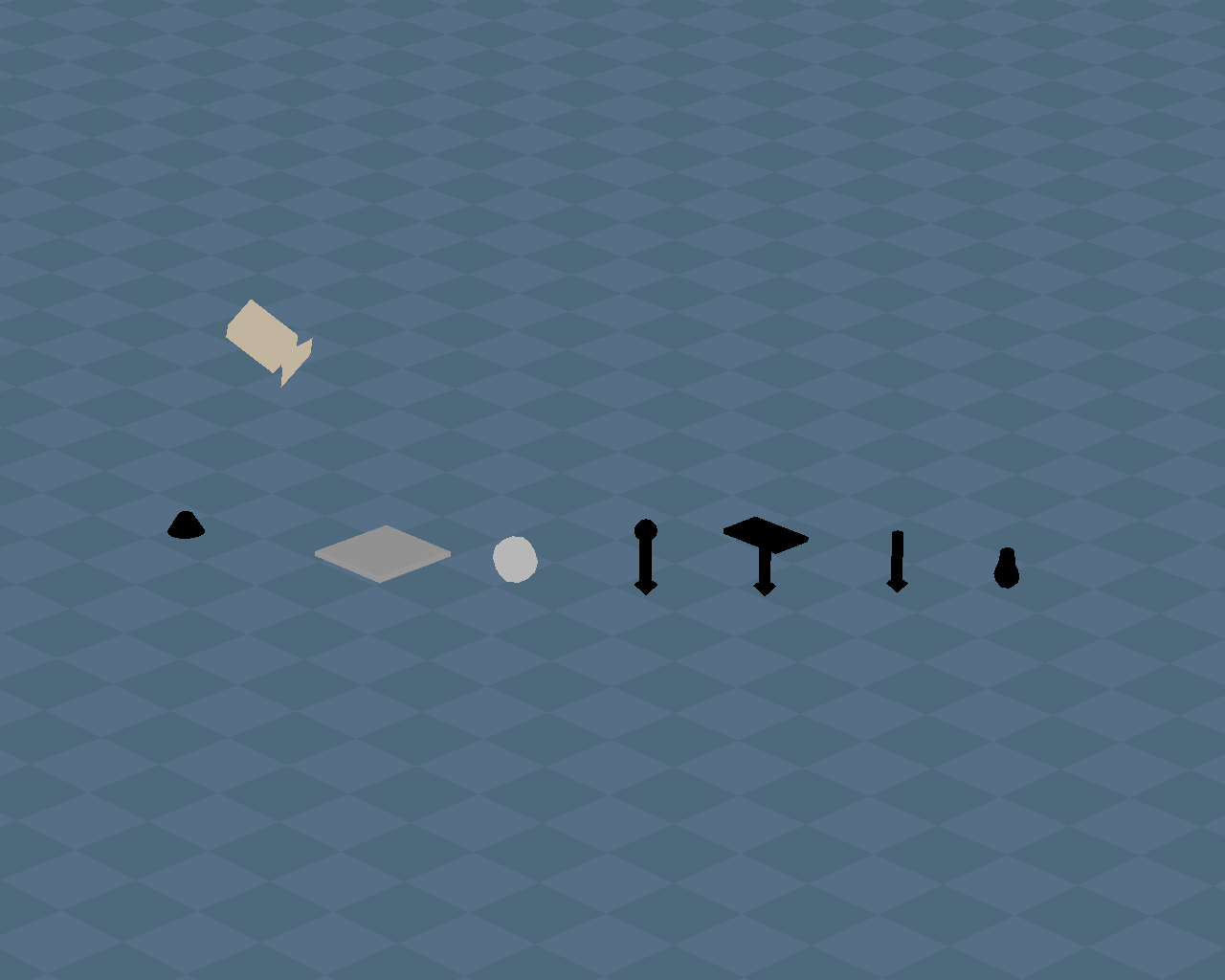
Capture.PNG
Capture.PNG (8.18 KiB) Viewed 3753 times
Would be best to create widgets for each light like the Camera And Spot lights.
The Camera and Spot lights do not allow Point Editing.
Changing the Flatten history button would be much easier.

Also think that it would be great to create a Hide All Lights and Cameras and a Show All Lights and Cameras toggle script.
Lights.png
User avatar
clintonman
Captain
Posts: 5659
Joined: 21 May 2009, 21:08
Type the number ten into the box: 0
Location: California

Re: Final trueSpace 7.61 Beta 8 Unofficial Update

Post by clintonman »

"Would be nice if the lights were not allowed to be Point Edited."
I had the opposite reaction, "You can point edit lights? Cool!"

The D3D Render script has light and camera hiding option, maybe that would help with your script.
http://clintons3d.com/plugins/truespace ... ender.html

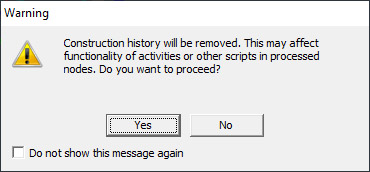
flattenLightWarning.jpg
flattenLightWarning.jpg (46.5 KiB) Viewed 3750 times
This shows caligari was aware of the potential for flatten history being used on a light, but they still gave you the option.

From what I can tell a user should be able to use axis and reset axis on lights and cameras. So don't disable any axis tools for cameras and lights.
Clinton Reese

http://clintons3d.com
User avatar
trueBlue
Captain
Posts: 5548
Joined: 06 Jul 2009, 22:50
Type the number ten into the box: 10

Re: Final trueSpace 7.61 Beta 8 Unofficial Update

Post by trueBlue »

Okay I concede. 8-)
To lazy to create another Hide Lights & Camera script given that I would have to update all of the toolbars. AGAIN
Already have Hide selected objects script included so that should do it.

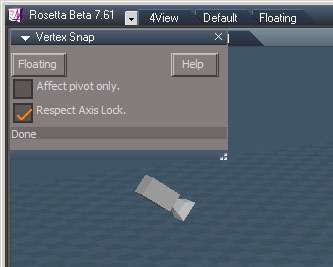
I restored your Object Vertex Snap scripts back to they way they were. Well sorta of. ;)
Added Source and Target object name to the Status Line.
Removed the Source, Target, and Snap text from the widget.
Updated the preferences information.
Added a command to open the preferences panel to the LMB command.
Note: The shortcut key 'ESC' does not close the widget when in PE mode.
You can exit the widget by right clicking the Object / Vertex Snap text.
Capture.PNG
User avatar
clintonman
Captain
Posts: 5659
Joined: 21 May 2009, 21:08
Type the number ten into the box: 0
Location: California

Re: Final trueSpace 7.61 Beta 8 Unofficial Update

Post by clintonman »

As long as it works and I don't have to memorize a bunch of shortcut keys, I'm happy.
Clinton Reese

http://clintons3d.com
User avatar
trueBlue
Captain
Posts: 5548
Joined: 06 Jul 2009, 22:50
Type the number ten into the box: 10

Re: Final trueSpace 7.61 Beta 8 Unofficial Update

Post by trueBlue »

trueSpace 7.61 Beta 8 Unofficial Update


Removed due to update
User avatar
trueBlue
Captain
Posts: 5548
Joined: 06 Jul 2009, 22:50
Type the number ten into the box: 10

Re: Final trueSpace 7.61 Beta 8 Unofficial Update

Post by trueBlue »

New Axis Widget that includes a modified Vertex Snap (Author- Clinton Reese) script, named Axis Snap that is used to Snap the Pivot to an Object's element in Point Editing mode. To use open the Axis tool and Left click the Axis widget.
Axis Snap.RsObj is in the CustomScriptsStore folder'
Also included a PanelFrame.RsObj in the preobjects folder.
To use and as an example used in the Axis Widget use similar code.

Code: Select all

WindowsManager.CloseWindow("/Project/Windows Manager Space/AxisPanelFrame")
RsFileIO.LoadObject(System.GetMainDir() + '\\scripts\\preobjects\\PanelFrame.RsObj', "/Project/Windows Manager Space");
Node.Rename("/Project/Windows Manager Space/PanelFrame", "AxisPanelFrame")
Node.Value("/Project/Windows Manager Space/AxisPanelFrame", "RootNode") = "Scripts/CustomCommands/Axis Snap"
Node.Value("/Project/Windows Manager Space/AxisPanelFrame/Panel Node", "PanelEditorNode") = "Scripts/CustomCommands/Axis Snap"
WindowsManager.Activate();
WindowsManager.UpdateWindowsStructure()
@Clinton
Should the Automatic Keyframing button on the AnimPref panel be showing the Key Interpolation panel?
User avatar
clintonman
Captain
Posts: 5659
Joined: 21 May 2009, 21:08
Type the number ten into the box: 0
Location: California

Re: Final trueSpace 7.61 Beta 8 Unofficial Update

Post by clintonman »

trueBlue wrote: 04 Sep 2019, 13:17 ...

@Clinton
Should the Automatic Keyframing button on the AnimPref panel be showing the Key Interpolation panel?
Maybe.
They can be used together, but neither one requires the other.
Clinton Reese

http://clintons3d.com
stan
Master Chief Petty Officer
Posts: 584
Joined: 21 May 2009, 17:20

Re: Final trueSpace 7.61 Beta 8 Unofficial Update

Post by stan »

Something I noticed the 'use the selection as source' checkbox on the vertex snap node doesn't do anything. Shouldn't it be removed?
User avatar
clintonman
Captain
Posts: 5659
Joined: 21 May 2009, 21:08
Type the number ten into the box: 0
Location: California

Re: Final trueSpace 7.61 Beta 8 Unofficial Update

Post by clintonman »

Vertex snap operation is worse for people who don't use shortcuts. Vertex snap needs to open as a floating panel since the widget controls were removed.
Clinton Reese

http://clintons3d.com
User avatar
clintonman
Captain
Posts: 5659
Joined: 21 May 2009, 21:08
Type the number ten into the box: 0
Location: California

Re: Final trueSpace 7.61 Beta 8 Unofficial Update

Post by clintonman »

stan wrote: 04 Sep 2019, 15:43 Something I noticed the 'use the selection as source' checkbox on the vertex snap node doesn't do anything. Shouldn't it be removed?
Use selection as source is for snapping multiple items to the same target.
1. set target item
2. enable use selection as source
3. select a source item and press snap
4. repeat step 3

Only difference without is step 3 would be select source item, press s>, press snap

It's not much, but it does do something. It's also handy for point edit operations.
Clinton Reese

http://clintons3d.com
stan
Master Chief Petty Officer
Posts: 584
Joined: 21 May 2009, 17:20

Re: Final trueSpace 7.61 Beta 8 Unofficial Update

Post by stan »

yes, then you can have a status line text box on the panel as there won't be one otherwise in the workspace only version.

If you look in the vertex snap node it's not in use. It just seems to run GetPoint1 again in Snap node if the affect axis is also checked.. I get the same result with or without it. It doesn't seem to do anything to the axis. It moves where I want it
User avatar
clintonman
Captain
Posts: 5659
Joined: 21 May 2009, 21:08
Type the number ten into the box: 0
Location: California

Re: Final trueSpace 7.61 Beta 8 Unofficial Update

Post by clintonman »

Are you saying the 4 steps I listed above are not working?

Are you talking about the vertex snap or the new axis snap?
Clinton Reese

http://clintons3d.com
User avatar
trueBlue
Captain
Posts: 5548
Joined: 06 Jul 2009, 22:50
Type the number ten into the box: 10

Re: Final trueSpace 7.61 Beta 8 Unofficial Update

Post by trueBlue »

clintonman wrote: 04 Sep 2019, 17:26 Vertex snap operation is worse for people who don't use shortcuts. Vertex snap needs to open as a floating panel since the widget controls were removed.
Updated the previous post with a floating Vertex Snap panel when you open it from the toolbar.
User avatar
trueBlue
Captain
Posts: 5548
Joined: 06 Jul 2009, 22:50
Type the number ten into the box: 10

Re: Final trueSpace 7.61 Beta 8 Unofficial Update

Post by trueBlue »

stan wrote: 04 Sep 2019, 15:43 Something I noticed the 'use the selection as source' checkbox on the vertex snap node doesn't do anything. Shouldn't it be removed?
I did not understand how that worked either until Clinton posted the steps.
It does work as said from the Panel and shortcuts.
Here is the updated components with a floating panel:
You will have to add the PanelFrame.RsObj into your preobjects folder.

Removed due to update
User avatar
clintonman
Captain
Posts: 5659
Joined: 21 May 2009, 21:08
Type the number ten into the box: 0
Location: California

Re: Final trueSpace 7.61 Beta 8 Unofficial Update

Post by clintonman »

Ok, now I'm happy.

I think I finally see what stan was talking about. If both Use selection as source and affect pivot only are selected then it doesn't work. It took a while to figure it out because no complete steps were provided.

I'll see what I can do with it. Could be that combination just isn't workable.

Edit:

I changed the Snap node to this and it seems to work. It was specifically coded to not get the source automatically when both options are enabled. Don't remember why it was done that way. Will need to test and see if there was a valid reason for it.

Code: Select all

//if(Node.Value(System.ThisOwner() + "/Vertex Snap","affectselected") && !Node.Value(System.ThisOwner() + "/Vertex Snap","affectpivotonly"))
if(Node.Value(System.ThisOwner() + "/Vertex Snap","affectselected"))
stan wrote: 04 Sep 2019, 17:47 ...
If you look in the vertex snap node it's not in use. It just seems to run GetPoint1 again in Snap node if the affect axis is also checked.. ...
The problem is the exact opposite, it's doing everything except for running GetPoint1.
Clinton Reese

http://clintons3d.com
User avatar
trueBlue
Captain
Posts: 5548
Joined: 06 Jul 2009, 22:50
Type the number ten into the box: 10

Re: Final trueSpace 7.61 Beta 8 Unofficial Update

Post by trueBlue »

clintonman wrote: 04 Sep 2019, 22:04 Ok, now I'm happy.

I think I finally see what stan was talking about. If both Use selection as source and affect pivot only are selected then it doesn't work. It took a while to figure it out because no complete steps were provided.

I'll see what I can do with it. Could be that combination just isn't workable.

Edit:

I changed the Snap node to this and it seems to work. It was specifically coded to not get the source automatically when both options are enabled. Don't remember why it was done that way. Will need to test and see if there was a valid reason for it.

Code: Select all

//if(Node.Value(System.ThisOwner() + "/Vertex Snap","affectselected") && !Node.Value(System.ThisOwner() + "/Vertex Snap","affectpivotonly"))
if(Node.Value(System.ThisOwner() + "/Vertex Snap","affectselected"))
stan wrote: 04 Sep 2019, 17:47 ...
If you look in the vertex snap node it's not in use. It just seems to run GetPoint1 again in Snap node if the affect axis is also checked.. ...
The problem is the exact opposite, it's doing everything except for running GetPoint1.
I followed your steps and it worked from the panel and shortcuts.
Just upload the changed components and I will include them.
User avatar
clintonman
Captain
Posts: 5659
Joined: 21 May 2009, 21:08
Type the number ten into the box: 0
Location: California

Re: Final trueSpace 7.61 Beta 8 Unofficial Update

Post by clintonman »

Geez, mind reader. I was just getting ready to upload the modified Snapping.
I can't think of any reason for the restriction on the pivot only, so here's the fix.
Attachments
Snapping.RsObj
(116.16 KiB) Downloaded 194 times
Clinton Reese

http://clintons3d.com
stan
Master Chief Petty Officer
Posts: 584
Joined: 21 May 2009, 17:20

Re: Final trueSpace 7.61 Beta 8 Unofficial Update

Post by stan »

Ok I get why you have it.. I didn't read the help .

I have setup my own personal widget interface I'm trying with a source widget which closes after selection and the target widget opens..select then press / and it snaps.I want to try to make work like model side, so I lost that double select possibility. Just the hotkeys and widget key for the close part.. That way I don't need a dummy widget to close it from hot key

I've yet to try getting a widget which over rides the select widgets with a click to get source. . I don't want to change your script work running it just playing around with the delivery.

It work fine on two points on the same object, axis only, two objects or points on two..just can't do target first then source ..

I'll try TB's new version in the workspace only ..
User avatar
trueBlue
Captain
Posts: 5548
Joined: 06 Jul 2009, 22:50
Type the number ten into the box: 10

Re: Final trueSpace 7.61 Beta 8 Unofficial Update

Post by trueBlue »

clintonman wrote: 04 Sep 2019, 22:28 Geez, mind reader. I was just getting ready to upload the modified Snapping.
I can't think of any reason for the restriction on the pivot only, so here's the fix.
Still do not understand this line:

Code: Select all

	//change to vertex mode
	Node.Value('/Preferences/Mesh Editor Settings','PE selection mode') = 'vertex'; 
In your Help you say "Points can be Edges and Faces.
Just so I understand, why can't this be Context mode in with which you can select any of the above elements?
User avatar
clintonman
Captain
Posts: 5659
Joined: 21 May 2009, 21:08
Type the number ten into the box: 0
Location: California

Re: Final trueSpace 7.61 Beta 8 Unofficial Update

Post by clintonman »

trueBlue wrote: 05 Sep 2019, 05:06
clintonman wrote: 04 Sep 2019, 22:28 Geez, mind reader. I was just getting ready to upload the modified Snapping.
I can't think of any reason for the restriction on the pivot only, so here's the fix.
Still do not understand this line:

Code: Select all

	//change to vertex mode
	Node.Value('/Preferences/Mesh Editor Settings','PE selection mode') = 'vertex'; 
In your Help you say "Points can be Edges and Faces.
Just so I understand, why can't this be Context mode in with which you can select any of the above elements?
Because the code reads vertex positions. It can't internally convert the edges or faces to vertices. You can change the help to read "Points can be Edges, Faces or Context" if it's giving the impression you can't use context selections.
Clinton Reese

http://clintons3d.com
User avatar
trueBlue
Captain
Posts: 5548
Joined: 06 Jul 2009, 22:50
Type the number ten into the box: 10

Re: Final trueSpace 7.61 Beta 8 Unofficial Update

Post by trueBlue »

Okay thanks for the explanation.
User avatar
trueBlue
Captain
Posts: 5548
Joined: 06 Jul 2009, 22:50
Type the number ten into the box: 10

Re: Final trueSpace 7.61 Beta 8 Unofficial Update

Post by trueBlue »

trueSpace 7.61 Beta 8 Unofficial Update


Removed due to update
stan
Master Chief Petty Officer
Posts: 584
Joined: 21 May 2009, 17:20

Re: Final trueSpace 7.61 Beta 8 Unofficial Update

Post by stan »

I got a personal version working with middle mouse clicks to select values and mouse wheel to snap..A three click wonder..I had to up the priority value on my background widget controllers. I prefer that to hotkeys. I do lose the bone snap and the dual selection snap, everything else works fine.
The update snap widget wouldn't be able to use what I did because it relies on changing widgets to keep the same middle mouse click. That breaks the ability to select target first for some functions..I can try and create a target first version and see if everything else still works.
stan
Master Chief Petty Officer
Posts: 584
Joined: 21 May 2009, 17:20

Re: Final trueSpace 7.61 Beta 8 Unofficial Update

Post by stan »

with a version made to get the target first all functions seem to work. I noticed I still had the old 'snap' node but it still works with axis. It doesn't care if 'affectselected' is on and so is 'affectpivotonly'. Because you can keep selecting objects and send them to target. works like that for points too, or moving multiple object axis to one target . I must point out even if you have two items selected it does only one, not the second in the selection. Select a source value, snap and repeat. Interesting..
User avatar
trueBlue
Captain
Posts: 5548
Joined: 06 Jul 2009, 22:50
Type the number ten into the box: 10

Re: Final trueSpace 7.61 Beta 8 Unofficial Update

Post by trueBlue »

Sounds like you got it dialed! :worship:
User avatar
trueBlue
Captain
Posts: 5548
Joined: 06 Jul 2009, 22:50
Type the number ten into the box: 10

Re: Final trueSpace 7.61 Beta 8 Unofficial Update

Post by trueBlue »

I have made some final modifications that I will upload later.

WinGUID toolbar the one at the top in the title bar.
Moved "Zoom to selection / Zoom to next selection" icon to the top.

The Projector light had a Frame keyframe, so I removed that.

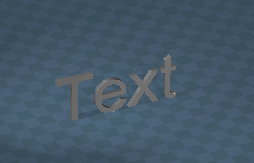
Changed the Text tool to Flat and Standing
stan
Master Chief Petty Officer
Posts: 584
Joined: 21 May 2009, 17:20

Re: Final trueSpace 7.61 Beta 8 Unofficial Update

Post by stan »

Give it a go.. To close the widget at the moment use 'shift RB'

once you've left clicked to select your target object, point, face, middle button click. to get value . widget changes to source mode..same method to select and get value, one or two spin clicks of mouse wheel snaps ..rinse and repeat.

The 'affectselected' is always on so not on options aspect.

The panel in Rosetta with info line
panel1.jpg
panel1.jpg (15.43 KiB) Viewed 3990 times
Attachments
ClintonMultiSnapInstaller.RsObj
(193.65 KiB) Downloaded 237 times
User avatar
trueBlue
Captain
Posts: 5548
Joined: 06 Jul 2009, 22:50
Type the number ten into the box: 10

Re: Final trueSpace 7.61 Beta 8 Unofficial Update

Post by trueBlue »

I will but right now I am testing the final updates.
User avatar
clintonman
Captain
Posts: 5659
Joined: 21 May 2009, 21:08
Type the number ten into the box: 0
Location: California

Re: Final trueSpace 7.61 Beta 8 Unofficial Update

Post by clintonman »

trueBlue wrote: 05 Sep 2019, 19:34 I have made some final modifications that I will upload later.
...

Changed the Text tool to Flat and Standing
Are you still adding things? I thought you were finished making changes.
What does "Changed the Text tool to Flat and Standing" mean?
Clinton Reese

http://clintons3d.com
User avatar
clintonman
Captain
Posts: 5659
Joined: 21 May 2009, 21:08
Type the number ten into the box: 0
Location: California

Re: Final trueSpace 7.61 Beta 8 Unofficial Update

Post by clintonman »

stan wrote: 05 Sep 2019, 20:36 Give it a go.. To close the widget at the moment use 'shift RB'

once you've left clicked to select your target object, point, face, middle button click. to get value . widget changes to source mode..same method to select and get value, one or two spin clicks of mouse wheel snaps ..rinse and repeat.

The 'affectselected' is always on so not on options aspect.

The panel in Rosetta with info line
panel1.jpg
Using the middle mouse button and wheel is pretty awkward. There's a long delay or something between wheel rolling and snapping. I have to go back and forth more than once to see anything. You may want to change the close widget to be the same as whatever the key or button combination is used for when you use the move, scale and rotate tools and want to stop, to make it more consistent with other stuff. I can't tell you what it is because I never use those tools in part because I can never remember how to get out of them.

Hey, trueblue, think I'll add that as a request, status showing the active tool and how to get out of it. For the move and camera tools.
Clinton Reese

http://clintons3d.com
User avatar
trueBlue
Captain
Posts: 5548
Joined: 06 Jul 2009, 22:50
Type the number ten into the box: 10

Re: Final trueSpace 7.61 Beta 8 Unofficial Update

Post by trueBlue »

clintonman wrote: 05 Sep 2019, 23:56
trueBlue wrote: 05 Sep 2019, 19:34 I have made some final modifications that I will upload later.
...

Changed the Text tool to Flat and Standing
Are you still adding things? I thought you were finished making changes.
What does "Changed the Text tool to Flat and Standing" mean?
Capture.PNG
Capture.PNG (23.69 KiB) Viewed 3959 times
User avatar
trueBlue
Captain
Posts: 5548
Joined: 06 Jul 2009, 22:50
Type the number ten into the box: 10

Re: Final trueSpace 7.61 Beta 8 Unofficial Update

Post by trueBlue »

Uploaded the changes

Object Move, Rotate, and Scale widgets
* Shift + LMB select in empty space deactivates each tool
* Status message

Camera Move, Rotate, FOV, and Rectangle Zoom widgets
* Shift + LMB select in empty space deactivates each tool
* Status message
* FOV - RMB select in empty space resets FOV
* Rectangle Zoom - RMB select in empty space resets FOV

BTW... the FOV, and Rectangle Zoom widgets were done several releases ago. :P
User avatar
clintonman
Captain
Posts: 5659
Joined: 21 May 2009, 21:08
Type the number ten into the box: 0
Location: California

Re: Final trueSpace 7.61 Beta 8 Unofficial Update

Post by clintonman »

trueBlue wrote: 06 Sep 2019, 03:34 ...
* Status message

...
Thanks for that. Getting trapped in the tool was a pia.
Clinton Reese

http://clintons3d.com
User avatar
clintonman
Captain
Posts: 5659
Joined: 21 May 2009, 21:08
Type the number ten into the box: 0
Location: California

Re: Final trueSpace 7.61 Beta 8 Unofficial Update

Post by clintonman »

Vertex snap help

Code: Select all

Current selection is the Target,                     eliminating the need to select it.                    -  Not a good option for Joints -
I would change the wording to

Code: Select all

Current selection will be the Target,                     eliminating the need to select it.                    -  Not a good option for Joints -
I'm not following step 1,2 - why would you select a source point if you're moving the axis. Is it that you're moving the axis relative to the source point and target?
Don't know what step 2 is, maybe more words?

Code: Select all

-  Affect pivot only
   Moves the Pivot instead of the mesh.
   1. Select Source point and click   'S<'
   2. Target is same as Source click '>T'
   3. Snap to move the pivot
Help button on first page of help maybe should say help page 2, Help2 or something
Clinton Reese

http://clintons3d.com
User avatar
trueBlue
Captain
Posts: 5548
Joined: 06 Jul 2009, 22:50
Type the number ten into the box: 10

Re: Final trueSpace 7.61 Beta 8 Unofficial Update

Post by trueBlue »

clintonman wrote: 06 Sep 2019, 04:05 Vertex snap help

Code: Select all

Current selection is the Target,                     eliminating the need to select it.                    -  Not a good option for Joints -
I would change the wording to

Code: Select all

Current selection will be the Target,                     eliminating the need to select it.                    -  Not a good option for Joints -
I'm not following step 1,2 - why would you select a source point if you're moving the axis. Is it that you're moving the axis relative to the source point and target?
Don't know what step 2 is, maybe more words?

Code: Select all

-  Affect pivot only
   Moves the Pivot instead of the mesh.
   1. Select Source point and click   'S<'
   2. Target is same as Source click '>T'
   3. Snap to move the pivot
Help button on first page of help maybe should say help page 2, Help2 or something
2. Target is same as Source click '>T'
Step 2 runs both getPoint commands.
Edit: Never mind that is the Axis Snap

The Help button on the first panel which defines the preferences opens the Help panel
The title bar names were changed too.

By all means make the changes and I will update them.
User avatar
clintonman
Captain
Posts: 5659
Joined: 21 May 2009, 21:08
Type the number ten into the box: 0
Location: California

Re: Final trueSpace 7.61 Beta 8 Unofficial Update

Post by clintonman »

trueBlue wrote: 06 Sep 2019, 04:11
2. Target is same as Source click '>T'
Step 2 runs both getPoint commands.
User won't know what "Step 2 runs both getPoint commands." means.
"2. Target is same as Source click '>T'" still makes no sense to me.

Tried to test axis snap and don't remember how to activate it - hot key?

Edit: found it, is shift LMB on axis widget. Needs status message for hidden hot key.
Clinton Reese

http://clintons3d.com

Return to “General Discussion”