trueSpace Beta 7.61 Standalone Unofficial Update
This trueSpace Beta 7.61 Standalone Unofficial Update is for the "Standalone Version" only.
Important: This Update should not be used with the "Full Version" of trueSpace7.61 with Workspace, Model, and the Bridge!
Revisions:
July 06, 2009
February 21, 2010
November 01, 2012
May 16, 2018
:: Layouts
4View, Default, Floating, and Expanded.
* These layouts have been fixed to prevent the Main toolbars from showing on the
Desktop when tS is Minimized by merging the bottom two Workspace toolbars together into one toolbar and docked with the Status panel.
* Removed the duplicated tSMainWnd nodes.
* Removed all of the RS...toolbar Frame Windows.
* Set the OwnedBy attribute for most of the toolbar's Frame Window which stops the toolbars from showing through newly opened Views.
* Included a UnofficialUpdateViewBar toolbar in the Default layout main window's titelbar.
New - Updated the Default layouts with new WinIDs for the UnofficialUpdateViewBar & LENavigatorBar. Removed the trueSpace6 layout.
New Layouts
4View, Default, Floating, Expanded, and Workspace
New - All Layouts include the new WorkspaceMain2, Main2, WinGUID_Bar, and LENavigatorBar toolbars.
New - WorkSpace layout with new expanded Horizontal toolbars.
Note: Both the Old and New layouts exist in the Library.
Presently the 'Layouts - Configurations' is being used which is the new layouts.
I discovered tS761 only works with one name, as in 'Layouts - Configurations'
To load the OLD layouts you have to rename them in the Library Browser.
1.) Rename 'Layouts - Configurations' to 'Layouts - ConfigurationsNEW'
2.) Rename 'Layouts - ConfigurationsOLD' to 'Layouts - Configurations'
3.) In Workspace, Select the Default layout tab.
Note: You can also tell the differences of the layouts by their icons in the Library Browser.
:: Widgets
Object Move, Rotate, and Scale widgets
New - Shift + LMB select in empty space deactivates each tool.
Camera Move, Rotate, FOV, and Rectangle Zoom widgets.
New - Shift + LMB select in empty space deactivates each tool.
Background widget
Additional controls:
* CTRL + MMB Double click Zooms to the current selected object or Point Edit selection.
New - Updated the Zoom to Selection version 1/14/2018 - Author Clinton Reese
Object Navigation Widget 1, 2, and 3
Additional controls:
Sphere
* LMB + Drag = Move selected object in X and Y
* MMB + Drag = Move widget
* RMB Select = Close Widget
* Ctrl + RMB select = Show Widget's advance settings
Bars, Triangles, Cubes, & Arcs
* Ctrl + LMB Select = Show their Mouse settings
* MMB select the Bars, Triangles, and Sphere activates the Object Move tool
* MMB select the Arcs activates the Object Rotate tool
* MMB select the Cubes activates the Object Scale tool
* Alt + LMB select the Bars activates the X, Y, and Z Axis locks. Toggles On/Off
* Shift + LMB select the widget switches the Object Navigation Widgets
* Ctrl + RMB select the widget switches to the Selector Cage Widget
Selector Cage widget
Additional controls:
* Ctrl + RMB select on widget switches to the Object Navigation Widget.
* Ctrl + LMB select on the widget activates the widget's Mouse Settings panel.
Point Edit widget 1, 2, and 3
* Added PE Pivot Snap. Use the P key + LMB select any part of the Widget and release to set the Pivot on selected element. Use RMB + Drag on rotation Arcs to rotate from set pivot. Author Clinton Reese
Additional controls:
Sphere
* LMB + Drag = Move selected object in X and Y
* MMB + Drag = Move widget
* Ctrl + RMB select = Show Point Edit preference panel
New - Reset Default PE selection settings button
Bars, Triangles, Cubes, & Arcs
* Ctrl + LMB Select = Show their Mouse settings
* MMB select the Bars, Triangles, and Sphere activates the Object Move tool
* MMB select the Arcs activates the Object Rotate tool
* MMB select the Cubes activates the Object Scale tool
* Alt + LMB select the Bars activates the X, Y, and Z Axis locks. Toggles On/Off
* Shift + LMB select the widget switches the Object Navigation Widgets
Camera Widget
The Camera's Shape was modified so that the mesh does not show when viewing from any camera in some instances.
Additional controls:
* Shift + LMB select on camera widget switches to Camera Widget 1 or 2.
Camera Widget2
New - Changed the coloring of the camera and the mouse commands list below:
FOV
* LMB = View from Camera
* LMB + Drag = Adjust Field of View
* Shift + LMB = Exit Camera View
Rotate
* LMB = Spin Left & Right
* LMB + Alt = Orbit 360 degrees
* LMB + Ctrl = Open Camera preferences
* LMB + Shift = Change to Camera1 'Original'
* RMB - Tilt Up & Down
* RMB + Alt = Tilt Left & Right
Move
* LMB = Move X & Y
* LMB + Alt = Forward & Reverse
* LMB + Ctrl = Open Camera preferences
* LMB + Shift = Change to Camera1 'Original'
* RMB = Move X & Z
Stand
* LMB = Move Left & Right
* LMB + Alt = Move X & Z
* LMB + Ctrl = Open Camera preferences
* LMB + Shift = Change to Camera1 'Original'
* RMB = Move Up & Down
View widget
Green Encircle
* Ctrl + LMB select Opens the Eye Camera panel.
New - Shift + LMB select Resets the View.
New - Shift + RMB select Opens the 3D View Widget.
Skeleton tool widget
* Added X-Ray brick.
Material Inspect
New - LMB + Drag - Opens the material in the Link Editor.
Left click your object and then LMB + Drag to open. Selecting Undo will take you back to the current scene.
:: Panels
* Changed the Character Editor Preferences/Skeleton tool - Joint Placement to Center.
* Resaved the Primitives panels and applied the Object Render Attributes to each primitive.
New - Camera and Entry Point camera, added a Reset Rotation button and a View On/Off.
New - Tube primitive. Does not have a widget.
* Resaved the Physics panels.
* Object Render Attributes - Added an attribute for the owner's path and name, and Exported the Default aspect.
* Snapping - Exported the 'Snap Radius' attribute on the Grid aspect.
* Soft Selection
New - Installed a gradient image.
* Brush Displacement
New - Installed a gradient image.
* Windows Settings panel
New - Fix it so it works.
Desktop
* Added customized Desktop panel exposing all aspects to the Default aspect.
New - Removed the Bridge settings.
New - Dialog View button. Added the Dialog settings panel to Preferences.
New - Added a Workspace title, and Rename scene name button.
* Scene panel - Changed the command for the "Show Object Attribs" to the new Show script.
* Postprocess panel - Added Edit Boxes.
Preferences
* UV Editor preferences
New - Lightened the color of the Background bitmap control.
* Animation Preferences - Added 3 buttons that Shrink the Play Range,
New - Bake Keyframes, and Automatic Keyframing. Author Clinton Reese
New - Mesh Editor Settings panel with Mirror button scripts. Author Clinton Reese
Material Editor
New - Material Editor with Library Browser Edition
Note: To enable the Library Browser, right click the Library Places or select the Update Library Places icon in the Material Editor.
In the Library Places -> Combo Control, select the Main Library Place.
In the next Combo Control, select which library you would like to open.
Note: At any time your libraries are not showing, select the Update Library Places icon again to update the Library Places.
To use the D3DMaterials, select the D3DMaterials in the Library Places -> Combo Control.
In the next Combo Control, select the Materials - DX9 and press your Enter key.
Vray Material Editor
New - Includes the Offline Render icons - Render Scene, Render Area, Render Object and Render Animation buttons, enabling them to resize the Vray render window using the Vray - Width and Height values, UV tools, and Update Library Browser.
D3D Material Editor
New - Includes the UV tools, Render to File, Edit material in Link Editor, Update Library Browser, and Convert D3D materials - Author Clinton Reese.
:: Lights
* All Lights have a new UI with all of their aspects showing in the Stack/Panel and include an Intensity attribute for their Solid Color. Default = 1 which equals no Intensity. Note: The Default light setup is the only library item that was modified with the new lights. Unfortunately all preexisting lights, scenes, libraries, and Light setups will have the original lights.
* Added a Cylinder primitive to the Spot and Projector lights and its radius is hooked up to the light's Angle attribute.
New - Modified the shapes for Directional, Sky, and Omni.
New - Projector - Added a Square spot light bitmap, camera, and a Sequence aspect enabling a user to load and animate a sequence of images.
New - Added Reset Rotations and a View On/Off to the Spot and Projector lights panels.
:: Workspace Shortcuts
Redefined and Added additional shortcuts, included a backup, and a Shortcut list.
* Workspace shortcuts XML.
New - Object Move and Rotate shortcuts. Details in the tS761 Workspace Shortcut List.rtf
* Window.Shortcuts.default
* tS761 Workspace Shortcut List.rtf
:: Toolbars
jScript Record toolbar
* Added a Stop all Activities icon
VBScript Record toolbar
* Added a Stop all Activities icon
3D Record toolbar
* Added RMB command to the 3D Record toolbar button which opens its preference panel in the Stack/Settings.
Workspace Main toolbar
* Unencapsulate 3D icon - Added a button to Unencapsulate selected objects.
* Copy icon - Changed the RMB command to include multiple selections and insert the copied objects to any opened Link Editor view at X = 600 and Y = 600 and offset each copied object horizontally by 60.
* Reset Default Context icon - Changed the LMB command to include a dialog giving you a choice to reset or not reset.
* Save current State - 'Default Context Backup' icon - Added.
* New Scene icon - Added RMB command to navigate to the scene level in the Link Editor.
* 3D Record toolbar icon - Modified its placement.
* jScript Macro toolbar icon - Modified its placement. RMB - Inserts a jScript Command.
* VBScript Macro toolbar icon - Modified its placement. RMB - Inserts a VBScript Comma
* Unlook At icon - Added button that removes the Look At.
New - Added a RMB command 'Unselect' to the Look At buttons
* Show icon - LMB Shows all the selected objects and RMB Shows the new Object Render Attributes panel for the selected object.
* Hide icon - LMB Hides all the selected objects and RMB Shows the new Object Render Attributes panel for the selected object.
* Show All icon - LMB Shows and RMB Hides any objects that have an Object Render Attributes panel.
New - All toolbars with the Hide/Show buttons have been changed to a different color format to look less like the Render icons.
Workspace Navigation toolbar
New - Select by Painting icon - RMB = Reset Default PE selection settings
* Set Default Pose icon - Added a dialog to cancel setting the Default Pose if one is already present.
* Added the missing Flatten Axis button which is used to store the pivot into mesh for procedural animations.
* Fixed the Weight Paint tool's wrong command.
* Fixed the Animation Editor toolbar's Reset function by adding a prototype.
* Changed the tooltip for the Axis - Normalize Orientation to Reset Axis
* Added MeshModifiers.ConvertSelection('','') command to the Shrink and Grow buttons. Author Clinton Reese
* Added the missing Transfer Skinning Weights button which is used to transfer the Skin Weights from one Character to another.
* Added an Unselect command to the Object tool.
* Added RMB command to the Axis tool button which toggles the Axis Widget to show In Front.
* Added Vertex Snap widget, Face Snap, and Fix Bad Geometry. Author Clinton Reese
* Added Custom Toolbar icon which includes the Camera View tools, Cube View Widget (Author Clinton Reese), Cut and Paste icons.
New - Custom Toolbars - Red, Gold, and Blue toolbars.
Red = Cut & Paste, trueSpace ToolBars, and Cube Widget icons - Author Clinton Reese
Blue = Camera tools, 3D View Widget, and Transform Objects icons.
Includes Custom Toolbars preferences panel to Open and Save toolbars
Gold = Clinton C3D toolbar - Author Clinton Reese
Includes:
Align and Distribute
Grid Array
Radial Array
Point Clone
Plane Loop
Static Sweep
Normal Move
Freeze Transforms
Parent - Unparent
CTRL Selection
Interpolation toolbar
Nurbs toolbar
Toolbar Manager toolbar
Workspace File Menu
* Added File - Save as RsRcd
* Added Help - United 2D Artist (Web Link), Updates (Web Link)
New - Save as RsScn
New - WinGUID_Bar toolbar
Uses the main 3D window's WinGUID in the commands for the Views, Ground, Scene render attributes, Reset view, and Look at Selection icons.
Which means the window does not have to have focus in order to work.
* Added to the main view's title bar in all layouts except for the 3 Ortho views in the 4View layout.
* Includes a Material Editor icon.
* Look at Selection - LMB = Look a selection / RMB = Look at next object
* Set Camera - LMB = Set Camera / RMB = Eye view
LENavigatorBar
New - Open button, top menu button that when clicked, keeps the buttons opened. RMB = Current Scene.
New - Scene button, LMB = Scene 2D / RMB = Scene 3D.
Buttons - Render
New - Updated all of the Offline render icons with their correct commands.
Additional Library items
New - My Recordings
Modified Underwater - Original Author - Matthew J. Collins (Délé)
trueSpace with a modified Earth object - Original Author Clinton Reese
Happy Fourth of July - Original Author -Johny Tho
Earth Wind and Fire - Original Author - Noko
New - Materials - DX9
Auto Scale Bump, Auto Scale Bump2 (modified version with stones), several Fog materials.
Author - Matthew J. Collins (Délé), and Ultimate Mapped Material.
Alphabetized the index.
New - Lights library - Fog Spot and Fog Omni lights. Author - Matthew J. Collins (Délé)
New - Bitmaps - Base
5 Gradients for use in Soft selection profiles. - Original Author Clinton Reese
New - Objects - Script objects / Camera Deluxe installer.RsObj - Author Gord Stanton
Updated the Camera Deluxe's weight to 3.00
Objects - tS7.61 Update objects library
This library includes several objects to further enhance trueSpace.
New - Updated and improved all objects with several newly added objects.
Misc
Script Commands
New - UnLookAt.xml Updated to include Lights - Author Clinton Reese
New - onenewscene.xml Updated to fix missing Status Line string and renamed Camera1 to Camera
New - Included RsAnimPlugin.rsx and RsAnimPlugin.pdf to /trueSpace761Std
Note: If wanted you can Install and Load from the Package Manager.
New - Included Clintons3dPlugin.rsx v.1638410 to /trueSpace761Std and Plugins.xml to /Scripts - Author Clinton Reese
Note: The Plugins.xml file has the Clintons3dPlugin, Installed and Loaded.
CAUTION: This will overwrite any installed plugins, so you will have to Reinstall them from the Package Manager!
Instructions:
It is recommend that you completely Uninstall and Install trueSpace7.61 Standalone to a clean directory.
Install the PDF Manual for trueSpace.
1.) Run the tS7.61B8Std.4.exe
2.) Browse [...] to where you installed C:\trueSpace761Std, select its folder and then the Extract button
3.) Select the Yes to All button.
4.) Open trueSpace and select the Reset to Default Context icon.
5.) In Workspace select the Default layout tab.
Note: It is not necessary to Reset the Default Context, if you did not open trueSpace prior to applying the update.
Special thanks to Clinton Reese for all his help and contributions in this update.
http://www.clintons3d.com
Moved to
viewtopic.php?t=3731
Final trueSpace7.61 Beta 8 Std Unofficial Update
-
trueBlue

- Captain
- Posts: 5548
- Joined: 06 Jul 2009, 22:50
- Type the number ten into the box: 10
Final trueSpace7.61 Beta 8 Std Unofficial Update
-
trueBlue
- Captain
- Posts: 5548
- Joined: 06 Jul 2009, 22:50
- Type the number ten into the box: 10
Re: Final trueSpace761Std Unofficial Update
Updated this Final trueSpace761Std Unofficial Update.
Has everything that the Final trueSpace761 Unofficial Update has except the Model files.
Has everything that the Final trueSpace761 Unofficial Update has except the Model files.
-
trueBlue
- Captain
- Posts: 5548
- Joined: 06 Jul 2009, 22:50
- Type the number ten into the box: 10
Re: Final trueSpace761Std Unofficial Update
For the life of me I could not figure out why the Move tool was activated when you Reset the Default Context.
I have gone through the Toobars and Widgets several times and resaved them.
Finally had an Ah Ha!, moment and checked the reset.js and init.js files that she creates.
Rosetta, that Bitch, was loading the Move widget.
So I will send those modified files upon releasing this update.
I have gone through the Toobars and Widgets several times and resaved them.
Finally had an Ah Ha!, moment and checked the reset.js and init.js files that she creates.
Rosetta, that Bitch, was loading the Move widget.
So I will send those modified files upon releasing this update.
-
trueBlue
- Captain
- Posts: 5548
- Joined: 06 Jul 2009, 22:50
- Type the number ten into the box: 10
Re: Final trueSpace761Std Unofficial Update
Uploaded the newest version in the first post. Please read the included trueSpace Beta 7.61 Standalone Unofficial Update.txt for all the updates.
Most importantly I have updated the Rosetta - Desktop, AnimPref, Widgets, and Toolbars, removing everything that was previously included which pertained to Model, like the Bridge Synchronize button.
Including the Objects - tS7.61 Update objects library and the trueSpace6 layout.
Would appreciate it if you would test all of the new updates in the above file noted as New.
Thank in advance!
@ clintonman
In regards to your Automatic Keyframe Mode for trueSpace7.61, you might want to note the changes with the AnimPref panel for Rosetta, with regards to the differences between Rosetta and tS7.61.
Most importantly I have updated the Rosetta - Desktop, AnimPref, Widgets, and Toolbars, removing everything that was previously included which pertained to Model, like the Bridge Synchronize button.
Including the Objects - tS7.61 Update objects library and the trueSpace6 layout.
Would appreciate it if you would test all of the new updates in the above file noted as New.
Thank in advance!
@ clintonman
In regards to your Automatic Keyframe Mode for trueSpace7.61, you might want to note the changes with the AnimPref panel for Rosetta, with regards to the differences between Rosetta and tS7.61.
-
clintonman

- Captain
- Posts: 5659
- Joined: 21 May 2009, 21:08
- Type the number ten into the box: 0
- Location: California
Re: Final trueSpace761Std Unofficial Update
or you could just tell me what the changes are with regards to the differences between Rosetta and tS7.61trueBlue wrote: 24 Mar 2018, 17:44 ...
@ clintonman
In regards to your Automatic Keyframe Mode for trueSpace7.61, you might want to note the changes with the AnimPref panel for Rosetta, with regards to the differences between Rosetta and tS7.61.
-
trueBlue
- Captain
- Posts: 5548
- Joined: 06 Jul 2009, 22:50
- Type the number ten into the box: 10
Re: Final trueSpace761Std Unofficial Update
My Bad 
Thought I had mentioned it. I removed the Bridge Synchronize button.
Thought I had mentioned it. I removed the Bridge Synchronize button.
-
clintonman
- Captain
- Posts: 5659
- Joined: 21 May 2009, 21:08
- Type the number ten into the box: 0
- Location: California
Re: Final trueSpace761Std Unofficial Update
Ah, ok, got it and noted.trueBlue wrote: 25 Mar 2018, 02:48 My Bad
Thought I had mentioned it. I removed the Bridge Synchronize button.
-
trueBlue
- Captain
- Posts: 5548
- Joined: 06 Jul 2009, 22:50
- Type the number ten into the box: 10
Re: Final trueSpace761Std Unofficial Update
New update in the first post:
Includes all of the updates presently in the tS7.61B8.4 update.
Also includes:
Animation Preferences panel with Automatic Keyframing - Author - Clinton Reese
Mesh Editor Settings panel with Mirror button scripts - Author - Clinton Reese
Bake Keyframes panel - Author - Clinton Reese
Clinton's toolbars and Scripts:
Align and Distribute
Grid Array
Radial Array
Point Clone
Plane Loop
Static Sweep
Normal Move
Freeze Transforms
Parent - Unparent
CTRL Selection
Interpolation Animation toolbar
NURBS toolbar
Toolbar Manager toolbar
Edit: All of the above is incorporated into trueSpace and can withstand a 'Default Context Reset'.
Includes all of the updates presently in the tS7.61B8.4 update.
Also includes:
Animation Preferences panel with Automatic Keyframing - Author - Clinton Reese
Mesh Editor Settings panel with Mirror button scripts - Author - Clinton Reese
Bake Keyframes panel - Author - Clinton Reese
Clinton's toolbars and Scripts:
Align and Distribute
Grid Array
Radial Array
Point Clone
Plane Loop
Static Sweep
Normal Move
Freeze Transforms
Parent - Unparent
CTRL Selection
Interpolation Animation toolbar
NURBS toolbar
Toolbar Manager toolbar
Edit: All of the above is incorporated into trueSpace and can withstand a 'Default Context Reset'.
-
trueBlue
- Captain
- Posts: 5548
- Joined: 06 Jul 2009, 22:50
- Type the number ten into the box: 10
Re: Final trueSpace761Std Unofficial Update
New update in the first post.
New - Fixed a wrong status message in the Animation Preferences panel's Auto Keyframing button.
New - Changed the shape for my version of the Point Edit Widget. Made the Scale Boxes and Rotation Arcs smaller.
New - Added a 'Reset Default Point Editing selection settings' button to the Point Edit Preferences panel.
New - Also included the same script to the PE 'Select by Painting' icon's RMB = Reset Default Point Editing selection settings.
Included in all new layout's toolbars.
WinGUID_Bar
New -Exposed the Set Camera icon to the top level. LMB = Set Camera / RMB = Eye Camera.
New -Look at Selection. LMB= Look at selection / RMB = Look at next object. (Cycles through all scene Obects)
New - Included a button to call the 'Animation Panel' to the 'tS761 Toolbars' found in the same library.
New - Added a 'Automatic Keyframing' button to the 'Animation Panel' in the 'Objects - tS7.61 Update objects' library.
'A' button - LMB = On / RMB = Off
Separately there is a Vray Update at the bottom of the page.
Vray Update for tS7.61B8Std
New - Fixed a wrong status message in the Animation Preferences panel's Auto Keyframing button.
New - Changed the shape for my version of the Point Edit Widget. Made the Scale Boxes and Rotation Arcs smaller.
New - Added a 'Reset Default Point Editing selection settings' button to the Point Edit Preferences panel.
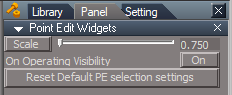
- PE Widgets Preferences panel.PNG (4.99 KiB) Viewed 14869 times
Included in all new layout's toolbars.
WinGUID_Bar

- WinGUID_Bar.PNG (10.16 KiB) Viewed 14869 times
New -Look at Selection. LMB= Look at selection / RMB = Look at next object. (Cycles through all scene Obects)
New - Included a button to call the 'Animation Panel' to the 'tS761 Toolbars' found in the same library.

- Animation panel.PNG (13.38 KiB) Viewed 14869 times
'A' button - LMB = On / RMB = Off
Separately there is a Vray Update at the bottom of the page.
Vray Update for tS7.61B8Std
-
trueBlue
- Captain
- Posts: 5548
- Joined: 06 Jul 2009, 22:50
- Type the number ten into the box: 10
Re: Final trueSpace7.61 Beta 8 Std Unofficial Update
Update and new location:
viewtopic.php?t=3731
Library Update:
* My Scene - On Load opens the Save RsScn Incrementally.RsObj
* My Backup - On Load opens the Save RsScn.RsObj
They are no longer saved to the scene.
* Objects - tS7.61 Update objects - Added the above two objects,
from which the two scenes load the objects from.
viewtopic.php?t=3731
Library Update:
* My Scene - On Load opens the Save RsScn Incrementally.RsObj
* My Backup - On Load opens the Save RsScn.RsObj
They are no longer saved to the scene.
* Objects - tS7.61 Update objects - Added the above two objects,
from which the two scenes load the objects from.
-
clintonman
- Captain
- Posts: 5659
- Joined: 21 May 2009, 21:08
- Type the number ten into the box: 0
- Location: California
Re: Final trueSpace7.61 Beta 8 Std Unofficial Update
I just updated the rsx plugin:
http://clintons3d.com/plugins/downloads ... Plugin.rsx
It has render engine hooks for yafaray, procedural textures and an updated folder dialog. I don't expect any changes any time soon so I think this is the one to use for the unofficial updates.
http://clintons3d.com/plugins/downloads ... Plugin.rsx
It has render engine hooks for yafaray, procedural textures and an updated folder dialog. I don't expect any changes any time soon so I think this is the one to use for the unofficial updates.
-
trueBlue
- Captain
- Posts: 5548
- Joined: 06 Jul 2009, 22:50
- Type the number ten into the box: 10
Re: Final trueSpace7.61 Beta 8 Std Unofficial Update
Thank you Clinton!
New update uploaded to:
viewtopic.php?t=3731
Additions:
New - Added a set window focus command to the Reset to Default Context icon
New - Updated Clintons3dPlugin.rsx v.1638411
New -Shaders - Composting - Author Clinto Reese
Library Update:
* My Scene - On Load opens the Save RsScn Incrementally.RsObj
* My Backup - On Load opens the Save RsScn.RsObj
They are no longer saved to the scene.
* Objects - tS7.61 Update objects - Added the above two objects,
from which the two scenes load the objects from.
Thinking we should rename this to trueC3DSpace
New update uploaded to:
viewtopic.php?t=3731
Additions:
New - Added a set window focus command to the Reset to Default Context icon
New - Updated Clintons3dPlugin.rsx v.1638411
New -Shaders - Composting - Author Clinto Reese

- Shaders Composting.PNG (17.64 KiB) Viewed 9848 times
* My Scene - On Load opens the Save RsScn Incrementally.RsObj
* My Backup - On Load opens the Save RsScn.RsObj
They are no longer saved to the scene.
* Objects - tS7.61 Update objects - Added the above two objects,
from which the two scenes load the objects from.
Thinking we should rename this to trueC3DSpace
-
clintonman
- Captain
- Posts: 5659
- Joined: 21 May 2009, 21:08
- Type the number ten into the box: 0
- Location: California
Re: Final trueSpace7.61 Beta 8 Std Unofficial Update
You're welcome.
I'm not sure "Shaders" is the right name for the compositing nodes since they don't directly plug into the material system. They can plug into a InputBitmap component so maybe call them "pre-shader components" or "image processor nodes"
Just some thoughts...
I'm not sure "Shaders" is the right name for the compositing nodes since they don't directly plug into the material system. They can plug into a InputBitmap component so maybe call them "pre-shader components" or "image processor nodes"
Just some thoughts...
-
trueBlue
- Captain
- Posts: 5548
- Joined: 06 Jul 2009, 22:50
- Type the number ten into the box: 10
Re: Final trueSpace7.61 Beta 8 Std Unofficial Update
How about Components - Image Composting library.
- Attachments
-
-
clintonman
- Captain
- Posts: 5659
- Joined: 21 May 2009, 21:08
- Type the number ten into the box: 0
- Location: California
Re: Final trueSpace7.61 Beta 8 Std Unofficial Update
Sure, just be careful with the spelling. Composting vs Compositing
-
trueBlue
- Captain
- Posts: 5548
- Joined: 06 Jul 2009, 22:50
- Type the number ten into the box: 10
Re: Final trueSpace7.61 Beta 8 Std Unofficial Update
Leave it to a Landscaper to spell that one. 
-
trueBlue
- Captain
- Posts: 5548
- Joined: 06 Jul 2009, 22:50
- Type the number ten into the box: 10
Re: Final trueSpace7.61 Beta 8 Std Unofficial Update
New update uploaded to:
viewtopic.php?t=3731
Additions:
Library
New - Components - Compositing library - Author Clinton Reese
Note: Included in the Material Editor's library browser. You will have to right click the Library Places button to update the combo ctrl.
viewtopic.php?t=1676#p52300
Material Editor
New - Active Editor button - Right click to Reset.
New - Material Inspect widget
New - LMB + Drag - Selects object
Left click to Inspect object and then LMB + Drag to select it.
New - RMB + Drag - Opens the material in the Link Editor.
Left click to Inspect object and then RMB + Drag to open in the Link Editor.
Note: Use LMB/RMB + Drag ever so slightly. It is not perfect but does work.
Offline Render buttons have been changed to work better. Instead of rendering first and then resize they resize first then render.
Included the missing textures for the Vray - Room and Bath scenes in the Texture folder.
viewtopic.php?t=3731
Additions:
Library
New - Components - Compositing library - Author Clinton Reese
Note: Included in the Material Editor's library browser. You will have to right click the Library Places button to update the combo ctrl.
viewtopic.php?t=1676#p52300
Material Editor
New - Active Editor button - Right click to Reset.
New - Material Inspect widget
New - LMB + Drag - Selects object
Left click to Inspect object and then LMB + Drag to select it.
New - RMB + Drag - Opens the material in the Link Editor.
Left click to Inspect object and then RMB + Drag to open in the Link Editor.
Note: Use LMB/RMB + Drag ever so slightly. It is not perfect but does work.
Offline Render buttons have been changed to work better. Instead of rendering first and then resize they resize first then render.
Included the missing textures for the Vray - Room and Bath scenes in the Texture folder.
-
RAYMAN

- Captain
- Posts: 2547
- Joined: 21 May 2009, 18:56
Re: Final trueSpace7.61 Beta 8 Std Unofficial Update
Just a thought but could there be a way to synchronise Blender???? I mean something that exports to a plugin that is linked to Blender?
With new Eevee and all the big renderengines available for Blender that would be cool!
I know I think Clinton made a copy and paste solution!
With new Eevee and all the big renderengines available for Blender that would be cool!
I know I think Clinton made a copy and paste solution!
-
trueBlue
- Captain
- Posts: 5548
- Joined: 06 Jul 2009, 22:50
- Type the number ten into the box: 10
Re: Final trueSpace7.61 Beta 8 Std Unofficial Update
That is something that you would have to ask Clintion.
-
trueBlue
- Captain
- Posts: 5548
- Joined: 06 Jul 2009, 22:50
- Type the number ten into the box: 10
Re: Final trueSpace7.61 Beta 8 Std Unofficial Update
New update uploaded to:
viewtopic.php?t=3731
Same updates as trueSpace7.61 Beta 8
viewtopic.php?t=5411#p52367
viewtopic.php?t=3731
Same updates as trueSpace7.61 Beta 8
viewtopic.php?t=5411#p52367
-
trueBlue
- Captain
- Posts: 5548
- Joined: 06 Jul 2009, 22:50
- Type the number ten into the box: 10
Re: Final trueSpace7.61 Beta 8 Std Unofficial Update
New update uploaded to:
viewtopic.php?t=3731
Same updates as trueSpace7.61 Beta 8
viewtopic.php?t=5411#p52415
viewtopic.php?t=3731
Same updates as trueSpace7.61 Beta 8
viewtopic.php?t=5411#p52415
-
trueBlue
- Captain
- Posts: 5548
- Joined: 06 Jul 2009, 22:50
- Type the number ten into the box: 10
Re: Final trueSpace7.61 Beta 8 Std Unofficial Update
The trueSpace Beta 7.61 Standalone Unofficial Update 4 has been Officially/Unofficially updated to Revision: September 04, 2018
viewtopic.php?t=3731
Newest addition includes Clinton's 3D UnEncapsulate script that unencapsulates 3D and 2D grouped objects properly.
Above code was added to the Unglue.xml file that is called from:
WorkspaceMain, WorkspaceMain2, BottomBar, and BottomBar2 toolbars
* Unencapsulate 3D icon - Unencapsulates selected objects.
* 3D Encapsulate icon / RMB - 3D Unencapsulates selected objects.
* Encapsulate icon / RMB - Unencapsulates selected objects.
Thanks Clinton for all that you DO to make trueSpace the best that it can BE
viewtopic.php?t=3731
Newest addition includes Clinton's 3D UnEncapsulate script that unencapsulates 3D and 2D grouped objects properly.
Above code was added to the Unglue.xml file that is called from:
WorkspaceMain, WorkspaceMain2, BottomBar, and BottomBar2 toolbars
* Unencapsulate 3D icon - Unencapsulates selected objects.
* 3D Encapsulate icon / RMB - 3D Unencapsulates selected objects.
* Encapsulate icon / RMB - Unencapsulates selected objects.
Thanks Clinton for all that you DO to make trueSpace the best that it can BE
-
trueBlue
- Captain
- Posts: 5548
- Joined: 06 Jul 2009, 22:50
- Type the number ten into the box: 10
Re: Final trueSpace7.61 Beta 8 Std Unofficial Update
I have made some changes to the trueSpace Beta 7.61 Standalone Unofficial Update 4
Revision dated March 14, 2018
viewtopic.php?t=3731#p37395
Point Edit widget 1, 2, and 3
PE Pivot Snap - Author Clinton Reese
* P + LMB select the widget sets the Pivot to the selected element
New - Changed the status message so that it clears after several seconds.
New - P + RMB select the widget moves and rotates the Pivot to the selected Face
New - P + MMB select the widget moves and rotates the Pivot to the object's Center
Changed the Point Edit widget 3 back to the default tS76 XYZ colors
Background, Camera 2, Object Navigation, and Point Edit widget(S)
New - I + LMB select the widget opens Widget Help panel
WorkspaceMain, WorkspaceMain2, BottomBar, and BottomBar2 toolbars
* 2D Unencapsulate
Restored the original command to the Unencapsulate button and changed the tooltip to 2D Unencapsulate
Revision dated March 14, 2018
viewtopic.php?t=3731#p37395
Point Edit widget 1, 2, and 3
PE Pivot Snap - Author Clinton Reese
* P + LMB select the widget sets the Pivot to the selected element
New - Changed the status message so that it clears after several seconds.
New - P + RMB select the widget moves and rotates the Pivot to the selected Face
New - P + MMB select the widget moves and rotates the Pivot to the object's Center
Changed the Point Edit widget 3 back to the default tS76 XYZ colors
Background, Camera 2, Object Navigation, and Point Edit widget(S)
New - I + LMB select the widget opens Widget Help panel
WorkspaceMain, WorkspaceMain2, BottomBar, and BottomBar2 toolbars
* 2D Unencapsulate
Restored the original command to the Unencapsulate button and changed the tooltip to 2D Unencapsulate
-
clintonman
- Captain
- Posts: 5659
- Joined: 21 May 2009, 21:08
- Type the number ten into the box: 0
- Location: California
Re: Final trueSpace7.61 Beta 8 Std Unofficial Update
I found a bug. In point edit mode you can't deselect using shift + click. ctrl + left click still works and adds to the selection, but no way to remove from a selection.
Rectangle select is working as expected.
Lasso select only works with shift key if you start the drag first then press the shift key, otherwise the viewport jumps instead.
Rectangle select is working as expected.
Lasso select only works with shift key if you start the drag first then press the shift key, otherwise the viewport jumps instead.
-
trueBlue
- Captain
- Posts: 5548
- Joined: 06 Jul 2009, 22:50
- Type the number ten into the box: 10
Re: Final trueSpace7.61 Beta 8 Std Unofficial Update
The Standalone widgets is the same widgets as the Full Version, minus the Bridge Synchronize script.
Which I forgot to remove in this last update.
The problem is in the Look at Selection in the Background widget.
There is Shift + LMB gesture that moves to selection, which is the same as Deselect.
I do not remember but I think that gesture was/is the original one in your Look at Selection script.
If you disconnect that gesture and reboot tS, Deselect works as expected.
Any suggestions?
I think this is the first time I ever used Shift + LMB to Deselect.
Which I forgot to remove in this last update.
The problem is in the Look at Selection in the Background widget.
There is Shift + LMB gesture that moves to selection, which is the same as Deselect.
I do not remember but I think that gesture was/is the original one in your Look at Selection script.
If you disconnect that gesture and reboot tS, Deselect works as expected.
Any suggestions?
I think this is the first time I ever used Shift + LMB to Deselect.
-
clintonman
- Captain
- Posts: 5659
- Joined: 21 May 2009, 21:08
- Type the number ten into the box: 0
- Location: California
Re: Final trueSpace7.61 Beta 8 Std Unofficial Update
I don't recall making any changes to the Look At Selection. I made a unlookat fix a ways back. I remember a zoom to selection but it used middle mouse double click not left click. Maybe you can look at the rectangle select nodes. It still works even though paint and lasso select don't.
-
trueBlue
- Captain
- Posts: 5548
- Joined: 06 Jul 2009, 22:50
- Type the number ten into the box: 10
Re: Final trueSpace7.61 Beta 8 Std Unofficial Update
I did not do anything to the Lasso widget.
I am sure that the Shift + LMB gesture in the Look at Selection is the conflict.
I will fix it in both Updates.
I am sure that the Shift + LMB gesture in the Look at Selection is the conflict.
I will fix it in both Updates.
-
clintonman
- Captain
- Posts: 5659
- Joined: 21 May 2009, 21:08
- Type the number ten into the box: 0
- Location: California
Re: Final trueSpace7.61 Beta 8 Std Unofficial Update
I haven't tested the Shift + LMB gesture or any of the new gestures yet, but just had a thought, maybe the rectangle selection works because it has a higher priority than lasso and paint selection tools.trueBlue wrote: 16 Mar 2019, 05:56 I did not do anything to the Lasso widget.
I am sure that the Shift + LMB gesture in the Look at Selection is the conflict.
I will fix it in both Updates.
-
trueBlue
- Captain
- Posts: 5548
- Joined: 06 Jul 2009, 22:50
- Type the number ten into the box: 10
Re: Final trueSpace7.61 Beta 8 Std Unofficial Update
I am sure that the Shift + LMB gesture in the Look at Selection is the conflict.
I have never touched the Rectangle, Lasso, or Paint selection widgets.
Can you upload your original Look at Selection?
I have never touched the Rectangle, Lasso, or Paint selection widgets.
Can you upload your original Look at Selection?
-
clintonman
- Captain
- Posts: 5659
- Joined: 21 May 2009, 21:08
- Type the number ten into the box: 0
- Location: California
Re: Final trueSpace7.61 Beta 8 Std Unofficial Update
I never thought of it as "my" Look at Selection, so I didn't know what you were talking about. Here is the Look at Selection from my tS /Widgets/Tools/Background. It has the zoom to selection inside it I mentioned earlier.trueBlue wrote: 16 Mar 2019, 06:04 I am sure that the Shift + LMB gesture in the Look at Selection is the conflict.
I have never touched the Rectangle, Lasso, or Paint selection widgets.
Can you upload your original Look at Selection?
- Attachments
-
- Look at selection.RsObj
- (54.72 KiB) Downloaded 271 times
-
trueBlue
- Captain
- Posts: 5548
- Joined: 06 Jul 2009, 22:50
- Type the number ten into the box: 10
Re: Final trueSpace7.61 Beta 8 Std Unofficial Update
Not sure what you mean. Maybe I should not have said Look at Selection "script".
I meant your original Look at Selection dated February 24, 2018
This is the one I modified for Update 4 as noted.
This is my fault as I am the one that added the Shift + LMB move to selection.
As I understand you scripts in the Look at Selection.
The only time it Zooms is in Ortho views. in Perspective view the FOV does not change?
I meant your original Look at Selection dated February 24, 2018

This is my fault as I am the one that added the Shift + LMB move to selection.
As I understand you scripts in the Look at Selection.
The only time it Zooms is in Ortho views. in Perspective view the FOV does not change?
-
trueBlue
- Captain
- Posts: 5548
- Joined: 06 Jul 2009, 22:50
- Type the number ten into the box: 10
Re: Final trueSpace7.61 Beta 8 Std Unofficial Update
I think this should work.
I had duplicate gestures doing the same thing so I removed:
Shift + LMB - Moves the view to the current selection or Point Edit selection
Let me know and thanks for spotting this!
Here are all of the gestures:
Wheel - Moves In and Out
Shift + Wheel - Zooms (FOV) and Moves In and Out
Ctrl + Shift + MMB Drag - Zooms (FOV)
MMB Drag - Rotate in X and Y
Ctrl + MMB Drag - Move in X, Y, and Z
Shift + MMB Drag - Look around
Shift + RMB Drag - Resets the View
Look At Selection
MMB Double click - Looks At Selection
Ctrl + MMB Double click - Moves the view to the current selection or Point Edit selection
Ctrl + Shift + MMB Double click - Moves the view to all objects in the scene
Comma + LMB Drag - Hides All (Except selection) and moves to the current or Point Edit selection
Comma + RMB Drag - Moves to the next object and Hides All except that object
Period + LMB Drag - Hides All (Except selection)
Period + RMB Drag - Shows All
I + LMB drag - Widget Help popup panel
Removed due to update
I had duplicate gestures doing the same thing so I removed:
Shift + LMB - Moves the view to the current selection or Point Edit selection
Let me know and thanks for spotting this!
Here are all of the gestures:
Wheel - Moves In and Out
Shift + Wheel - Zooms (FOV) and Moves In and Out
Ctrl + Shift + MMB Drag - Zooms (FOV)
MMB Drag - Rotate in X and Y
Ctrl + MMB Drag - Move in X, Y, and Z
Shift + MMB Drag - Look around
Shift + RMB Drag - Resets the View
Look At Selection
MMB Double click - Looks At Selection
Ctrl + MMB Double click - Moves the view to the current selection or Point Edit selection
Ctrl + Shift + MMB Double click - Moves the view to all objects in the scene
Comma + LMB Drag - Hides All (Except selection) and moves to the current or Point Edit selection
Comma + RMB Drag - Moves to the next object and Hides All except that object
Period + LMB Drag - Hides All (Except selection)
Period + RMB Drag - Shows All
I + LMB drag - Widget Help popup panel
Removed due to update
-
clintonman
- Captain
- Posts: 5659
- Joined: 21 May 2009, 21:08
- Type the number ten into the box: 0
- Location: California
Re: Final trueSpace7.61 Beta 8 Std Unofficial Update
Selections are good now.
Shift + RMB background to deactivate Move, Rotate, Scale tools opens point edit mode instead. If in PE mode exits PE mode
Point edit mode shift + RMB drag exits point edit mode instead of resetting the view
Cube widget colors don't match truespace defaults. I'll see what I can do about it. Hopefully, I can find the image files.
Help on the point edit widget bars shows the object navigation help instead. Help on rotate, scale and 2d movement are good.
Point edit widget - ctrl + RMB to show advanced settings exits pe mode.
Type in Object Navigation Widgets help - Ctrl + LMB Select = Show their Mouse settings
RMB on projector and spot light falloff buttons gives an syntax error
Shift + RMB background to deactivate Move, Rotate, Scale tools opens point edit mode instead. If in PE mode exits PE mode
Point edit mode shift + RMB drag exits point edit mode instead of resetting the view
Cube widget colors don't match truespace defaults. I'll see what I can do about it. Hopefully, I can find the image files.
Help on the point edit widget bars shows the object navigation help instead. Help on rotate, scale and 2d movement are good.
Point edit widget - ctrl + RMB to show advanced settings exits pe mode.
Type in Object Navigation Widgets help - Ctrl + LMB Select = Show their Mouse settings
RMB on projector and spot light falloff buttons gives an syntax error
-
clintonman
- Captain
- Posts: 5659
- Joined: 21 May 2009, 21:08
- Type the number ten into the box: 0
- Location: California
Re: Final trueSpace7.61 Beta 8 Std Unofficial Update
Request:
You have
"* UV Editor preferences
New - Lightened the color of the Background bitmap control."
Can you do the same for the Displacement Mapper height map?
You have
"* UV Editor preferences
New - Lightened the color of the Background bitmap control."
Can you do the same for the Displacement Mapper height map?
-
trueBlue
- Captain
- Posts: 5548
- Joined: 06 Jul 2009, 22:50
- Type the number ten into the box: 10
Re: Final trueSpace7.61 Beta 8 Std Unofficial Update
Thank you for finding these mistakes! 
I uploaded new update(S) with these fixes:
I uploaded new update(S) with these fixes:
clintonman wrote: 16 Mar 2019, 15:35 Selections are good now.
Shift + RMB background to deactivate Move, Rotate, Scale tools opens point edit mode instead. If in PE mode exits PE mode
Fixed. Removed the Shift + RMB gesture. Use Shift + LMB click in empty space.
Point edit mode shift + RMB drag exits point edit mode instead of resetting the view
Fixed. Removed Space.Unselect() from the Reset View script.
Cube widget colors don't match truespace defaults. I'll see what I can do about it. Hopefully, I can find the image files.
Help on the point edit widget bars shows the object navigation help instead. Help on rotate, scale and 2d movement are good.
Fixed. Your PE widget's Widget Help was not hooked up to the bars.
Point edit widget - ctrl + RMB to show advanced settings exits pe mode.
This gesture is for the PE widget's Sphere only.
Type in Object Navigation Widgets help - Ctrl + LMB Select = Show their Mouse settings
Fixed
RMB on projector and spot light falloff buttons gives an syntax error
Fixed. Missing "Node" in the begining of the first line.
Displacement Mapper
Fixed.
-
clintonman
- Captain
- Posts: 5659
- Joined: 21 May 2009, 21:08
- Type the number ten into the box: 0
- Location: California
Re: Final trueSpace7.61 Beta 8 Std Unofficial Update
Great. I'll download and test now.
Attached is a cube widget with a trueSpace color scheme.
Tested and all seems good except that the spotlight and projection light right click still gives the same error.
Just finished updating 22 pages on my web site to be in line with all the stuff you added to the Unofficial Update.
Attached is a cube widget with a trueSpace color scheme.
Tested and all seems good except that the spotlight and projection light right click still gives the same error.
Just finished updating 22 pages on my web site to be in line with all the stuff you added to the Unofficial Update.
- Attachments
-
- CubeWidget.RsObj
- (533.8 KiB) Downloaded 300 times
-
trueBlue
- Captain
- Posts: 5548
- Joined: 06 Jul 2009, 22:50
- Type the number ten into the box: 10
Re: Final trueSpace7.61 Beta 8 Std Unofficial Update
Yikes! 22 pages!
Added the Lights and your Cube Widget to the updates.
Thanks again for you help!!!
Added the Lights and your Cube Widget to the updates.
Thanks again for you help!!!
-
clintonman
- Captain
- Posts: 5659
- Joined: 21 May 2009, 21:08
- Type the number ten into the box: 0
- Location: California
Re: Final trueSpace7.61 Beta 8 Std Unofficial Update
More tests show all previous problems seem to be fixed and no conflicts with scripts from my website.
New problem: The toolbar manager doesn't work. An update fixing some bugs (I don't even know what the bugs were ) was published on my site in October after the 2018 release of Unofficial 4.
Attached is the script node containing the fixes and it works with Unofficial v4 2019. Needs to replace the "toolbarScripts" node inside /Scripts/CustomCommands/
Reinstalling the toolbar from my website also fixes the problem.
New problem: The toolbar manager doesn't work. An update fixing some bugs (I don't even know what the bugs were
) was published on my site in October after the 2018 release of Unofficial 4.Attached is the script node containing the fixes and it works with Unofficial v4 2019. Needs to replace the "toolbarScripts" node inside /Scripts/CustomCommands/
Reinstalling the toolbar from my website also fixes the problem.
- Attachments
-
- toolbarScripts.RsObj
- (105.89 KiB) Downloaded 270 times
-
trueBlue
- Captain
- Posts: 5548
- Joined: 06 Jul 2009, 22:50
- Type the number ten into the box: 10
Re: Final trueSpace7.61 Beta 8 Std Unofficial Update
I most likely had the version before October. Never knew it was updated.clintonman wrote: 17 Mar 2019, 21:51 More tests show all previous problems seem to be fixed and no conflicts with scripts from my website.
New problem: The toolbar manager doesn't work. An update fixing some bugs (I don't even know what the bugs were
Attached is the script node containing the fixes and it works with Unofficial v4 2019. Needs to replace the "toolbarScripts" node inside /Scripts/CustomCommands/
Reinstalling the toolbar from my website also fixes the problem.
I do remember testing it and it seem to be working at that time.
For the Update the toolbarScripts,RsObj needs to be replaced in the CustomScriptsStore.
Then your C3DRest script (included with the Update) loads all of the scripts from the CustomScriptsStore folder into /Scripts/CustomCommands/when you Reset the default context.
I notice that the restoreToolbarFromLibrary.RsObj script is empty.
Updated both Updates. New date March 17, 2019
-
clintonman
- Captain
- Posts: 5659
- Joined: 21 May 2009, 21:08
- Type the number ten into the box: 0
- Location: California
Re: Final trueSpace7.61 Beta 8 Std Unofficial Update
Awesome, I'll give it a go and yeah, I would have sworn it was working back then too.
-
trueBlue
- Captain
- Posts: 5548
- Joined: 06 Jul 2009, 22:50
- Type the number ten into the box: 10
Re: Final trueSpace7.61 Beta 8 Std Unofficial Update
I have made some changes to the trueSpace 7.61 Beta 8 Standard Unofficial Update
Revision dated May 03, 2019
viewt ... 731#p37395
Updated:
Components - Compositing library - Author Clinton Reese
viewt ... =31&t=1676
Clintons3dPlugin.rsx v.1638413 - Author Clinton Reese
Thanks Clinton!
Revision dated May 03, 2019
viewt ... 731#p37395
Updated:
Components - Compositing library - Author Clinton Reese
viewt ... =31&t=1676
Clintons3dPlugin.rsx v.1638413 - Author Clinton Reese
Thanks Clinton!
-
trueBlue
- Captain
- Posts: 5548
- Joined: 06 Jul 2009, 22:50
- Type the number ten into the box: 10
Re: Final trueSpace7.61 Beta 8 Std Unofficial Update
I have made some changes to the trueSpace 7.61 Beta 8 Standard Unofficial Update
Revision dated May 23, 2019
viewt ... =55&t=3731
Updated the Nurbs Curves scripts - Author Clinton Reese
viewt ... 390#p54681
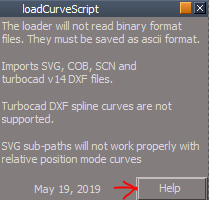
Added Help button that directs you to:
http://www.clintons3d.com/plugins/trues ... urves.html
Thanks Clinton!
Revision dated May 23, 2019
viewt ... =55&t=3731
Updated the Nurbs Curves scripts - Author Clinton Reese
viewt ... 390#p54681
Added Help button that directs you to:
http://www.clintons3d.com/plugins/trues ... urves.html
- Capture.PNG (7.46 KiB) Viewed 9620 times
-
clintonman
- Captain
- Posts: 5659
- Joined: 21 May 2009, 21:08
- Type the number ten into the box: 0
- Location: California
Re: Final trueSpace7.61 Beta 8 Std Unofficial Update
You're fast with those updates. 
-
trueBlue
- Captain
- Posts: 5548
- Joined: 06 Jul 2009, 22:50
- Type the number ten into the box: 10
Re: Final trueSpace7.61 Beta 8 Std Unofficial Update
I have made some changes to the trueSpace 7.61 Beta 8 Standard Unofficial Update
Revision dated May 24, 2019
viewt ... =55&t=3731
Updated the Point Clone script - Author Clinton Reese
Thanks Clinton for the updates!
Revision dated May 24, 2019
viewt ... =55&t=3731
Updated the Point Clone script - Author Clinton Reese
Thanks Clinton for the updates!
-
clintonman
- Captain
- Posts: 5659
- Joined: 21 May 2009, 21:08
- Type the number ten into the box: 0
- Location: California
Re: Final trueSpace7.61 Beta 8 Std Unofficial Update
-
trueBlue
- Captain
- Posts: 5548
- Joined: 06 Jul 2009, 22:50
- Type the number ten into the box: 10
Re: Final trueSpace7.61 Beta 8 Std Unofficial Update
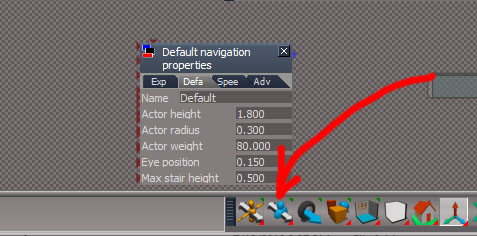
It is here:
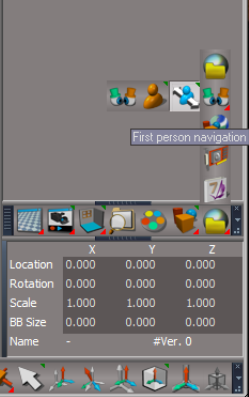
- Capture.PNG (58.56 KiB) Viewed 9538 times
-
clintonman
- Captain
- Posts: 5659
- Joined: 21 May 2009, 21:08
- Type the number ten into the box: 0
- Location: California
Re: Final trueSpace7.61 Beta 8 Std Unofficial Update
Awesome, thanks. I see it now.
-
trueBlue
- Captain
- Posts: 5548
- Joined: 06 Jul 2009, 22:50
- Type the number ten into the box: 10
Re: Final trueSpace7.61 Beta 8 Std Unofficial Update
New trueSpace 7.61 Beta 8 Std Unofficial Update 5 'Beta'
Version 5 - 8/30/2019
New - All toolbars that have Object render modes and Grids, have a RMB command that sets their render mode for all windows. - Author Clinton Reese
New - UnLookAt.xml Updated to include more Lights. - Author Clinton Reese
New- 4View layout has unique WinGUID toolbars for all four views. No prototype for ortho views.
New - Camera FOV widget
RMB click in 3D Space resets all view's FOV to 0.500 and scene Camera to 1.000.
New - Rectangle Zoom widget
RMB click in 3D Space resets all view's FOV to 0.500 and scene Camera to 1.000
New - WinGUID_Bar toolbar
Uses the main 3D window's WinGUID in the commands for the Views, Ground, Scene render attributes, Reset view, and Look at Selection icons. Which means the window does not have to have focus in order to work.
* Added to the main view's title bar in all layouts.
* Includes a Material Editor icon.
* Set Camera - LMB = Set Camera / RMB = Eye view.
* Look at Selection - LMB = Look a selection / RMB = Look at next object.
New - Perspective - RMB Rotates the View.
New - Isometric - RMB Rotates the View.
New - Camera Move, Camera Rotate, Camera FOV, and Rectangle Zoom - RMB opens current active Eye Camera panel in the Stack/Panels.
New - Camera FOV and Rectangle Zoom - RMB in 3D Space resets FOV.
New - Zoom to Selection - LMB = Zoom to Selection / RMB = Zoom to next object.
New - Zoom to next Object - LMB = Zoom to next Object / RMB = Zoom to All.
New - New View
Opens an updated 3D window with a unique WinGUID NewViewBar toolbar.
New - Save New View icon saves the size and loaction.
New - BottomBar2
Grid mode moved from the Object render modes.
Object render and Grid modes
RMB sets All Windows
Object Navigation Widget(s)
RMB + Drag on Arcs to rotate from the Pivot - Author Clinton Reese
Background widget/Look at selection
Changes:
MMB click - Moves the view to the current selection or Point Edit selection. Zooms
Ctrl + MMB click - Looks At Selection
Shift + MMB click - Moves the view to all objects in the scene
Zoom2All script
Added RsTool.ResetView(''); to the top of the script.
Widget/Tools/Vertex Snap
Updated 8/17/2019
Widget/Tools/Face Snap
Updated 8/17/2019
YafaRay4tS v9.5 - Author Clinton Reese
Updated 8/24/2019
LENavigatorBar
New - Added a Ctrl button - Toggle On/Off for LMB selecting/deselecting Objects - Author Clinton Reese
Instructions:
It is recommend that you completely Uninstall and Install trueSpace7.61 Standalone to a clean directory.
Install the PDF Manual for trueSpace.
1.) Run the tS7.61B8Std.5.exe
2.) Browse [...] to where you installed C:\trueSpace761Std, select its folder and then the Extract button
3.) Select the Yes to All button.
4.) Open trueSpace and select the Reset to Default Context icon.
5.) In Workspace select the Default layout tab.
YafaRay4tS users:
1.) Download the YafaRay v3.3.0 render engine from one of these sites:
YafaRay Standalone https://github.com/YafaRay/Core/releases
YafaRay for Blender https://github.com/YafaRay/Blender-Exporter/releases
Unzip the file and copy the ‘yafaray_v3’ folder to:
Examples:
Standalone
C:\Program Files\yafaray_v3
C:\trueSpace761\tS\yafaray_v3
C:\trueSpace761Std\yafaray_v3
Note: If you install the YafaRay v3.3.0 render engine after installing this update:
From Workspace in the Stack/Panel - YafaRay4tS/Setup aspect
Set the 'YafaRay Installation Path' to the yafaray-xml.exe file where you have installed YafaRay v3.3.0
Select the 'Save Settings' button.
In Workspace, open the YafaRay4tS layout.
Open a new YafaRay4tS scene from the YafaRay Settings toolbar icon.
Optionally, but recommend you install the iOptDetector plugin http://rs.siprogs.sk/p/iOptDetectorsPage
Recommend that you install it to your C:/ drive so that it can be shared with different versions of trueSpace.
The OptDetector.dll must be Installed and Loaded from the Workspace's Package Manager.
Special thanks to Clinton Reese for all his help and contributions in this update.
http://www.clintons3d.com
Steps for the easiest installation:
1.) Install YafaRay (Optional)
2.) Install trueSpace 7.61 Standalone
3.) Install iOptDetector (Optional)
4.) Install the PDF Manual for Caligari trueSpace (Optional but required before installing the Update 5)
5.) Install the Update 5
6.) Open trueSpace Install/Load iOptDetector from the Package Manager and Reset the Default Context (Required after Update 4)
Removed due to update
Version 5 - 8/30/2019
New - All toolbars that have Object render modes and Grids, have a RMB command that sets their render mode for all windows. - Author Clinton Reese
New - UnLookAt.xml Updated to include more Lights. - Author Clinton Reese
New- 4View layout has unique WinGUID toolbars for all four views. No prototype for ortho views.
New - Camera FOV widget
RMB click in 3D Space resets all view's FOV to 0.500 and scene Camera to 1.000.
New - Rectangle Zoom widget
RMB click in 3D Space resets all view's FOV to 0.500 and scene Camera to 1.000
New - WinGUID_Bar toolbar
Uses the main 3D window's WinGUID in the commands for the Views, Ground, Scene render attributes, Reset view, and Look at Selection icons. Which means the window does not have to have focus in order to work.
* Added to the main view's title bar in all layouts.
* Includes a Material Editor icon.
* Set Camera - LMB = Set Camera / RMB = Eye view.
* Look at Selection - LMB = Look a selection / RMB = Look at next object.
New - Perspective - RMB Rotates the View.
New - Isometric - RMB Rotates the View.
New - Camera Move, Camera Rotate, Camera FOV, and Rectangle Zoom - RMB opens current active Eye Camera panel in the Stack/Panels.
New - Camera FOV and Rectangle Zoom - RMB in 3D Space resets FOV.
New - Zoom to Selection - LMB = Zoom to Selection / RMB = Zoom to next object.
New - Zoom to next Object - LMB = Zoom to next Object / RMB = Zoom to All.
New - New View
Opens an updated 3D window with a unique WinGUID NewViewBar toolbar.
New - Save New View icon saves the size and loaction.
New - BottomBar2
Grid mode moved from the Object render modes.
Object render and Grid modes
RMB sets All Windows
Object Navigation Widget(s)
RMB + Drag on Arcs to rotate from the Pivot - Author Clinton Reese
Background widget/Look at selection
Changes:
MMB click - Moves the view to the current selection or Point Edit selection. Zooms
Ctrl + MMB click - Looks At Selection
Shift + MMB click - Moves the view to all objects in the scene
Zoom2All script
Added RsTool.ResetView(''); to the top of the script.
Widget/Tools/Vertex Snap
Updated 8/17/2019
Widget/Tools/Face Snap
Updated 8/17/2019
YafaRay4tS v9.5 - Author Clinton Reese
Updated 8/24/2019
LENavigatorBar
New - Added a Ctrl button - Toggle On/Off for LMB selecting/deselecting Objects - Author Clinton Reese
Instructions:
It is recommend that you completely Uninstall and Install trueSpace7.61 Standalone to a clean directory.
Install the PDF Manual for trueSpace.
1.) Run the tS7.61B8Std.5.exe
2.) Browse [...] to where you installed C:\trueSpace761Std, select its folder and then the Extract button
3.) Select the Yes to All button.
4.) Open trueSpace and select the Reset to Default Context icon.
5.) In Workspace select the Default layout tab.
YafaRay4tS users:
1.) Download the YafaRay v3.3.0 render engine from one of these sites:
YafaRay Standalone https://github.com/YafaRay/Core/releases
YafaRay for Blender https://github.com/YafaRay/Blender-Exporter/releases
Unzip the file and copy the ‘yafaray_v3’ folder to:
Examples:
Standalone
C:\Program Files\yafaray_v3
C:\trueSpace761\tS\yafaray_v3
C:\trueSpace761Std\yafaray_v3
Note: If you install the YafaRay v3.3.0 render engine after installing this update:
From Workspace in the Stack/Panel - YafaRay4tS/Setup aspect
Set the 'YafaRay Installation Path' to the yafaray-xml.exe file where you have installed YafaRay v3.3.0
Select the 'Save Settings' button.
In Workspace, open the YafaRay4tS layout.
Open a new YafaRay4tS scene from the YafaRay Settings toolbar icon.
Optionally, but recommend you install the iOptDetector plugin http://rs.siprogs.sk/p/iOptDetectorsPage
Recommend that you install it to your C:/ drive so that it can be shared with different versions of trueSpace.
The OptDetector.dll must be Installed and Loaded from the Workspace's Package Manager.
Special thanks to Clinton Reese for all his help and contributions in this update.
http://www.clintons3d.com
Steps for the easiest installation:
1.) Install YafaRay (Optional)
2.) Install trueSpace 7.61 Standalone
3.) Install iOptDetector (Optional)
4.) Install the PDF Manual for Caligari trueSpace (Optional but required before installing the Update 5)
5.) Install the Update 5
6.) Open trueSpace Install/Load iOptDetector from the Package Manager and Reset the Default Context (Required after Update 4)
Removed due to update
-
clintonman
- Captain
- Posts: 5659
- Joined: 21 May 2009, 21:08
- Type the number ten into the box: 0
- Location: California
Re: Final trueSpace7.61 Beta 8 Std Unofficial Update
Installed but missing items.
YafaRay failed to install, Clintons3DPlugin missing.
YafaRay failed to install, Clintons3DPlugin missing.
-
trueBlue
- Captain
- Posts: 5548
- Joined: 06 Jul 2009, 22:50
- Type the number ten into the box: 10
Re: Final trueSpace7.61 Beta 8 Std Unofficial Update
Hummm… plug is there but the Plugins.xml file is missing.
Not sure how that happened. Fixed!
Thanks!
While your here, I was thinking about including a primitive Isometric Camera that circles around the scene clockwise from buttons. I think I have the transformations right. Basically the way I could get it to work is by copying the Iso Eye Cam and made it Look At a normalized Cube. After I captured the transformation info into the buttons, I disengaged the Look At from the cube but left the look at nodes inside the cam and deleted the TargetMatrix attribute. The FOV is way different in Model.
I also noticed that the new Cameras View/Perspective button causes an error if you switch to Model and use the Perspective button. I guess it is because their is no Workspace view open in this scenario. Any ideas how to over come this error?
Removed due to update
Not sure how that happened. Fixed!
Thanks!
While your here, I was thinking about including a primitive Isometric Camera that circles around the scene clockwise from buttons. I think I have the transformations right. Basically the way I could get it to work is by copying the Iso Eye Cam and made it Look At a normalized Cube. After I captured the transformation info into the buttons, I disengaged the Look At from the cube but left the look at nodes inside the cam and deleted the TargetMatrix attribute. The FOV is way different in Model.
I also noticed that the new Cameras View/Perspective button causes an error if you switch to Model and use the Perspective button. I guess it is because their is no Workspace view open in this scenario. Any ideas how to over come this error?
Removed due to update
-
clintonman
- Captain
- Posts: 5659
- Joined: 21 May 2009, 21:08
- Type the number ten into the box: 0
- Location: California
Re: Final trueSpace7.61 Beta 8 Std Unofficial Update
Using the buttons the view doesn't look centered. Buttons 1 and 3 have a different center than buttons 2 and 4.trueBlue wrote: 25 Aug 2019, 16:51 Hummm… plug is there but the Plugins.xml file is missing.
Not sure how that happened. Fixed!
Thanks!
While your here, I was thinking about including a primitive Isometric Camera that circles around the scene clockwise from buttons. I think I have the transformations right. Basically the way I could get it to work is by copying the Iso Eye Cam and made it Look At a normalized Cube. After I captured the transformation info into the buttons, I disengaged the Look At from the cube but left the look at nodes inside the cam and deleted the TargetMatrix attribute. The FOV is way different in Model.
I also noticed that the new Cameras View/Perspective button causes an error if you switch to Model and use the Perspective button. I guess it is because their is no Workspace view open in this scenario. Any ideas how to over come this error?
The first line is assuming that the EyeCamera exists inside D3DView. You can add this line at the beginning to check:
Code: Select all
if(Node.SubObjectCount("/D3DView")==0) return;Code: Select all
Cam = Node.SubObject("/D3DView", 0)
D3DView.SetActiveCamera('', '')
D3DView.SetActiveCamera('/D3DView/' + Cam, '{2C152F81-45A2-4035-8896-9E49D60C8A7A}')
Space.Unselect()
Node.Disconnect("%THIS_NAME%/Transform", "WldMatrix", "%THIS_NAME%/Watch Dog Event", "Change detect")
Node.Disconnect("%THIS_NAME%", "FOV", "%THIS_NAME%/Watch Dog Event", "Change detect")-
trueBlue
- Captain
- Posts: 5548
- Joined: 06 Jul 2009, 22:50
- Type the number ten into the box: 10
Re: Final trueSpace7.61 Beta 8 Std Unofficial Update
You could be seeing the differences between the EyeCamera's default transformation settings and the Reset View's transformation settings. They are different and not in sync. All the new Cameras are, including this one, are using the Reset View transformation settings. Try zooming into a normalized cube in wire frame mode as shown. I am not seeing any movement except when Enabling/Disabling the Enable Ortho Walk button.
Thanks for the fix, I will apply this to all Cameras.
Edit: I found a different way to do the transformations by coping the LookAt's WldMatrix attributes for each rotation and eliminating the LookAt. Wished that I could have created a Rotation Cycle script to condense all of the buttons to one, but no such success yet.
Also when using this in Model it is way off. Guessing it is the differences of their Eye Camera's FOV.

Edit: I found a different way to do the transformations by coping the LookAt's WldMatrix attributes for each rotation and eliminating the LookAt. Wished that I could have created a Rotation Cycle script to condense all of the buttons to one, but no such success yet.
Also when using this in Model it is way off. Guessing it is the differences of their Eye Camera's FOV.
- Attachments
-
- tS7.61 Isometric Camera.RsObj
- (84.87 KiB) Downloaded 205 times
-
clintonman
- Captain
- Posts: 5659
- Joined: 21 May 2009, 21:08
- Type the number ten into the box: 0
- Location: California
Re: Final trueSpace7.61 Beta 8 Std Unofficial Update
New download, installed without issue.
-
clintonman
- Captain
- Posts: 5659
- Joined: 21 May 2009, 21:08
- Type the number ten into the box: 0
- Location: California
Re: Final trueSpace7.61 Beta 8 Std Unofficial Update
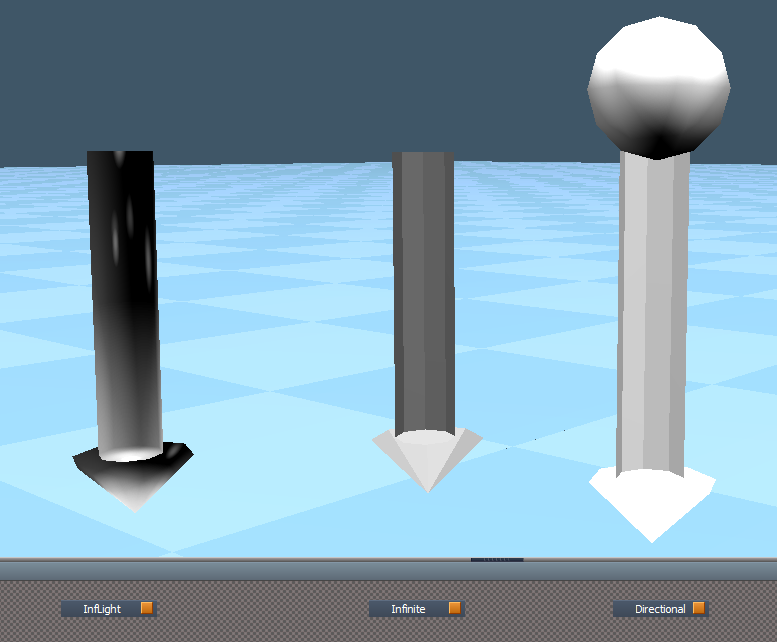
Found a visual bug in the infinite and directional lights. The meshes are inside out. Attached are corrected Shape nodes.
- Attachments
-
- InfiniteShapeRsObj.RsObj
- (7.08 KiB) Downloaded 194 times
-
- DirectionalShape.RsObj
- (12.12 KiB) Downloaded 194 times
-
trueBlue
- Captain
- Posts: 5548
- Joined: 06 Jul 2009, 22:50
- Type the number ten into the box: 10
Re: Final trueSpace7.61 Beta 8 Std Unofficial Update
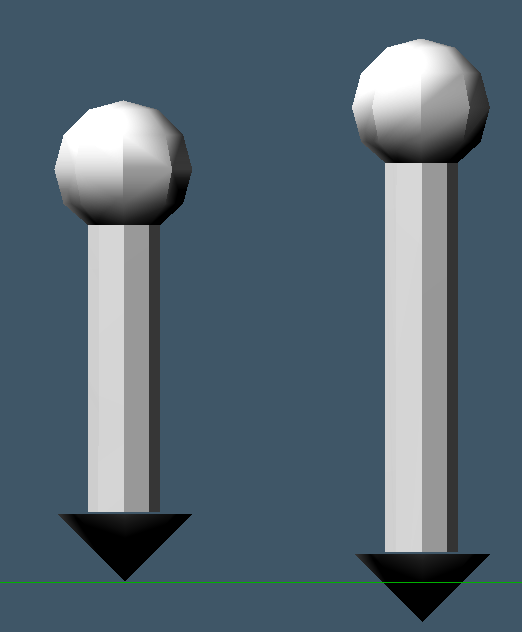
Thanks! Wonder why they were black.
Model infinite on the left.
Had to shorten up your Directional shape on the right. It was below the grid.
Model infinite on the left.
-
trueBlue
- Captain
- Posts: 5548
- Joined: 06 Jul 2009, 22:50
- Type the number ten into the box: 10
Re: Final trueSpace7.61 Beta 8 Std Unofficial Update
Almost done with the updates, just testing everything more closely. Unless I am missing something your Cube Widget View's P script does not seem to be of any value. If it showed in the Ortho views, I could see it's use. Besides all the sides toggle back to the Perspective view.
Sooooo… I was considering changing it to Rotating the Perspective view.
Whatcha think?
The script will be in Script/CustomCommands/Rotate Perspective View.xml
Sooooo… I was considering changing it to Rotating the Perspective view.
Whatcha think?

- Cube View Widget.PNG (27.61 KiB) Viewed 4084 times
-
clintonman
- Captain
- Posts: 5659
- Joined: 21 May 2009, 21:08
- Type the number ten into the box: 0
- Location: California
Re: Final trueSpace7.61 Beta 8 Std Unofficial Update
If you're in camera view you have to know the perspective view is hidden in the cube by going to ortho view then clicking again to get to the perspective view. The P is obvious what it does. The C and P are useful for switching between camera and perspective views.
-
trueBlue
- Captain
- Posts: 5548
- Joined: 06 Jul 2009, 22:50
- Type the number ten into the box: 10
Re: Final trueSpace7.61 Beta 8 Std Unofficial Update
Ah, okay! Never used it switching from Camera to View before.
Definitely going to use that more often.
Definitely going to use that more often.
-
trueBlue
- Captain
- Posts: 5548
- Joined: 06 Jul 2009, 22:50
- Type the number ten into the box: 10
Re: Final trueSpace7.61 Beta 8 Std Unofficial Update
New trueSpace 7.61 Beta 8 Std Unofficial Update 5 'Beta'
Version 5 - 8/30/2019
New - All toolbars that have Object render modes and Grids, have a RMB command that sets their render mode for all windows. - Author Clinton Reese
New - UnLookAt.xml Updated to include more Lights. - Author Clinton Reese
New- 4View layout has unique WinGUID toolbars for all four views. No prototype for ortho views.
New - Camera FOV widget
RMB click in 3D Space resets all view's FOV to 0.500 and scene Camera to 1.000.
New - Rectangle Zoom widget
RMB click in 3D Space resets all view's FOV to 0.500 and scene Camera to 1.000
New - WinGUID_Bar toolbar
Uses the main 3D window's WinGUID in the commands for the Views, Ground, Scene render attributes, Reset view, and Look at Selection icons. Which means the window does not have to have focus in order to work.
* Added to the main view's title bar in all layouts.
* Includes a Material Editor icon.
* Set Camera - LMB = Set Camera / RMB = Eye view.
* Look at Selection - LMB = Look a selection / RMB = Look at next object.
New - Perspective - RMB Rotates the View.
New - Isometric - RMB Rotates the View.
New - Camera Move, Camera Rotate, Camera FOV, and Rectangle Zoom - RMB opens current active Eye Camera panel in the Stack/Panels.
New - Camera FOV and Rectangle Zoom - RMB in 3D Space resets FOV.
New - Zoom to Selection - LMB = Zoom to Selection / RMB = Zoom to next object.
New - Zoom to next Object - LMB = Zoom to next Object / RMB = Zoom to All.
New - New View
Opens an updated 3D window with a unique WinGUID NewViewBar toolbar.
New - Save New View icon saves the size and loaction.
New - BottomBar2
Grid mode moved from the Object render modes.
Object render and Grid modes
RMB sets All Windows
Object Navigation Widget(s)
RMB + Drag on Arcs to rotate from the Pivot - Author Clinton Reese
Background widget/Look at selection
Changes:
MMB click - Moves the view to the current selection or Point Edit selection. Zooms
Ctrl + MMB click - Looks At Selection
Shift + MMB click - Moves the view to all objects in the scene
Zoom2All script
Added RsTool.ResetView(''); to the top of the script.
Widget/Tools/Vertex Snap
Updated 8/30/2019
Widget/Tools/Face Snap
Updated 8/17/2019
YafaRay4tS v9.5 - Author Clinton Reese
Updated 8/24/2019
LENavigatorBar
New - Added a Ctrl button - Toggle On/Off for LMB selecting/deselecting Objects in the scene and Link Editor - Author Clinton Reese
New - Cube View widget updated 8/30/2019
New - View widget updated 8/30/2019
Ctrl + LMB click on the green Encircle rotates the Perspective and Isometric views. 8/30/2019
Instructions:
It is recommend that you completely Uninstall and Install trueSpace7.61 Standalone to a clean directory.
Install the PDF Manual for trueSpace.
1.) Run the tS7.61B8Std.5.exe
2.) Browse [...] to where you installed C:\trueSpace761Std, select its folder and then the Extract button
3.) Select the Yes to All button.
4.) Open trueSpace and select the Reset to Default Context icon.
5.) In Workspace select the Default layout tab.
YafaRay4tS users:
1.) Download the YafaRay v3.3.0 render engine from one of these sites:
YafaRay Standalone https://github.com/YafaRay/Core/releases
YafaRay for Blender https://github.com/YafaRay/Blender-Exporter/releases
Unzip the file and copy the ‘yafaray_v3’ folder to:
Examples:
Standalone
C:\Program Files\yafaray_v3
C:\trueSpace761\tS\yafaray_v3
C:\trueSpace761Std\yafaray_v3
Note: If you install the YafaRay v3.3.0 render engine after installing this update:
From Workspace in the Stack/Panel - YafaRay4tS/Setup aspect
Set the 'YafaRay Installation Path' to the yafaray-xml.exe file where you have installed YafaRay v3.3.0
Select the 'Save Settings' button.
In Workspace, open the YafaRay4tS layout.
Open a new YafaRay4tS scene from the YafaRay Settings toolbar icon.
Optionally, but recommend you install the iOptDetector plugin http://rs.siprogs.sk/p/iOptDetectorsPage
Recommend that you install it to your C:/ drive so that it can be shared with different versions of trueSpace.
The OptDetector.dll must be Installed and Loaded from the Workspace's Package Manager.
Special thanks to Clinton Reese for all his help and contributions in this update.
http://www.clintons3d.com
Steps for the easiest installation:
1.) Install YafaRay (Optional)
2.) Install trueSpace 7.61 Standalone
3.) Install iOptDetector (Optional)
4.) Install the PDF Manual for Caligari trueSpace (Optional but required before installing the Update 5)
5.) Install the Update 5
6.) Open trueSpace Install/Load iOptDetector from the Package Manager and Reset the Default Context (Required after Update 4)
Removed due to update
Version 5 - 8/30/2019
New - All toolbars that have Object render modes and Grids, have a RMB command that sets their render mode for all windows. - Author Clinton Reese
New - UnLookAt.xml Updated to include more Lights. - Author Clinton Reese
New- 4View layout has unique WinGUID toolbars for all four views. No prototype for ortho views.
New - Camera FOV widget
RMB click in 3D Space resets all view's FOV to 0.500 and scene Camera to 1.000.
New - Rectangle Zoom widget
RMB click in 3D Space resets all view's FOV to 0.500 and scene Camera to 1.000
New - WinGUID_Bar toolbar
Uses the main 3D window's WinGUID in the commands for the Views, Ground, Scene render attributes, Reset view, and Look at Selection icons. Which means the window does not have to have focus in order to work.
* Added to the main view's title bar in all layouts.
* Includes a Material Editor icon.
* Set Camera - LMB = Set Camera / RMB = Eye view.
* Look at Selection - LMB = Look a selection / RMB = Look at next object.
New - Perspective - RMB Rotates the View.
New - Isometric - RMB Rotates the View.
New - Camera Move, Camera Rotate, Camera FOV, and Rectangle Zoom - RMB opens current active Eye Camera panel in the Stack/Panels.
New - Camera FOV and Rectangle Zoom - RMB in 3D Space resets FOV.
New - Zoom to Selection - LMB = Zoom to Selection / RMB = Zoom to next object.
New - Zoom to next Object - LMB = Zoom to next Object / RMB = Zoom to All.
New - New View
Opens an updated 3D window with a unique WinGUID NewViewBar toolbar.
New - Save New View icon saves the size and loaction.
New - BottomBar2
Grid mode moved from the Object render modes.
Object render and Grid modes
RMB sets All Windows
Object Navigation Widget(s)
RMB + Drag on Arcs to rotate from the Pivot - Author Clinton Reese
Background widget/Look at selection
Changes:
MMB click - Moves the view to the current selection or Point Edit selection. Zooms
Ctrl + MMB click - Looks At Selection
Shift + MMB click - Moves the view to all objects in the scene
Zoom2All script
Added RsTool.ResetView(''); to the top of the script.
Widget/Tools/Vertex Snap
Updated 8/30/2019
Widget/Tools/Face Snap
Updated 8/17/2019
YafaRay4tS v9.5 - Author Clinton Reese
Updated 8/24/2019
LENavigatorBar
New - Added a Ctrl button - Toggle On/Off for LMB selecting/deselecting Objects in the scene and Link Editor - Author Clinton Reese
New - Cube View widget updated 8/30/2019
New - View widget updated 8/30/2019
Ctrl + LMB click on the green Encircle rotates the Perspective and Isometric views. 8/30/2019
Instructions:
It is recommend that you completely Uninstall and Install trueSpace7.61 Standalone to a clean directory.
Install the PDF Manual for trueSpace.
1.) Run the tS7.61B8Std.5.exe
2.) Browse [...] to where you installed C:\trueSpace761Std, select its folder and then the Extract button
3.) Select the Yes to All button.
4.) Open trueSpace and select the Reset to Default Context icon.
5.) In Workspace select the Default layout tab.
YafaRay4tS users:
1.) Download the YafaRay v3.3.0 render engine from one of these sites:
YafaRay Standalone https://github.com/YafaRay/Core/releases
YafaRay for Blender https://github.com/YafaRay/Blender-Exporter/releases
Unzip the file and copy the ‘yafaray_v3’ folder to:
Examples:
Standalone
C:\Program Files\yafaray_v3
C:\trueSpace761\tS\yafaray_v3
C:\trueSpace761Std\yafaray_v3
Note: If you install the YafaRay v3.3.0 render engine after installing this update:
From Workspace in the Stack/Panel - YafaRay4tS/Setup aspect
Set the 'YafaRay Installation Path' to the yafaray-xml.exe file where you have installed YafaRay v3.3.0
Select the 'Save Settings' button.
In Workspace, open the YafaRay4tS layout.
Open a new YafaRay4tS scene from the YafaRay Settings toolbar icon.
Optionally, but recommend you install the iOptDetector plugin http://rs.siprogs.sk/p/iOptDetectorsPage
Recommend that you install it to your C:/ drive so that it can be shared with different versions of trueSpace.
The OptDetector.dll must be Installed and Loaded from the Workspace's Package Manager.
Special thanks to Clinton Reese for all his help and contributions in this update.
http://www.clintons3d.com
Steps for the easiest installation:
1.) Install YafaRay (Optional)
2.) Install trueSpace 7.61 Standalone
3.) Install iOptDetector (Optional)
4.) Install the PDF Manual for Caligari trueSpace (Optional but required before installing the Update 5)
5.) Install the Update 5
6.) Open trueSpace Install/Load iOptDetector from the Package Manager and Reset the Default Context (Required after Update 4)
Removed due to update
-
clintonman
- Captain
- Posts: 5659
- Joined: 21 May 2009, 21:08
- Type the number ten into the box: 0
- Location: California
Re: Final trueSpace7.61 Beta 8 Std Unofficial Update
No YafaRay in last update, no offline renderer installed error message.
-
trueBlue
- Captain
- Posts: 5548
- Joined: 06 Jul 2009, 22:50
- Type the number ten into the box: 10
Re: Final trueSpace7.61 Beta 8 Std Unofficial Update
Is working here.
Do you have an idea why it is not working for you?
Do you have the Yafaray node in the Offline renders?
Do you have an idea why it is not working for you?
Do you have the Yafaray node in the Offline renders?
-
clintonman
- Captain
- Posts: 5659
- Joined: 21 May 2009, 21:08
- Type the number ten into the box: 0
- Location: California
Re: Final trueSpace7.61 Beta 8 Std Unofficial Update
I installed to folder c:\trueSpace761Std_VirginX
could that be why?
could that be why?
Last edited by clintonman on 30 Aug 2019, 15:48, edited 2 times in total.
-
trueBlue
- Captain
- Posts: 5548
- Joined: 06 Jul 2009, 22:50
- Type the number ten into the box: 10
Re: Final trueSpace7.61 Beta 8 Std Unofficial Update
Load your plugin to that directory, it is installed by default to:

- Capture.PNG (1.54 KiB) Viewed 4139 times
-
clintonman
- Captain
- Posts: 5659
- Joined: 21 May 2009, 21:08
- Type the number ten into the box: 0
- Location: California
Re: Final trueSpace7.61 Beta 8 Std Unofficial Update
The plugin loaded, only yafaray renderer is missing. Already have plugin at c:\truespace761std location.
-
clintonman
- Captain
- Posts: 5659
- Joined: 21 May 2009, 21:08
- Type the number ten into the box: 0
- Location: California
Re: Final trueSpace7.61 Beta 8 Std Unofficial Update
Gonna answer myself, yes that is the problem.clintonman wrote: 30 Aug 2019, 15:29 I installed to folder c:\trueSpace761Std_VirginX
could that be why?
-
trueBlue
- Captain
- Posts: 5548
- Joined: 06 Jul 2009, 22:50
- Type the number ten into the box: 10
Re: Final trueSpace7.61 Beta 8 Std Unofficial Update
After you load all of your plugins, save a copy of your Plugins.xml file.
Then replace it after the update and before you Reset the Default context.
Then replace it after the update and before you Reset the Default context.
-
clintonman
- Captain
- Posts: 5659
- Joined: 21 May 2009, 21:08
- Type the number ten into the box: 0
- Location: California
Re: Final trueSpace7.61 Beta 8 Std Unofficial Update

- cubeOrtho.jpg (29.54 KiB) Viewed 4141 times
Add CRP to ortho view
Add X for closing the widget
Use widget commands to open the widget
I had to change the way the widget worked to be able to make changes without crashing tS.
button left click command
BAD COMMAND: Widgets.ActivateToolWidget('/Widgets/Tools/CubeWidget','Default')
GOOD COMMAND: Widgets.ActivateViewToolWidget('/Widgets/Tools/CubeWidget','Default');
rt click
UserInterface.OpenToolPanelViewEx2("" , "" ,"/Widgets/Tools/CubeWidget/Cube View Widget", 3,1,0);
Notes:
To make it open with widget commands I had to:
1. copy the ViewWidget node
2.remove all items from inside
3. copy the CubeWidget node into it and delete the original CubeWidget node
4. 2D Unencapsulate the CubeWidget node
5. Add a Widget aspect node and connect it to the Screen docking node
6. rename the new ViewWidget, 1 to CubeWidget
The key was copying the pre-existing ViewWidget and adding the Widget aspect.
Edit: Just found a problem with this, widget disappears when closing tS.
Edit: Found a solution by changing the widget command, attached updated button below
- Attachments
-
- cubeWidgetButton8754.RsObj
- (41.93 KiB) Downloaded 260 times
-
- CubeWidget06.RsObj
- (642.7 KiB) Downloaded 267 times
-
trueBlue
- Captain
- Posts: 5548
- Joined: 06 Jul 2009, 22:50
- Type the number ten into the box: 10
Re: Final trueSpace7.61 Beta 8 Std Unofficial Update
Can you add RMB - Open preferences to this widget?
Also I updated the toolbar button image.
Also I updated the toolbar button image.
- Attachments
-

- Cube View Widget.png (1.25 KiB) Viewed 4135 times
-
stan
- Master Chief Petty Officer
- Posts: 584
- Joined: 21 May 2009, 17:20
Re: Final trueSpace7.61 Beta 8 Std Unofficial Update
as per Clinton's request I post this here so TB can see it oh..make sure to install from the current scene..
- Attachments
-
- Clinton Snap installer.RsObj
- (194.39 KiB) Downloaded 209 times
-
trueBlue
- Captain
- Posts: 5548
- Joined: 06 Jul 2009, 22:50
- Type the number ten into the box: 10
Re: Final trueSpace7.61 Beta 8 Std Unofficial Update
New updates coming...
Discovered the scene Spot light's mesh was 50% bigger than the primitive light and the Camera had a wrong View script.
Adding Rotate Perspective View to the View Widget/Perspective/Encircle - Ctrl + LMB click
Adding Rotate Isometric View to the View Widget/Ortho/Encircle - Ctrl + LMB click
Discovered the scene Spot light's mesh was 50% bigger than the primitive light and the Camera had a wrong View script.
Adding Rotate Perspective View to the View Widget/Perspective/Encircle - Ctrl + LMB click
Adding Rotate Isometric View to the View Widget/Ortho/Encircle - Ctrl + LMB click
-
trueBlue
- Captain
- Posts: 5548
- Joined: 06 Jul 2009, 22:50
- Type the number ten into the box: 10
Re: Final trueSpace7.61 Beta 8 Std Unofficial Update
Stan the MAN!stan wrote: 30 Aug 2019, 17:31 as per Clinton's request I post this here so TB can see it oh..make sure to install from the current scene..
He is alive!
Hope all is well your way!
So what is this and where does it install to?
-
stan
- Master Chief Petty Officer
- Posts: 584
- Joined: 21 May 2009, 17:20
Re: Final trueSpace7.61 Beta 8 Std Unofficial Update
It's Clinton's vertex snap rebuilt ..also in it is a way to hilight an icon, something you were wondering about
-
clintonman
- Captain
- Posts: 5659
- Joined: 21 May 2009, 21:08
- Type the number ten into the box: 0
- Location: California
Re: Final trueSpace7.61 Beta 8 Std Unofficial Update
Here are my changes to stan's update to the vertex snap.
Changes:
Button - calls the widget directly instead of through script
changed alias to match widget for automatic button highlighting
gave the button a unique ID
Esc to close the widget not working anymore, don't know if other shortcuts are also disabled
Installer replaces the vertex snap installed by the Unofficial Update and does not survive a context reset.
Changes:
Button - calls the widget directly instead of through script
changed alias to match widget for automatic button highlighting
gave the button a unique ID
Esc to close the widget not working anymore, don't know if other shortcuts are also disabled
Installer replaces the vertex snap installed by the Unofficial Update and does not survive a context reset.
- Attachments
-
- Clinton Snap installer 2.RsObj
- (194.73 KiB) Downloaded 262 times
-
clintonman
- Captain
- Posts: 5659
- Joined: 21 May 2009, 21:08
- Type the number ten into the box: 0
- Location: California
Re: Final trueSpace7.61 Beta 8 Std Unofficial Update
No, I don't want to do that. It would have to be added to like 12 different surfaces. If you want to do it I have no objections.trueBlue wrote: 30 Aug 2019, 17:19 Can you add RMB - Open preferences to this widget?
Also I updated the toolbar button image.
Signed, LazyBones
Also forgot to mention, I disabled the Close button on the preferences, so it gives an error.
-
trueBlue
- Captain
- Posts: 5548
- Joined: 06 Jul 2009, 22:50
- Type the number ten into the box: 10
Re: Final trueSpace7.61 Beta 8 Std Unofficial Update
Vertex Snap widget and button:
The installer is not compatible with the update because in the update the button is installed in the Navigation Toolbar and is different.
The Snapping.RsObj is installed in the preobjects folder.
I removed the Options aspect and made it the Default aspect.
The Vertex Snap widget is installed with the Widgets.RsObj in the preobjects folder.
Your Set Key has an error in the Vertex Snap.
I know you mentioned that, shouldn't it be eliminated?
I have never used those features so I have no idea.
I do know that the Shortcuts does use some of those keys but not the ESC key, but I have not seen any conflict.
The ESC key is to toggle the registered widgets On/Off.
Nice work on your Cube widget, I included a RMB click on the X(s) that opens it's Preferences.
It is also Officially part of the update adding commands to the reset.js and init.js files.
If you do not close it before exiting tS761 it will stay present.
I have uploaded the changes for the trueSpace 7.61 Beta 8 Unofficial Update 5 'Beta'
Version 5 - 8/30/2019
The installer is not compatible with the update because in the update the button is installed in the Navigation Toolbar and is different.
The Snapping.RsObj is installed in the preobjects folder.
I removed the Options aspect and made it the Default aspect.
The Vertex Snap widget is installed with the Widgets.RsObj in the preobjects folder.
Your Set Key has an error in the Vertex Snap.
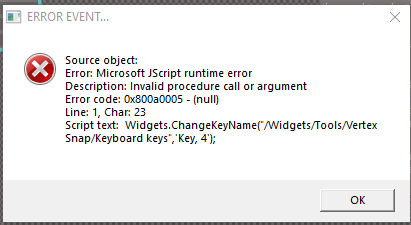
- Capture.PNG (10.85 KiB) Viewed 4141 times
I have never used those features so I have no idea.
I do know that the Shortcuts does use some of those keys but not the ESC key, but I have not seen any conflict.
The ESC key is to toggle the registered widgets On/Off.
Nice work on your Cube widget, I included a RMB click on the X(s) that opens it's Preferences.
It is also Officially part of the update adding commands to the reset.js and init.js files.
If you do not close it before exiting tS761 it will stay present.
I have uploaded the changes for the trueSpace 7.61 Beta 8 Unofficial Update 5 'Beta'
Version 5 - 8/30/2019
-
clintonman
- Captain
- Posts: 5659
- Joined: 21 May 2009, 21:08
- Type the number ten into the box: 0
- Location: California
Re: Final trueSpace7.61 Beta 8 Std Unofficial Update
Is that question for me or stan? Not sure what you're referring to.trueBlue wrote: 31 Aug 2019, 00:34 ...
I know you mentioned that, shouldn't it be eliminated?
...
-
trueBlue
- Captain
- Posts: 5548
- Joined: 06 Jul 2009, 22:50
- Type the number ten into the box: 10
Re: Final trueSpace7.61 Beta 8 Std Unofficial Update
I used your version.clintonman wrote: 30 Aug 2019, 18:43 Here are my changes to stan's update to the vertex snap.
Esc to close the widget not working anymore, don't know if other shortcuts are also disabled
This is the error.
-
clintonman
- Captain
- Posts: 5659
- Joined: 21 May 2009, 21:08
- Type the number ten into the box: 0
- Location: California
Re: Final trueSpace7.61 Beta 8 Std Unofficial Update
I never touched that portion of stans modified version. So are you saying eliminate the shortcut keys or that we should fix them?trueBlue wrote: 31 Aug 2019, 01:58I used your version.clintonman wrote: 30 Aug 2019, 18:43 Here are my changes to stan's update to the vertex snap.
Esc to close the widget not working anymore, don't know if other shortcuts are also disabled
This is the error.
-
trueBlue
- Captain
- Posts: 5548
- Joined: 06 Jul 2009, 22:50
- Type the number ten into the box: 10
Re: Final trueSpace7.61 Beta 8 Std Unofficial Update
Up to you but I do not think an error is a good thing.clintonman wrote: 31 Aug 2019, 02:15I never touched that portion of stans modified version. So are you saying eliminate the shortcut keys or that we should fix them?trueBlue wrote: 31 Aug 2019, 01:58I used your version.clintonman wrote: 30 Aug 2019, 18:43 Here are my changes to stan's update to the vertex snap.
Esc to close the widget not working anymore, don't know if other shortcuts are also disabled
This is the error.

-
clintonman
- Captain
- Posts: 5659
- Joined: 21 May 2009, 21:08
- Type the number ten into the box: 0
- Location: California
Re: Final trueSpace7.61 Beta 8 Std Unofficial Update
Roger that, I'll remove all the shortcut keys from the vertex snapping widget.trueBlue wrote: 31 Aug 2019, 02:33Up to you but I do not think an error is a good thing.clintonman wrote: 31 Aug 2019, 02:15I never touched that portion of stans modified version. So are you saying eliminate the shortcut keys or that we should fix them?trueBlue wrote: 31 Aug 2019, 01:58
I used your version.
This is the error.