tS7.61 Save RsScn
-
trueBlue
- Captain
- Posts: 5548
- Joined: 06 Jul 2009, 22:50
- Type the number ten into the box: 10
tS7.61 Save RsScn
tS761 Save RsScn
Automatically saves your scene and captures a Screen Thumbnail Shows when it was saved last with date & time in the Status panel. Select the File Dialog to point to where your scene is saved.
Set the Time to how often you want to
automatically save your scene.
Select the Off/On button to start the script that runs from a Timer.
Very IMPORTANT to turn OFF the Save RsScn.RsObj when you are done, else it will continue to run in the background! Even better if you select the bottom X button it will close the floating panel and delete the Save RsScn.RsObj from System. Right click saves a copy to your scene.
Removed due to update
An updated version can be found in the UU9
viewforum.php?f=55
Automatically saves your scene and captures a Screen Thumbnail Shows when it was saved last with date & time in the Status panel. Select the File Dialog to point to where your scene is saved.
Set the Time to how often you want to
automatically save your scene.
Select the Off/On button to start the script that runs from a Timer.
Very IMPORTANT to turn OFF the Save RsScn.RsObj when you are done, else it will continue to run in the background! Even better if you select the bottom X button it will close the floating panel and delete the Save RsScn.RsObj from System. Right click saves a copy to your scene.
Removed due to update
An updated version can be found in the UU9
viewforum.php?f=55
-
Draise
- Captain
- Posts: 3200
- Joined: 21 Sep 2009, 19:33
- Type the number ten into the box: 0
- Location: Bogota, Colombia
Re: tS761 Save RsScn
This would be awesome to combat the stability of TS. Thanks for developing this.
-
spacekdet
- Captain
- Posts: 1810
- Joined: 27 May 2009, 15:00
- Type the number ten into the box: 10
- Location: On the day shift at the Utility Muffin Research Kitchen
Re: tS761 Save RsScn
Now what am I supposed to do with years of muscle-memory hotkeys!? :bananatyping:
-
trueBlue
- Captain
- Posts: 5548
- Joined: 06 Jul 2009, 22:50
- Type the number ten into the box: 10
Re: tS761 Save RsScn
Your welcome, was kind of excited finding a way to save the screen thumbnail.Draise wrote: 31 Mar 2018, 21:02 This would be awesome to combat the stability of TS. Thanks for developing this.
-
trueBlue
- Captain
- Posts: 5548
- Joined: 06 Jul 2009, 22:50
- Type the number ten into the box: 10
Re: tS761 Save RsScn
Learn some more?spacekdet wrote: 31 Mar 2018, 21:40 Now what am I supposed to do with years of muscle-memory hotkeys!?![]()
viewtopic.php?t=5411&start=30#p51791
-
trueBlue
- Captain
- Posts: 5548
- Joined: 06 Jul 2009, 22:50
- Type the number ten into the box: 10
Re: tS761 Save RsScn
Small update.
I enlarged the Screen Thumbnail and changed the Time script.
-
trueBlue
- Captain
- Posts: 5548
- Joined: 06 Jul 2009, 22:50
- Type the number ten into the box: 10
Re: tS7.61 Save RsScn
New update...
Moved the Save RsScn panel out of the scene to System.
So now it does not save with the scene.
Also developed a Save RsScn Incrementally
viewtopic.php?t=5480
Moved the Save RsScn panel out of the scene to System.
So now it does not save with the scene.
Also developed a Save RsScn Incrementally
viewtopic.php?t=5480
-
trueBlue
- Captain
- Posts: 5548
- Joined: 06 Jul 2009, 22:50
- Type the number ten into the box: 10
Re: tS7.61 Save RsScn
Hummm, I just downloaded it and tried it and worked without error.
You need to create a scene first and then use the File Dialog to locate it and select it.
If you are just selecting the On/Off button with the included file path:
C:\trueSpace761\tS\Rs Main Libraries\My Scene\My Backup.RsScn
You do not have that scene.
The included file path is a library and scene that is included in the Unofficial Update version 4
viewtopic.php?t=3732
You need to create a scene first and then use the File Dialog to locate it and select it.
If you are just selecting the On/Off button with the included file path:
C:\trueSpace761\tS\Rs Main Libraries\My Scene\My Backup.RsScn
You do not have that scene.
The included file path is a library and scene that is included in the Unofficial Update version 4
viewtopic.php?t=3732
-
FHembree
- Master Chief Petty Officer
- Posts: 337
- Joined: 21 Feb 2011, 17:43
- Type the number ten into the box: 9
Re: tS7.61 Save RsScn
OK, I understand now how it works. It works fine except I don't really understand how you get a thumbnail update, as shown in "My Backup Scene". 
-
trueBlue
- Captain
- Posts: 5548
- Joined: 06 Jul 2009, 22:50
- Type the number ten into the box: 10
Re: tS7.61 Save RsScn
Is the thumbnail not updating for you?
I have updated this script, that sets focus of the main 3D Window before capturing the screen shot for the thumbnail.
Before it would capture a screen shot of what ever window had focus.
HTH
I have updated this script, that sets focus of the main 3D Window before capturing the screen shot for the thumbnail.
Before it would capture a screen shot of what ever window had focus.
HTH
-
FHembree
- Master Chief Petty Officer
- Posts: 337
- Joined: 21 Feb 2011, 17:43
- Type the number ten into the box: 9
Re: tS7.61 Save RsScn
Just not sure of what the steps are to get a thumbnail as shown in your post. 
-
trueBlue
- Captain
- Posts: 5548
- Joined: 06 Jul 2009, 22:50
- Type the number ten into the box: 10
Re: tS7.61 Save RsScn
Open the Library Browser, right click the Main Library Place, and select Create Library.
Name: My Backups
Type: Scene
Select OK
At the bottom of the Library Browser, Open My Backups. In My Backups library right click Insert as: Scene,
right click that scene and rename it to My Backup.
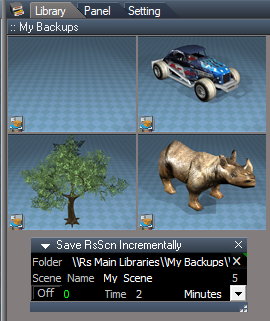
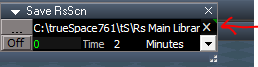
Open the Save RsScn.RsObj and from the File Dialog browse and select the above scene. Select the Off/On button. I usually minimize the Save RsScn (as shown) by selecting the Arrow. Add the Hotrod to the scene.
Wait for it to save.
Delete the Hotrod.
Wait for it to save.
Select the On/Off button.
You can also right click inside the library and select Thumbnails = 128 x 96
////////////////////////////////////////////////////////////////
For the Save RsScn Incrementally.RsObj
Set as shown. Hotrod = My Scene2
Tree = My Scene3
Rino = My Scene4
Very IMPORTANT to turn OFF either of the saving objects when you are done, else it will continue to run in the background!
Name: My Backups
Type: Scene
Select OK
At the bottom of the Library Browser, Open My Backups. In My Backups library right click Insert as: Scene,
right click that scene and rename it to My Backup.
Open the Save RsScn.RsObj and from the File Dialog browse and select the above scene. Select the Off/On button. I usually minimize the Save RsScn (as shown) by selecting the Arrow. Add the Hotrod to the scene.
Wait for it to save.
Delete the Hotrod.
Wait for it to save.
Select the On/Off button.
You can also right click inside the library and select Thumbnails = 128 x 96
////////////////////////////////////////////////////////////////
For the Save RsScn Incrementally.RsObj
Set as shown. Hotrod = My Scene2
Tree = My Scene3
Rino = My Scene4
Very IMPORTANT to turn OFF either of the saving objects when you are done, else it will continue to run in the background!