First release of the trueSpace Unofficial Updates Manual.
Includes a pdf file, a wmv video file and a replacement for the index.html file.
There is no installer. Includes instructions for copying the included files.
The manual works best when viewed inside a web browser. That's to say that the browser opens pdf files instead of opening a viewer application.
http://clintons3d.com/plugins/truespace ... index.html
Unofficial Update Documentation Manual
-
clintonman

- Captain
- Posts: 5659
- Joined: 21 May 2009, 21:08
- Type the number ten into the box: 0
- Location: California
Unofficial Update Documentation Manual
-
clintonman
- Captain
- Posts: 5659
- Joined: 21 May 2009, 21:08
- Type the number ten into the box: 0
- Location: California
Re: Unofficial Update Documentation Manual
Notes for future update:
TODO List:
Object Render Attributes of Scene panel has changed. June 19, 2021
Removed shortcut "F9" "Show Object Render Attributes"
lock/unlock - no floating panel and no clear undo history
RMB Lock same as before
RMB Unlock changed to unlock all
page 19
Shortcuts
Removed 6/21/2021
<RS_ACC KEY="F9" DESC="Show Object Render Attributes" GROUP="GLOBAL" COMMAND="D3DView.ShowRenderAttribsForObject('','');" />
page 185
unSelectable
"show floating panel on startup clears undo history"
Removed floating panel scripts
Mesh Editor Settings changed, new button, label change("Changed Front faces to Visible Geometry"), need new screenshot
Just discovered Mesh Origin widget option clears undo history
Updated 6/25/2021
...will gather any change notes in this post
TODO List:
Object Render Attributes of Scene panel has changed. June 19, 2021
Removed shortcut "F9" "Show Object Render Attributes"
lock/unlock - no floating panel and no clear undo history
RMB Lock same as before
RMB Unlock changed to unlock all
page 19
Shortcuts
Removed 6/21/2021
<RS_ACC KEY="F9" DESC="Show Object Render Attributes" GROUP="GLOBAL" COMMAND="D3DView.ShowRenderAttribsForObject('','');" />
page 185
unSelectable
"show floating panel on startup clears undo history"
Removed floating panel scripts
Mesh Editor Settings changed, new button, label change("Changed Front faces to Visible Geometry"), need new screenshot
Just discovered Mesh Origin widget option clears undo history
Updated 6/25/2021
...will gather any change notes in this post
-
clintonman
- Captain
- Posts: 5659
- Joined: 21 May 2009, 21:08
- Type the number ten into the box: 0
- Location: California
Re: Unofficial Update Documentation Manual
Update July 3, 2021
Updated the manual to be in sync with the July 2 release of the Unofficial Update.
Updated the manual to be in sync with the July 2 release of the Unofficial Update.
-
clintonman
- Captain
- Posts: 5659
- Joined: 21 May 2009, 21:08
- Type the number ten into the box: 0
- Location: California
Re: Unofficial Update Documentation Manual
Error in manual and start of fresh list of future changes.
page 20 need to remove ESC / unselect shortcut
page 20 need to remove ESC / unselect shortcut
-
clintonman
- Captain
- Posts: 5659
- Joined: 21 May 2009, 21:08
- Type the number ten into the box: 0
- Location: California
Re: Unofficial Update Documentation Manual
Update July 10
up to date with July 10 release of Unofficial Updates
changes:
add look at selection all windows
remove shortcut esc = unselect
physics cloth error original manual
remove background shortcut - RB drag - Look At Selection All Windows
light and camera panels Ctrl-RClick to open panel
added missing links from spot and projector light pages to ies light tool page
up to date with July 10 release of Unofficial Updates
changes:
add look at selection all windows
remove shortcut esc = unselect
physics cloth error original manual
remove background shortcut - RB drag - Look At Selection All Windows
light and camera panels Ctrl-RClick to open panel
added missing links from spot and projector light pages to ies light tool page
-
clintonman
- Captain
- Posts: 5659
- Joined: 21 May 2009, 21:08
- Type the number ten into the box: 0
- Location: California
Re: Unofficial Update Documentation Manual
List of future changes (after july 10)
NURBS Info panel "A" button next to the Name - needs writeup and new screenshot, Opens a panel that has a Auto Select NURBS checkbox option which sets the Default context select Widget to convert a NURBS selection to a NURBS control point mesh selection.
Object Look At button RMB will unselect
trueBevel - if you run the tool with a bad selection undo history will be erased also the preview is broken maybe incompatible with some UU behavior.
pe widget diagram - Alt + LB click Opens the Quad Menu, Ctrl + LB click Closes the Quad Menu not true for the center sphere
typo on same page - "Alt + LB click open quaf menu"
widget options/control panels not documented, pe on operating visibility button clears undo history
NURBS Info panel "A" button next to the Name - needs writeup and new screenshot, Opens a panel that has a Auto Select NURBS checkbox option which sets the Default context select Widget to convert a NURBS selection to a NURBS control point mesh selection.
Object Look At button RMB will unselect
trueBevel - if you run the tool with a bad selection undo history will be erased also the preview is broken maybe incompatible with some UU behavior.
pe widget diagram - Alt + LB click Opens the Quad Menu, Ctrl + LB click Closes the Quad Menu not true for the center sphere
typo on same page - "Alt + LB click open quaf menu"
widget options/control panels not documented, pe on operating visibility button clears undo history
-
clintonman
- Captain
- Posts: 5659
- Joined: 21 May 2009, 21:08
- Type the number ten into the box: 0
- Location: California
Re: Unofficial Update Documentation Manual
Update Oct 30
updated the pdf and html file to be up to date with the October 15 release of the UU.
updated the pdf and html file to be up to date with the October 15 release of the UU.
-
clintonman
- Captain
- Posts: 5659
- Joined: 21 May 2009, 21:08
- Type the number ten into the box: 0
- Location: California
Re: Unofficial Update Documentation Manual
Update Oct 31
added missing shortcuts for the material inspector and the axis tool
segregated the junk pages out of the main manual
added missing shortcuts for the material inspector and the axis tool
segregated the junk pages out of the main manual
-
clintonman
- Captain
- Posts: 5659
- Joined: 21 May 2009, 21:08
- Type the number ten into the box: 0
- Location: California
Re: Unofficial Update Documentation Manual
Update November 16
updated for UU Nov 11 release
updated for UU Nov 11 release
-
clintonman
- Captain
- Posts: 5659
- Joined: 21 May 2009, 21:08
- Type the number ten into the box: 0
- Location: California
Re: Unofficial Update Documentation Manual
Update January 12 2022
new changes covered for UU Dec 28 2021 release
new changes covered for UU Dec 28 2021 release
-
trueBlue

- Captain
- Posts: 5548
- Joined: 06 Jul 2009, 22:50
- Type the number ten into the box: 10
Re: Unofficial Update Documentation Manual
Chapter 9.2.7 Error
The above quote does not seem to be correct
The Animation Preference panel's Play Range - Start & End (scrubbers) update the Anim View's Play Range
The buttons do set the Play Range's Start & End
The new Shrink Play Range script, gets all of the scene's animated objects
Why is Chapter 9.2.7 an Error?Note however that updating the fields on this panel will not redraw the Animation Editor window
The above quote does not seem to be correct
The Animation Preference panel's Play Range - Start & End (scrubbers) update the Anim View's Play Range

Spell check effectShrink Play Range : set the timeline start and end to match the scene minimum and maximum
keyframe times
|< : set timeline start to 0, does not effect the play range
>| : set timeline end to 300, does not effect the play range
The buttons do set the Play Range's Start & End
The new Shrink Play Range script, gets all of the scene's animated objects
Code: Select all
var scene = Space.CurrentScene();
var newSelection = "";
for(var i=0;i<Node.SubObjectCount(scene);i++) {
var subobj = scene + "/" + Node.SubObject(scene, i);
if(Node.ConExists(subobj, "AnimTrack"))
newSelection += subobj + ";";
-
clintonman
- Captain
- Posts: 5659
- Joined: 21 May 2009, 21:08
- Type the number ten into the box: 0
- Location: California
Re: Unofficial Update Documentation Manual
Errors in the UU manual refer to the original manual errors.trueBlue wrote: 13 Jan 2022, 18:01 Chapter 9.2.7 ErrorWhy is Chapter 9.2.7 an Error?Note however that updating the fields on this panel will not redraw the Animation Editor window
The above quote does not seem to be correct
The Animation Preference panel's Play Range - Start & End (scrubbers) update the Anim View's Play Range
This is not correct in the original manual it's quoted in the UU manual
"Play Range Start and End – This defines the start and end of the animation. Note that this is the same as
setting the start and end points using the numeric fields at the bottom of the Animation Editor window.
Updating those fields in the Animation Editor window will update the fields here on this panel. Note
however that updating the fields on this panel will not redraw the Animation Editor window."
This is the actual behavior documented in the UU manual
It is not the same as setting the start and end points using the numeric fields at the bottom of the
Animation Editor window. It is the same as dragging on the play range handles and it does redraw in the
Animation Editor window when updating the fields.
Spell check effecttrueBlue wrote: 13 Jan 2022, 18:01
|< : set timeline start to 0, does not effect the play range
>| : set timeline end to 300, does not effect the play range
The buttons do set the Play Range's Start & End
[/quote]
I don't think "does not effect the play range" can be blamed on spell check. It' just plain wrong.
Don't know what you are referring to. I don't see anything in the manual that contradicts that. Give me a page number and I'll fix it.trueBlue wrote: 13 Jan 2022, 18:01 The new Shrink Play Range script, gets all of the scene's animated objects
-
trueBlue
- Captain
- Posts: 5548
- Joined: 06 Jul 2009, 22:50
- Type the number ten into the box: 10
Re: Unofficial Update Documentation Manual
All I am saying is, both of the above buttons reset the default Start & End frames and the Play Range's Start & End frames|< : set timeline start to 0, does not effect the play range
>| : set timeline end to 300, does not effect the play range
So, it does affect the Play Range
I was just pointing out that the Shrink Play Range script has been changedDon't know what you are referring to. I don't see anything in the manual that contradicts that. Give me a page number and I'll fix it.
-
clintonman
- Captain
- Posts: 5659
- Joined: 21 May 2009, 21:08
- Type the number ten into the box: 0
- Location: California
Re: Unofficial Update Documentation Manual
I was agreeing with you. The UU manual is wrong. "Does not effect the play range" is wrong, not a spell check error. The UU manual will be corrected to fix the error you pointed out.trueBlue wrote: 13 Jan 2022, 21:03All I am saying is, both of the above buttons reset the default Start & End frames and the Play Range's Start & End frames|< : set timeline start to 0, does not effect the play range
>| : set timeline end to 300, does not effect the play range
So, it does affect the Play Range
...
-
trueBlue
- Captain
- Posts: 5548
- Joined: 06 Jul 2009, 22:50
- Type the number ten into the box: 10
Re: Unofficial Update Documentation Manual
Okay, thanks! 
-
trueBlue
- Captain
- Posts: 5548
- Joined: 06 Jul 2009, 22:50
- Type the number ten into the box: 10
Re: Unofficial Update Documentation Manual
Page 153
Can also be used to bake workspace animations to modelspace animation via the autokey setting in modelspace
and for rendering command script based animations.
I do not think the above is possibleBake Model view keyframes:
turn on AutoRecord in Model view
uncheck the Render to File
uncheck Disable Model View Autokey
press the Render button
-
clintonman
- Captain
- Posts: 5659
- Joined: 21 May 2009, 21:08
- Type the number ten into the box: 0
- Location: California
Re: Unofficial Update Documentation Manual
Looks like you're right. I even checked the original version from 2012 and it didn't update the objects in the model view so it can't autokey them.trueBlue wrote: 13 Jan 2022, 22:38 Page 153Can also be used to bake workspace animations to modelspace animation via the autokey setting in modelspace
and for rendering command script based animations.I do not think the above is possibleBake Model view keyframes:
turn on AutoRecord in Model view
uncheck the Render to File
uncheck Disable Model View Autokey
press the Render button
I'll add a note or something saying synchronize is required to bake keyframes.
Last edited by clintonman on 13 Jan 2022, 23:17, edited 1 time in total.
-
trueBlue
- Captain
- Posts: 5548
- Joined: 06 Jul 2009, 22:50
- Type the number ten into the box: 10
Re: Unofficial Update Documentation Manual
I am pretty sure you could create an optional Model Record Keyframe
The object would need to be selected!!!
tSBridge.SuggestTSStateByAlias("RecordKeyFrameButton")
This would not work with Special Meshes because Model selects them
The object would need to be selected!!!
tSBridge.SuggestTSStateByAlias("RecordKeyFrameButton")
This would not work with Special Meshes because Model selects them
-
clintonman
- Captain
- Posts: 5659
- Joined: 21 May 2009, 21:08
- Type the number ten into the box: 0
- Location: California
Re: Unofficial Update Documentation Manual
Problem is model has to update from workspace. I'll add something saying that synchronize is needed to bake from workspace to model.trueBlue wrote: 13 Jan 2022, 23:14 I am pretty sure you could create an optional Model Record Keyframe
tSBridge.SuggestTSStateByAlias("RecordKeyFrameButton")
This would not work with Special Meshes because Model selects them
-
trueBlue
- Captain
- Posts: 5548
- Joined: 06 Jul 2009, 22:50
- Type the number ten into the box: 10
Re: Unofficial Update Documentation Manual
I tried adding:clintonman wrote: 13 Jan 2022, 23:09Looks like you're right. I even checked the original version from 2012 and it didn't update the objects in the model view so it can't autokey them.trueBlue wrote: 13 Jan 2022, 22:38 Page 153Can also be used to bake workspace animations to modelspace animation via the autokey setting in modelspace
and for rendering command script based animations.I do not think the above is possibleBake Model view keyframes:
turn on AutoRecord in Model view
uncheck the Render to File
uncheck Disable Model View Autokey
press the Render button
I'll add a note or something saying synchronize is required to bake keyframes.
tSBridge.SynchronizeObject(Node.FirstSelected())
but trueSpace defiantly does not like it with your D3D Render script
-
clintonman
- Captain
- Posts: 5659
- Joined: 21 May 2009, 21:08
- Type the number ten into the box: 0
- Location: California
Re: Unofficial Update Documentation Manual
It will bake keyframes if you run synchronize and d3d render at the same time. D3D render to drive the animation, synchronize to make model update and generate a keyframe.trueBlue wrote: 13 Jan 2022, 23:22I tried adding:clintonman wrote: 13 Jan 2022, 23:09Looks like you're right. I even checked the original version from 2012 and it didn't update the objects in the model view so it can't autokey them.trueBlue wrote: 13 Jan 2022, 22:38 Page 153
I do not think the above is possible
I'll add a note or something saying synchronize is required to bake keyframes.
tSBridge.SynchronizeObject(Node.FirstSelected())
but trueSpace defiantly does not like it with your D3D Render script
Edit: Actually, let me double check that. I still have the 2012 version of D3d render installed
Nope, doesn't work with the newer D3D render and pressing the Synchronize button even forces you to close D3D render before opening the panel.
Edit:
Worked after increasing the period value on the d3d render, so it can be done, it's just a bit tricky with timing and synchronize not wanting d3d render open.
Final Edit: It works but there's a danger to it.
1. synchronize open and activate
2. modelspace autokey on
3. open d3d render panel and uncheck everything
4. press render
5. restore to end synchronization
6. open model and see the baked keyframes
The bad part - everything that moves will get keyframes. not just the selected item.
-
trueBlue
- Captain
- Posts: 5548
- Joined: 06 Jul 2009, 22:50
- Type the number ten into the box: 10
Re: Unofficial Update Documentation Manual
I'll give it another try upping the Period, but I found it to be unstableclintonman wrote: 13 Jan 2022, 23:43It will bake keyframes if you run synchronize and d3d render at the same time. D3D render to drive the animation, synchronize to make model update and generate a keyframe.trueBlue wrote: 13 Jan 2022, 23:22I tried adding:clintonman wrote: 13 Jan 2022, 23:09
Looks like you're right. I even checked the original version from 2012 and it didn't update the objects in the model view so it can't autokey them.
I'll add a note or something saying synchronize is required to bake keyframes.
tSBridge.SynchronizeObject(Node.FirstSelected())
but trueSpace defiantly does not like it with your D3D Render script
Edit: Actually, let me double check that. I still have the 2012 version of D3d render installed
Nope, doesn't work with the newer D3D render and pressing the Synchronize button even forces you to close D3D render before opening the panel.
Edit:
Worked after increasing the period value on the d3d render, so it can be done, it's just a bit tricky with timing and synchronize not wanting d3d render open.
I put that restriction on due to Protect Workspace
Open the D3D Render first, then Sychronize
-
clintonman
- Captain
- Posts: 5659
- Joined: 21 May 2009, 21:08
- Type the number ten into the box: 0
- Location: California
Re: Unofficial Update Documentation Manual
Cross postclintonman wrote: 13 Jan 2022, 23:43 ...
1. synchronize open and activate
2. modelspace autokey on
3. open d3d render panel and uncheck everything
4. press render
5. restore to end synchronization
6. open model and see the baked keyframes
The bad part - everything that moves will get keyframes. not just the selected item.
I did another test and the period didn't matter.
-
trueBlue
- Captain
- Posts: 5548
- Joined: 06 Jul 2009, 22:50
- Type the number ten into the box: 10
Re: Unofficial Update Documentation Manual
That is because, Sychronize now synchronizes the whole scene verses selected object which caused problemsclintonman wrote: 14 Jan 2022, 00:16Cross postclintonman wrote: 13 Jan 2022, 23:43 ...
1. synchronize open and activate
2. modelspace autokey on
3. open d3d render panel and uncheck everything
4. press render
5. restore to end synchronization
6. open model and see the baked keyframes
The bad part - everything that moves will get keyframes. not just the selected item.
I did another test and the period didn't matter.
-
clintonman
- Captain
- Posts: 5659
- Joined: 21 May 2009, 21:08
- Type the number ten into the box: 0
- Location: California
Re: Unofficial Update Documentation Manual
The test I did was only 9 frames, didn't see any problems. Do the problems show itself with longer animations? and what are the problems?trueBlue wrote: 14 Jan 2022, 00:22That is because, Sychronize now synchronizes the whole scene verses selected object which caused problemsclintonman wrote: 14 Jan 2022, 00:16Cross postclintonman wrote: 13 Jan 2022, 23:43 ...
1. synchronize open and activate
2. modelspace autokey on
3. open d3d render panel and uncheck everything
4. press render
5. restore to end synchronization
6. open model and see the baked keyframes
The bad part - everything that moves will get keyframes. not just the selected item.
I did another test and the period didn't matter.
-
trueBlue
- Captain
- Posts: 5548
- Joined: 06 Jul 2009, 22:50
- Type the number ten into the box: 10
Re: Unofficial Update Documentation Manual
I'll get back to you with your questions after I test the modified D3D Render with Synchronize
Note: This is going to be moot given that this is not going to work with Special Meshes!
Here is the following notes before making modifications to your D3D Render
My previous posts with regards to your current, unmodified D3D Render:
1) So back to my original post, D3D Render's Protect Workspace does not seem to be working!
It is not restoring the Backup and or there is no way to Restore manually
2) D3D Render
You need to have Model open before you start the rendering process
Problem:
1) The Workspace scene will not be protected beforehand
You need to close Model before running Restore
2) Currently there is a MiscBackupData and MaterialsBackup node after the rendering process is complete
3) Now way to Restore after manually closing the Model View and or it does not work
4) Spot lights, Projector lights, and Camera's meshes get changed
Note: A docked Model view seems to stop trueSpace from crashing including switching layouts
Findings:
Removing the Protect Workspace from the D3D Render process made the process much faster!
Removing msdone.Select() from the python script made the process more stable and stops the object widget from flashing
Removing tSBridge.SynchronizeObject(msdone); made the process more stable, and the Model's Info panel from constantly updating
Note: This is going to be moot given that this is not going to work with Special Meshes!
Here is the following notes before making modifications to your D3D Render
My previous posts with regards to your current, unmodified D3D Render:
1) So back to my original post, D3D Render's Protect Workspace does not seem to be working!
It is not restoring the Backup and or there is no way to Restore manually
2) D3D Render
You need to have Model open before you start the rendering process
Problem:
1) The Workspace scene will not be protected beforehand
You need to close Model before running Restore
2) Currently there is a MiscBackupData and MaterialsBackup node after the rendering process is complete
3) Now way to Restore after manually closing the Model View and or it does not work
4) Spot lights, Projector lights, and Camera's meshes get changed
Note: A docked Model view seems to stop trueSpace from crashing including switching layouts
Findings:
Removing the Protect Workspace from the D3D Render process made the process much faster!
Removing msdone.Select() from the python script made the process more stable and stops the object widget from flashing
Removing tSBridge.SynchronizeObject(msdone); made the process more stable, and the Model's Info panel from constantly updating
-
trueBlue
- Captain
- Posts: 5548
- Joined: 06 Jul 2009, 22:50
- Type the number ten into the box: 10
Re: Unofficial Update Documentation Manual
I did a few tests with 3 animated workspace objects, 60 framesclintonman wrote: 14 Jan 2022, 00:16 The test I did was only 9 frames, didn't see any problems. Do the problems show itself with longer animations? and what are the problems?
Sucess baking the Workspace animation into Model animations
After the third test, Workspace stopped responding after closing Model
-
clintonman
- Captain
- Posts: 5659
- Joined: 21 May 2009, 21:08
- Type the number ten into the box: 0
- Location: California
Re: Unofficial Update Documentation Manual
So I read the numbered items to mean that those are issues with current release version of the D3D render code. I'll reword them so you can tell if I understand or not and add my own comments to themtrueBlue wrote: 14 Jan 2022, 00:56 I'll get back to you with your questions after I test the modified D3D Render with Synchronize
Note: This is going to be moot given that this is not going to work with Special Meshes!
Here is the following notes before making modifications to your D3D Render
My previous posts with regards to your current, unmodified D3D Render:
1) So back to my original post, D3D Render's Protect Workspace does not seem to be working!
It is not restoring the Backup and or there is no way to Restore manually
2) D3D Render
You need to have Model open before you start the rendering process
Problem:
1) The Workspace scene will not be protected beforehand
You need to close Model before running Restore
2) Currently there is a MiscBackupData and MaterialsBackup node after the rendering process is complete
3) Now way to Restore after manually closing the Model View and or it does not work
4) Spot lights, Projector lights, and Camera's meshes get changed
Note: A docked Model view seems to stop trueSpace from crashing including switching layouts
Findings:
Removing the Protect Workspace from the D3D Render process made the process much faster!
Removing msdone.Select() from the python script made the process more stable and stops the object widget from flashing
Removing tSBridge.SynchronizeObject(msdone); made the process more stable, and the Model's Info panel from constantly updating
1)The D3D render setup will protect workspace backup but does not restore at the end - I can see that in the code, restore is not run in the code anywhere
The Restore button on protect workspace is not working. - if true then it's completely broken
2)If you open model view without running protect workspace backup then you don't get protection - I don't know of any way to replace manually opening model with a version that protects first. Nothing shows up in command or log when pressing the Model or Workspace tab items.
3)The Restore button does not work or it's not possible to press restore after closing model - if restore doesn't work backup won't help anything
4)Spot lights, Projector lights, and Camera's meshes get changed - haven't seen this, need a recipe or steps to reproduce. there is nothing in protect workspace that operates on meshes.
If I completely missed the mark let me know.
-
trueBlue
- Captain
- Posts: 5548
- Joined: 06 Jul 2009, 22:50
- Type the number ten into the box: 10
Re: Unofficial Update Documentation Manual
What is meant by, "current release version of the D3D render code"?
Your unmodified version currently on your website?
Or the modified version in the currently released UU?
As said, I was referring to your unmodified version currently on your website
1) The D3D Render's Protect Workspace does not seem to be working!
It is not restoring the Backup and or there is no way to Restore manually
2) Currently there is a MiscBackupData and MaterialsBackup node after the rendering process is complete
3) Now way to Restore after manually closing the Model View and or it does not work
The above three issues were resolved in the modified version in the currently released UU when using the Setup button script
Other modifications:
Removing the Protect Workspace from the D3D Render process made the process much faster!
Removing msdone.Select() from the python script made the process more stable and stops the object widget from flashing
Removing tSBridge.SynchronizeObject(msdone); made the process more stable, and the Model's Info panel from constantly updating
Your unmodified version currently on your website?
Or the modified version in the currently released UU?
As said, I was referring to your unmodified version currently on your website
1) The D3D Render's Protect Workspace does not seem to be working!
It is not restoring the Backup and or there is no way to Restore manually
2) Currently there is a MiscBackupData and MaterialsBackup node after the rendering process is complete
3) Now way to Restore after manually closing the Model View and or it does not work
The above three issues were resolved in the modified version in the currently released UU when using the Setup button script
Other modifications:
Removing the Protect Workspace from the D3D Render process made the process much faster!
Removing msdone.Select() from the python script made the process more stable and stops the object widget from flashing
Removing tSBridge.SynchronizeObject(msdone); made the process more stable, and the Model's Info panel from constantly updating
-
clintonman
- Captain
- Posts: 5659
- Joined: 21 May 2009, 21:08
- Type the number ten into the box: 0
- Location: California
Re: Unofficial Update Documentation Manual
Yep, completely missed the mark. Was wondering why you kept saying "your unmodified version" . This has nothing to do with the UU or it's documentation so better to move this conversation elsewhere.trueBlue wrote: 14 Jan 2022, 03:18 What is meant by, "current release version of the D3D render code"?
Your unmodified version currently on your website?
Or the modified version in the currently released UU?
As said, I was referring to your unmodified version currently on your website
1) The D3D Render's Protect Workspace does not seem to be working!
It is not restoring the Backup and or there is no way to Restore manually
2) Currently there is a MiscBackupData and MaterialsBackup node after the rendering process is complete
3) Now way to Restore after manually closing the Model View and or it does not work
The above three issues were resolved in the modified version in the currently released UU when using the Setup button script
Other modifications:
Removing the Protect Workspace from the D3D Render process made the process much faster!
Removing msdone.Select() from the python script made the process more stable and stops the object widget from flashing
Removing tSBridge.SynchronizeObject(msdone); made the process more stable, and the Model's Info panel from constantly updating
-
trueBlue
- Captain
- Posts: 5548
- Joined: 06 Jul 2009, 22:50
- Type the number ten into the box: 10
Re: Unofficial Update Documentation Manual
Page 36
Not only does Model rename the objects, but they are also being copied!
After reading, testing, and verifying this, I am inclined to remove SynchronizeThe trueSpace "synchronize bug" presents itself if more than 1 object is selected when the
bridge synchronize from workspace is run. The selected objects will be renamed to include a
comma and number postfix. Each time the synchronize is run the number will increment. The
reason for the bug is that when more than 1 object is selected in modelspace it will create a
temporary "Selection" group to hold the objects. Workspace cannot see the modelspace
"Selection" object.
Not only does Model rename the objects, but they are also being copied!
-
clintonman
- Captain
- Posts: 5659
- Joined: 21 May 2009, 21:08
- Type the number ten into the box: 0
- Location: California
Re: Unofficial Update Documentation Manual
Copied?! That's pretty wild.trueBlue wrote: 14 Jan 2022, 17:11 Page 36After reading, testing, and verifying this, I am inclined to remove SynchronizeThe trueSpace "synchronize bug" presents itself if more than 1 object is selected when the
bridge synchronize from workspace is run. The selected objects will be renamed to include a
comma and number postfix. Each time the synchronize is run the number will increment. The
reason for the bug is that when more than 1 object is selected in modelspace it will create a
temporary "Selection" group to hold the objects. Workspace cannot see the modelspace
"Selection" object.
Not only does Model rename the objects, but they are also being copied!
-
trueBlue
- Captain
- Posts: 5548
- Joined: 06 Jul 2009, 22:50
- Type the number ten into the box: 10
Re: Unofficial Update Documentation Manual
Just discovered a feature in the Animation Editor
Play - Selected Play Range
You have to select a range of keyframes and set the Start & End to match
Note: I have noticed that you can lose the Time picker and you have to Close & Reopen the Animation Editor
Also note, that you can get the users selection from the AnimMng
Side Note: I do not think the options in Show objects, work
Play - Selected Play Range
You have to select a range of keyframes and set the Start & End to match
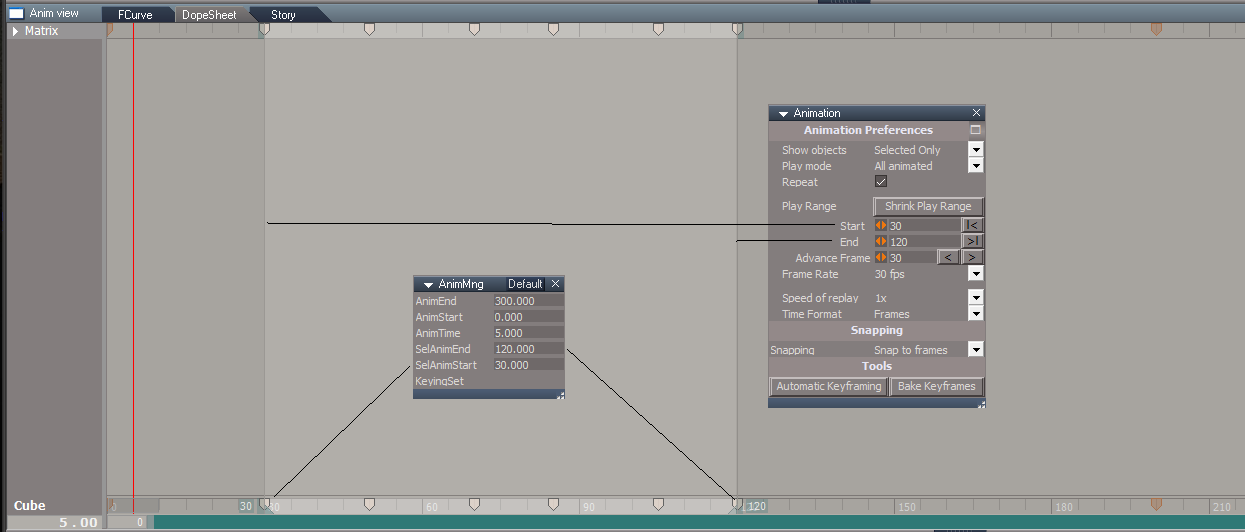
Also note, that you can get the users selection from the AnimMng
Side Note: I do not think the options in Show objects, work
-
clintonman
- Captain
- Posts: 5659
- Joined: 21 May 2009, 21:08
- Type the number ten into the box: 0
- Location: California
Re: Unofficial Update Documentation Manual
What does selecting the keyframes get you? It just plays the start to end no matter what the selection is.trueBlue wrote: 15 Jan 2022, 15:22 Just discovered a feature in the Animation Editor
Play - Selected Play Range
You have to select a range of keyframes and set the Start & End to match
Play Selected Range.png
Note: I have noticed that you can lose the Time picker and you have to Close & Reopen the Animation Editor
Also note, that you can get the users selection from the AnimMng
Side Note: I do not think the options in Show objects, work
-
borgcone

- Chief Petty Officer
- Posts: 134
- Joined: 06 May 2018, 21:09
- Type the number ten into the box: 10
- Location: Japan, or sometimes behind a borg cube
Re: Unofficial Update Documentation Manual
Sorry to interrupt but it seems to be good timing for this.
Thank you for the valuable and effortful project.
I was worry about original errors of Quick Guide that could demotivate tS newbies or potential users (especially tS5-tS2 user who didn't buy tS6 and want to start from tS7 Model side like me). For example, could you please consider to add something like below when you have a time?
Of course please change or discuss wording, image-design, excess/deficiency, etc. because my English is not so good. (I can provide Inkscape .svg file and/or exported 2D images in higher resolution if needed)
I'm planning to translate the UU document to my mother-language, and am verifying tS's behavior in Quick Guide at first.
Related topic by me:
General Discussion - Model side control vertex (CV) handles, bugs?"
Thank you for the valuable and effortful project.
I was worry about original errors of Quick Guide that could demotivate tS newbies or potential users (especially tS5-tS2 user who didn't buy tS6 and want to start from tS7 Model side like me). For example, could you please consider to add something like below when you have a time?
Of course please change or discuss wording, image-design, excess/deficiency, etc. because my English is not so good. (I can provide Inkscape .svg file and/or exported 2D images in higher resolution if needed)

Related topic by me:
General Discussion - Model side control vertex (CV) handles, bugs?"
borgcone ... or 3DfromNULL at https://biglode.com/ptsxpy
-
clintonman
- Captain
- Posts: 5659
- Joined: 21 May 2009, 21:08
- Type the number ten into the box: 0
- Location: California
Re: Unofficial Update Documentation Manual
The icons are too small to see what they are. If they are bigger in the inkscape file attach it, otherwise export a higher resolution 2D image.borgcone wrote: 16 Jan 2022, 14:41 Sorry to interrupt but it seems to be good timing for this.
Thank you for the valuable and effortful project.
I was worry about original errors of Quick Guide that could demotivate tS newbies or potential users (especially tS5-tS2 user who didn't buy tS6 and want to start from tS7 Model side like me). For example, could you please consider to add something like below when you have a time?
Of course please change or discuss wording, image-design, excess/deficiency, etc. because my English is not so good. (I can provide Inkscape .svg file and/or exported 2D images in higher resolution if needed)
7a.png
I'm planning to translate the UU document to my mother-language, and am verifying tS's behavior in Quick Guide at first.
Related topic by me:
General Discussion - Model side control vertex (CV) handles, bugs?"
Are you planning to translate the whole thing to Inkscape or will you be using another program to author the language changes?
-
borgcone
- Chief Petty Officer
- Posts: 134
- Joined: 06 May 2018, 21:09
- Type the number ten into the box: 10
- Location: Japan, or sometimes behind a borg cube
Re: Unofficial Update Documentation Manual
Corrected icon size and uploaded an Inkscape file and several parts to my space. Please check it:clintonman wrote: 16 Jan 2022, 15:34 The icons are too small to see what they are. If they are bigger in the inkscape file attach it, otherwise export a higher resolution 2D image.
https://drive.google.com/drive/folders/ ... lik2Xww501
- Also added a vector image of left-hand side control (Workspace) because each real arrowhead is a bit different from the original image.
- I believe Japanese fonts (e.g. arrow sign) are completely wiped out from .svg. Please replace or let me know if any strange font remains.
- Gave a number "2.14.6" to only Selector sphere. It might be unbalanced and unnecessary.
Please let me know if there are any problems (or any Inkscap'ing task for the document project).
Perhaps I'll use Scribus (or Word) and export to PDF at least for text. It should be important that document like this is searchable. (A searchable PDF by Word must be accessibility=off, AFAIK. I don't like that)clintonman wrote: 16 Jan 2022, 15:34 Are you planning to translate the whole thing to Inkscape or will you be using another program to author the language changes?
Thank you.
borgcone ... or 3DfromNULL at https://biglode.com/ptsxpy
-
clintonman
- Captain
- Posts: 5659
- Joined: 21 May 2009, 21:08
- Type the number ten into the box: 0
- Location: California
Re: Unofficial Update Documentation Manual

Here is what I changed:
Workspace:
spelling error changed axix to axis
the move rb does not do anything, removed the text
scale was pointing to the move arrow instead of the scale box
de-emphasized black stroke color on the widget
The cage widget was very incomplete and separation of the workspace and model text was a good idea. Much better organization.
Model:
removed the "2.14.6"
selector sphere changed "control type" to "rotation control"
add space between rotate and scale sections
altered the arrangement and color of the "scale" images - made it green so it looked more like a zoomed in representation
changed all the stroke widths to 1
2 more notes, There were some mystery items outside of the page. I deleted them. The new images are linked instead of embedded in the svg file. Hopefully that won't mess up your workflow.
- Attachments
-
- QG_ONC_proposal_1a_edit1.zip
- (592.73 KiB) Downloaded 180 times
-
borgcone
- Chief Petty Officer
- Posts: 134
- Joined: 06 May 2018, 21:09
- Type the number ten into the box: 10
- Location: Japan, or sometimes behind a borg cube
Re: Unofficial Update Documentation Manual
I appreciate your help. Three corner icons and whole text become easier to read. I mistakenly R-dragged other than arrow shafts to move.
I cannot see the mystery items (cannot select anything by dragging very wide area outside of the page) and checked using a text editor after you pointed out. They are debris of text (e.g. at x=-937) because each of them includes Japanese font-family name. I have done "File" - "Clean up document" before the upload but it seems not to work for such ghost/zombie text. I will continue to search how to deal with.
In addition, as you may already have noticed, I have exchanged blue/green in the image of Workspace control so that it is consistent with real one I saw half a day ago. It could confuse readers as if Workspace has a left-handed coordinate system. Please reverse blue/green again if needed.
(edited: right-handed -> left-handed)
(I have understood just while ago that each of the arrows sometimes points -infinite in both case of Workspace/Model in order to face its "interior" center toward us.)
(Edit: The direction of the hand-written blue arrows were wrong. It incorrectly points Y = -Infinite)
I cannot see the mystery items (cannot select anything by dragging very wide area outside of the page) and checked using a text editor after you pointed out. They are debris of text (e.g. at x=-937) because each of them includes Japanese font-family name. I have done "File" - "Clean up document" before the upload but it seems not to work for such ghost/zombie text. I will continue to search how to deal with.
In addition, as you may already have noticed, I have exchanged blue/green in the image of Workspace control so that it is consistent with real one I saw half a day ago. It could confuse readers as if Workspace has a left-handed coordinate system. Please reverse blue/green again if needed.
(edited: right-handed -> left-handed)
(I have understood just while ago that each of the arrows sometimes points -infinite in both case of Workspace/Model in order to face its "interior" center toward us.)

- 1a.png (30.13 KiB) Viewed 4458 times
Last edited by borgcone on 19 Jan 2022, 17:49, edited 1 time in total.
borgcone ... or 3DfromNULL at https://biglode.com/ptsxpy
-
clintonman
- Captain
- Posts: 5659
- Joined: 21 May 2009, 21:08
- Type the number ten into the box: 0
- Location: California
Re: Unofficial Update Documentation Manual
Yes, the widget direction jumps around depending on the view orientation. When the default 3D view is reset and an object is centered at the origin, the green is to the left and blue to the right. That matches the original quick guide, so I will leave it as is. I have no plans to change the workspace widget image to match the unofficial update default version.
-
borgcone
- Chief Petty Officer
- Posts: 134
- Joined: 06 May 2018, 21:09
- Type the number ten into the box: 10
- Location: Japan, or sometimes behind a borg cube
Re: Unofficial Update Documentation Manual
Very sorry, I have misunderstood the selector sphere - LB click: "show/hide rotary control" is correct as original says. (The 3 colored control to rotate whole object remains whether we LB click the sphere or not)
(I added also a correction text of Y-axis that follows the previous image)
(Edited to add)
Curiously, Move RB (any shaft) in Workspace moves along Z axis now as I wrote in the 1st proposal .svg unless Z is locked. I'm not sure Z lock was off when I saw RB did nothing. There might be some sort of switch other than Z-lock if both you and I have not locked Z. (Disabling Z in Model side seems not to affect to Z lock in Workspace and Move RB action. I checked that a couple of minutes ago)
(I added also a correction text of Y-axis that follows the previous image)
(Edited to add)
Curiously, Move RB (any shaft) in Workspace moves along Z axis now as I wrote in the 1st proposal .svg unless Z is locked. I'm not sure Z lock was off when I saw RB did nothing. There might be some sort of switch other than Z-lock if both you and I have not locked Z. (Disabling Z in Model side seems not to affect to Z lock in Workspace and Move RB action. I checked that a couple of minutes ago)
borgcone ... or 3DfromNULL at https://biglode.com/ptsxpy
-
clintonman
- Captain
- Posts: 5659
- Joined: 21 May 2009, 21:08
- Type the number ten into the box: 0
- Location: California
Re: Unofficial Update Documentation Manual
I see what you mean. It looks like it only works in the Anim View, Story tab.trueBlue wrote: 15 Jan 2022, 15:22 ...
Side Note: I do not think the options in Show objects, work
-
clintonman
- Captain
- Posts: 5659
- Joined: 21 May 2009, 21:08
- Type the number ten into the box: 0
- Location: California
Re: Unofficial Update Documentation Manual
Update Feb 20 2022
Many changes including removal of Synchronize and replaced image in Quick Guide for the object navigation controls from borgcone.
Now up to date with the Feb 13, 2022 UU release.
http://clintons3d.com/plugins/truespace ... .html#docs
Many changes including removal of Synchronize and replaced image in Quick Guide for the object navigation controls from borgcone.
Now up to date with the Feb 13, 2022 UU release.
http://clintons3d.com/plugins/truespace ... .html#docs
-
clintonman
- Captain
- Posts: 5659
- Joined: 21 May 2009, 21:08
- Type the number ten into the box: 0
- Location: California
Re: Unofficial Update Documentation Manual
Updated the docs to the March 5 UU release
-
clintonman
- Captain
- Posts: 5659
- Joined: 21 May 2009, 21:08
- Type the number ten into the box: 0
- Location: California
Re: Unofficial Update Documentation Manual
I'm starting a new TODO list since I found missing information in the original manuals.
Current UU docs page 8 shows the View Navigation Controls.
I just found out that rotate control will roll the view(rotate in Z) when RMB is used.
Shift + LMB on the rotate control will rotate around the eye
Ctrl + LMB on the rotate control will rotate around the scene origin(0,0,0)
the text "Shift + RB" should be "Shift + RB click"
The red bar labelled "LB Rotate YZ" rotates in one direction with LMB and perpendicular when Shift + LMB, I don't know which is which Y or Z
tS7.1 has an extra control for moving the view widget, docs say RMB for "control properties", but RMB is not included in that control surface(the little white sphere)
Current UU docs page 8 shows the View Navigation Controls.
I just found out that rotate control will roll the view(rotate in Z) when RMB is used.
Shift + LMB on the rotate control will rotate around the eye
Ctrl + LMB on the rotate control will rotate around the scene origin(0,0,0)
the text "Shift + RB" should be "Shift + RB click"
The red bar labelled "LB Rotate YZ" rotates in one direction with LMB and perpendicular when Shift + LMB, I don't know which is which Y or Z
tS7.1 has an extra control for moving the view widget, docs say RMB for "control properties", but RMB is not included in that control surface(the little white sphere)
-
clintonman
- Captain
- Posts: 5659
- Joined: 21 May 2009, 21:08
- Type the number ten into the box: 0
- Location: California
Re: Unofficial Update Documentation Manual
Attached shows the indicated changes for page 8.clintonman wrote: 18 Jun 2022, 20:55 I'm starting a new TODO list since I found missing information in the original manuals.
Current UU docs page 8 shows the View Navigation Controls.
I just found out that rotate control will roll the view(rotate in Z) when RMB is used.
Shift + LMB on the rotate control will rotate around the eye
Ctrl + LMB on the rotate control will rotate around the scene origin(0,0,0)
the text "Shift + RB" should be "Shift + RB click"
The red bar labelled "LB Rotate YZ" rotates in one direction with LMB and perpendicular when Shift + LMB, I don't know which is which Y or Z
tS7.1 has an extra control for moving the view widget, docs say RMB for "control properties", but RMB is not included in that control surface(the little white sphere)
Including removing the extra triangles? and RMB to roll the view
- Attachments
-

-
clintonman
- Captain
- Posts: 5659
- Joined: 21 May 2009, 21:08
- Type the number ten into the box: 0
- Location: California
Re: Unofficial Update Documentation Manual
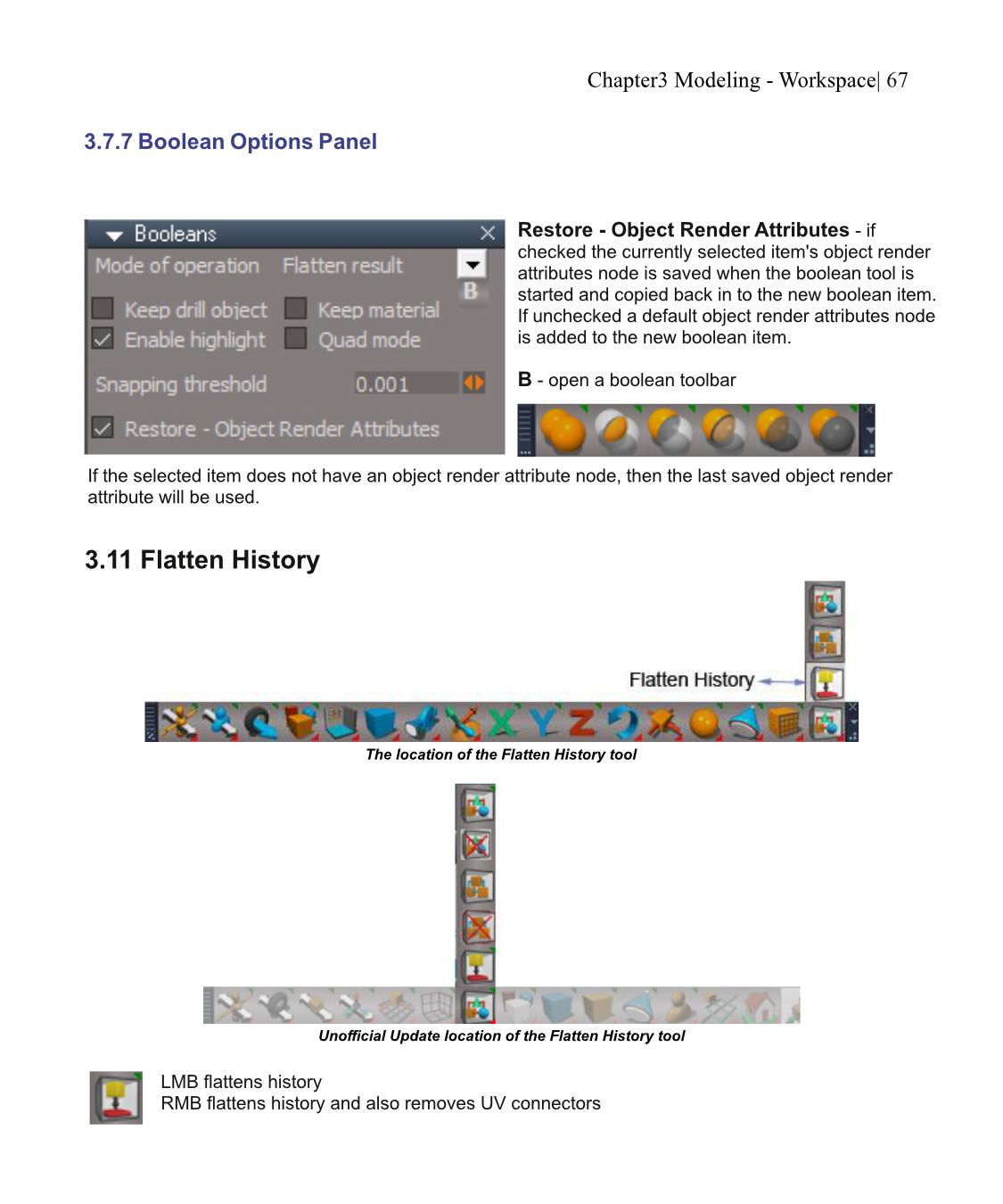
Page 67 Boolean Options Panel added Restore - Object Render Attributes, March 17 UU release
- Attachments
-
-
clintonman
- Captain
- Posts: 5659
- Joined: 21 May 2009, 21:08
- Type the number ten into the box: 0
- Location: California
Re: Unofficial Update Documentation Manual
page 162, changes to the Shear tool from May 4 UU release
- Attachments
-

-
clintonman
- Captain
- Posts: 5659
- Joined: 21 May 2009, 21:08
- Type the number ten into the box: 0
- Location: California
Re: Unofficial Update Documentation Manual
I did a survey and here is the updated todo list for the docs:
release date and description
Sep 2 Hierarchy tools, Webserver and SceneView2
Sep 21 optdetectors - maybe add a footnote or link to docs if they are included
Sep 26 encapsulation panels and options
Oct 5 help menu close buttons
Oct 7 new image for align panel
Oct 8 gold toolbar change
Oct 24 dimensions
edit: just did an animation test and shear values don't animate, even though they are a part of the matrix. will note it as a bug in the shear section
release date and description
Sep 2 Hierarchy tools, Webserver and SceneView2
Sep 21 optdetectors - maybe add a footnote or link to docs if they are included
Sep 26 encapsulation panels and options
Oct 5 help menu close buttons
Oct 7 new image for align panel
Oct 8 gold toolbar change
Oct 24 dimensions
edit: just did an animation test and shear values don't animate, even though they are a part of the matrix. will note it as a bug in the shear section
-
trueBlue
- Captain
- Posts: 5548
- Joined: 06 Jul 2009, 22:50
- Type the number ten into the box: 10
Re: Unofficial Update Documentation Manual
It is possible with a Eulerclintonman wrote: 29 Oct 2022, 04:02 edit: just did an animation test and shear values don't animate, even though they are a part of the matrix. will note it as a bug in the shear section
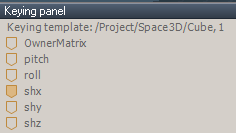
- Keying Shear.png (5.59 KiB) Viewed 3062 times
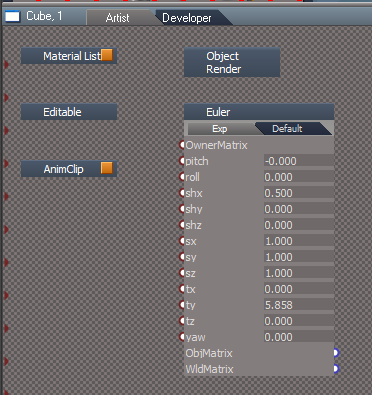
- Shear Euler.png (22.74 KiB) Viewed 3048 times
-
clintonman
- Captain
- Posts: 5659
- Joined: 21 May 2009, 21:08
- Type the number ten into the box: 0
- Location: California
Re: Unofficial Update Documentation Manual
But then it takes over and you can't animate normally using the object nav widget.trueBlue wrote: 29 Oct 2022, 13:06It is possible with a Eulerclintonman wrote: 29 Oct 2022, 04:02 edit: just did an animation test and shear values don't animate, even though they are a part of the matrix. will note it as a bug in the shear section
Keying Shear.png
-
clintonman
- Captain
- Posts: 5659
- Joined: 21 May 2009, 21:08
- Type the number ten into the box: 0
- Location: California
Re: Unofficial Update Documentation Manual
Attached is a pdf of the rough draft of update changes to the manual. 17 pages
- Attachments
-
- tS761_UU_Artists_Guide17.zip
- (1.49 MiB) Downloaded 124 times
-
clintonman
- Captain
- Posts: 5659
- Joined: 21 May 2009, 21:08
- Type the number ten into the box: 0
- Location: California
Re: Unofficial Update Documentation Manual
33 pages work in progress, not complete, is what there is so far
new pages, modified pages and pages that need to be reviewed
new pages, modified pages and pages that need to be reviewed
- Attachments
-
- tS761_UU_Artists_Guide20.zip
- (2.83 MiB) Downloaded 116 times
-
clintonman
- Captain
- Posts: 5659
- Joined: 21 May 2009, 21:08
- Type the number ten into the box: 0
- Location: California
Re: Unofficial Update Documentation Manual
28 pages, think I missed some pages or there were no changes from last time
changes, refinements, notes to myself including a few pages off the page 228-230 for the toolbar manager script
changes, refinements, notes to myself including a few pages off the page 228-230 for the toolbar manager script
- Attachments
-
- tS761_UU_Artists_Guide21.zip
- (2.66 MiB) Downloaded 149 times
-
trueBlue
- Captain
- Posts: 5548
- Joined: 06 Jul 2009, 22:50
- Type the number ten into the box: 10
Re: Unofficial Update Documentation Manual
I made some 80x80 images of the UU View Widget with the shapes Active
Looks like you have plenty of room on that page
May be useful maybe not
There is a text file included that identifies the shapes excluding the Top Right & Bottom Left triangles
The information was taken from the official manual
Blue = Scroll Horizontal
Red = Scroll Vertical
Encircle = Pan\Rotate
Orange = Free Move / Scroll Horizontal
Yellow = Fly Through / Scroll Horizontal
Looks like you have plenty of room on that page
May be useful maybe not
There is a text file included that identifies the shapes excluding the Top Right & Bottom Left triangles
The information was taken from the official manual
Blue = Scroll Horizontal
Red = Scroll Vertical
Encircle = Pan\Rotate
Orange = Free Move / Scroll Horizontal
Yellow = Fly Through / Scroll Horizontal
- Attachments
-
- View Widget.zip
- (18.73 KiB) Downloaded 116 times
-
clintonman
- Captain
- Posts: 5659
- Joined: 21 May 2009, 21:08
- Type the number ten into the box: 0
- Location: California
Re: Unofficial Update Documentation Manual
Attached is the latest version of the full UU manual, 280 pages plus 6 junk pages and TODO notes scattered all about.
- Attachments
-
- tS761_UU_Artists_Guide27.zip
- (21.64 MiB) Downloaded 148 times
-
clintonman
- Captain
- Posts: 5659
- Joined: 21 May 2009, 21:08
- Type the number ten into the box: 0
- Location: California
Re: Unofficial Update Documentation Manual
299 pages, some junk pages, some updates, some TODO's and incomplete sections spread throughout
- Attachments
-
- tS761_UU_Artists_Guide30.zip
- (22.42 MiB) Downloaded 151 times
-
clintonman
- Captain
- Posts: 5659
- Joined: 21 May 2009, 21:08
- Type the number ten into the box: 0
- Location: California
Re: Unofficial Update Documentation Manual
Updated pages for UU version 9 release
pages 10 - 12
pages 10 - 12
- Attachments
-
- tS761_UU_Artists_Guide35.zip
- (597.14 KiB) Downloaded 144 times
-
clintonman
- Captain
- Posts: 5659
- Joined: 21 May 2009, 21:08
- Type the number ten into the box: 0
- Location: California
Re: Unofficial Update Documentation Manual
Updated pages 11, 19, 27 and 28
- Attachments
-
- tS761_UU_Artists_Guide36.zip
- (509.5 KiB) Downloaded 142 times
-
clintonman
- Captain
- Posts: 5659
- Joined: 21 May 2009, 21:08
- Type the number ten into the box: 0
- Location: California
Re: Unofficial Update Documentation Manual
All current updated pages from 7 to 103, the end of the modeling chapter.
About 200 more pages to complete the first draft.
About 200 more pages to complete the first draft.
- Attachments
-
- tS761_UU_Artists_Guide37.zip
- (7.99 MiB) Downloaded 153 times
-
clintonman
- Captain
- Posts: 5659
- Joined: 21 May 2009, 21:08
- Type the number ten into the box: 0
- Location: California
Re: Unofficial Update Documentation Manual
Fixes for pages 10,11,21 and 99
Updated pages 105 to 158 which covers chapter 5, and chapters 7 to 10
Lighting and Rendering, Character Editing, Animation and Physics
Only has corrections and the new chapters since the last draft release
Updated pages 105 to 158 which covers chapter 5, and chapters 7 to 10
Lighting and Rendering, Character Editing, Animation and Physics
Only has corrections and the new chapters since the last draft release
- Attachments
-
- tS761_UU_Artists_Guide38.zip
- (4.68 MiB) Downloaded 136 times
-
clintonman
- Captain
- Posts: 5659
- Joined: 21 May 2009, 21:08
- Type the number ten into the box: 0
- Location: California
Re: Unofficial Update Documentation Manual
Here are all the changes up to now. Still needs work but I think at least a note exists for everything that will go into the final version.
- Attachments
-
- tS761_UU_Artists_Guide39.zip
- (23.29 MiB) Downloaded 123 times
-
clintonman
- Captain
- Posts: 5659
- Joined: 21 May 2009, 21:08
- Type the number ten into the box: 0
- Location: California
Re: Unofficial Update Documentation Manual
Nearly final form. Will do final after next uu9 patch is released.
- Attachments
-
- tS761_UU_Artists_Guide40.zip
- (23.14 MiB) Downloaded 130 times
-
clintonman
- Captain
- Posts: 5659
- Joined: 21 May 2009, 21:08
- Type the number ten into the box: 0
- Location: California
Re: Unofficial Update Documentation Manual
Some corrections and additions up to date with June 29 UU release. Some pending items. Almost done?
- Attachments
-
- tS761_UU_Artists_Guide43.zip
- (23.81 MiB) Downloaded 99 times
-
clintonman
- Captain
- Posts: 5659
- Joined: 21 May 2009, 21:08
- Type the number ten into the box: 0
- Location: California
Re: Unofficial Update Documentation Manual
found error on spotlight widget page 13, pref panel and image is for Ctrl LClick on move
spotlight view widget panel Screen Local buttons?
spotlight view widget some kind of hide function?
LMB vs LClick etc
spotlight view widget panel Screen Local buttons?
spotlight view widget some kind of hide function?
LMB vs LClick etc
-
trueBlue
- Captain
- Posts: 5548
- Joined: 06 Jul 2009, 22:50
- Type the number ten into the box: 10
Re: Unofficial Update Documentation Manual
drag is not correctPage 11
Point Edit Navigation Controls
i + drag any surface = Opens the widget's Additional Shortcuts Help floating panel
Suggestion:
I Move Mouse - Point Edit Widget Help
This has been removed from the widgetAlt + MB click toggle the Object Scale widget
Missing:Page 12
Custom Camera widget
I Move Mouse - Camera Widget Help
Suggestion:Page 13
Spotlight Controls
RClick in space opens the selected spotlight panel
RClick in space opens the selected spotlight panel in the Stack
Seems out of place above the Spot light widget Image
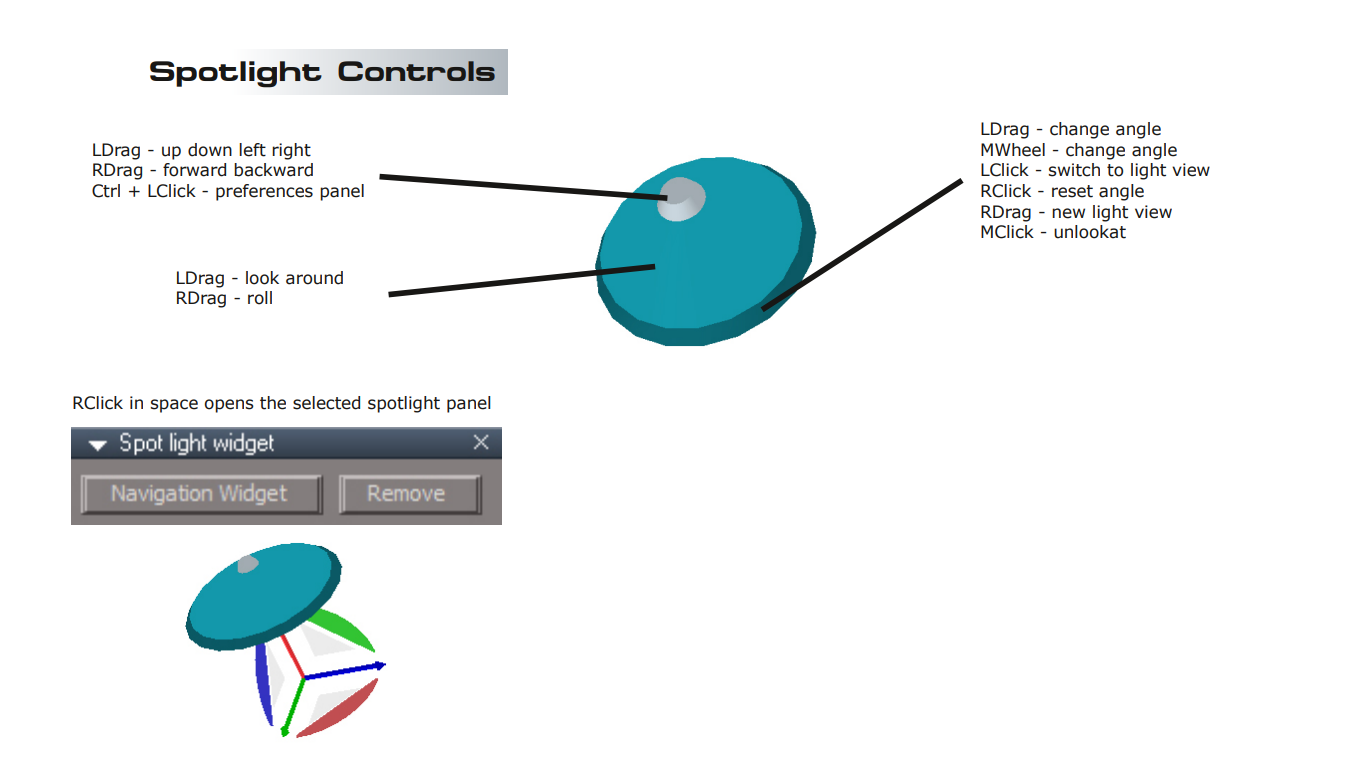
Add shortcut:
CTRL SHIFT L - Light Toolbar (Added 6/29/2023)
No explanation what LMB does (This is one example of many other toolbar icons in the manual)Page 29
Object Move - RMB to exit tool.
Examples suggestions:
Activates the Object Move widget / Cancels the Object Move widget
LMB Object Move / RMB Cancel
Object Move / Cancel (Tooltip)
Suggestion:Page 30
Remove Look At same as UnLooka At button. (typo)
Remove Look At - removes the Look At constraint from the selected object
Suggestion:Page 31
Look At Selection RMB select next object and look at it.
Look At Selection LMB Look at Selection / RMB Look at Next object
Note:Page 32
Main View Toolbar
The view buttons in the Main View Toolbar will change the active 3D view or they will change
the main 3D view if there are no active 3D views.
All of the UU toolbars with View icons (and some other icons) work like this
Suggestion:Page 39
Protect Workspace - open the Protect Workspace panel
Protect Workspace - Opens the Protect Workspace and Synchronize panels
Suggestion:Page 40
Desktop Preferences
Synchronize info would be helpful
-
clintonman
- Captain
- Posts: 5659
- Joined: 21 May 2009, 21:08
- Type the number ten into the box: 0
- Location: California
Re: Unofficial Update Documentation Manual
I agree, information on the Synchronize panel would be helpfultrueBlue wrote: 30 Jun 2023, 15:52 ...
Suggestion:Page 40
Desktop Preferences
Synchronize info would be helpful
Pages 11 - 39 updates
- Attachments
-
- tS761_UU_Artists_Guide44.zip
- (4.04 MiB) Downloaded 133 times
-
trueBlue
- Captain
- Posts: 5548
- Joined: 06 Jul 2009, 22:50
- Type the number ten into the box: 10
Re: Unofficial Update Documentation Manual
Just noticed in the manual there is two shortcuts for the Popup - Point Edit Widget Toolbar
Ctrl Shift P - Point Edit Widget Toolbar (Recommended)
Ctrl Space - Point Edit Widget Toolbar
I do not remember why I put the additional Ctrl Space shortcut in but it needs to be removed
Also, I need to put the Ctrl Shift P shortcut in the POINTEDIT CONTEXT because Cycle gives an error if you are not in PE Mode!
Also, I need to change the CTRL SHIFT P - Popup toolbar shortcut to Ctrl Space
I just noticed that the Popup toolbar(S) show on my Desktop
The OwnedBy attributes need to be set in your Popup scripts for all of the Popup toolbar(s)
Edit:
After looking at your Open Toolbar script, maybe it is just the Popup toolbar that does not have the OwnedBy attribute set
Ctrl Shift P - Point Edit Widget Toolbar (Recommended)
Ctrl Space - Point Edit Widget Toolbar
I do not remember why I put the additional Ctrl Space shortcut in but it needs to be removed
Also, I need to put the Ctrl Shift P shortcut in the POINTEDIT CONTEXT because Cycle gives an error if you are not in PE Mode!
Also, I need to change the CTRL SHIFT P - Popup toolbar shortcut to Ctrl Space
I just noticed that the Popup toolbar(S) show on my Desktop
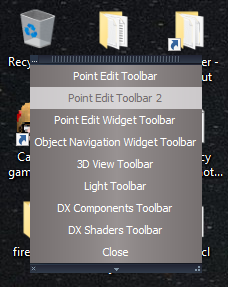
- Popup show on the Desktop.png (54.33 KiB) Viewed 1787 times
Edit:
After looking at your Open Toolbar script, maybe it is just the Popup toolbar that does not have the OwnedBy attribute set
-
clintonman
- Captain
- Posts: 5659
- Joined: 21 May 2009, 21:08
- Type the number ten into the box: 0
- Location: California
Re: Unofficial Update Documentation Manual
Note: When object has been dimension-ed it cannot be point edited. add to dimension page
-
trueBlue
- Captain
- Posts: 5548
- Joined: 06 Jul 2009, 22:50
- Type the number ten into the box: 10
Re: Unofficial Update Documentation Manual
Should I remove the Obj NAV / Enter edit mode / Uneditable script?clintonman wrote: 04 Jul 2023, 23:49 Note: When object has been dimension-ed it cannot be point edited. add to dimension page

If I do, and you PE the object, the Dimensions are not correct
-
clintonman
- Captain
- Posts: 5659
- Joined: 21 May 2009, 21:08
- Type the number ten into the box: 0
- Location: California
Re: Unofficial Update Documentation Manual
If you set Mesh Editor Settings, Auto triangulation to None and only change the shape without adding or removing any geometry the dimension can be updated by pressing the Regenerate All in the Dimensions, Utilties aspect and the dimension will update.trueBlue wrote: 05 Jul 2023, 00:49Should I remove the Obj NAV / Enter edit mode / Uneditable script?clintonman wrote: 04 Jul 2023, 23:49 Note: When object has been dimension-ed it cannot be point edited. add to dimension page
Uneditable script.png
.
If I do, and you PE the object, the Dimensions are not correct
If you remove the script then I'm guessing the red toolbar Uneditable scripts won't work. I was thinking a warning or question would work instead of stopping it.
-
trueBlue
- Captain
- Posts: 5548
- Joined: 06 Jul 2009, 22:50
- Type the number ten into the box: 10
Re: Unofficial Update Documentation Manual
Not sure how to write that or what to do if you answer Yesclintonman wrote: 05 Jul 2023, 02:11If you set Mesh Editor Settings, Auto triangulation to None and only change the shape without adding or removing any geometry the dimension can be updated by pressing the Regenerate All in the Dimensions, Utilties aspect and the dimension will update.trueBlue wrote: 05 Jul 2023, 00:49Should I remove the Obj NAV / Enter edit mode / Uneditable script?clintonman wrote: 04 Jul 2023, 23:49 Note: When object has been dimension-ed it cannot be point edited. add to dimension page
Uneditable script.png
.
If I do, and you PE the object, the Dimensions are not correct
If you remove the script then I'm guessing the red toolbar Uneditable scripts won't work. I was thinking a warning or question would work instead of stopping it.
I could put a status message and open the Dimensions panel
-
clintonman
- Captain
- Posts: 5659
- Joined: 21 May 2009, 21:08
- Type the number ten into the box: 0
- Location: California
Re: Unofficial Update Documentation Manual
When you add a dimension, the mesh object gets a "MeasureNode". So for your Uneditable widget script I would do something like this.trueBlue wrote: 05 Jul 2023, 02:43Not sure how to write that or what to do if you answer Yesclintonman wrote: 05 Jul 2023, 02:11If you set Mesh Editor Settings, Auto triangulation to None and only change the shape without adding or removing any geometry the dimension can be updated by pressing the Regenerate All in the Dimensions, Utilties aspect and the dimension will update.trueBlue wrote: 05 Jul 2023, 00:49
Should I remove the Obj NAV / Enter edit mode / Uneditable script?
Uneditable script.png
.
If I do, and you PE the object, the Dimensions are not correct
If you remove the script then I'm guessing the red toolbar Uneditable scripts won't work. I was thinking a warning or question would work instead of stopping it.
I could put a status message and open the Dimensions panel
Widgets/Select/Default object navigation widget/Enter edit mode/Uneditable
Code: Select all
	//if(Node.Exists(Node.FirstSelected() + '/MeasureNode')) {
	//	params.SetTerminationFlag()
	//	return
	//}
	if(Node.Exists(Node.FirstSelected() + '/MeasureNode')) {
		if(!System.Question("This object has a Dimension. If you point edit this item the dimension may be damaged. Proceed anyway?")) {
			params.SetTerminationFlag()
		}
		return;
}"This object has a Dimension assigned to it. To edit a dimensioned object you must set the Mesh Editor Settings to 'None' and do not add or remove any geometry from the mesh. If you point edit this item the dimension may be damaged. Proceed anyway?"
-
trueBlue
- Captain
- Posts: 5548
- Joined: 06 Jul 2009, 22:50
- Type the number ten into the box: 10
Re: Unofficial Update Documentation Manual
Thanks, I will add something like this because I do not understand setting Mesh Editor Settings to 'None'clintonman wrote: 05 Jul 2023, 03:09When you add a dimension, the mesh object gets a "MeasureNode". So for your Uneditable widget script I would do something like this.trueBlue wrote: 05 Jul 2023, 02:43Not sure how to write that or what to do if you answer Yesclintonman wrote: 05 Jul 2023, 02:11
If you set Mesh Editor Settings, Auto triangulation to None and only change the shape without adding or removing any geometry the dimension can be updated by pressing the Regenerate All in the Dimensions, Utilties aspect and the dimension will update.
If you remove the script then I'm guessing the red toolbar Uneditable scripts won't work. I was thinking a warning or question would work instead of stopping it.
I could put a status message and open the Dimensions panel
Widgets/Select/Default object navigation widget/Enter edit mode/Uneditable
You could also add more text. Something likeCode: Select all
	//if(Node.Exists(Node.FirstSelected() + '/MeasureNode')) {
	//	params.SetTerminationFlag()
	//	return
	//}
	if(Node.Exists(Node.FirstSelected() + '/MeasureNode')) {
		if(!System.Question("This object has a Dimension. If you point edit this item the dimension may be damaged. Proceed anyway?")) {
			params.SetTerminationFlag()
		}
		return;
	}
"This object has a Dimension assigned to it. To edit a dimensioned object you must set the Mesh Editor Settings to 'None' and do not add or remove any geometry from the mesh. If you point edit this item the dimension may be damaged. Proceed anyway?"
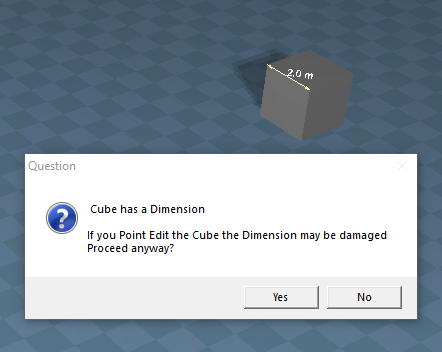
Looks like this script only takes into account the first selected!
Is there any way to update this script to include multiple selected items?
-
clintonman
- Captain
- Posts: 5659
- Joined: 21 May 2009, 21:08
- Type the number ten into the box: 0
- Location: California
Re: Unofficial Update Documentation Manual
trueBlue wrote: 05 Jul 2023, 12:35Thanks, I will add something like this because I do not understand setting Mesh Editor Settings to 'None'clintonman wrote: 05 Jul 2023, 03:09When you add a dimension, the mesh object gets a "MeasureNode". So for your Uneditable widget script I would do something like this.trueBlue wrote: 05 Jul 2023, 02:43
Not sure how to write that or what to do if you answer Yes
I could put a status message and open the Dimensions panel
Widgets/Select/Default object navigation widget/Enter edit mode/Uneditable
You could also add more text. Something likeCode: Select all
	//if(Node.Exists(Node.FirstSelected() + '/MeasureNode')) {
	//	params.SetTerminationFlag()
	//	return
	//}
	if(Node.Exists(Node.FirstSelected() + '/MeasureNode')) {
		if(!System.Question("This object has a Dimension. If you point edit this item the dimension may be damaged. Proceed anyway?")) {
			params.SetTerminationFlag()
		}
		return;
	}
"This object has a Dimension assigned to it. To edit a dimensioned object you must set the Mesh Editor Settings to 'None' and do not add or remove any geometry from the mesh. If you point edit this item the dimension may be damaged. Proceed anyway?"
Uneditable.png
.
Looks like this script only takes into account the first selected!
Is there any way to update this script to include multiple selected items?

- AutoTri_None.jpg (44.67 KiB) Viewed 2014 times
I'll have to get back to you on the multiple selections. Should be doable.
-
clintonman
- Captain
- Posts: 5659
- Joined: 21 May 2009, 21:08
- Type the number ten into the box: 0
- Location: California
Re: Unofficial Update Documentation Manual
Here is the multiple selections change
Widgets/Select/Default object navigation widget/Enter edit mode/Uneditable
Widgets/Select/Default object navigation widget/Enter edit mode/Uneditable
- Attachments
-
- Uneditablecd01.RsObj
- (12.19 KiB) Downloaded 152 times
-
clintonman
- Captain
- Posts: 5659
- Joined: 21 May 2009, 21:08
- Type the number ten into the box: 0
- Location: California
Re: Unofficial Update Documentation Manual
Bug fix for the Dimensions. The Regenerate All was giving an error because of the material changes in the code.
Scripts/CustomCommands/Dimensions
I also tested Auto triangulation with the default "On release". Show triangles option was also checked so I could see the triangle changes. The result is that the triangles changed and the regenerate dimensions still worked. So no need for Auto triangulation being set to None.
Scripts/CustomCommands/Dimensions
I also tested Auto triangulation with the default "On release". Show triangles option was also checked so I could see the triangle changes. The result is that the triangles changed and the regenerate dimensions still worked. So no need for Auto triangulation being set to None.
- Attachments
-
- Dimensions1158.RsObj
- (539.28 KiB) Downloaded 152 times
-
clintonman
- Captain
- Posts: 5659
- Joined: 21 May 2009, 21:08
- Type the number ten into the box: 0
- Location: California
Re: Unofficial Update Documentation Manual
not documented - rectangle select works on the object bounding box not the actual visible mesh
-
trueBlue
- Captain
- Posts: 5548
- Joined: 06 Jul 2009, 22:50
- Type the number ten into the box: 10
Re: Unofficial Update Documentation Manual
Rectangle Select
Note: The only label set to Divisions is "Inside Rectangle"
I do not think it is possible to set Divisions to anything other than 0, 1, 24
Otherwise Ray Tracing gets unchecked including Inside Rectangle and Partially Inside Rectangle
Removed due to update
Note: The only label set to Divisions is "Inside Rectangle"
I do not think it is possible to set Divisions to anything other than 0, 1, 24
Otherwise Ray Tracing gets unchecked including Inside Rectangle and Partially Inside Rectangle
Removed due to update
-
trueBlue
- Captain
- Posts: 5548
- Joined: 06 Jul 2009, 22:50
- Type the number ten into the box: 10
Re: Unofficial Update Documentation Manual
Just noticed the RectSlect panel has a Exp aspect
Probably need to recreate the panel from scratch
Removed due to update
Probably need to recreate the panel from scratch
Removed due to update