Custom Buttons

Smart people ~ Great Scripts
User avatar
Draise
Captain
Posts: 3200
Joined: 21 Sep 2009, 19:33
Type the number ten into the box: 0
Location: Bogota, Colombia

Custom Buttons

Post by Draise »

Hello all.

I was wondering if there was a way to create a new button to an existing plugin or script (to create an easier axis in the UI) vi ... om+buttons

I found a clever little custom toolbar plugin, but when it comes to making a button to run a script (like open the Layerz in the stack) or to open a cool little plugin and it's functions into a floating bar, I have no idea.
Capture.PNG
Does any of you know how to do this?

I am sure this will greatly enhance making trueSpace cooler with all these cool little update scripts out there.

Thanks a bunch in advance!
User avatar
trueBlue
Captain
Posts: 5548
Joined: 06 Jul 2009, 22:50
Type the number ten into the box: 10

Re: Custom Buttons

Post by trueBlue »

Did you watch the video in the Custom Toolbar thread? When you open the (right click) Custom Toolbar Preference panel, you have options to Open the container/encapsualtor which holds the buttons. This is where you add your buttons to the Custom Toolbar. Then Save it. Try it and ask questions if you get stuck. You would need to run the installation of the wanted plugin first as there is most likely scripts that get installed with it. Then you can Ctrl + Drag or Shift + Drag the buttons into the Custom Toolbar's container/encasulator.
HTH
User avatar
Draise
Captain
Posts: 3200
Joined: 21 Sep 2009, 19:33
Type the number ten into the box: 0
Location: Bogota, Colombia

Re: Custom Buttons

Post by Draise »

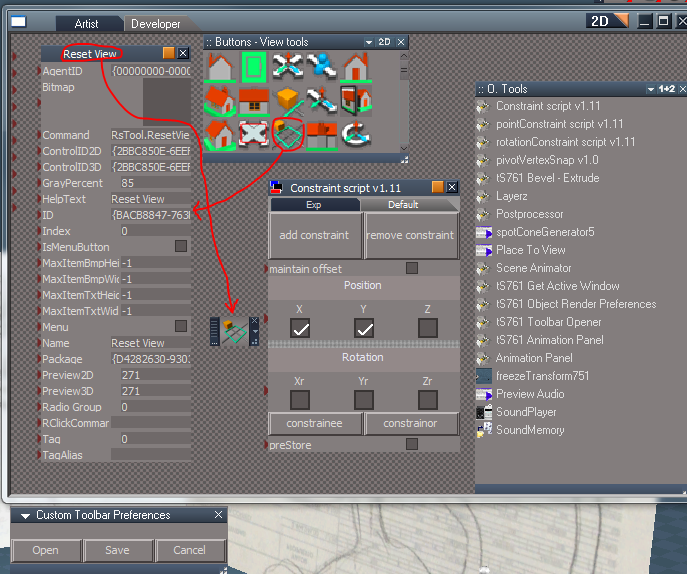
yes! I did view the tutorial, and I was able to successfully create a new preset button. (the predefined buttons in the Main Library). In the example below, I created a Reset View button.
Capture.PNG
But now, I dragged say, clintons constraint script (handy) which I would like to have open into a floating bar in the workspace, giving me access to run the script as needed.
question.PNG
This did not create a new button, because it didn't have the right "button" information.

The result will be something like a button that not only opens up options in the Panel, but also in the workspace for easy access, then a person can run the new script and button freely.
example.PNG
User avatar
Draise
Captain
Posts: 3200
Joined: 21 Sep 2009, 19:33
Type the number ten into the box: 0
Location: Bogota, Colombia

Re: Custom Buttons

Post by Draise »

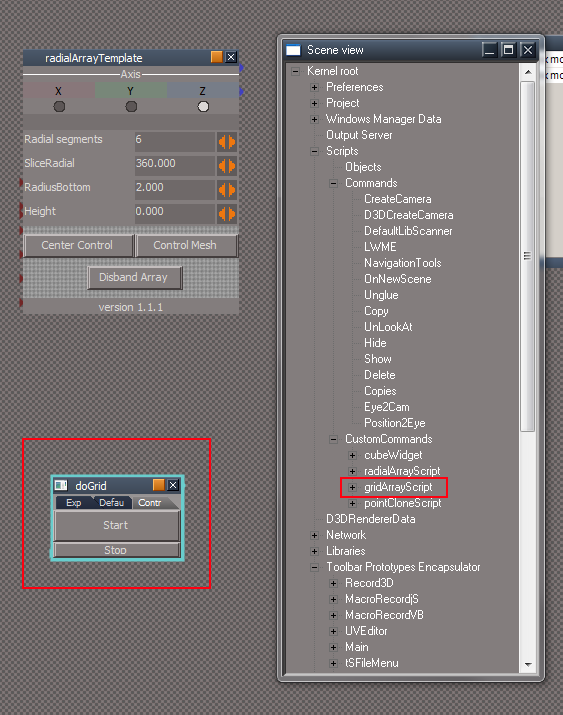
So I didn't get the result as desired, so I had a look at some of clintons plugins, that DO have buttons. I noticed a few things:
thoughts1.PNG
It's located in Kernel root/Scripts/Custom Commands/"button"

Then the custom command has a little clever "run script" button. I have no idea how Clinton did it! Legend.

So this made a cute little icon that can be installed/run and it opens up the script in the Panel.

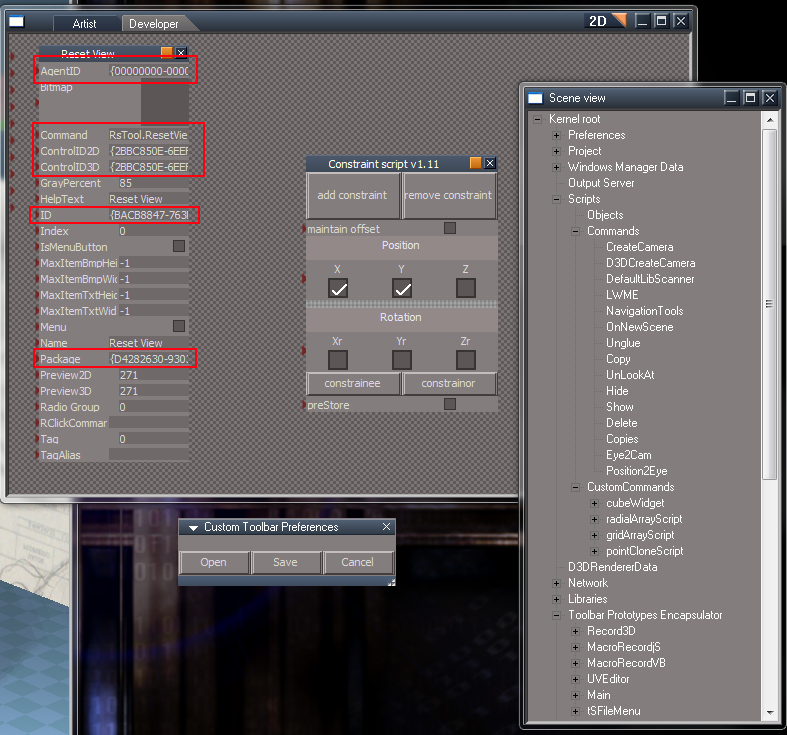
So that still leaves me with.. how to make a button......
more questions.PNG
I know I may be getting in a little deep with the inner tubes of truespace, but it may come in handy later! =)

By which route do you think I should try go to create a button? By trying to make a custom Command like Clinton? Or by trying to figure out how to link and configure a button to a script?
more questions.PNG
User avatar
trueBlue
Captain
Posts: 5548
Joined: 06 Jul 2009, 22:50
Type the number ten into the box: 10

Re: Custom Buttons

Post by trueBlue »

The Constraint Script panel you show is not a button. You can compare the panels in your screen shot to see the differences in each panel. Usually Clinton creates buttons that opens his panels. This button is what is needed for the Custom Toolbar.
User avatar
Draise
Captain
Posts: 3200
Joined: 21 Sep 2009, 19:33
Type the number ten into the box: 0
Location: Bogota, Colombia

Re: Custom Buttons

Post by Draise »

Yeah.. quite unfortunate, as I did notice that. So how can I make a button out of a script?
User avatar
trueBlue
Captain
Posts: 5548
Joined: 06 Jul 2009, 22:50
Type the number ten into the box: 10

Re: Custom Buttons

Post by trueBlue »

The easiest way would be to copy an existing button. Change the icon, LMB, and RMB commands to suit your needs. Look at the (button) commands in one of Clinton's projects for help with calling a panel. You will notice the path and name of the panel that gets called.
User avatar
trueBlue
Captain
Posts: 5548
Joined: 06 Jul 2009, 22:50
Type the number ten into the box: 10

Re: Custom Buttons

Post by trueBlue »

Here is an example button that loads an RsObj from a Library.
This assumes that the object and path exist and is correct. Note: I went by your screen capture.

Code: Select all

RsFileIO.LoadObject(System.GetMainDir() + '\\Rs Main Libraries\\O. Tools\\tS761 Bevel - Extrude.RsObj', Space.CurrentScene())
Capture4.PNG
Attachments
Bevel_Extrude_Button.zip
(67.35 KiB) Downloaded 44 times
froo
Captain
Posts: 2554
Joined: 22 May 2009, 12:13

Re: Custom Buttons

Post by froo »

Hahaha that's kinda funny in a way; seeing Draise's picture on a button ! :)
User avatar
Draise
Captain
Posts: 3200
Joined: 21 Sep 2009, 19:33
Type the number ten into the box: 0
Location: Bogota, Colombia

Re: Custom Buttons

Post by Draise »

THAT'S GREAT! It worked very well, and was easier than thought. I just didn't know the "load object" command to call in new objects... :roll:

The above command in the copied button loads whatever object into the LE, and some of them even automatically popup into a floating panel. Now to make some cool buttons for the plugins I think very useful.

...... yet... Most scripts get loaded, but sometimes only into the LE editor. It would be nice to have the script load then run, or atleast open a floating panel in the workspace for easy access to then run.
To fix this, I found your thread on floating panels.
vi ... ing+panels

SUCCESS, I also tried the popup manipulator in the thread. It makes sense. I simulated it with other encapsulated objects. Thanks!

!
But I couldn't do this with a single script (non capsulated object), like clintons "freeze transforms".
They often have a "start"/"activate" button then a 1D script.
I think I'll have to try find a custom button that has a "run/activate script", and figure out how to install custom scripts so the button doesn't have to load the object to run it.

Thanks trueblue. It seems you know what you are doing with TS. Thanks for helping out. =)
v3rd3
Lieutenant Commander
Posts: 1191
Joined: 21 May 2009, 20:04

Re: Custom Buttons

Post by v3rd3 »

In terms of coders that still visit this site trueblue and clintonman have forgotten more than the rest of us will ever know.....

there was another forum set up for ppl interested in coding TS .... http://www.truespaceplugins.com...

no real updates for quite some time but it is a repository of some good information.
User avatar
Draise
Captain
Posts: 3200
Joined: 21 Sep 2009, 19:33
Type the number ten into the box: 0
Location: Bogota, Colombia

Re: Custom Buttons

Post by Draise »

Shame.... But atleast it isn't hard and weird like Blender!!!

Check these buttons out!!!!

I took the following "tools" and turned them into buttons. The right click closes the floating menu. When I find other tools, I'll make those buttons also.
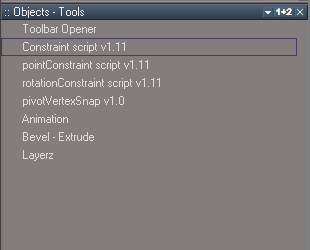
Captura2.PNG
Captura2.PNG (5.65 KiB) Viewed 614 times
So then I made buttons, using trueblues little code, and a peice of prior code located in the button, made a right click to callback the tool. I made the icons just for fun, and then using the toolbar manager, created the new buttons. I saved them off, and have the plugins in the Main Library as extra tools. I can share both Libraries so you can pull those menus if you want!
Captura.PNG
Try out my new buttons!

1. Copy the files to the Rs Main Library.
2. Using the Custom Toolbar plugin, open the button container
3. From the Buttons - Custom library, drag and drop my new buttons
4. Save and enjoy!

I have also included some toolbars that can be placed in clintons Toolbar Manager container for some organized and nifty toolbar I also created.
Captura3.PNG
1. In the toolbar manager, under the first menu, go to Open Toolbar Store
2. From the Objects - UserToolbars, drag and place the toolbars
3. In the toolbar manager, under the first menu, go to Refreash Toolbar Menu
4. Enjoy my toolbars!
User avatar
Draise
Captain
Posts: 3200
Joined: 21 Sep 2009, 19:33
Type the number ten into the box: 0
Location: Bogota, Colombia

Re: Custom Buttons

Post by Draise »

=)
Attachments
Rs Main Libraries.zip
(721.91 KiB) Downloaded 20 times
froo
Captain
Posts: 2554
Joined: 22 May 2009, 12:13

Re: Custom Buttons

Post by froo »

v3rd3 wrote:In terms of coders that still visit this site trueblue and clintonman have forgotten more than the rest of us will ever know.....

there was another forum set up for ppl interested in coding TS .... http://www.truespaceplugins.com...

no real updates for quite some time but it is a repository of some good information.
Maybe I can change that, now that some things are out of the way. My mind is now finally clear of, well, I
better end the sentence before it degrades into something nasty. :twisted:

Any, yeah lots of cool scripts out there.
Excellent to see you getting the hang of scripting Draise. Wow. You catch on quick!
User avatar
spacekdet
Captain
Posts: 1810
Joined: 27 May 2009, 15:00
Type the number ten into the box: 10
Location: On the day shift at the Utility Muffin Research Kitchen

Re: Custom Buttons

Post by spacekdet »

Somewhere, Roman is smiling.
User avatar
Draise
Captain
Posts: 3200
Joined: 21 Sep 2009, 19:33
Type the number ten into the box: 0
Location: Bogota, Colombia

Re: Custom Buttons

Post by Draise »

Draise wrote: SUCCESS, I also tried the popup manipulator in the thread. It makes sense. I simulated it with other encapsulated objects. Thanks!

!
But I couldn't do this with a single script (non capsulated object), like clintons "freeze transforms".
They often have a "start"/"activate" button then a 1D script.
I think I'll have to try find a custom button that has a "run/activate script", and figure out how to install custom scripts so the button doesn't have to load the object to run it.
Figured out how to run scripts from buttons, AND figured out how to have scripts stored away. So I've switched back tot he TS7.61 beta 8, along with 6.6 Model Side. I am still adding more features to TSmainly focussing on workspace. But it's coming a long.

So to make a button that runs a script, well find the script activity comman, copy and paste it into the button, and like magic it does the trick.

This is fun!
User avatar
clintonman
Captain
Posts: 5659
Joined: 21 May 2009, 21:08
Type the number ten into the box: 0
Location: California

Re: Custom Buttons

Post by clintonman »

Hi, Draise

I got your email and I'm back in town, but it looks like you got it figured out.
Here's a few more notes for button creation:
The button image can be a 32 bit bmp or tga file size 26x26 pixels with an alpha channel so it can highlight when selected or active. The image background is generally close to a gray color of (118,118,118). I usually set the button index to -1 so truespace assigns an index automatically when it gets added to a toolbar.

The TagAlias can be used to control when a button can be used. It has values like polyh, pe, tp, chrc and bone along with a "#" sign that separates the values just mentioned from paths to widgets and maybe command nodes or something. I don't understand it, but it's helpful to copy buttons from the same family that you intend to use. That way if you make some kind of point edit script and the button is copied from some other point edit button the new button will only be active in point edit mode.

You can find many commands that can be assigned to buttons by looking in the sdk documentation. Topics that start with "IRi" can be run directly from a button.
For example MeshModifiers.FlipFacesNormals('');
found in doc topic IRiMeshModifiers - /sdk_tS761B8/Doc/structIRiMeshModifiers.html
Call on scripts you create by using the Activity.Run command and to open a panel for your scripts in the stack use something like
UserInterface.OpenToolPanelViewEx2("" , "" ,"Scripts/CustomCommands/ase object export", 4,1,0)
4 is the index of the panel to open, 1 means force open in stack, 0 only one copy allowed in the stack view

I open a floating window for a script by copy of some pre-existing floating window created by control dragging something out of the stack view. You can find it in the scene view as the last item under Project/Windows Manager Space/. This results in a frame node with a panel node inside it. Change panel node to point to some aspect of a script and save the frame node somewhere that you can find it. To make it appear copy it into Windows Manager Space and run 2 commands to make the new panel appear:
WindowsManager.Activate();
WindowsManager.UpdateWindowsStructure();
Clinton Reese

http://clintons3d.com
User avatar
Draise
Captain
Posts: 3200
Joined: 21 Sep 2009, 19:33
Type the number ten into the box: 0
Location: Bogota, Colombia

Re: Custom Buttons

Post by Draise »

That's great bits of code. I haven't had time to experiment YET, but It looks good! I have found an alteranative to using popout floating panels, with a call to the library where the panel lies, usings another script within the script to which makes a floating menu when loaded. I have the right mouse button that calls it back, or deletes the called script, thus closing the popup window. =P

I think your little call code should work better once I figure out where to store the frame!

I did the same thing to your layers2 plugin, this time I know it was you that made it! But I think your method should be better for calling it as a floating panel.

Thanks for coming back online Clinton, your scripts work really well. Do work on other software too?
User avatar
clintonman
Captain
Posts: 5659
Joined: 21 May 2009, 21:08
Type the number ten into the box: 0
Location: California

Re: Custom Buttons

Post by clintonman »

Can't wait to see what you come up with.

Most of my coding has been for truespace, but I made some Unreal plugins for Carrara and Lightwave, a few other Lightwave scripts and a plugin for After Effects and few scripts to support it. I've also taken a few video courses that used mel, maxscript and hscript for Maya, 3DSMax and Houdini. I did one script for Blender, but I'm still in the process of learning Blender basics before I can really program for it.
Clinton Reese

http://clintons3d.com

Return to “Scripts and SDK”