Move Axes to custom coordinates

What do you need?
User avatar
the_ant
Chief Petty Officer
Posts: 155
Joined: 02 Jun 2009, 09:26
Type the number ten into the box: 0
Location: Perugia - Italy

Move Axes to custom coordinates

Post by the_ant »

Hi all...a curiosity on modelling procedures...is it possible with some .tsx to move axes position of an object (or group) on the position of another object/group (axes, points, edges and so on)?

Thanks for your attention.. :bananahi:
User avatar
BNG
Chief Warrant Officer
Posts: 684
Joined: 16 Oct 2009, 03:26
Type the number ten into the box: 0
Location: Texas

Re: Move Axes to custom coordinates

Post by BNG »

On model side you can as far as I know; just select the axes icon and left click and drag the axes to the other object. Leroy. Click the axes icon to hide them again.
User avatar
the_ant
Chief Petty Officer
Posts: 155
Joined: 02 Jun 2009, 09:26
Type the number ten into the box: 0
Location: Perugia - Italy

Re: Move Axes to custom coordinates

Post by the_ant »

Yes .. i just know this method.. however when i drag axes over a complex extra-object in many cases it's difficult precise positioning over wanted point or others issues (with snapping function set-on)...so i'm wandering isn't any other "scientific" and more secure action i.e. with a specific plug-in...
stan
Master Chief Petty Officer
Posts: 584
Joined: 21 May 2009, 17:20

Re: Move Axes to custom coordinates

Post by stan »

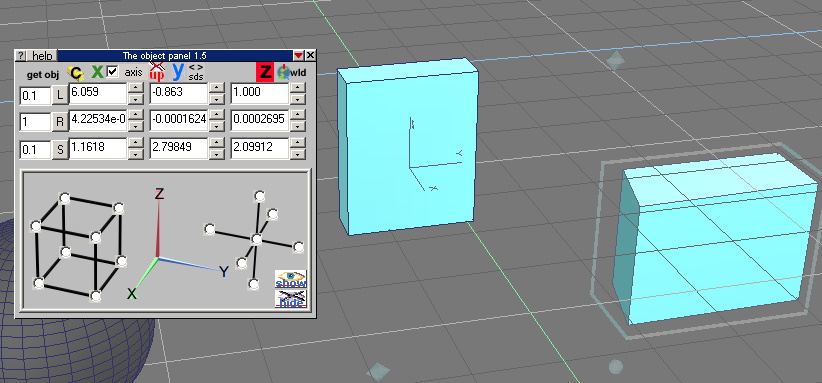
you can move axes around with my Object Panel 1.5. It can go from object mode to axis with a check box next to the X. You can find it in Cello's version of ts or his plugin pack 2. Or download it here: http://www.oocities.org/gubbie2/tsx.html
Attachments
obj15.jpg
User avatar
spacekdet
Captain
Posts: 1810
Joined: 27 May 2009, 15:00
Type the number ten into the box: 10
Location: On the day shift at the Utility Muffin Research Kitchen

Re: Move Axes to custom coordinates

Post by spacekdet »

With axes selected and the object info panel open you can enter specific XYZ coordinates.

Just how you figure out which exact coordinates, that's the tricky part...
stan
Master Chief Petty Officer
Posts: 584
Joined: 21 May 2009, 17:20

Re: Move Axes to custom coordinates

Post by stan »

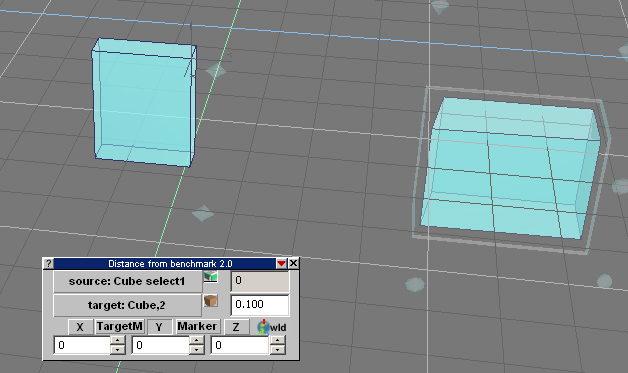
actually this plugin works best for the placement. You need to set axis in the object panel 1.5 them use distancebm 2
The attachment distancebm2.rar is no longer available
Attachments
distanceBM.jpg
User avatar
the_ant
Chief Petty Officer
Posts: 155
Joined: 02 Jun 2009, 09:26
Type the number ten into the box: 0
Location: Perugia - Italy

Re: Move Axes to custom coordinates

Post by the_ant »

Thanks a lot to all of you for immediate answers...this site is a gold-mine with fantastic people :worship: (and fantastic software)

I'll try your suggestions (and post results) as soon as possible...

See you soon and thanks again... :bananacheers:
User avatar
the_ant
Chief Petty Officer
Posts: 155
Joined: 02 Jun 2009, 09:26
Type the number ten into the box: 0
Location: Perugia - Italy

Re: Move Axes to custom coordinates

Post by the_ant »

Hi all again..

iI'm sorry to announce my failure in applying your suggestions :roll: (perhaps need a step by step tutorial about) :oops:

I found a personal (certainly more complicated) way instead.

I used "ddaxes", "infoclone" and "rsHide" plugins.

1. Using "ddaxes" I can move the origin of the axes at any point of the complex object (target) with LMB

2a. Now create a new temporary simple object (i.e. a plain) of any size.
2b. With "axes and point-snap mode" move its origin at a vertex point

3a. With "infoclone" store the coordinates of complex object axes
3b. With "infoclone" move the temporary object on the axes of the complex object
3c. Now hide the complex object (with rsHide)

4a. In "axes" and "point-snap on" snapping axes over the axes of temporary object
4b. Back in object mode (save the new position of the axes)

5. Delete temporary object

6.Finally unhide complex object (target)

:bananadrum:
stan
Master Chief Petty Officer
Posts: 584
Joined: 21 May 2009, 17:20

Re: Move Axes to custom coordinates

Post by stan »

To make it easier I modified my plugin to do it all. So here is DistanceBm25.tsx

To use it select the object you want as the source position or click the edit toggle next to the source button, make a selection then click the source button. It will say the name of object and if a selection is used "select1" is added.
Now go to your target object select it and click target button. Then position it exactly where you want it. Once done you can position the axis exactly where you want it in relation to the source obj. With 0,0,0 in all boxes it will be a the source location. You must toggle the axis icon to on and when clicking the target button again it will add "axis" to name. Then move axes as desired to locate.
There is one box on right with 0.100 in it. That is the default step for moving in any axis. You can change that as you wish. You can't edit number directly easily except when using zero or copy and paste .
Attachments
DistanceBM25.rar
(31.22 KiB) Downloaded 14 times
axisBM.jpg
axisBM.jpg (52.05 KiB) Viewed 320 times
User avatar
the_ant
Chief Petty Officer
Posts: 155
Joined: 02 Jun 2009, 09:26
Type the number ten into the box: 0
Location: Perugia - Italy

Re: Move Axes to custom coordinates

Post by the_ant »

Yessssss i did it ...thanks a lot Stan (the Wizard)!!! :bananacheers:

A last request about your wanderul plugin: is it possible to place a button to set all coordinates to zero? It will be pretty faster setting axes directly on source selection...

Standing ovation again for your solution! :worship: :worship: :worship:
User avatar
Emmanuel
Chief Warrant Officer
Posts: 670
Joined: 14 Jun 2009, 06:47

Re: Move Axes to custom coordinates

Post by Emmanuel »

Nice new feature ! Thank you Stan ;)
User avatar
spacekdet
Captain
Posts: 1810
Joined: 27 May 2009, 15:00
Type the number ten into the box: 10
Location: On the day shift at the Utility Muffin Research Kitchen

Re: Move Axes to custom coordinates

Post by spacekdet »

the_ant wrote:is it possible to place a button to set all coordinates to zero?
The 'Normalize Location' icon will also do this to any selected object or axes.
User avatar
the_ant
Chief Petty Officer
Posts: 155
Joined: 02 Jun 2009, 09:26
Type the number ten into the box: 0
Location: Perugia - Italy

Re: Move Axes to custom coordinates

Post by the_ant »

i referred to dBM25 plugin...
...setting the 0 value on all (relatives) coordinates could move target axes directly over the source point with only one action instead of set first x=0 then y=0 and finally z=0... :bananatyping:
stan
Master Chief Petty Officer
Posts: 584
Joined: 21 May 2009, 17:20

Re: Move Axes to custom coordinates

Post by stan »

There is a new version of DistanceBM25 with the button to set target to source 0,0,0 you requested.
vi ... =12&t=5183"
User avatar
the_ant
Chief Petty Officer
Posts: 155
Joined: 02 Jun 2009, 09:26
Type the number ten into the box: 0
Location: Perugia - Italy

Re: Move Axes to custom coordinates

Post by the_ant »

Amazing!!!! Think it's an unbeatable plugin for axes actions now!!! Many thanks Stan!!! :worship: :worship: :worship:
User avatar
spacekdet
Captain
Posts: 1810
Joined: 27 May 2009, 15:00
Type the number ten into the box: 10
Location: On the day shift at the Utility Muffin Research Kitchen

Re: Move Axes to custom coordinates

Post by spacekdet »

Axe and you shall receive.

Return to “Forum Requests”