From TrueSpace to the Great Space in animating
-
jeffroig
- Chief Warrant Officer
- Posts: 662
- Joined: 22 May 2009, 10:49
- Type the number ten into the box: 0
From TrueSpace to the Great Space in animating
This is my place holder for the tutorial I will be doing please check back on Saturday..
..
-
jeffroig
- Chief Warrant Officer
- Posts: 662
- Joined: 22 May 2009, 10:49
- Type the number ten into the box: 0
Re: From TrueSpace to the Great Space in animating
Are you ready to learn and willing well get ready it is here and I will only ask one thing of all that view this please do not ask or comment on anything until you have read the full tutorial and tried it as some steps may not make sense until you have moved onto the next one.
Creating Custom Character in Poser
Note: Please do not start this tutorial unless you plan to finish it as once you start you can not stop and save your work until you have the bones fitted inside the character.
This process took me two years to get down to the simple instructions I have provided so if you don’t catch on right away don’t get frustrated just try again and don’t be afraid to ask questions. These instructions will be as simple as possible so that they will not confuse you.
I will be referencing TrueSpace as the modeler in the tutorial but you can use which every 3D modeler you prefer.
1) After you have created you character in TS then glue all the parts together using glue as sibling, don’t name the parts or try doing the hierarchy as it will be waisted time.
2) Export your character out as an OBJ file.
3) Open up Poser and then click on file and import and select OBJ as the type.
4) Import your character into Poser.
5) This is what you should see if you are in full textured view.
Creating Custom Character in Poser
Note: Please do not start this tutorial unless you plan to finish it as once you start you can not stop and save your work until you have the bones fitted inside the character.
This process took me two years to get down to the simple instructions I have provided so if you don’t catch on right away don’t get frustrated just try again and don’t be afraid to ask questions. These instructions will be as simple as possible so that they will not confuse you.
I will be referencing TrueSpace as the modeler in the tutorial but you can use which every 3D modeler you prefer.
1) After you have created you character in TS then glue all the parts together using glue as sibling, don’t name the parts or try doing the hierarchy as it will be waisted time.
2) Export your character out as an OBJ file.
3) Open up Poser and then click on file and import and select OBJ as the type.
4) Import your character into Poser.
5) This is what you should see if you are in full textured view.
- Attachments
-

Last edited by jeffroig on 09 Mar 2010, 01:35, edited 2 times in total.
..
-
jeffroig
- Chief Warrant Officer
- Posts: 662
- Joined: 22 May 2009, 10:49
- Type the number ten into the box: 0
Re: From TrueSpace to the Great Space in animating
6) Make sure your character is level with the ground and not below it, the Y dial will raise your character up and down, use the right or left view so you can see the ground line and raise the character as shown below.
- Attachments
-

..
-
jeffroig
- Chief Warrant Officer
- Posts: 662
- Joined: 22 May 2009, 10:49
- Type the number ten into the box: 0
Re: From TrueSpace to the Great Space in animating
7) Open up the grouping tool and delete all the groups, keep deleting until no groups show up or red areas appear. The below picture is before the groups are deleted.
- Attachments
-

..
-
jeffroig
- Chief Warrant Officer
- Posts: 662
- Joined: 22 May 2009, 10:49
- Type the number ten into the box: 0
Re: From TrueSpace to the Great Space in animating
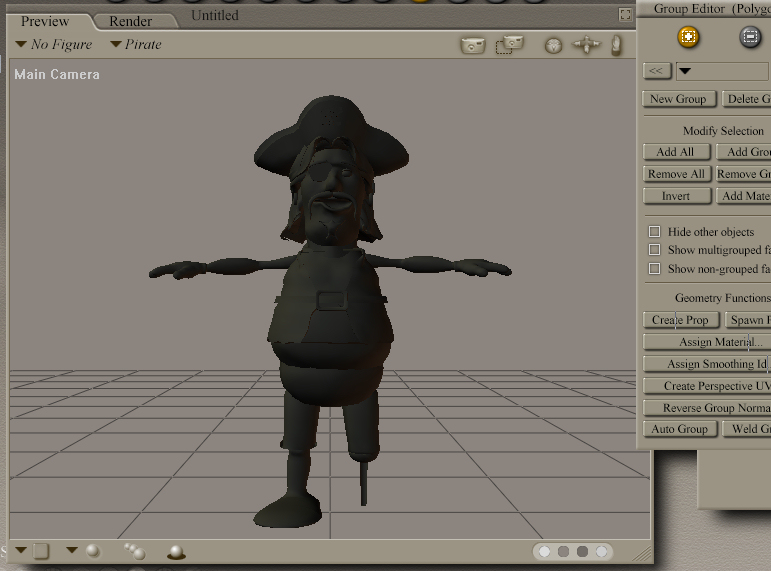
8) This is what you should have after all the groups are deleted.
- Attachments
-
..
-
jeffroig
- Chief Warrant Officer
- Posts: 662
- Joined: 22 May 2009, 10:49
- Type the number ten into the box: 0
Re: From TrueSpace to the Great Space in animating
9) Next you will want to enter the setup room where your object will be turned into a figure.
- Attachments
-

..
-
jeffroig
- Chief Warrant Officer
- Posts: 662
- Joined: 22 May 2009, 10:49
- Type the number ten into the box: 0
Re: From TrueSpace to the Great Space in animating
10) Click on the OK button and continue.
11) Now you are going to add the bones .
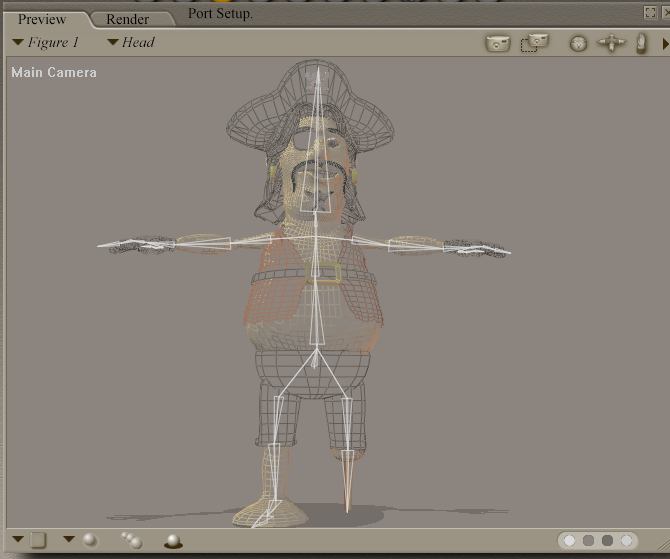
12) You can use any predesigned character for the bones or create your own bones, for this tutorial I will be using the bones of Barney the cartoon character.
11) Now you are going to add the bones .
12) You can use any predesigned character for the bones or create your own bones, for this tutorial I will be using the bones of Barney the cartoon character.
- Attachments
-
..
-
jeffroig
- Chief Warrant Officer
- Posts: 662
- Joined: 22 May 2009, 10:49
- Type the number ten into the box: 0
Re: From TrueSpace to the Great Space in animating
13) Double click on the Barney character from the list as if you were going to add barney in the scene.
14) You will see only the bones appear and not the character (Object).
15) Align the bones so they fit within your character. If you click on the hip you can move the complete bone structure up or down or left or right, first use this method to match the bones up the best as possible, centering them, next click on the individual bones that do not align up and resize them to match the character.
16) You can see from the image that I have aligned the bones and resized them to match the character. You will also see that I have deleted the Left Toe and Left Foot Bone for my character, as you can do also, if your character does not have a left hand or arm or any of the other body parts delete the bone associated with it before proceeding as the next step of creating the groups will be covered.
17) Grouping argh what a hassle you will learn to say the same thing as I have your eyes will hurt and you will want to walk away and curse the Poser program but have patients because the fruits of your labor will pay off in the end.
18) For every bone that you have there must be a group assigned to it, we will do the basic then do the complicated process.
19) First the basic, you have your bones aligned and are ready and want you character to move and flow like the character from Toy Story or Shrek well here we go.
20) While still in the setup room click on the grouping icon and you will see the following image.
14) You will see only the bones appear and not the character (Object).
15) Align the bones so they fit within your character. If you click on the hip you can move the complete bone structure up or down or left or right, first use this method to match the bones up the best as possible, centering them, next click on the individual bones that do not align up and resize them to match the character.
16) You can see from the image that I have aligned the bones and resized them to match the character. You will also see that I have deleted the Left Toe and Left Foot Bone for my character, as you can do also, if your character does not have a left hand or arm or any of the other body parts delete the bone associated with it before proceeding as the next step of creating the groups will be covered.
17) Grouping argh what a hassle you will learn to say the same thing as I have your eyes will hurt and you will want to walk away and curse the Poser program but have patients because the fruits of your labor will pay off in the end.
18) For every bone that you have there must be a group assigned to it, we will do the basic then do the complicated process.
19) First the basic, you have your bones aligned and are ready and want you character to move and flow like the character from Toy Story or Shrek well here we go.
20) While still in the setup room click on the grouping icon and you will see the following image.
- Attachments
-

..
-
jeffroig
- Chief Warrant Officer
- Posts: 662
- Joined: 22 May 2009, 10:49
- Type the number ten into the box: 0
Re: From TrueSpace to the Great Space in animating
21) Click on the button that says Add All, Poser will do its best to automatically assign the groups to the proper bones, trust me it is never correct
- Attachments
-

..
-
jeffroig
- Chief Warrant Officer
- Posts: 662
- Joined: 22 May 2009, 10:49
- Type the number ten into the box: 0
Re: From TrueSpace to the Great Space in animating
22) You can see that while Poser did group your character into sections according to the bones you have that they are not correct, click on the down arrow next to the grouping title to scroll through the groups and you will see that it has included parts from the head into the arm or legs into the hip. This is ok because at least we have a character with bones in it.
23) At this point you can leave the setup room and go to the pose room.
23) At this point you can leave the setup room and go to the pose room.
- Attachments
-

..
-
jeffroig
- Chief Warrant Officer
- Posts: 662
- Joined: 22 May 2009, 10:49
- Type the number ten into the box: 0
Re: From TrueSpace to the Great Space in animating
24) Now that you are in the pose room you can open up the parameters dial by clicking on window from the top menu, this will provide you with access to the dials that control each body part, move the chest left to right and see what else moves, makes sure you set the dial back to ZERO before you continue, play around with the other various body parts and see what I mean when the head is part of the arms or the hip is part of the legs. What you have just done is to create your first boned character but this is just the easy stuff.
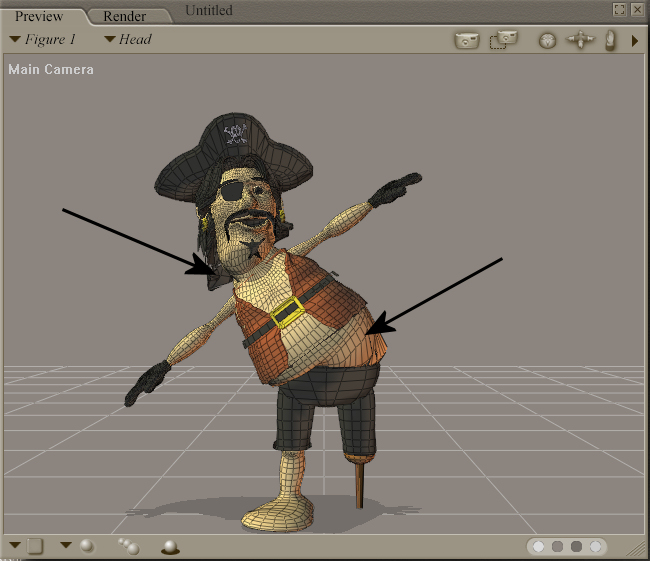
25) At this point I would suggest that you add what you have just created to the characters and name it, reason so that you can take a break and prepare yourself for the real fun, its not really that hard just time consuming. Once you have saved your work and cleared your head and are ready then proceed. Below is the image of my pirate after the basic grouping you will see arrows pointing to the parts that are not grouped correctly.
25) At this point I would suggest that you add what you have just created to the characters and name it, reason so that you can take a break and prepare yourself for the real fun, its not really that hard just time consuming. Once you have saved your work and cleared your head and are ready then proceed. Below is the image of my pirate after the basic grouping you will see arrows pointing to the parts that are not grouped correctly.
- Attachments
-
..
-
jeffroig
- Chief Warrant Officer
- Posts: 662
- Joined: 22 May 2009, 10:49
- Type the number ten into the box: 0
Re: From TrueSpace to the Great Space in animating
26) See how as the abdomen bends to the left that other areas bend that should not and see how as the head bends that the hair does not flow with it well this we will correct in the following steps.
27) If your done taking a break and have tried your character out and are ready to make him move like he or she should then lets get down to business.
28) If you saved your character like I did and exited Poser then open Poser and then load you character back into the pose room and get ready for some real grouping.
29) First set the display of your character as full wireframe (CTRL + 3) then enter the setup room.
30) Now click on the Group Editor and select the hip to start with, you will see from my image below that more than the hip area is in red so you will first want to remove the areas that you don’t want to be defined as the hip, click on the (Minus) button at the top of the group editor and then drag the dotted box around the area you don’t want. Don’t worry if you have selected more than you wanted you can select the PLUS button to add it back in. the below image shows before the selection (Grouping) was defined.
27) If your done taking a break and have tried your character out and are ready to make him move like he or she should then lets get down to business.
28) If you saved your character like I did and exited Poser then open Poser and then load you character back into the pose room and get ready for some real grouping.
29) First set the display of your character as full wireframe (CTRL + 3) then enter the setup room.
30) Now click on the Group Editor and select the hip to start with, you will see from my image below that more than the hip area is in red so you will first want to remove the areas that you don’t want to be defined as the hip, click on the (Minus) button at the top of the group editor and then drag the dotted box around the area you don’t want. Don’t worry if you have selected more than you wanted you can select the PLUS button to add it back in. the below image shows before the selection (Grouping) was defined.
- Attachments
-

..
-
jeffroig
- Chief Warrant Officer
- Posts: 662
- Joined: 22 May 2009, 10:49
- Type the number ten into the box: 0
Re: From TrueSpace to the Great Space in animating
31) The next image shows the result of after defining the Group using the Plus and Minus buttons and dragging the dotted box around.
- Attachments
-

..
-
jeffroig
- Chief Warrant Officer
- Posts: 662
- Joined: 22 May 2009, 10:49
- Type the number ten into the box: 0
Re: From TrueSpace to the Great Space in animating
32) For each bone a group will need to be defined, learn to use each of the various views and look for any red areas that are not what they are supposed to be. Learn to click on show multigrouped and non grouped faces to see what you are missing and what too much you are including.
33) When you are finished doing all of your grouping click on the Pose room tab and see what happens. Look at the image below if you get this message it means that you have a polygon(s) that are not grouped or are grouped to more than one part. Click on NO for the answer and go back to grouping and once again use the views to find the polygon(s) that are not grouped correctly, in most of my experiences I have found that the one polygon is hiding and you will need to look carefully for that one little microscopic area that is not grouped, the other thing that can cause this is that if you pull down on the grouping menu to display the various groups you will see one that says NO BONE, delete this group as Poser creates this automatically as you do your manual grouping. This group is not needed and will only cause errors.
33) When you are finished doing all of your grouping click on the Pose room tab and see what happens. Look at the image below if you get this message it means that you have a polygon(s) that are not grouped or are grouped to more than one part. Click on NO for the answer and go back to grouping and once again use the views to find the polygon(s) that are not grouped correctly, in most of my experiences I have found that the one polygon is hiding and you will need to look carefully for that one little microscopic area that is not grouped, the other thing that can cause this is that if you pull down on the grouping menu to display the various groups you will see one that says NO BONE, delete this group as Poser creates this automatically as you do your manual grouping. This group is not needed and will only cause errors.
- Attachments
-

..
-
jeffroig
- Chief Warrant Officer
- Posts: 662
- Joined: 22 May 2009, 10:49
- Type the number ten into the box: 0
Re: From TrueSpace to the Great Space in animating
See the NO_BONE in the list, delete it.
34) Once you have successfully grouped all the polygons you will receive no warning message, Poser will smoothly go into the pose room and allow you to manipulate the various parts of the body from bending or side to side to twisting. Make sure you save this character before proceeding to the morph section.
34) Once you have successfully grouped all the polygons you will receive no warning message, Poser will smoothly go into the pose room and allow you to manipulate the various parts of the body from bending or side to side to twisting. Make sure you save this character before proceeding to the morph section.
..
-
jeffroig
- Chief Warrant Officer
- Posts: 662
- Joined: 22 May 2009, 10:49
- Type the number ten into the box: 0
Re: From TrueSpace to the Great Space in animating
I am working on the morphing portion of this tutorial, please be patient, you have alot to learn and practice with what I have already provided.
..
-
jeffroig
- Chief Warrant Officer
- Posts: 662
- Joined: 22 May 2009, 10:49
- Type the number ten into the box: 0
Re: From TrueSpace to the Great Space in animating
Here is a short sample animation of the character walking I rendered this in preview mode.
<object width="425" height="344"><param name="movie" value="http://www.youtube.com/v/tLO_Cw4e1JU&hl ... ram><param name="allowFullScreen" value="true"></param><param name="allowscriptaccess" value="always"></param><embed src="http://www.youtube.com/v/tLO_Cw4e1JU&hl=en_US&fs=1&" type="application/x-shockwave-flash" allowscriptaccess="always" allowfullscreen="true" width="425" height="344"></embed></object>[/youtube]
<object width="425" height="344"><param name="movie" value="http://www.youtube.com/v/tLO_Cw4e1JU&hl ... ram><param name="allowFullScreen" value="true"></param><param name="allowscriptaccess" value="always"></param><embed src="http://www.youtube.com/v/tLO_Cw4e1JU&hl=en_US&fs=1&" type="application/x-shockwave-flash" allowscriptaccess="always" allowfullscreen="true" width="425" height="344"></embed></object>[/youtube]
..
-
jeffroig
- Chief Warrant Officer
- Posts: 662
- Joined: 22 May 2009, 10:49
- Type the number ten into the box: 0
Re: From TrueSpace to the Great Space in animating
Now that you have gotten over your frustration of grouping and are ready to have some fun I will show you how to create a morph.
Some important notes about facial morphs.
1) Take a look at one of the characters that Poser came with and right down all the face morph names such as OpenLips etc... Write them down just as you see them making sure to use the capital letters were needed.
2) You may even want to play with the morph dials and see how each morph reacts and make notes of this.
Now lets begin.
1) Click on file then export and choose OBJ format.
2) The hierarchy window opens unselect everything and only select the head as show in the image below and then click ok.
Some important notes about facial morphs.
1) Take a look at one of the characters that Poser came with and right down all the face morph names such as OpenLips etc... Write them down just as you see them making sure to use the capital letters were needed.
2) You may even want to play with the morph dials and see how each morph reacts and make notes of this.
Now lets begin.
1) Click on file then export and choose OBJ format.
2) The hierarchy window opens unselect everything and only select the head as show in the image below and then click ok.
- Attachments
-

..
-
jeffroig
- Chief Warrant Officer
- Posts: 662
- Joined: 22 May 2009, 10:49
- Type the number ten into the box: 0
Re: From TrueSpace to the Great Space in animating
3) Now a second window will appear, see the image below for the correct selections to choose.
- Attachments
-

..
-
jeffroig
- Chief Warrant Officer
- Posts: 662
- Joined: 22 May 2009, 10:49
- Type the number ten into the box: 0
Re: From TrueSpace to the Great Space in animating
4) When saving the file I use a name such as Head_Base.obj from this object file you will be creating all you head morphs.
5) I use Argile to create my moprhs, you can use ZBrush, MudBox or whatever you choose, if you use TS to do this remember this do not, DO NOT try and split the Heirarchy of the object or the morph target will give you undesirable results.
6) Open up your software to create morphs in and then load the Head_Base.obj.
7) I have chosen to create the OpenLips morph for this example, the image below shows the results after doing the modeling to create the morph, this is a screen shot from within Argile.
5) I use Argile to create my moprhs, you can use ZBrush, MudBox or whatever you choose, if you use TS to do this remember this do not, DO NOT try and split the Heirarchy of the object or the morph target will give you undesirable results.
6) Open up your software to create morphs in and then load the Head_Base.obj.
7) I have chosen to create the OpenLips morph for this example, the image below shows the results after doing the modeling to create the morph, this is a screen shot from within Argile.
- Attachments
-

..
-
jeffroig
- Chief Warrant Officer
- Posts: 662
- Joined: 22 May 2009, 10:49
- Type the number ten into the box: 0
Re: From TrueSpace to the Great Space in animating
8) Export the morphed object out as the name of the morph, example the morph name in Poser is OpenLips, so name your morph OpenLips.obj.
9) In Poser you will notice that the character control dial screen has two tabs, one says parameters and the other says Properties, select the Properties tab.
10) Click on the button labeled Load Morph Target, locate your morph target, do not rename it to anything other than what you saved it as and if you have followed the instructions all should be fine.
9) In Poser you will notice that the character control dial screen has two tabs, one says parameters and the other says Properties, select the Properties tab.
10) Click on the button labeled Load Morph Target, locate your morph target, do not rename it to anything other than what you saved it as and if you have followed the instructions all should be fine.
- Attachments
-

..
-
jeffroig
- Chief Warrant Officer
- Posts: 662
- Joined: 22 May 2009, 10:49
- Type the number ten into the box: 0
Re: From TrueSpace to the Great Space in animating
11) If you now click on the tab called Parameters you will see a section called Morph with a new dial created called OpenLips or whatever your morph was.
- Attachments
-

..
-
jeffroig
- Chief Warrant Officer
- Posts: 662
- Joined: 22 May 2009, 10:49
- Type the number ten into the box: 0
Re: From TrueSpace to the Great Space in animating
Well the time has now come for me to say good bye and I hope you all are able to use this tutorial and make it work for you.
It has been a great pleasure to put this together and share it with all of you.
One last note, I didnt major in english or spelling so if you happen to find a few words mis-spelled or incorrect please let me know so they can be fixed.
Please let me know if this tutorial was helpful or not and what you think about it and if there is anything needing improved.
Comments are always welcome, Dont be affraid to ask questions, I am always around and willing to help, just ask my friend Steinie.
With all that being said I would like to dedicate this tutorial to Steinie.... YO ADRIAN......Make it work Steinie I want to see some great things from you....You the man....LOL
It has been a great pleasure to put this together and share it with all of you.
One last note, I didnt major in english or spelling so if you happen to find a few words mis-spelled or incorrect please let me know so they can be fixed.
Please let me know if this tutorial was helpful or not and what you think about it and if there is anything needing improved.
Comments are always welcome, Dont be affraid to ask questions, I am always around and willing to help, just ask my friend Steinie.
With all that being said I would like to dedicate this tutorial to Steinie.... YO ADRIAN......Make it work Steinie I want to see some great things from you....You the man....LOL
..
-
jeffroig
- Chief Warrant Officer
- Posts: 662
- Joined: 22 May 2009, 10:49
- Type the number ten into the box: 0
Re: From TrueSpace to the Great Space in animating
Here is a sample animation of the finished character animated and then imported into VUE and put on his ship and walking the plank.
<object width="425" height="344"><param name="movie" value="http://www.youtube.com/v/564WWIHOYq8&hl ... ram><param name="allowFullScreen" value="true"></param><param name="allowscriptaccess" value="always"></param><embed src="http://www.youtube.com/v/564WWIHOYq8&hl=en_US&fs=1&" type="application/x-shockwave-flash" allowscriptaccess="always" allowfullscreen="true" width="425" height="344"></embed></object>[/youtube]
<object width="425" height="344"><param name="movie" value="http://www.youtube.com/v/564WWIHOYq8&hl ... ram><param name="allowFullScreen" value="true"></param><param name="allowscriptaccess" value="always"></param><embed src="http://www.youtube.com/v/564WWIHOYq8&hl=en_US&fs=1&" type="application/x-shockwave-flash" allowscriptaccess="always" allowfullscreen="true" width="425" height="344"></embed></object>[/youtube]
..