hi how do i use snap eg
i want to draw a shape with polyline and i want it to snap to grid or perfect 90 or 45 degrees , also is there a keyboard short to use when using polyline to keep lines straight , ive tried all the usual keys shift,alt ,ctrl and combinations of
how to use snap
-
automike
- Petty Officer Second Class
- Posts: 22
- Joined: 11 Nov 2009, 19:06
how to use snap
-
spacekdet

- Captain
- Posts: 1810
- Joined: 27 May 2009, 15:00
- Type the number ten into the box: 10
- Location: On the day shift at the Utility Muffin Research Kitchen
Re: how to use snap
Model side:
Open new/switch to Top View.
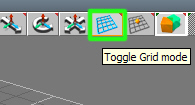
Press Toggle Grid Mode icon:
(Right Click it for options panel where you can set amount of snap in degrees)
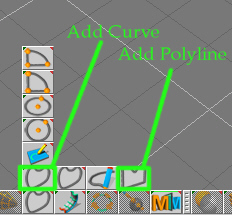
Press Draw New Curve or Add Polyline icon and begin drawing.
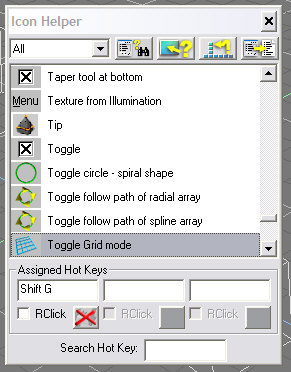
To hotkey Grid, hover your cursor over the desired tool and press Control F1
Icon Helper Panel pops up where you can assign and view all hotkeys.
Note: Model and Workspace must use different hotkey combinations.
If you used Draw Curve to make your shape, it will be a NURBS object.
It can then be manipulated with NURBS tools.
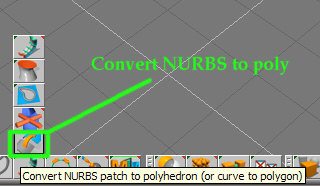
To use regular polygon editing tools, select the 2D curve and press the Convert NURBS patch to polyhedron (or curve to polygon) icon.
Workspace side:
There is no equivalent to Add Polyline Tool in Workspace, but to use Grid Snap:
Press Grid Snapping icon, Right Click it for options to appear in Stack:
To Hotkey it, hover your cursor over desired tool and Control-Right Click.
Assign Hotkey Panel pops up.
Workspace also has Point Edit Grid Snapping for use during polygon Point Editing.
Once again, right click for many more options in the stack.
Note: click/hold on 'Default' opens additional aspects.
Open new/switch to Top View.
Press Toggle Grid Mode icon:
(Right Click it for options panel where you can set amount of snap in degrees)
- grid_loc8.jpg (13.55 KiB) Viewed 3586 times
- polyline_loc8.jpg (36.67 KiB) Viewed 3586 times
Icon Helper Panel pops up where you can assign and view all hotkeys.
- Icon_helpr.jpg (35.75 KiB) Viewed 3586 times
If you used Draw Curve to make your shape, it will be a NURBS object.
It can then be manipulated with NURBS tools.
To use regular polygon editing tools, select the 2D curve and press the Convert NURBS patch to polyhedron (or curve to polygon) icon.
- convert_nurb_loc8.jpg (21.84 KiB) Viewed 3586 times
There is no equivalent to Add Polyline Tool in Workspace, but to use Grid Snap:
Press Grid Snapping icon, Right Click it for options to appear in Stack:
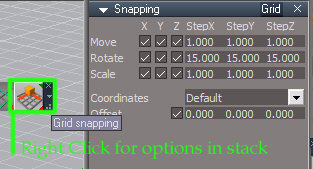
- WS_grid_snap_loc8.jpg (22.41 KiB) Viewed 3586 times
Assign Hotkey Panel pops up.
Workspace also has Point Edit Grid Snapping for use during polygon Point Editing.
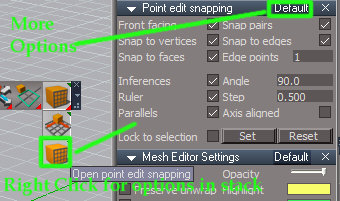
- WS_point_edit_option.jpg (32.69 KiB) Viewed 3587 times
Note: click/hold on 'Default' opens additional aspects.
-
marcel

- Captain
- Posts: 2247
- Joined: 21 May 2009, 19:52
- Type the number ten into the box: 0
- Location: paris - France
Re: how to use snap
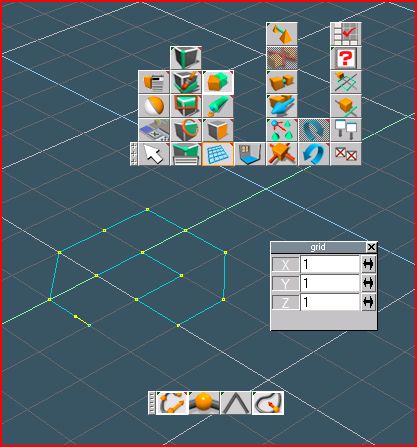
just use toggle grid mode is the best way. Here is another screen for new user (modelside).
- Attachments
-
Design - illustration - Animation
http://www.crea-vision.fr
http://www.crea-vision.fr
-
automike
- Petty Officer Second Class
- Posts: 22
- Joined: 11 Nov 2009, 19:06
Re: how to use snap
thanks for help , can anyone recommend any beginners help either video or text , i have the manual and ive looked at all vids on truespace site , icould do with a dummies type guide if you know what i mean
-
automike
- Petty Officer Second Class
- Posts: 22
- Joined: 11 Nov 2009, 19:06
Re: how to use snap
hi me again i have a problem when i toggle grid mode i cannot draw with curve or ployline , i get a small p next to my cursor
sorry to be a newb
sorry to be a newb
-
marcel
- Captain
- Posts: 2247
- Joined: 21 May 2009, 19:52
- Type the number ten into the box: 0
- Location: paris - France
Re: how to use snap
don't be sorry. No problem
The small "p" is when you are in edit mode (You do that by right click on an object). Press the barspace or the arrow (on my screen) to deselect this mode. now begin a polyline, don't forget to close the polyline (by clicking on the first point when you do the last point). convert nurb to object. you have a surface closed. right click the surface. now you are on the edit mode for polygonal object with the "p" near the cursor. You can use all the tools to extrude or lathe, etc...
The small "p" is when you are in edit mode (You do that by right click on an object). Press the barspace or the arrow (on my screen) to deselect this mode. now begin a polyline, don't forget to close the polyline (by clicking on the first point when you do the last point). convert nurb to object. you have a surface closed. right click the surface. now you are on the edit mode for polygonal object with the "p" near the cursor. You can use all the tools to extrude or lathe, etc...
Design - illustration - Animation
http://www.crea-vision.fr
http://www.crea-vision.fr
-
automike
- Petty Officer Second Class
- Posts: 22
- Joined: 11 Nov 2009, 19:06
Re: how to use snap
thanks marcel that sorted it also using the space bar to deselect has been useful
regards mike
regards mike