How do I stop an object from casting shadows?
-
netrate
- Petty Officer Second Class
- Posts: 24
- Joined: 15 Apr 2010, 01:03
How do I stop an object from casting shadows?
I am using TS6.6 and I have a piece of greenscreened footage that I am using with an alpha matte. It looks great within the 3D background, but the PLANE that it is mapped on is casting shadows and looks odd - how do I prevent this?
-
Finis

- Captain
- Posts: 5410
- Joined: 21 May 2009, 18:26
- Type the number ten into the box: 0
- Location: America!
Re: How do I stop an object from casting shadows?
Select the object. Right click on the object tool (the arrow icon), on the object info panel that appears click Render Options. Uncheck the cast shadows box.
I prefer dangerous freedom over peaceful servitude. -- Thomas Jefferson/Jean Jacques Rousseau
-
marcel

- Captain
- Posts: 2247
- Joined: 21 May 2009, 19:52
- Type the number ten into the box: 0
- Location: paris - France
Re: How do I stop an object from casting shadows?
If you want to see the real shadows from the alpha mask of an object instead the shadow of the entire object you can change the setting of the ligth. Choose transparency shadow for the ligth. The time to render is longer but the shadow better.
Design - illustration - Animation
http://www.crea-vision.fr
http://www.crea-vision.fr
-
netrate
- Petty Officer Second Class
- Posts: 24
- Joined: 15 Apr 2010, 01:03
Re: How do I stop an object from casting shadows?
Thank you for the tip Finis! That worked great!
Marcel - I have many objects in the scene that I need shadows for, but I really like what you are saying about getting the shadow from the transparency. How can I have both with a same set of lights? Or do I have to do something else to achieve this? A spotlight that only lights the transparency? I am just thinking aloud...
Marcel - I have many objects in the scene that I need shadows for, but I really like what you are saying about getting the shadow from the transparency. How can I have both with a same set of lights? Or do I have to do something else to achieve this? A spotlight that only lights the transparency? I am just thinking aloud...
-
spacekdet

- Captain
- Posts: 1810
- Joined: 27 May 2009, 15:00
- Type the number ten into the box: 10
- Location: On the day shift at the Utility Muffin Research Kitchen
Re: How do I stop an object from casting shadows?
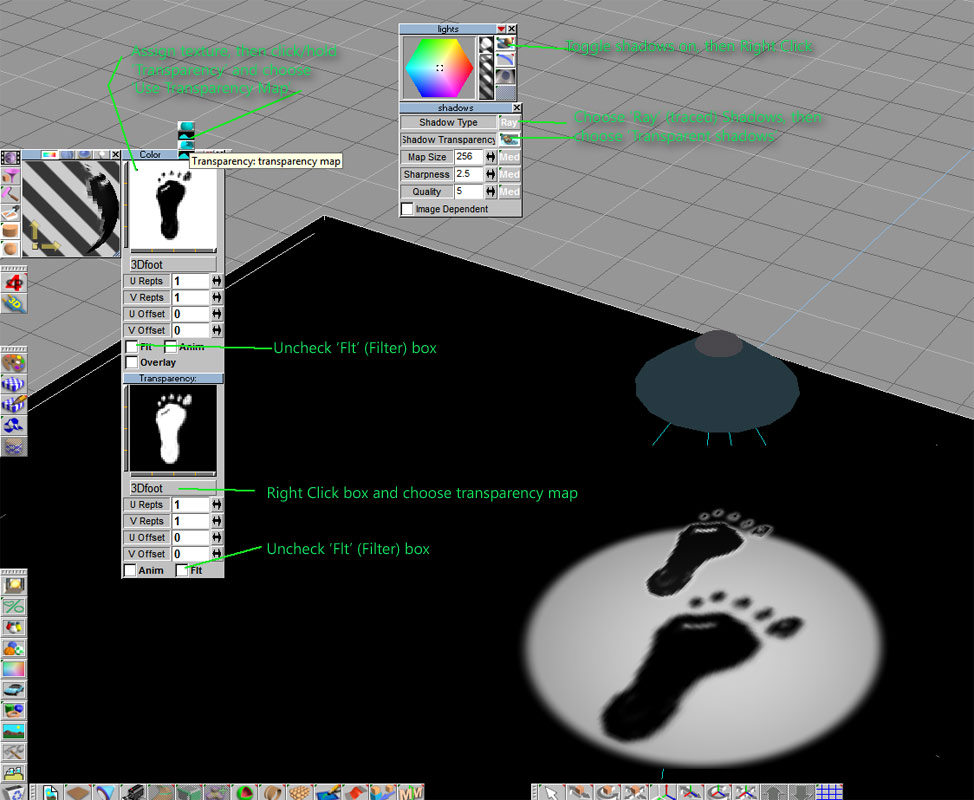
To do what you are thinking about, first set up the light, then set up the material.
Set up the light:
Select spotlight. Press L.
Toggle Shadow casting on.
Right Click Toggle Shadow icon.
Next to 'Shadow Type', choose 'Ray'
Click and hold 'Shadow Transparency' and choose 'Transparent Shadows'
Now set up the material in the Material Editor:
Open Material Editor.
Left and Right click 'Color:' and choose 'texture map' from Library.
Navigate to and choose your texture map.
(Here I've used a sample Black and White image from the Library- you can also use any 32 bit image that has alpha map channel.
In this example, white areas will become transparent and black areas will be opaque.)
In the Color Channel Panel, Click and hold 'transparency' and choose 'Transparency: transparency map'
In the pop-up panel right (or left) click the box and then navigate to and choose your 32 bit transparency image.
It can be the same image as the texture or even a different one.
In both the color and trans. map panels uncheck the 'flt' box.
This will prevent the 'halo' effect around the opaque areas of the texture.
Paint the object with the material.
Set Up Render Options:
Right Click 'Render Scene'
Choose 'Render Quality: High' and 'Enable Raytracing'
Tip for aiming spotlights:
Select spotlight.
Open new small view.
In new small view window, choose 'Small view from object'
Now use eye move/rotate to center the view on the object you want lit.
This will move the light to where you want it- handy for aiming it thru a window, for example.
If you have falloff on the light set to 'linear' or 'squared', you'll see a green 'cage' that represents the distance the light will travel before it fades; also handy for aiming purposes.
Set up the light:
Select spotlight. Press L.
Toggle Shadow casting on.
Right Click Toggle Shadow icon.
Next to 'Shadow Type', choose 'Ray'
Click and hold 'Shadow Transparency' and choose 'Transparent Shadows'
Now set up the material in the Material Editor:
Open Material Editor.
Left and Right click 'Color:' and choose 'texture map' from Library.
Navigate to and choose your texture map.
(Here I've used a sample Black and White image from the Library- you can also use any 32 bit image that has alpha map channel.
In this example, white areas will become transparent and black areas will be opaque.)
In the Color Channel Panel, Click and hold 'transparency' and choose 'Transparency: transparency map'
In the pop-up panel right (or left) click the box and then navigate to and choose your 32 bit transparency image.
It can be the same image as the texture or even a different one.
In both the color and trans. map panels uncheck the 'flt' box.
This will prevent the 'halo' effect around the opaque areas of the texture.
Paint the object with the material.
Set Up Render Options:
Right Click 'Render Scene'
Choose 'Render Quality: High' and 'Enable Raytracing'
Tip for aiming spotlights:
Select spotlight.
Open new small view.
In new small view window, choose 'Small view from object'
Now use eye move/rotate to center the view on the object you want lit.
This will move the light to where you want it- handy for aiming it thru a window, for example.
If you have falloff on the light set to 'linear' or 'squared', you'll see a green 'cage' that represents the distance the light will travel before it fades; also handy for aiming purposes.
-
netrate
- Petty Officer Second Class
- Posts: 24
- Joined: 15 Apr 2010, 01:03
Re: How do I stop an object from casting shadows?
First off, thank you for the detailed instructions.
Ok, initial issues - the spotlight is casting shadows for everything now, which is causing some problems.
I am still not seeing the shadow from the image.
I rendered out the footage as an AVI and also rendered out the footage with the mask. That part is not a problem and the transparency works well - but not seeing the shadow as of yet.
Ok, initial issues - the spotlight is casting shadows for everything now, which is causing some problems.
I am still not seeing the shadow from the image.
I rendered out the footage as an AVI and also rendered out the footage with the mask. That part is not a problem and the transparency works well - but not seeing the shadow as of yet.
-
Finis
- Captain
- Posts: 5410
- Joined: 21 May 2009, 18:26
- Type the number ten into the box: 0
- Location: America!
Re: How do I stop an object from casting shadows?
If you can (not restricted by agreements or contract etc.) then post the scene file. People can diagnose this better that way.
I prefer dangerous freedom over peaceful servitude. -- Thomas Jefferson/Jean Jacques Rousseau
-
netrate
- Petty Officer Second Class
- Posts: 24
- Joined: 15 Apr 2010, 01:03
Re: How do I stop an object from casting shadows?
I think it would be ok to post, but the AVI textures are like 33mb each and there is 4 of them (2 avi and 2 masks)
-
spacekdet
- Captain
- Posts: 1810
- Joined: 27 May 2009, 15:00
- Type the number ten into the box: 10
- Location: On the day shift at the Utility Muffin Research Kitchen
Re: How do I stop an object from casting shadows?
If you have turned off 'cast shadows' in 'Object info/render options' then the object won't cast shadows, no matter how it's textured.
I may have strayed a bit from your original question... Finis' first reply nails it.
Straying a bit further on my reply, you can have both transparency (with an alpha map) and no shadow on a per object basis if you've turned off 'cast shadows' in 'Object info/render options'.
If you want the transparency to have shadows 'Object info/render options/cast shadows' box must be checked.
I hope I'm making this less confusing instead of more...
I may have strayed a bit from your original question... Finis' first reply nails it.
Straying a bit further on my reply, you can have both transparency (with an alpha map) and no shadow on a per object basis if you've turned off 'cast shadows' in 'Object info/render options'.
If you want the transparency to have shadows 'Object info/render options/cast shadows' box must be checked.
I hope I'm making this less confusing instead of more...

-
netrate
- Petty Officer Second Class
- Posts: 24
- Joined: 15 Apr 2010, 01:03
Re: How do I stop an object from casting shadows?
I wonder if it is because it is an AVI and not an image that it isn't working. I have looked at the diagrams and followed them as best I can (they are tremendously helpful), but I am still seeing the shadow of the PLANE and not of the transparency.
-
Finis
- Captain
- Posts: 5410
- Joined: 21 May 2009, 18:26
- Type the number ten into the box: 0
- Location: America!
Re: How do I stop an object from casting shadows?
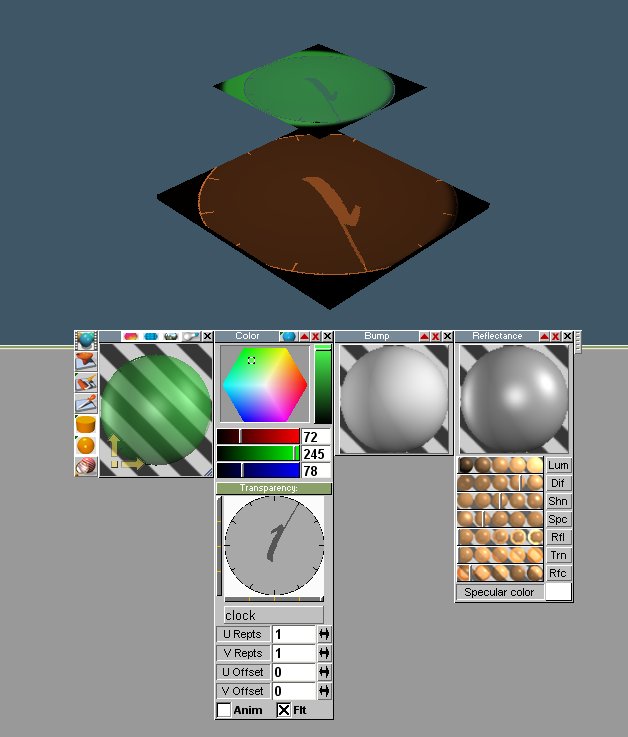
To get transparency from the AVI you have to use it as the transparency map. That would be like Spacekdet's foot example but both the feet would be replaced with the AVI. The darker an area of the avi is the more transparent it is.
I tried it with TS 7.6 model side (approx. = TS 6.6) with a orange cube floor and a green plane with the clock avi that comes with windows (C:\clock.avi) as a transparency map and got the results in the picture. Both objects cast and receive shadows in this example.
Note that only avi's with "avi" in lower case in the file name appeared to select for a texture.
I haven't tried them but a projector light might help you with your project.
I tried it with TS 7.6 model side (approx. = TS 6.6) with a orange cube floor and a green plane with the clock avi that comes with windows (C:\clock.avi) as a transparency map and got the results in the picture. Both objects cast and receive shadows in this example.
Note that only avi's with "avi" in lower case in the file name appeared to select for a texture.
I haven't tried them but a projector light might help you with your project.
- Attachments
-
I prefer dangerous freedom over peaceful servitude. -- Thomas Jefferson/Jean Jacques Rousseau