When I work on courses or tutorials (modeling) i have always the same problem.
When I put blueprint on Plane, i don't see them.
I see blueprint only when I render the scene.
I don't see a blueprint at modeling.
Thank you for everyone assistance.
Steinie
Captain
Posts:2958
Joined: 21 May 2009, 17:38
Type the number ten into the box: 10
Re: Problem with puting a blueprint on plane
Postby Steinie »
Are you using the Model side of trueSpace or the workSpace side?
It sounds like you are on the Model Side.
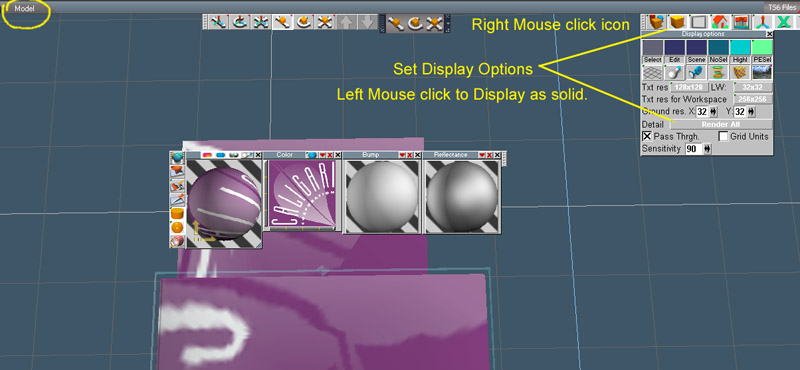
Do you have your render options set to "Render All"
There are other things that could cause this so let me know.
On model side use DX and solid render as indicated in the picture. If DX doesn't work for you then use OpenGL. I use the transparent with wireframe render mode to work with reference photos. Also use a texture color with some transparency on the model while working.
Attachments
I prefer dangerous freedom over peaceful servitude. -- Thomas Jefferson/Jean Jacques Rousseau
Gustibus
Seaman
Posts:8
Joined: 26 Jun 2009, 19:04
Re: Problem with puting a blueprint on plane
Postby Gustibus »
Steinie: I have problem with blueprint so on Model side and Workspace side.
I would like to solve problem on Model side.
Wen I work on fundamental course "Introduction to Product Illustration by David Froude", and
put light_bulb base blueprint on the Plane it is empty.
When I render the scene I see Light bulb, but as soon as I move the mouse back on Plane, light
bulb disappears. I can't modeling, because I don't see picture. It isn't important is JPG, bitmap or PNG.
Have you another idea.
Finis: if I want to modeling, I must see 2D light bulb without use the render. This is my basic problem.
Or otherwise, how I keep picture after rendering.
What is OpenGL? My English & Computer language is not the best, that is why I explain problem
heavily.
Finis
Captain
Posts:5410
Joined: 21 May 2009, 18:26
Type the number ten into the box: 0
Location: America!
Re: Problem with puting a blueprint on plane
Postby Finis »
Gustibus, what you see in my example picture above is not render. Well, it is not the regular render. The "DX render" provides a model side display that is like workspace's real time render (render while you work). You can work on this without the images disappearing.
OpenGL is an option for realtime rendering (render while you work). It doesn't need the graphics card like DX. It's icon is on the flyout with the DX icon. Note: Use DX if you can.
I prefer dangerous freedom over peaceful servitude. -- Thomas Jefferson/Jean Jacques Rousseau
clintonman
Captain
Posts:5659
Joined: 21 May 2009, 21:08
Type the number ten into the box: 0
Location: California
Re: Problem with puting a blueprint on plane
Postby clintonman »
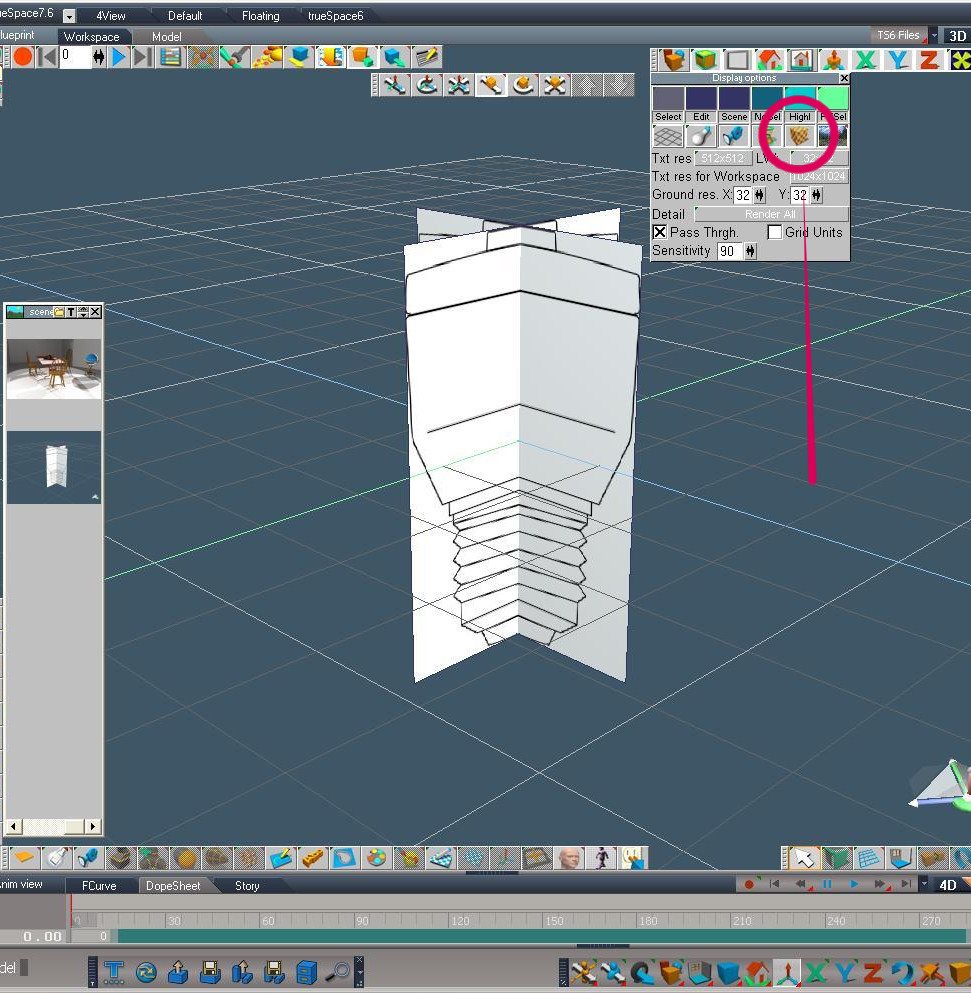
Try this button.
Attachments
toggleTextureDisplay.jpg (33.71 KiB) Viewed 7380 times
Yes, do as clintonman and Steinie said. Turn on textures in solid render and select Render All.
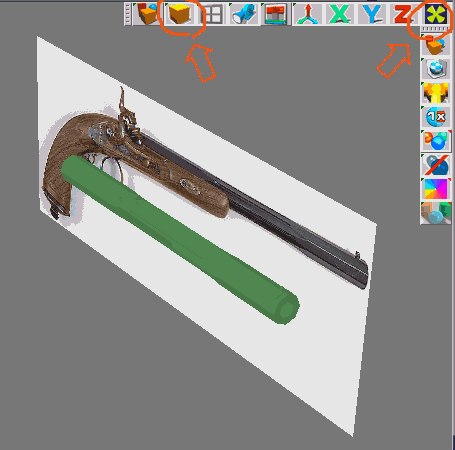
Here is a similar set up with DX solid render. Note the settings with arrows. See that the wire shape could be edited to be a butterfly using the reference picture.
The wireframe shape has its wires visible since:
-- the solid render mode is solid with wire
-- the object is selected
The wireframe shape is transparent because its texture (phong, color) has transparency.
Attachments
I prefer dangerous freedom over peaceful servitude. -- Thomas Jefferson/Jean Jacques Rousseau
Gustibus
Seaman
Posts:8
Joined: 26 Jun 2009, 19:04
Re: Problem with puting a blueprint on plane
Postby Gustibus »
Thank you all for help. I am able to continue with work now.
Clintonman ; I pressed button and I saw my lightbulb.
Gustibus
Seaman
Posts:8
Joined: 26 Jun 2009, 19:04
Re: Problem with puting a blueprint on plane
Postby Gustibus »
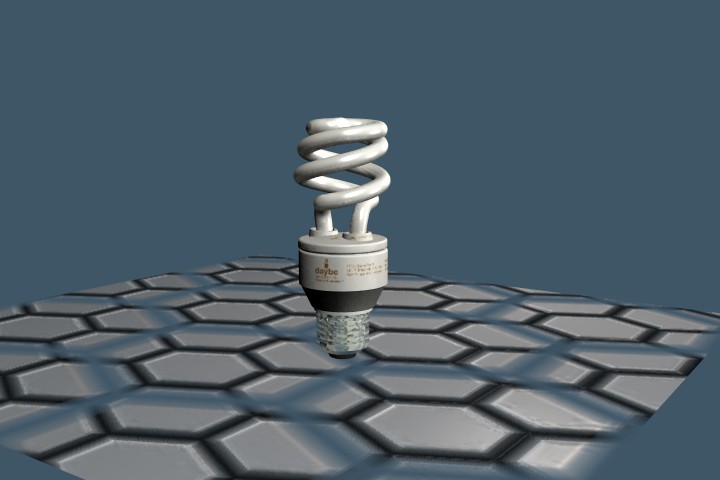
Thank you for help. Product is here.
Attachments
lycheesack2
Seaman Recruit
Posts:3
Joined: 11 Mar 2010, 01:22
Re: Problem with puting a blueprint on plane
Postby lycheesack2 »
Hello,
I'm new to 3D modelling in general.
I have truespace 7.61.
When I setup a plane I can diffuse the blueprint I want on the 1st plane, and successfuly copy that plane to create a 2nd. I rotote the plane(s) 90 degrees. After that I will use my mouse3 to rotate all around both are check-boxed with double-sided.
Problem, after I rotate around to view the plane(s), it turns black, the blueprint is completely solid square black on plane 1 on the backface.
I tried to duplicate the plane and rotate it 180, but it is still black. It might be a lighting variable, but I'm not sure about that. I tried to manipulate the two 'LocLight' in the 2D window, but I failed. This is very annoying to look at, is this normal or any suggestions to fix this?
spacekdet
Captain
Posts:1810
Joined: 27 May 2009, 15:00
Type the number ten into the box: 10
Location: On the day shift at the Utility Muffin Research Kitchen
Re: Problem with puting a blueprint on plane
Postby spacekdet »
Open the Material Editor and use the Paint Face tool to apply the blueprint on the black face.