Is there a way to make the icons fully expanded?
-
kyleg
- Seaman Recruit
- Posts: 4
- Joined: 08 Feb 2020, 16:29
- Type the number ten into the box: 10
Is there a way to make the icons fully expanded?
When in the interface to help learn where each is without having to look at manual guide etc. I have seen screens of what appears to be expanded pallets etc. This would be very helpful for trying to learn...also some are missing for me and be good to reset or figure out where they went...let me know
-
stan
- Master Chief Petty Officer
- Posts: 584
- Joined: 21 May 2009, 17:20
Re: Is there a way to make the icons fully expanded?
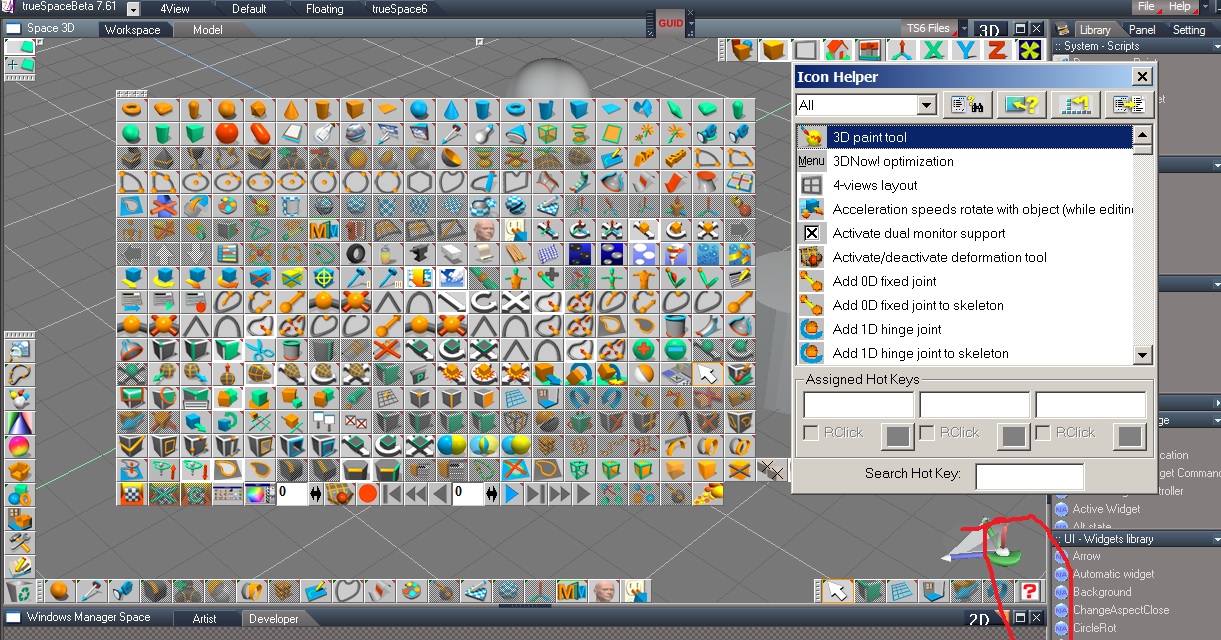
On model side you can click on a handle until it has the plus sign and it shows most icons. Shown below.
or you can use the icon finder as well as the icon helper. found here.
Unfortunately this can't be done on workspace side.
Hope that helps.

Hope that helps.
-
spacekdet

- Captain
- Posts: 1810
- Joined: 27 May 2009, 15:00
- Type the number ten into the box: 10
- Location: On the day shift at the Utility Muffin Research Kitchen
Re: Is there a way to make the icons fully expanded?
Screenshots from v. 6.6 but similar in Model.
As stated in first reply, clicking toolbar handle toggles between 3 states: fully open, collapsed to one row with flyouts, or minimized 'chiclet'.
To reset all toolbars the icon is noted 'Red 2' in image below BUT FIRST save layout in config/layout library 'Red 1' depending on which side you're on.
You may want to refer to it while rebuilding your layout, this can take some considerable time, be sure before clicking.
You can also load existing configs from Library, this will replace current layout so if you've customized it to any degree save it first- unless it's too far gone!
Cool things about Icon Finder
[*] You can Control-drag icons out of it to replace missing ones, add duplicates, or build custom bars.
[*]To delete extras or unwanted icons Control-drag & drop on Trashcan icon.
[*]Click Icon Finder to toggle the Mega-bar visibility.
Cool things about Icon Helper
[*]Assign or re-assign hotkeys and save your custom hotkey list in the Icon Helper.
[*]Select from list, click 'Find Icon' in Helper toolbar and cursor will move on it's own to the selected item's toolbar to show you it's location in the interface.
[*]'Inspect icon' : select any icon in interface with Helper window open and List will show what icon is
For on the fly help, in Help menu toggle on Help Bar and Tooltips.
Customizing Tip: Control-Drag to copy an icon, Shift drag it to move it to it's own or a different toolbar.
As stated in first reply, clicking toolbar handle toggles between 3 states: fully open, collapsed to one row with flyouts, or minimized 'chiclet'.
To reset all toolbars the icon is noted 'Red 2' in image below BUT FIRST save layout in config/layout library 'Red 1' depending on which side you're on.
You may want to refer to it while rebuilding your layout, this can take some considerable time, be sure before clicking.
You can also load existing configs from Library, this will replace current layout so if you've customized it to any degree save it first- unless it's too far gone!
Cool things about Icon Finder
[*] You can Control-drag icons out of it to replace missing ones, add duplicates, or build custom bars.
[*]To delete extras or unwanted icons Control-drag & drop on Trashcan icon.
[*]Click Icon Finder to toggle the Mega-bar visibility.
Cool things about Icon Helper
[*]Assign or re-assign hotkeys and save your custom hotkey list in the Icon Helper.
[*]Select from list, click 'Find Icon' in Helper toolbar and cursor will move on it's own to the selected item's toolbar to show you it's location in the interface.
[*]'Inspect icon' : select any icon in interface with Helper window open and List will show what icon is
For on the fly help, in Help menu toggle on Help Bar and Tooltips.
Customizing Tip: Control-Drag to copy an icon, Shift drag it to move it to it's own or a different toolbar.

-
kyleg
- Seaman Recruit
- Posts: 4
- Joined: 08 Feb 2020, 16:29
- Type the number ten into the box: 10
Re: Is there a way to make the icons fully expanded?
Thanks....I was able to find some with icon finder (seems like it does an animation over the icon to find it), but the help can only be accessed from model view it seems...Ill keep looking for where it is under tool tips. Some of the tips for icon finder has helped. Going through the tutorials in the manual and completely lost on 1.2 NURBS Editing in Model View...may have to go watch and see tutorial from the site that is in flash format with audio to how I am missing some of the process. Is the icon finder the same as icon help "icon finder" or is there another....specifically how are you showing those screenshots getting all the icons to appear at once?
-
spacekdet
- Captain
- Posts: 1810
- Joined: 27 May 2009, 15:00
- Type the number ten into the box: 10
- Location: On the day shift at the Utility Muffin Research Kitchen
Re: Is there a way to make the icons fully expanded?
OK, right version here, I was showing 6.6 interface in prev post;
Icon Finder is the one that opens Mega-bar, with a side-flyout to Icon Helper, and Reset toolbars is just above it.
Icon Finder is the one that opens Mega-bar, with a side-flyout to Icon Helper, and Reset toolbars is just above it.
