
Texture/object: animating transparency
Materials Animation 201
By '3dpdk'
There's a couple of tricks to this, but it's really pretty straight forward.By '3dpdk'
With frame counter at 0 paint the object with it's starting color, shine, reflect, etc. using the funnel icon. Click the record button on the frame counter; At this point I advance the counter to 1 and click record again.
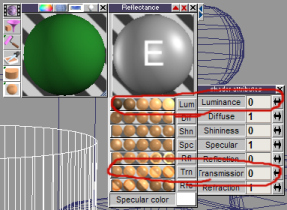
- attachment.jpg (65.98 KiB) Viewed 1970 times
Now advance the counter to the end of the transition and set the sliders of the material editor;
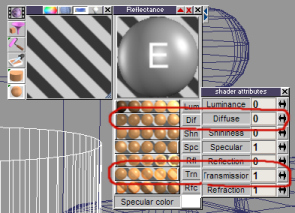
- attachment_002.jpg (66.8 KiB) Viewed 1964 times
diffusion = 0
transmission = 1 (transparency)
refraction = 0
and color = 255, 255, 255 RGB (full white)
If these four sliders are not to their full extent or the color not set to full white the object will not be invisible. Use the 'Paint Over' (paint roller icon) to paint the object. That's important. You could use the paint face tool (paint brush) if you want select faces to disappear. Now click the record icon in the animation frame counter or in the scene editor and render the animation.
note:
- The object may not appear invisable in real time solid render. I think that depends on your video card.
- The invisible object will cast a shadow unless you set all shadow casting lights to "transparent shadows".
- Procedural and image background shaders (such as the procedural cloud shader I used for the example) do not work. They stretch and pixelate when seen through the invisible object. This only applies to backgrounds and not materials applied to real geometry.
Here's a quick example.
File Type: Download Zipped wmv: