I followed along a Blender tutorial using MarbleClay.
The rotate and scale features depend on the workplane, which I sometimes forget. I tend to avoid those tools in favor of pulling verts and lines.
Not a great video, but thought I would share something.
Moved to rumble, because managing multiple channels on youtube is a PITA.
https://rumble.com/v3gz51q-4-marbleclay ... oorly.html
---------
Update of 24th Sep.
Set an empty (or not exported) Object name (not a sub object) with:
#SCRIPT# DIR
It will run that batch file. IE:
#SCRIPT# C:\Program Files\MarbleCLAY\Plugin\RunBatchScript.txt
When entering the #SCRIPT# path\file.txt into the object name field, hit enter to update the name change after changing the name.
The default assetpath will be the path this file is located.
If #SCRIPT# is not set, the default will be this file:
C:\MarbleCLAY\Plugin\RunBatchScript.txt
Also:
Added relative path changing to !assetpath - only two options, .. (back one folder) or folder_name (create or cd into folder_name).
TMDANIM - better netyaroze preview program
-------------------------------
28th September
Bone and Posing help
--------------------------------------------------------------------------------
Parts/Bone
Note: Bones support is still buggy and you will see errors, but these typically aren't critical errors. Re-select items and try the operation again. This section only effects bones and objects attached to bones.
Freeze 'Parts'/'Deform'
Move Parts/Bone to Workplane
Make mirror Parts/Bone
Attach and Activate bone (Simple)
Detach and Deactivate bone (Simple)
Reset Parts/Bone position
Bone tips
Bone Example
Not available:
Attach vertices to bone
Activate bone
Deactivate bone
Import .mcl file as 'Parts'
Freeze 'Parts'/'Deform'
To freeze means to create a new root model based on the current object as a polygon mesh.
This option will freeze the current object attached to bones to a new root model.
This new root object can be further manipulated, exported or rendered etc.
This feature only works in Attach and Activate bone (Simple) mode and freezes the complete model object.
Move Parts/Bone to Workplane
Bone and model must be Attach and Activate bone (Simple) first
. Moves the selected bone and it's lower attached hierarchy of bones to the currently selected workplane.
It's recommended to only use this with the root, top most bone, as it will also apply the move to the rest of the hierarchy.
This is useful to center the bone hierarchy to the front and right planes.
Currently, the individual bone part must be selected from the view port, not the object tree.
Make mirror Parts/Bone
This is not a mirror feature, it uses the currently used workplane as a mirror plane.
It duplicates the selected bone hierarchy using the mirror plane, to a new bone hierarchy.
The mirror can be a root bone node or a sub bone node, if it's a root node a new root will be created, if it's a sub node a new sub node will be created.
Currently, the individual bone part must be selected from the view port, not the object tree.
Note: As of this version (v1 beta 6.4), it will only traverse down a single hierarchy tree of bone nodes, so it will not do a full mirror if you have bones in multiple branching bones.
Attach and Activate bone (Simple)
First select the model's root object and then holding down shift key, select the bone's object(s).
If your bone hierarchy has multiple root bones, you will have to hold shift and select all root bone node hierarchies or the missing bones will not be available for posing.
Both the model's root object and the model's root bone(s) hierarchy must be selected and highlighted.
It's recommended to keep a single bone hierarchy. Then apply Attach and Activate bone (Simple).
Note: If the model's root model object and bone's root hierarchy are not both selected, it will not do anything.
Setting Attach and Activate bone (Simple) will apply the bone and position last applied, and allows you to position bones to pose the model.
You can accidentally edit the model while in this mode, it's best to use the Move(1) with vertices, lines and faces selecting disabled, only bone manipulation will work.
or the bones in this mode, all modification will only effect the position of the model for a pose.
This mode has a special Move(1) bone widget with all the manipulators in one (tip: disable the normal maniputlator with M Key), if you only need to rotate bones for posing, changing to the rotate tool is a lot easier. Note, currently the scale tool does not work on bones.
To edit the bones size (skinning), location etc, you must be in normal modelling editing mode and exit with Detach and Deactivate bone (Simple).
You can confirm you are in Attach and Activate bone (Simple) mode by clicking a bone and seeing all options available in the Parts/Bone menu.
Detach and Deactivate bone (Simple)
This turns off Attach and Activate bone (Simple) and reverts back to normal modeling mode.
You have to have either the Model, Bone or both selected first.
You will alternate between the two modes regularly to adjust the model if the pose doesn't look correct, not enough geometry etc. Note: You can not delete bones if they are in Attach and Activate bone (Simple) a warning will display "You can't delete active bones, use Parts/Bone -> Detach and Deactivate bone (Simple) and try again!" reminding you to exit first with Detach and Deactivate bone (Simple).
Reset Parts/Bone position
The current pose will be discarded and cleared with positioning information in bones.
The bones will be reset to the same information as the bones in the modeling mode.
Must be in Attach and Activate bone (Simple) mode with the bone hierarchy selected.
The bone hierarchy can be a root bone or a sub bone, which will only clear and reset the current bone hierarchy, and not he other bones.
Bone tips
The bone node icon in the object viewer panel means:
Diagnal line of two bones yellow bones - Not attached to model.
Bent knee looking bones - Attached to model.
While using the Bone Creation Tool when you click on another bone it will only select it, to continue the hierarchy. To create a new bone, click on empty space and drag, a new bone root node will be created. To move bone nodes up or down the hierarchy, click the icon with the two bones.
Always use centered views in the main single screen:
F key = Front (when using mirror mode, this is the side view)
E key = Top
D key = Right (when using mirror mode, this is the front view)
Or use the traditional 4 way split view.
The Object viewer panel Object window in Panel tray can get very big with bone hierarchies. You can move it out to it's own panel by dragging the floating icon next to the collapse icon, at the top right.
The new window will default to pinned mode, which will always stay on top, if you click the pin icon, it will be unpinned and it will disappear.
To get it back, click Menu -> Windows -> Show windows -> Show object window.
Or you can add the Object panel and other panels to the floating tray (Menu -> Windows -> Show windows -> Open floating tray..) which can be positioned anywhere and will always be visible. Unfortunately, MarbClay can only have one instance of a panel.
Multiple bone hierarchies.
If you need multiple poses, it's recommended to only have a single pose in a file. MarbleClay can load multiple instances to compare each pose.
Multiple bone hierarchies in a single file, is experiemental!
Currently, there is no way to copy a complete bone hierarchy, and working with them is more buggy, but it can be done and managed.
Simply save a copy of your MarbleClay project with only the bone hierarchy finalized, save it something like Tee-Pose.
The object viewer panel has an import feature (folder icon at the bottom left of the panel) and import your saved file.
Delete the imported model and rename the imported bone hierarchy, save it out with a new name. Repeat to add more bone hierarchies or to add single ones just import the original model-single-frame one again.
This method works, always save your work incrementally and always test every imported bone hierarchy by Attach and Activate bone (Simple) each bone hierarchies with the model to test the new frame.
Warnings:
When working with multiple bone hierarchies, only have a single, active bone visible and do not click other bone hierarchies, just in case!
Sometimes while setting up multiple bone hierarchies, the bone icons can get confused as to which bone hierarchies is attached to a model, it can be ignored and it will work as expected. Also you will see the bone boundaries not aligning correctly with the mesh, again this doesn't matter so much, because it will apply the correct transformations.
Bone Example
Start by setting the correct workplane, typically (YZ workplane) and hitting D key (right view).
If you are not in the correct workplane you might not see the bone!
You want to pick the correct bone type for each part, the short (square) bone type for smaller parts and the long (rectangle) type for longer parts.
The more bones you use, the more control you will have over the auto skinning and posing, it's advised to completely skin your model with all of the mesh allocated to bones and no vertices unallocated.
Bones should be structured in a hierarchy based on limbs, ie bone root nodes should be center nodes, like:
Head start with: Neck, Head.
Left arm start with: left shoulder, left bicep, left forearm, left hand.
Left leg start with: left upper leg, left lower leg, left foot.
It's a good idea to set each bone's dimensions as you go, that way you can see where the next bone will start. The first root bone might require Move Parts/Bone to Workplane to move it to the center first.
Before moving on from the first bone hierarchy, test it first that the bones don't grab vertices which it should etc.
Next, we change the workplane to XZ, select the left shoulder root bone and click Make mirror Parts/Bone.
This will create a new root bone hierarchy, rename parts appropriately and the same for the right leg.
See: #5 MarbleClay Using Bones and Multiple Poses
https://www.youtube.com/watch?v=3r3dnpe ... qR&index=6
or
https://rumble.com/v3lr5n7-5-marbleclay ... poses.html First post not maintained, see the last post for the latest version and info, read below for general info first.
 I left my debugging print's.


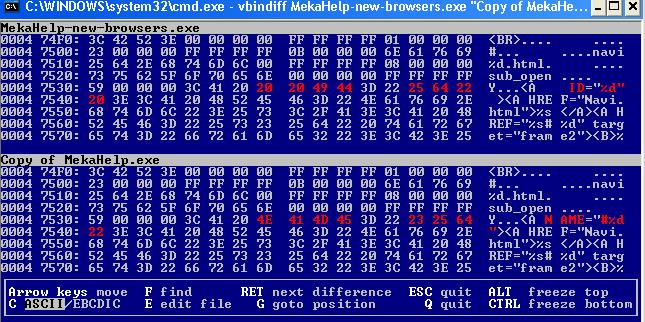


 so no virus, just really poorly written code by me