How can I apply something that affects the whole world to just one object? (Preferably in workspace, but in model side too)
Example: I want to make this object in wire mode (not in edit) but all others still solid...
Another question is: I heard about a mode that you make visible just what you are selecting and is good to use in big scenes that consumes too much memory from the computer, where I activate it?
Another one: I heard too about LOD (Level of Detail) that closer objects appears with full details but those that are far appears with low details.
Many Many Thanks in Advance!
Applying just to one object
-
LeonRegis

- Captain
- Posts: 1946
- Joined: 18 Aug 2009, 17:36
- Type the number ten into the box: 0
- Location: Brazil/Earth/Orion Arm/Milky Way/4th Dimension/This Universe/Multiverse???/Singularity???
Applying just to one object
Be the change you want to see in the world. - Mohandas Gandhi
-
spacekdet

- Captain
- Posts: 1810
- Joined: 27 May 2009, 15:00
- Type the number ten into the box: 10
- Location: On the day shift at the Utility Muffin Research Kitchen
Re: Applying just to one object
Question #1:
(Workspace Per-Object Display Mode)
Select an object and open the Stack
Click Setting tab, then Scene.
You can adjust the visibility/color/size of surface, edges, and points using the 'opacity' sliders in this panel.
This affects the entire scene.
If you want to change just one object, select it and then in the Scene Attributes panel click the box labeled 'Show Object Attribs'
A new panel will pop up where you can adjust the surface, edge, and points for just that single object.
Note that if you click and hold on the box labeled 'Default' you have additional options available.
Model Side: Next Post
(Workspace Per-Object Display Mode)
Select an object and open the Stack
Click Setting tab, then Scene.
You can adjust the visibility/color/size of surface, edges, and points using the 'opacity' sliders in this panel.
This affects the entire scene.
If you want to change just one object, select it and then in the Scene Attributes panel click the box labeled 'Show Object Attribs'
A new panel will pop up where you can adjust the surface, edge, and points for just that single object.

Model Side: Next Post
-
Rhino169

- Senior Chief Petty Officer
- Posts: 201
- Joined: 29 Nov 2009, 03:15
Re: Applying just to one object
A little off topic...spacekdet...is there a link or forum topic which describes the differences between workspace and modelspace? 
-
spacekdet
- Captain
- Posts: 1810
- Joined: 27 May 2009, 15:00
- Type the number ten into the box: 10
- Location: On the day shift at the Utility Muffin Research Kitchen
Re: Applying just to one object
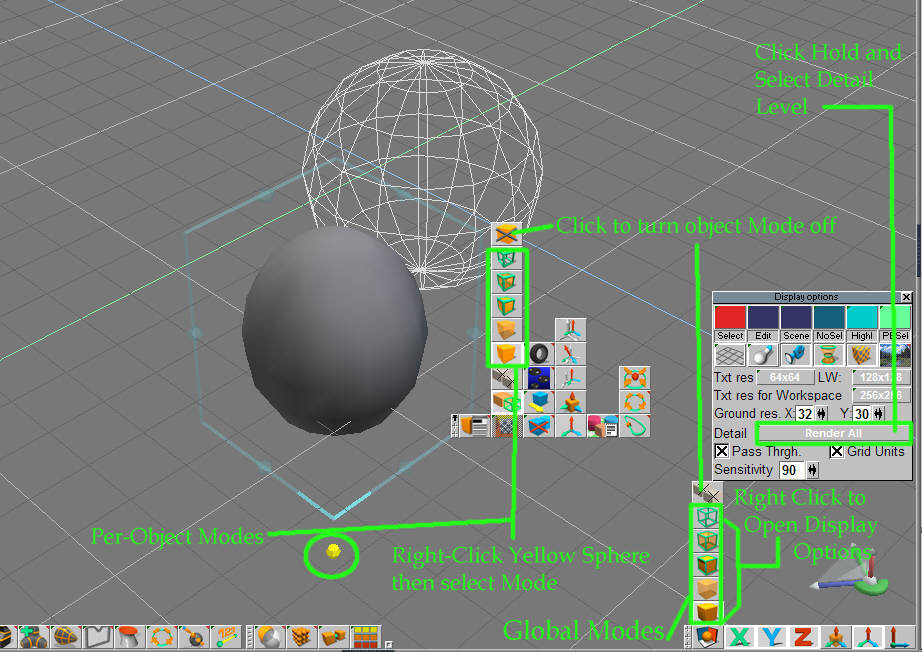
Model Side Per Object Display Mode
To set per object display mode in Model- for instance so that one object is Solid and another is Wireframe.
First, there is Global (affects whole scene) settings which are found in the 'Draw Objects as' Toolbar.
(Solid, Transparent Outline, Wireframe, etc.) All objects will display in the chosen mode.
In Global mode, clicking any type will change all objects in the scene to that mode.
Right click any of them ( or choose tS6File/Display Options) to open Display Options Panel.
Click and hold Detail and you can also choose how objects are displayed during eye or object movement.
For instance, if you have a high polygon scene and are in 'Boxes' mode, every object except the one you are moving will switch to a simplified bounding box in order to speed up the display.
If you are in 'All Boxes', every object including the one selected will change to a simplified bounding box during movement.
Experiment with these Detail display modes to see how they differ.
Reminder: The Detail modes affect display only during Object or Eye Movement.
To set up the display so that some objects are Solid shaded and some Wireframe:
Select an object, and then Right Click on the yellow Selection Sphere below the object.
A new toolbar will pop up where you switch to Per-Object Mode.
Select the mode (Solid, Transparent Outline, Etc) that you want in this new toolbar, and only the selected object will change.
Anything not selected can still be changed using the Global settings toolbar.
To cancel Per-Object Mode, click either the 'Object Mode Off' or the 'Draw All Objects using Global Drawing Mode' icons (They do the same thing)
To set per object display mode in Model- for instance so that one object is Solid and another is Wireframe.
First, there is Global (affects whole scene) settings which are found in the 'Draw Objects as' Toolbar.
(Solid, Transparent Outline, Wireframe, etc.) All objects will display in the chosen mode.
In Global mode, clicking any type will change all objects in the scene to that mode.
Right click any of them ( or choose tS6File/Display Options) to open Display Options Panel.
Click and hold Detail and you can also choose how objects are displayed during eye or object movement.
For instance, if you have a high polygon scene and are in 'Boxes' mode, every object except the one you are moving will switch to a simplified bounding box in order to speed up the display.
If you are in 'All Boxes', every object including the one selected will change to a simplified bounding box during movement.
Experiment with these Detail display modes to see how they differ.
Reminder: The Detail modes affect display only during Object or Eye Movement.
To set up the display so that some objects are Solid shaded and some Wireframe:
Select an object, and then Right Click on the yellow Selection Sphere below the object.
A new toolbar will pop up where you switch to Per-Object Mode.
Select the mode (Solid, Transparent Outline, Etc) that you want in this new toolbar, and only the selected object will change.
Anything not selected can still be changed using the Global settings toolbar.
To cancel Per-Object Mode, click either the 'Object Mode Off' or the 'Draw All Objects using Global Drawing Mode' icons (They do the same thing)
- Attachments
-
-
spacekdet
- Captain
- Posts: 1810
- Joined: 27 May 2009, 15:00
- Type the number ten into the box: 10
- Location: On the day shift at the Utility Muffin Research Kitchen
Re: Applying just to one object
This sounds like Object Layers. You can use these in Model side.leonregis wrote: Another question is: I heard about a mode that you make visible just what you are selecting and is good to use in big scenes that consumes too much memory from the computer, where I activate it?
(You'll need a plugin for Workspace side, search here for something called ' Layerz ')
These are different than Material layers.
Check your PDF manual (Chapter 4) for more info on Object Layers.
They are a great time-saver and well-worth knowing about!
I've never used LOD, sorry, can't help you here.leonregis wrote:Another one: I heard too about LOD (Level of Detail) that closer objects appears with full details but those that are far appears with low details.
Many Many Thanks in Advance!
-
LeonRegis
- Captain
- Posts: 1946
- Joined: 18 Aug 2009, 17:36
- Type the number ten into the box: 0
- Location: Brazil/Earth/Orion Arm/Milky Way/4th Dimension/This Universe/Multiverse???/Singularity???
Re: Applying just to one object
Thanks  You have stolen Truespace section of the Alexandria Library!
I just didn't understand how to get to the scene tab (workspace)...
Sorry and Thank you
You have stolen Truespace section of the Alexandria Library! I just didn't understand how to get to the scene tab (workspace)...
Sorry and Thank you
Be the change you want to see in the world. - Mohandas Gandhi
-
spacekdet
- Captain
- Posts: 1810
- Joined: 27 May 2009, 15:00
- Type the number ten into the box: 10
- Location: On the day shift at the Utility Muffin Research Kitchen
Re: Applying just to one object
New Scene.
Open Stack.
Click Setting tab.
Right Click on blank area in 3D window.
Scene panel should pop up in stack.
Open Stack.
Click Setting tab.
Right Click on blank area in 3D window.
Scene panel should pop up in stack.
-
LeonRegis
- Captain
- Posts: 1946
- Joined: 18 Aug 2009, 17:36
- Type the number ten into the box: 0
- Location: Brazil/Earth/Orion Arm/Milky Way/4th Dimension/This Universe/Multiverse???/Singularity???
Re: Applying just to one object
Worked! Thank you very much!
Be the change you want to see in the world. - Mohandas Gandhi