I am still a noobie with TS, so at the moment am crazily trying to get as many tutorials as possible to help me get going.
I downloaded the 3DBuzz GameSpace Tutorials
In the video one of the instructors is modelling the elf, and in the video he clicks on a point - moves it, then clicks on another point and moves that one, but when he clicks on the 2nd point the previous point becomes deselected, when he clicks on a 3rd point the previous point becomes deselected and so on.
I am sort of following by just trying to mimic what he is doing so I can commit the actions to memory before I try something serious.
I have 2 questions
1/ When I click on the 2nd point the first one stays selected and my selection is now bigger so when I move the point 2 of them move, and if I click a 3rd point all three move and so on, I realize it is probably just a setting but don't know what or where it is, can someone direct me please?
2/ How can I deselect my object so I can start another set of modelling commands without constantly hitting the space bar and then R Clicking so I can get back into editing mode?
Sorry for just basic questions.
Thanks in advance
A Little Selection Help please.
-
foff44
- Petty Officer Second Class
- Posts: 30
- Joined: 23 Jan 2014, 08:26
- Type the number ten into the box: 10
A Little Selection Help please.
-
spacekdet

- Captain
- Posts: 1810
- Joined: 27 May 2009, 15:00
- Type the number ten into the box: 10
- Location: On the day shift at the Utility Muffin Research Kitchen
Re: A Little Selection Help please.
This answer pertains to the Model side of things.
There are some tools you'll want to add to your point editing toolbar.
They are called 'Add To Selection', 'Select subset', and 'Subtract From Selection'
(I forget where they are originally, but for some reason they are not part of the default point edit toolbar)
Use the Icon Finder and Icon Helper/search text to help you locate them.
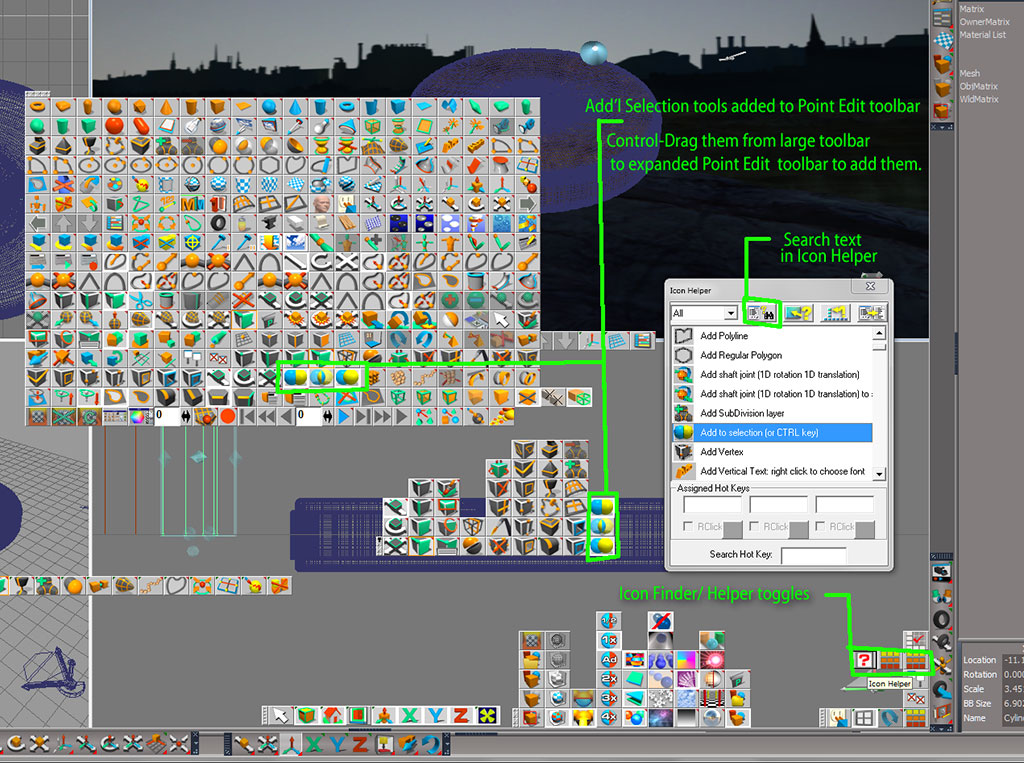
With the Icon Finder open (don't freak out, it's huge!) locate the icons mentioned above, hold Control key, and drag them onto your open, expanded point edit toolbar.
Click Icon Finder icon again to hide the mega toolbar.
Be sure to save your Layout/ Config in the layout Library and exit/restart tS to save your toolbar with the new added icons.
It sounds like the 'Add To Selection' is activated, which is why clicking on additional points adds them to what you already have selected. Toggle it off and you should be able to select just single points, with each click deselecting what you had before. With this toggled off, note that by holding the Control key you can still select multiple points. Holding Shift key and clicking allows you to deselect previously selected points/elements.
Here is a confusing screenshot with circles and arrows:
There are some tools you'll want to add to your point editing toolbar.
They are called 'Add To Selection', 'Select subset', and 'Subtract From Selection'
(I forget where they are originally, but for some reason they are not part of the default point edit toolbar)
Use the Icon Finder and Icon Helper/search text to help you locate them.
With the Icon Finder open (don't freak out, it's huge!) locate the icons mentioned above, hold Control key, and drag them onto your open, expanded point edit toolbar.
Click Icon Finder icon again to hide the mega toolbar.
Be sure to save your Layout/ Config in the layout Library and exit/restart tS to save your toolbar with the new added icons.
It sounds like the 'Add To Selection' is activated, which is why clicking on additional points adds them to what you already have selected. Toggle it off and you should be able to select just single points, with each click deselecting what you had before. With this toggled off, note that by holding the Control key you can still select multiple points. Holding Shift key and clicking allows you to deselect previously selected points/elements.
Here is a confusing screenshot with circles and arrows:
-
foff44
- Petty Officer Second Class
- Posts: 30
- Joined: 23 Jan 2014, 08:26
- Type the number ten into the box: 10
Re: A Little Selection Help please.
spacekdet wrote:This answer pertains to the Model side of things.
There are some tools you'll want to add to your point editing toolbar.
They are called 'Add To Selection', 'Select subset', and 'Subtract From Selection'
(I forget where they are originally, but for some reason they are not part of the default point edit toolbar)
Use the Icon Finder and Icon Helper/search text to help you locate them.
With the Icon Finder open (don't freak out, it's huge!) locate the icons mentioned above, hold Control key, and drag them onto your open, expanded point edit toolbar.
Click Icon Finder icon again to hide the mega toolbar.
Be sure to save your Layout/ Config in the layout Library and exit/restart tS to save your toolbar with the new added icons.
It sounds like the 'Add To Selection' is activated, which is why clicking on additional points adds them to what you already have selected. Toggle it off and you should be able to select just single points, with each click deselecting what you had before. With this toggled off, note that by holding the Control key you can still select multiple points. Holding Shift key and clicking allows you to deselect previously selected points/elements.
Here is a confusing screenshot with circles and arrows:
Hey spacekdet
Thank you, that was the problem, I did already have those icons in the Point Edit Toolbar but the wrong one was selected, all is good now.
-
spacekdet
- Captain
- Posts: 1810
- Joined: 27 May 2009, 15:00
- Type the number ten into the box: 10
- Location: On the day shift at the Utility Muffin Research Kitchen
Re: A Little Selection Help please.
Ah, good.
I couldn't remember if the default toolbar had them or not so I included the bit about how to add them.
Maybe it was in tS6 that they were missing. I remember having to add them somewhere! <shrugs>
Anyway, glad it's working and happy modeling.
I couldn't remember if the default toolbar had them or not so I included the bit about how to add them.
Maybe it was in tS6 that they were missing. I remember having to add them somewhere! <shrugs>
Anyway, glad it's working and happy modeling.
-
Finis

- Captain
- Posts: 5410
- Joined: 21 May 2009, 18:26
- Type the number ten into the box: 0
- Location: America!
Re: A Little Selection Help please.
Welcome to the forum foff44!
Always feel free to ask questions. You'll find plenty of helpful friendly people here. Show your work ... when you have some. Participate in the challenges!
Always feel free to ask questions. You'll find plenty of helpful friendly people here. Show your work ... when you have some. Participate in the challenges!
I prefer dangerous freedom over peaceful servitude. -- Thomas Jefferson/Jean Jacques Rousseau
-
BNG

- Chief Warrant Officer
- Posts: 684
- Joined: 16 Oct 2009, 03:26
- Type the number ten into the box: 0
- Location: Texas
Re: A Little Selection Help please.
The more you play around with Truespace the better you'll get in terms of understanding how it works.
Casual Truespace 3D modeling hobbyist. My Truespace blog and simple 3d Modeling Tutorials for Casual Model Makers.
-
foff44
- Petty Officer Second Class
- Posts: 30
- Joined: 23 Jan 2014, 08:26
- Type the number ten into the box: 10
Re: A Little Selection Help please.
BNG wrote:The more you play around with Truespace the better you'll get in terms of understanding how it works.
Thanks for the encouragement guys, I am "playing" with TS more and more and am going to attempt a model I did in Hexagon.