Hi
I've been told that for example if I wanted to import a night sky as a background for a scene/animation, I can load it directly to TS background so it will fill the entire screen, either model or ws side. However, this may skew the look or perspective when moving the scene around, possibley making it more difficult to work on the rest of the objects in the scene. What are the steps to take to import a bitmap (or even avi) to the background (couldn't find it in the manual) & is it same procedure for modelside also?
Is there an alternative way to import it smaller, maybe onto plane(s), and manually size it (stretch it to fill most of the screen) so TS won't automatically size it for me. Anyone know what the best approach to this would be?
Thank you!
Paul
Importing Bitmap or AVI to TS Background
-
Musikman
- Chief Petty Officer
- Posts: 104
- Joined: 21 May 2009, 18:31
- Type the number ten into the box: 0
- Location: USA
Importing Bitmap or AVI to TS Background

-
spacekdet

- Captain
- Posts: 1810
- Joined: 27 May 2009, 15:00
- Type the number ten into the box: 10
- Location: On the day shift at the Utility Muffin Research Kitchen
Re: Importing Bitmap or AVI to TS Background
I usually put my skies on UV mapped half spheres that I use to 'dome' over the entire scene.
Easier to deal with than planes.
I have an old tutorial that shows the general principles here:http://www.spacekdet.com/tutorials/skydome/
Easier to deal with than planes.
I have an old tutorial that shows the general principles here:http://www.spacekdet.com/tutorials/skydome/
-
Musikman
- Chief Petty Officer
- Posts: 104
- Joined: 21 May 2009, 18:31
- Type the number ten into the box: 0
- Location: USA
Re: Importing Bitmap or AVI to TS Background
Thanks Spacekdet, that looks promising, never thought of using a sphere or half sphere. I was wondering if I could apply that same theory to the workspace side,looks like it's possible. Also, can I use my own bitmap (a photo imported from GIMP) of a starry night sky instead of the TS default textures that are mentioned in the tutorial?
I also followed the link at the bottom, lots of helpful tutorials, do you know if the Motion Studio has been updated to run on TS7.6 or 7.61? Looks like a cool plugin to have for character animation!
Regards,
Paul
I also followed the link at the bottom, lots of helpful tutorials, do you know if the Motion Studio has been updated to run on TS7.6 or 7.61? Looks like a cool plugin to have for character animation!
Regards,
Paul
-
spacekdet
- Captain
- Posts: 1810
- Joined: 27 May 2009, 15:00
- Type the number ten into the box: 10
- Location: On the day shift at the Utility Muffin Research Kitchen
Re: Importing Bitmap or AVI to TS Background
You can use any image you want, you aren't limited to the ones in the default tS libraries.
Since I have Vray installed, a screenshot from my Workspace/stack would not match what you have so I have omitted it.
Note that if you do assign an avi, you'll need to tic the 'Animate' box, and naturally, render out to either an animation or a series of still images to be composited into a final animation.
Since my computer is ahem, 'elderly', I only render stills and so know little to nothing about Motion Studio. (ok, nothing)
Frank is the go-to guy for that.
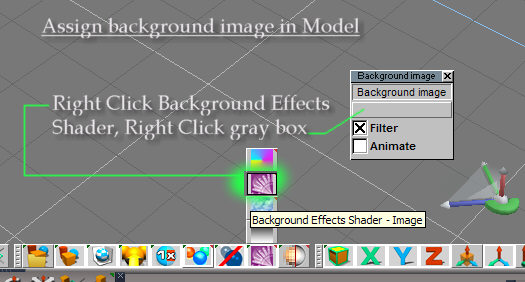
Here's how to do it in Model: (see attachement)
Since I have Vray installed, a screenshot from my Workspace/stack would not match what you have so I have omitted it.
Note that if you do assign an avi, you'll need to tic the 'Animate' box, and naturally, render out to either an animation or a series of still images to be composited into a final animation.
Since my computer is ahem, 'elderly', I only render stills and so know little to nothing about Motion Studio. (ok, nothing)
Frank is the go-to guy for that.
Here's how to do it in Model: (see attachement)
- Attachments
-
-
Musikman
- Chief Petty Officer
- Posts: 104
- Joined: 21 May 2009, 18:31
- Type the number ten into the box: 0
- Location: USA
Re: Importing Bitmap or AVI to TS Background
So then right clicking the grey box will open kind of an "explorer" box where I can choose any picture or texture by browsing....I see, thanks! I'll try to find out if I can do it on the ws side also. Not used to model side, just learning as I go along.
On your dome sky tutorial.....The half sphere has the flat part to the ground (as in the last pic), then just stretch it big enough to fit the whole screen? I would imagine you wouldn't be able to set opacity as solid, to get the sky effect it must have to be set with some amount of transparency. Then according to the tutorial there should be a plane drawn parallel to the ground to keep the perspective of the ground. Think I got it. Been very busy & haven't given it a go yet, but will in the morning. Thanks again, much appreciated!
Paul
On your dome sky tutorial.....The half sphere has the flat part to the ground (as in the last pic), then just stretch it big enough to fit the whole screen? I would imagine you wouldn't be able to set opacity as solid, to get the sky effect it must have to be set with some amount of transparency. Then according to the tutorial there should be a plane drawn parallel to the ground to keep the perspective of the ground. Think I got it. Been very busy & haven't given it a go yet, but will in the morning. Thanks again, much appreciated!
Paul
-
Musikman
- Chief Petty Officer
- Posts: 104
- Joined: 21 May 2009, 18:31
- Type the number ten into the box: 0
- Location: USA
Re: Importing Bitmap or AVI to TS Background
Hey Spacekdet, if you're still out there. I tried the dome as background for sky and working very well & near the end of the tut, sorry, just a quick (dumb) question here.......
[Once you have it surfaced the way you like, Scale up the dome to encompass the entire scene. ]
What's the easiest way to do that? I'm new to modelside and there's no object widget like ws side. I pulled on the UV bars but can't seem to find which L/R/click/drag combination keeps it's shape/proportion when stretching it out. Or is there another quicker/easier way of doing it?
Thanks!
Paul
[Once you have it surfaced the way you like, Scale up the dome to encompass the entire scene. ]
What's the easiest way to do that? I'm new to modelside and there's no object widget like ws side. I pulled on the UV bars but can't seem to find which L/R/click/drag combination keeps it's shape/proportion when stretching it out. Or is there another quicker/easier way of doing it?
Thanks!
Paul
-
spacekdet
- Captain
- Posts: 1810
- Joined: 27 May 2009, 15:00
- Type the number ten into the box: 10
- Location: On the day shift at the Utility Muffin Research Kitchen
Re: Importing Bitmap or AVI to TS Background
Easiest way is to first open a top view.
Zoom way out (right click drag on the 'web' part of the view widget in the lower right corner)
To keep the scaling uniform, you can do one of two things:turn on Grid mode/ grid snap, or click/hold/drag using both mouse buttons on the widget.
Activate Object Scale by left clicking on it.
In the top view, with the dome selected, hold both mouse buttons down and drag in any clear area of the screen.
You could also use the widget if it's visible, click on the corner of the cube widget to scale- again holding both buttons. (Only using one button will have a different behavior- depending on which side you grab and which way you drag it). If you hover over the very tip of the widget, the cursor will change into a 3 pointed icon- in that case dragging with only the left button held will scale proportionally. It's a pretty small target.
In Workspace you do the same thing to the cube on the end of the 'arm' of the object widget.
Keep dragging until all your scene elements are inside it- cameras, objects, etc.
The dome can be either opaque or transparent, depending on what you are rendering with.
The trick is to turn off shadowcasting for the dome object if you are using an infinite, a directional, or a skylight.
Workspace: (settings/scene/show object attribs/object render attributes/default->switch to advanced/ untic 'cast shadows).
Model: Open the Object Info box by right clicking the Object Tool. Expand by clicking the red downward pointing arrow. Click Render Options, then uncheck Cast Shadows and Receive Shadows. This will prevent it from blocking any lights or catching any unwanted shadows.
This will work with a regular polygon sphere as well, you just use different tools for cutting it in half.
Zoom way out (right click drag on the 'web' part of the view widget in the lower right corner)
To keep the scaling uniform, you can do one of two things:turn on Grid mode/ grid snap, or click/hold/drag using both mouse buttons on the widget.
Activate Object Scale by left clicking on it.
In the top view, with the dome selected, hold both mouse buttons down and drag in any clear area of the screen.
You could also use the widget if it's visible, click on the corner of the cube widget to scale- again holding both buttons. (Only using one button will have a different behavior- depending on which side you grab and which way you drag it). If you hover over the very tip of the widget, the cursor will change into a 3 pointed icon- in that case dragging with only the left button held will scale proportionally. It's a pretty small target.
In Workspace you do the same thing to the cube on the end of the 'arm' of the object widget.
Keep dragging until all your scene elements are inside it- cameras, objects, etc.
The dome can be either opaque or transparent, depending on what you are rendering with.
The trick is to turn off shadowcasting for the dome object if you are using an infinite, a directional, or a skylight.
Workspace: (settings/scene/show object attribs/object render attributes/default->switch to advanced/ untic 'cast shadows).
Model: Open the Object Info box by right clicking the Object Tool. Expand by clicking the red downward pointing arrow. Click Render Options, then uncheck Cast Shadows and Receive Shadows. This will prevent it from blocking any lights or catching any unwanted shadows.
This will work with a regular polygon sphere as well, you just use different tools for cutting it in half.
-
Musikman
- Chief Petty Officer
- Posts: 104
- Joined: 21 May 2009, 18:31
- Type the number ten into the box: 0
- Location: USA
Re: Importing Bitmap or AVI to TS Background
Ok Spacekdet, I'll give it a try soon. I figured there had to be a way in modelside similar to ws side, but without the object widget I just wasn't sure. Everything I tried just kept stretching it out of proportion. I was grabbing every spot I could find on the UV but couldn't size it evenly with that. Thanks again for the detailed instructions, much appreciated! 
I'm going to have to get the hang of using the material editor & applying textures in ws side, not nearly as straightforward as modelside. Jack also mentioned to me once that in ws side one texture replaces another and multiple textures are not supported. I've had a couple of crashes trying to do just that & probably partly because I'm not doing it the right way & trying to do something the program will not allow. Seems on model side you can apply texture/bump, color, displacement and everything is right there in a row to see, procedures on ws side are still a bit tricky to figure out, at least for me. This is one of those cases I mentioned in gen discussion where a 7.x tut for it would clear up some of the fog....practice, practice.....
Best regards,
Paul
I'm going to have to get the hang of using the material editor & applying textures in ws side, not nearly as straightforward as modelside. Jack also mentioned to me once that in ws side one texture replaces another and multiple textures are not supported. I've had a couple of crashes trying to do just that & probably partly because I'm not doing it the right way & trying to do something the program will not allow. Seems on model side you can apply texture/bump, color, displacement and everything is right there in a row to see, procedures on ws side are still a bit tricky to figure out, at least for me. This is one of those cases I mentioned in gen discussion where a 7.x tut for it would clear up some of the fog....practice, practice.....
Best regards,
Paul
-
spacekdet
- Captain
- Posts: 1810
- Joined: 27 May 2009, 15:00
- Type the number ten into the box: 10
- Location: On the day shift at the Utility Muffin Research Kitchen
Re: Importing Bitmap or AVI to TS Background
I hear you there re: the WS material editor. Was a major turn-off for me; I much prefer the Model side one. Luckily I got Vray when it was still available which modified the WS material editor so that it's closer in looks and function to what I was used to.
Before I had Vray I would just model in workspace and save all the texturing and rendering duties for Model side. Really hard to have to revert back to single-layer WS materials after using multiple layer stuff for years. Sad that multi-layers didn't make it into WS before the end.
Really all depends on what output you are shooting for. If you want all realtime stuff, you're pretty much stuck with learning the WS material editor. Painting with bricks...it's the future.
If you don't mind waiting for a render, using the built-in Lightworks engine in Model will allow you a lot of flexibility in texturing- there are a ton of free shaders available and the fun and benefits of multi-layered materials.
It's a lot to learn, but also a lot of fun.
Just finish all the modeling in WS before you start texturing...going back and forth over the bridge tends to be hard on existing textures. They sometimes end up floating away in the river!
Before I had Vray I would just model in workspace and save all the texturing and rendering duties for Model side. Really hard to have to revert back to single-layer WS materials after using multiple layer stuff for years. Sad that multi-layers didn't make it into WS before the end.
Really all depends on what output you are shooting for. If you want all realtime stuff, you're pretty much stuck with learning the WS material editor. Painting with bricks...it's the future.
If you don't mind waiting for a render, using the built-in Lightworks engine in Model will allow you a lot of flexibility in texturing- there are a ton of free shaders available and the fun and benefits of multi-layered materials.
It's a lot to learn, but also a lot of fun.
Just finish all the modeling in WS before you start texturing...going back and forth over the bridge tends to be hard on existing textures. They sometimes end up floating away in the river!
-
Musikman
- Chief Petty Officer
- Posts: 104
- Joined: 21 May 2009, 18:31
- Type the number ten into the box: 0
- Location: USA
Re: Importing Bitmap or AVI to TS Background
I never really had the chance to figure out just how that "bridge" works. I noticed the settings for manual and auto. Is that a "one-way" bridge from ws to model, or two way? You've got me thinking now, if I can model without texturing in ws side which for modeling I'm a bit more familiar with, then send models over to modelside for texturing...hmmm...think that would be a plan that would go smoothly? Only thing is, if I did that, but then wanted to finally animate the ms textured objects in ws side, I'd have to cross back over the bridge again to ws, & may possibly lose some of the texture work in the process. Ever try doing that before? Just curious if it would work or not.
-
spacekdet
- Captain
- Posts: 1810
- Joined: 27 May 2009, 15:00
- Type the number ten into the box: 10
- Location: On the day shift at the Utility Muffin Research Kitchen
Re: Importing Bitmap or AVI to TS Background
It's 'two-way', in most cases.
Some data doesn't necessarily cross over as-is, i.e., NURBS, which don't exist in WS, get turned into polygons.
Bones, etc., are totally different so they also don't translate well.
That sounds like an acceptable workflow, but if you are planning on using realtime/rendering from WS anyway, you may as well do your texturing there too.
The alternative is to build your material in Model, but you'd need to 'collapse' them all into a single bitmap for use in WS. To do this you would create the material, paint it on a plane, and render a top view into an image format. (PNG, JPG, TGA, etc.) You could also do this in your 2D editor.
A couple terms:
Texture: bitmap such as a PNG, JPG, etc.
Material: the combination of Color, Reflectance, Bump/displacement, and Transparency channels.
Some data doesn't necessarily cross over as-is, i.e., NURBS, which don't exist in WS, get turned into polygons.
Bones, etc., are totally different so they also don't translate well.
That sounds like an acceptable workflow, but if you are planning on using realtime/rendering from WS anyway, you may as well do your texturing there too.
The alternative is to build your material in Model, but you'd need to 'collapse' them all into a single bitmap for use in WS. To do this you would create the material, paint it on a plane, and render a top view into an image format. (PNG, JPG, TGA, etc.) You could also do this in your 2D editor.
A couple terms:
Texture: bitmap such as a PNG, JPG, etc.
Material: the combination of Color, Reflectance, Bump/displacement, and Transparency channels.
-
Musikman
- Chief Petty Officer
- Posts: 104
- Joined: 21 May 2009, 18:31
- Type the number ten into the box: 0
- Location: USA
Re: Importing Bitmap or AVI to TS Background
Glad to hear the bridge works two ways, except for a couple of minor things that don't transfer, but for simple texturing I should maybe give it a try to see how it works. If I just keep it on "auto" setting it should switch automatically when I choose ws or ms tabs, right?
heh heh! Thank you for the terms, much appreciated, that seems to simplify it a bit. So, if I understand this right, it seems the available materials on the ws side are for the most part, combinations of a few different channels, & modelside you can add/build each channel separately. I can't wait until all this texture map/bump map/normal map/color/displacement/shader/transparancy/material/reflectance... information starts to "click" in my head! (is there a banana for "going out of my mind"? )
)
Tom & Jack also gave me lots of good info awhile back, which I've been reviewing, as I know there is alot on this subject to learn. Getting more familiar with it the more I read & try stuff. Just got done downloading as many videos as I could from the site, Texture Creation, Shaders, etc....whatever I could find on the subject, old or new!
Thanks again for all your help!
Paul
heh heh! Thank you for the terms, much appreciated, that seems to simplify it a bit. So, if I understand this right, it seems the available materials on the ws side are for the most part, combinations of a few different channels, & modelside you can add/build each channel separately. I can't wait until all this texture map/bump map/normal map/color/displacement/shader/transparancy/material/reflectance... information starts to "click" in my head! (is there a banana for "going out of my mind"?
)Tom & Jack also gave me lots of good info awhile back, which I've been reviewing, as I know there is alot on this subject to learn. Getting more familiar with it the more I read & try stuff. Just got done downloading as many videos as I could from the site, Texture Creation, Shaders, etc....whatever I could find on the subject, old or new!
Thanks again for all your help!
Paul
-
Emmanuel

- Chief Warrant Officer
- Posts: 670
- Joined: 14 Jun 2009, 06:47
Re: Importing Bitmap or AVI to TS Background
I just purchased some footage to play in the background of a trueSpace render. The idea was to move over the video both the camera and an object, so I couldn't simply put the footage as animated texture on a plane.
A real-time preview was also required because of precise positioning of my 3D scene over the video.
Problem : trueSpace's background image is broken since tS6.6. It loads the frames, and plays it as you scrool your timeline, but as soon as you insert an object, the animation does not play anymore. A bug, yes.
The workaround was to use trueSpace 6.5 for this particular scene ! Thanks God I still have all my previous trueSpace versions installed
I wonder if Workspace allows to use a bitmap file or animation to show up in the background, instead of a plain color.
Any tips from our fellow Workspace specialists ?
A real-time preview was also required because of precise positioning of my 3D scene over the video.
Problem : trueSpace's background image is broken since tS6.6. It loads the frames, and plays it as you scrool your timeline, but as soon as you insert an object, the animation does not play anymore. A bug, yes.
The workaround was to use trueSpace 6.5 for this particular scene ! Thanks God I still have all my previous trueSpace versions installed
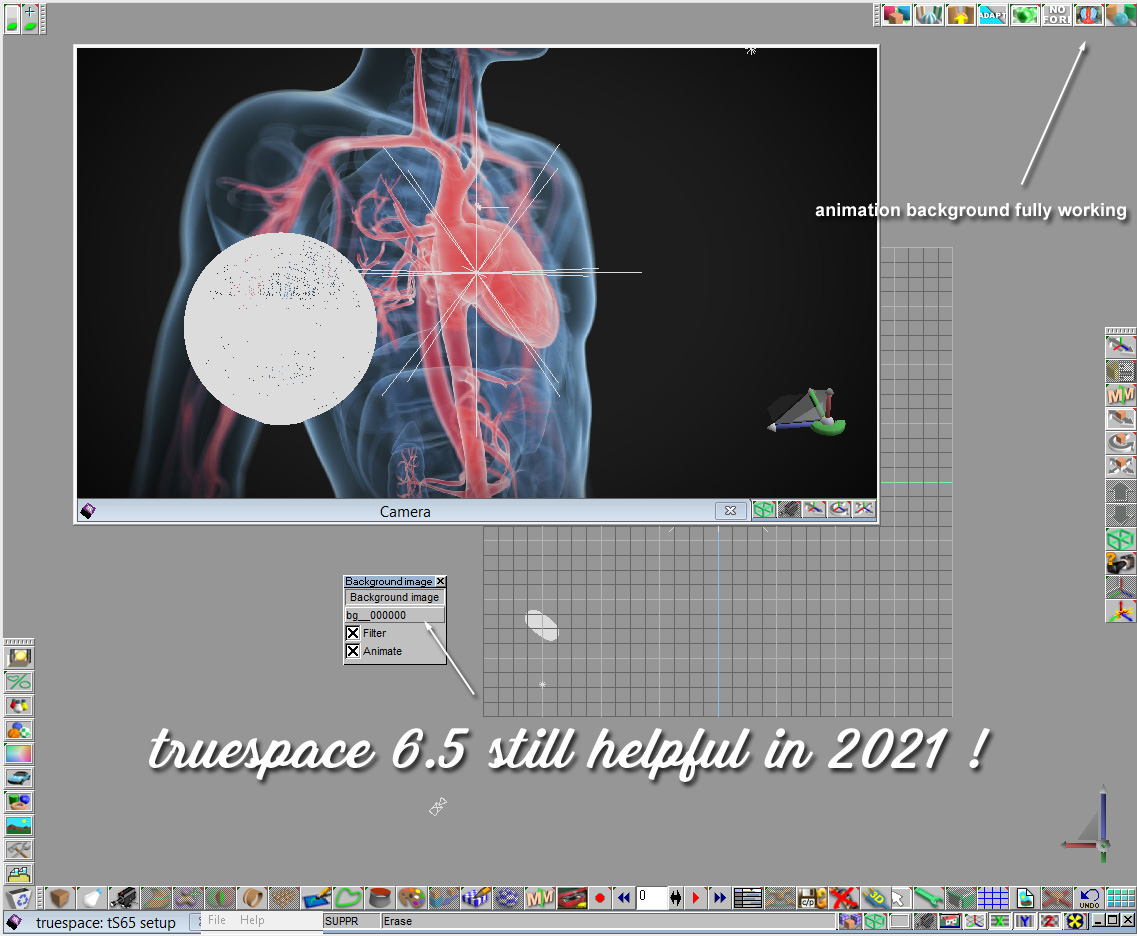
Any tips from our fellow Workspace specialists ?
-
trueBlue

- Captain
- Posts: 5548
- Joined: 06 Jul 2009, 22:50
- Type the number ten into the box: 10
Re: Importing Bitmap or AVI to TS Background
Funny, I was just working on that 
This is a tS761 version and I will make a tS76 version
Render Image to File
.
.
.
Also included is Clinton's - tS761 Background Image Camera included in the Unofficial Update
.
.
.
Also included is a VRay Background
.
viewt ... 537#p61537
I do not think the Model's Render to File works for Background Images
.
All three use a Sequence of images
For AVI, you could use:
iResCon
http://rs.siprogs.sk
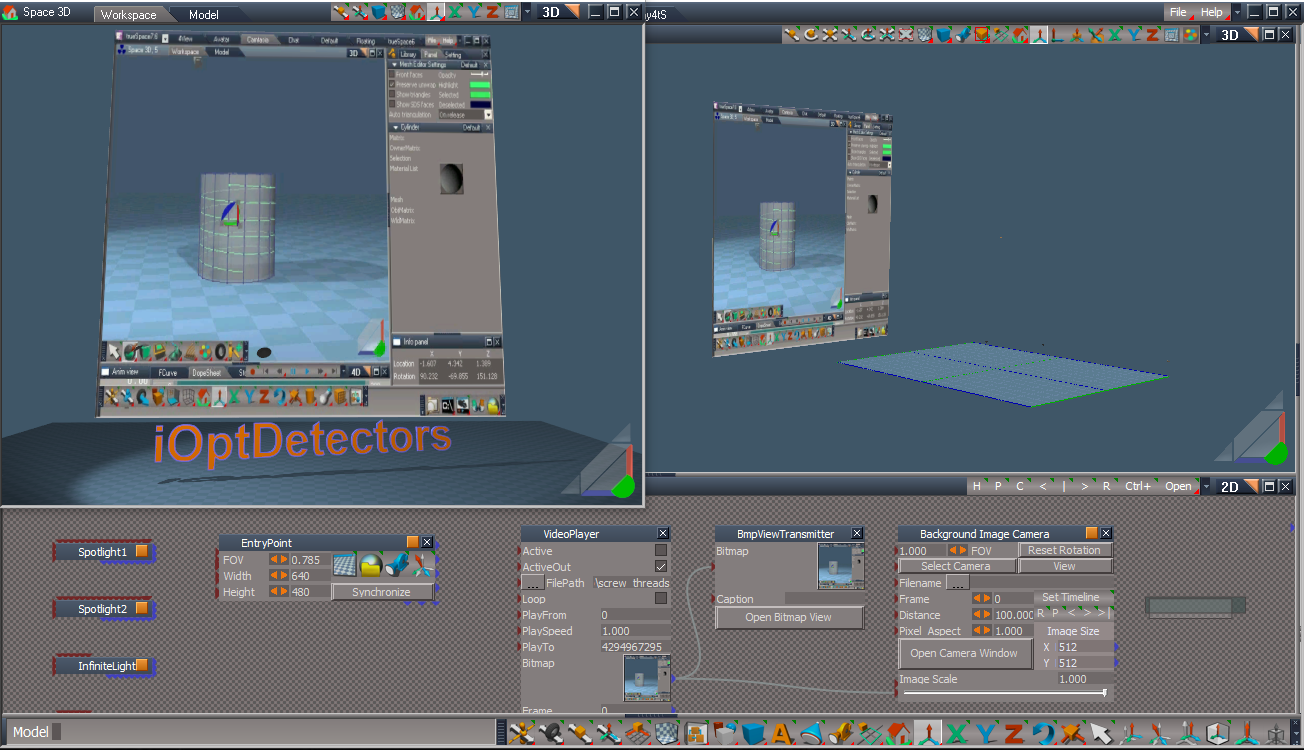
iOptDetectors is a set of Object Libraries running in trueSpace7 environment. These libraries allows you to import bitmaps or videos from a file, a webcam or an other device supported by DirectX.
This is a tS761 version and I will make a tS76 version
Render Image to File
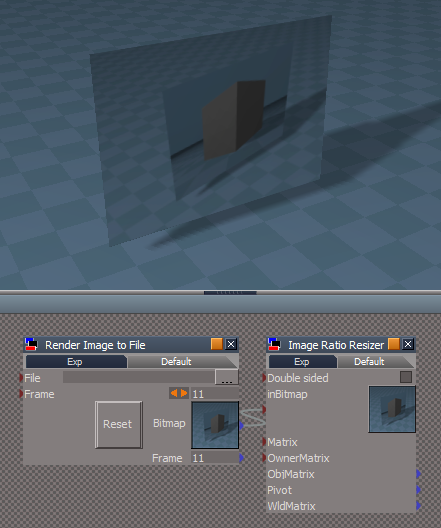

.
.
Also included is Clinton's - tS761 Background Image Camera included in the Unofficial Update

.
.
Also included is a VRay Background

viewt ... 537#p61537
I do not think the Model's Render to File works for Background Images
.
All three use a Sequence of images
For AVI, you could use:
iResCon
http://rs.siprogs.sk
iOptDetectors is a set of Object Libraries running in trueSpace7 environment. These libraries allows you to import bitmaps or videos from a file, a webcam or an other device supported by DirectX.
- Attachments
-
- Background Image Camera.RsObj
- (286.06 KiB) Downloaded 229 times
-
- Render Image to File.RsObj
- (63.75 KiB) Downloaded 210 times
-
Emmanuel
- Chief Warrant Officer
- Posts: 670
- Joined: 14 Jun 2009, 06:47
Re: Importing Bitmap or AVI to TS Background
Thanks for the files.
None of them can reproduce trueSpace6.5 background workflow though.
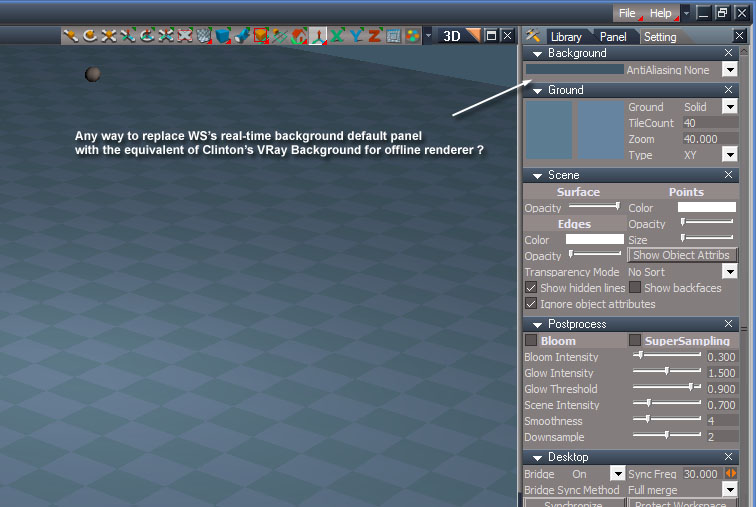
The idea was just to display bitmap files (or animated sequence) in real time in the background of a 3D view, regardless of any camera object.
None of them can reproduce trueSpace6.5 background workflow though.
The idea was just to display bitmap files (or animated sequence) in real time in the background of a 3D view, regardless of any camera object.
-
trueBlue
- Captain
- Posts: 5548
- Joined: 06 Jul 2009, 22:50
- Type the number ten into the box: 10
Re: Importing Bitmap or AVI to TS Background
The Background Image Camera is a VRay Background Image equivalent for the Realtime renderer!Emmanuel wrote: 16 Nov 2021, 17:52 VRay background equivalent for Real-Time renderer.jpg
Actually, better because you can view and record a sequence of images, and in the following example, AVI or WMV files
You do not need to View from the Background Image Camera
Here, I am viewing from an EntryPoint camera and using the iOptDetectors tools, viewing a WMV file (supports AVI too)
-
Emmanuel
- Chief Warrant Officer
- Posts: 670
- Joined: 14 Jun 2009, 06:47
Re: Importing Bitmap or AVI to TS Background
Ahhh, I understand how it works. 
You are right, it opens many possibilities.
When I scroll the Frame cursor in the Background Image Camera panel, the background video plays ; but how can I make it to play as I move the main AE timeline cursor ?
You are right, it opens many possibilities.
When I scroll the Frame cursor in the Background Image Camera panel, the background video plays ; but how can I make it to play as I move the main AE timeline cursor ?
-
trueBlue
- Captain
- Posts: 5548
- Joined: 06 Jul 2009, 22:50
- Type the number ten into the box: 10
Re: Importing Bitmap or AVI to TS Background
You need to Keyframe the Frame attribute, just like you did the VRay DOF - Distance attributeEmmanuel wrote: 16 Nov 2021, 20:05 Ahhh, I understand how it works.
You are right, it opens many possibilities.
When I scroll the Frame cursor in the Background Image Camera panel, the background video plays ; but how can I make it to play as I move the main AE timeline cursor ?
Right click the Set Timeline button on the panel and select the Frame attribute
In the Animation Editor toolbar, right click the Set Keyframe icon
Set the AE Timeline to the Start Frame @ 0
Set Keyframe for the Frame @ 0
Set the AE Timeline to the End Frame
Set Keyframe for the Frame @ the last image # in your sequence of files
About the Set Timeline button on the panel
LMB - Sets the AE Timeline using the value in the Frame edit control
RMB - Use to Select the Frame attribute in the Attribute Browser
-
trueBlue
- Captain
- Posts: 5548
- Joined: 06 Jul 2009, 22:50
- Type the number ten into the box: 10
Re: Importing Bitmap or AVI to TS Background
Got a VRay Material to work with a sequence of images with an Alpha Mask
Do not use the VRay Material editor to edit this material or you may lose the connections that are exported out
Just realized you will need to have Clinton's clintons3dPlugin.rsx Installed & Loaded for the mask to work
http://clintons3d.com/plugins/truespace ... index.html

Just realized you will need to have Clinton's clintons3dPlugin.rsx Installed & Loaded for the mask to work
http://clintons3d.com/plugins/truespace ... index.html
- Attachments
-
- VRay Plane.RsObj
- (414.88 KiB) Downloaded 243 times