Quad Menu Preview
-
clintonman
- Captain
- Posts: 5659
- Joined: 21 May 2009, 21:08
- Type the number ten into the box: 0
- Location: California
Quad Menu Preview
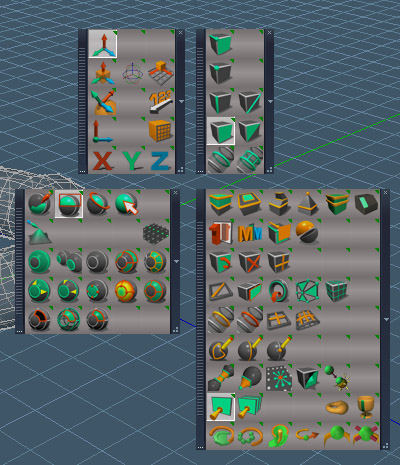
Point Edit Quad Menu
Toolbar behavior inspired by the quad menu found in 3dsmax.
The reason it was created was because it's faster than using the point edit toolbars at the bottom of the 3d view, less cluttered than always having custom toolbars open and I don't have to memorize a bunch of shortcut keys, just the one to open the quad toolbar.
Only works with whatever 3d view is in the top left corner of the screen.
Menu only shows in point edit mode.
After install assign a shortcut to the new button. Use in point edit mode to use the tools. Type the shortcut and the toolbars open at the mouse location. After clicking one of the buttons the toolbars close.
The blank buttons have both left and right mouse buttons set to close the toolbars.
No uninstaller and will disappear with a context reset.
Still figuring out how it should work and be organized and what buttons to add.
"B" was used for the shortcut because it was available. For my own personal version it will use the space bar since I never use that shortcut from the unofficial updates.
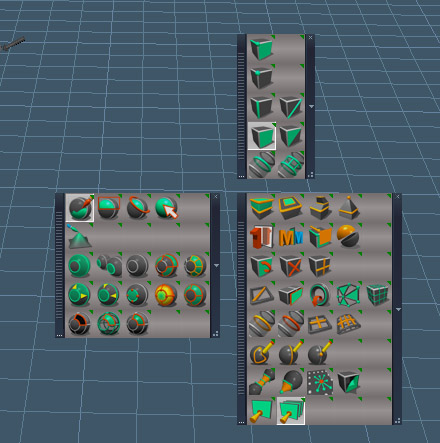
Only have 3 out of the 4 possible quad menus.
Actually, it should be called the "Quad Toolbar"
behind the scenes it uses the mouse listener to get the cursor position relative to the 3d view, not the whole window. then it copies the quad toolbars from storage around that point. the button commands are altered so after using any button in the toolbars all the toolbars close
- Attachments
-
- Quad Menu Install.RsObj
- (272.86 KiB) Downloaded 237 times
-
trueBlue
- Captain
- Posts: 5548
- Joined: 06 Jul 2009, 22:50
- Type the number ten into the box: 10
Re: Quad Menu Preview
Cool!
You inspired me to see if this worked in a Point Edit Widget's Sphere using the existing toolbars.
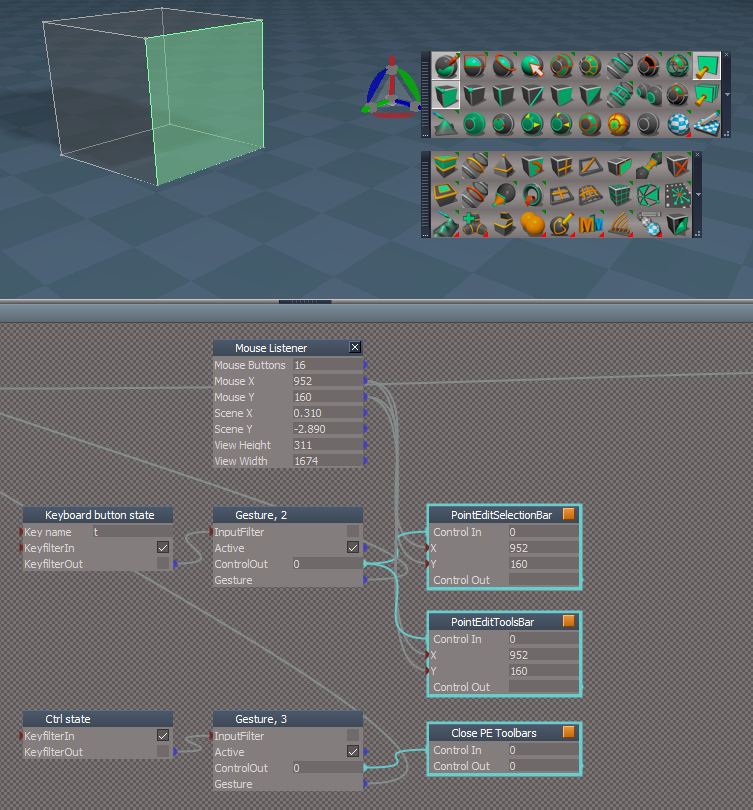
Ctrl = Close all toolbars
Add to the End Edit and Background widget too
You inspired me to see if this worked in a Point Edit Widget's Sphere using the existing toolbars.
Code: Select all
var X = params.ConValue('X');
var Y = params.ConValue('Y');
if(Node.Value("/Project/Windows Manager Space", "LayoutName") == "Expanded") return;
if(!Node.SubObjectCount("Toolbar Prototypes Encapsulator/PointEditSelectionBar") ==0){MyName=WindowsManager.GetWindowsManagerNodeName();
WindowsManager.CloseToolbar("PointEditSelectionBar");
Node.Value("/Toolbar Prototypes Encapsulator/PointEditSelectionBar", "Horizontal") = -1
WindowsManager.OpenToolbarFromPrototype("PointEditSelectionBar",X + 100,Y,-1,-1);
Node.Rename(MyName+"/"+Node.SubObject(MyName,Node.SubObjectCount(MyName)-1),"PointEditSelectionBarFrame");
WindowsManager.SetFrameOwnerFrame(MyName+"/PointEditSelectionBarFrame",WindowsManager.GetWorkWindow());}Add to the End Edit and Background widget too
-
clintonman
- Captain
- Posts: 5659
- Joined: 21 May 2009, 21:08
- Type the number ten into the box: 0
- Location: California
Re: Quad Menu Preview
Yeah, I kind of figured you'd come up with something. 
-
clintonman
- Captain
- Posts: 5659
- Joined: 21 May 2009, 21:08
- Type the number ten into the box: 0
- Location: California
Re: Quad Menu Preview
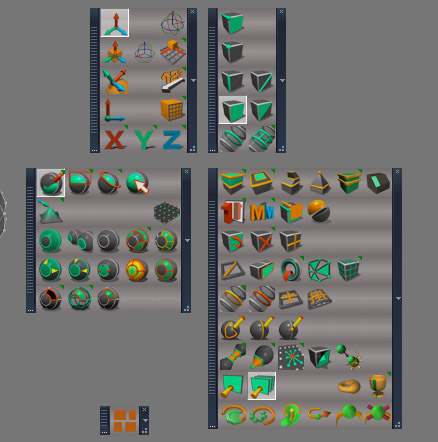
I think I found an arrangement I like. Just need to try it for a while.
Added the some curve tools, normal move, lathe, target weld, edge bevel, static sweep and added the 4th quad toolbar.
-
trueBlue
- Captain
- Posts: 5548
- Joined: 06 Jul 2009, 22:50
- Type the number ten into the box: 10
Re: Quad Menu Preview
Nice arrangement!
You forgot your Fix Bad Geometry
-
clintonman
- Captain
- Posts: 5659
- Joined: 21 May 2009, 21:08
- Type the number ten into the box: 0
- Location: California
Re: Quad Menu Preview
Thanks.trueBlue wrote: 14 Jan 2020, 18:20 Nice arrangement!
You forgot your Fix Bad Geometry![]()
I think of Fix Bad Geometry as more like a utility than a modeling tool.
-
FHembree
- Master Chief Petty Officer
- Posts: 337
- Joined: 21 Feb 2011, 17:43
- Type the number ten into the box: 9
Re: Quad Menu Preview
Excellent addition to the menus. I like it. I can't get a short key to work but don't really need it as the icon always stays on top.clintonman wrote: 14 Jan 2020, 07:25 QuadToolbars02.jpg
I think I found an arrangement I like. Just need to try it for a while.
Added the some curve tools, normal move, lathe, target weld, edge bevel, static sweep and added the 4th quad toolbar.
-
FHembree
- Master Chief Petty Officer
- Posts: 337
- Joined: 21 Feb 2011, 17:43
- Type the number ten into the box: 9
Re: Quad Menu Preview
I figured out what was wrong. You have to Ctrl_click right mouse button while the cursor is selecting the icon, I think that's what I did ?FHembree wrote: 15 Jan 2020, 02:32Excellent addition to the menus. I like it. I can't get a short key to work but don't really need it as the icon always stays on top.clintonman wrote: 14 Jan 2020, 07:25 QuadToolbars02.jpg
I think I found an arrangement I like. Just need to try it for a while.
Added the some curve tools, normal move, lathe, target weld, edge bevel, static sweep and added the 4th quad toolbar.![]()
-
clintonman
- Captain
- Posts: 5659
- Joined: 21 May 2009, 21:08
- Type the number ten into the box: 0
- Location: California
Re: Quad Menu Preview
Yes, you have to hold the ctrl key while right clicking on the button. Also note that some shortcuts are globally assigned behind the scenes and can't be changed normally. I had to edit a file to turn of the space key assignment so I could use it for something else.FHembree wrote: 15 Jan 2020, 20:41I figured out what was wrong. You have to Ctrl_click right mouse button while the cursor is selecting the icon, I think that's what I did ?FHembree wrote: 15 Jan 2020, 02:32Excellent addition to the menus. I like it. I can't get a short key to work but don't really need it as the icon always stays on top.clintonman wrote: 14 Jan 2020, 07:25 QuadToolbars02.jpg
I think I found an arrangement I like. Just need to try it for a while.
Added the some curve tools, normal move, lathe, target weld, edge bevel, static sweep and added the 4th quad toolbar.![]()
This also reminds me that some kind of editor would be useful for shortcuts that don't have a corresponding toolbar button.
-
clintonman
- Captain
- Posts: 5659
- Joined: 21 May 2009, 21:08
- Type the number ten into the box: 0
- Location: California
Re: Quad Menu Preview
Attached here is the Jan 13 version of the quad toolbars. It has buttons for a few tools not included in the Unofficial Updates.
- Attachments
-
- Quad Menu Install10c1.RsObj
- (374.84 KiB) Downloaded 250 times
-
clintonman
- Captain
- Posts: 5659
- Joined: 21 May 2009, 21:08
- Type the number ten into the box: 0
- Location: California
Re: Quad Menu Preview
Changed the name from "Quad Menu" to "Quad Toolbar"
Deactivated the code that modifies the toolbar buttons on the fly , adding the automatic closing action. This was eating up all the undos. Now the commands are baked into the buttons to begin with. Opening the 4 toolbars seems to eat up about 8 undos, closing them doesn't take any undos. The combination of open and immediately closing still seems to eat all the undos. Can't find the reason for that. Might have to give up on the auto closing or make it optional somehow.
Removed the close toolbars commands from the button right click. This was confusing since couldn't tell the difference between buttons with pre-existing right click from those with the added right click that only closed the toolbars.
Added a simple "pivot to selection" button in the snapping menu. It's the same as holding P + LMB on the PE widget.
Might remove the lathe tool in the future since it doesn't really qualify in my mind as a point edit tool, more like a utility function.
Edit: Removed the attachment.
I found out why the undos disappeared. There is a move window command that places the toolbars in the quad configuration. When the toolbars are closed truespace cant undo the move so it gets stuck. Found the same thing while trying to use toolbar prototypes. After opening the toolbar it is renamed. After closing the toolbar the undo tries to undo the rename, but the toolbar doesn't exist anymore so the undo just gets stuck. I found it by watching the command history window. The best solution seems to be use toolbar prototypes which seem to have positioning built in and don't rename any nodes in the process. The close toolbar commands can be written to the toolbar buttons on the fly without effecting the undos.
Will try again tomorrow.
Deactivated the code that modifies the toolbar buttons on the fly , adding the automatic closing action. This was eating up all the undos. Now the commands are baked into the buttons to begin with. Opening the 4 toolbars seems to eat up about 8 undos, closing them doesn't take any undos. The combination of open and immediately closing still seems to eat all the undos. Can't find the reason for that. Might have to give up on the auto closing or make it optional somehow.
Removed the close toolbars commands from the button right click. This was confusing since couldn't tell the difference between buttons with pre-existing right click from those with the added right click that only closed the toolbars.
Added a simple "pivot to selection" button in the snapping menu. It's the same as holding P + LMB on the PE widget.
Might remove the lathe tool in the future since it doesn't really qualify in my mind as a point edit tool, more like a utility function.
Edit: Removed the attachment.
I found out why the undos disappeared. There is a move window command that places the toolbars in the quad configuration. When the toolbars are closed truespace cant undo the move so it gets stuck. Found the same thing while trying to use toolbar prototypes. After opening the toolbar it is renamed. After closing the toolbar the undo tries to undo the rename, but the toolbar doesn't exist anymore so the undo just gets stuck. I found it by watching the command history window. The best solution seems to be use toolbar prototypes which seem to have positioning built in and don't rename any nodes in the process. The close toolbar commands can be written to the toolbar buttons on the fly without effecting the undos.
Will try again tomorrow.
-
trueBlue
- Captain
- Posts: 5548
- Joined: 06 Jul 2009, 22:50
- Type the number ten into the box: 10
Re: Quad Menu Preview
I am having some success using this
I just do not understand how to process the button commands
Code: Select all
WindowsManager.CloseToolbar('PEElementToolbar')
WindowsManager.CloseToolbar('PESelectionToolbar')
WindowsManager.CloseToolbar('PEModelingToolbar')
WindowsManager.CloseToolbar('PESnappingToolbar')
WindowsManager.OpenToolbarFromPrototype("PEElementToolbar",MouseX+186,MouseY-145,-1,-1)
WindowsManager.OpenToolbarFromPrototype("PESnappingToolbar",MouseX+255,MouseY-145,-1,-1)
WindowsManager.OpenToolbarFromPrototype("PESelectionToolbar",MouseX+100,MouseY,-1,-1)
WindowsManager.OpenToolbarFromPrototype("PEModelingToolbar",MouseX+255,MouseY,-1,-1)
-
spacekdet
- Captain
- Posts: 1810
- Joined: 27 May 2009, 15:00
- Type the number ten into the box: 10
- Location: On the day shift at the Utility Muffin Research Kitchen
Re: Quad Menu Preview
"I just do not understand how to process the button commands"
This is the zeitgeist.
-
clintonman
- Captain
- Posts: 5659
- Joined: 21 May 2009, 21:08
- Type the number ten into the box: 0
- Location: California
Re: Quad Menu Preview
Changed to use toolbar prototypes to fix the undo problems.
Notes:
Found that modifying the button commands on the fly also made permanent changes to the prototypes, so it kept building on top of itself getting longer and longer.
The ID property of a toolbar has to be set before the close toolbar command works.
Saving a toolbar to disk or even copying a toolbar can cause all the buttons inside to disappear. I made a copy of the Toolbar Prototypes Encapsulator, emptied it out and stored my modified toolbars inside of it. This seems to help, but still a bit iffy. Like they say, "more research is needed", unless trueBlue has already cracked it.
The old way positioned the toolbars based on the size of the frame that contains them. The open toolbar command can set the size, but the frame doesn't exist before the command, so the sizes were hard coded. If the sizes change then the code will have to change to match it.
Notes:
Found that modifying the button commands on the fly also made permanent changes to the prototypes, so it kept building on top of itself getting longer and longer.
The ID property of a toolbar has to be set before the close toolbar command works.
Saving a toolbar to disk or even copying a toolbar can cause all the buttons inside to disappear. I made a copy of the Toolbar Prototypes Encapsulator, emptied it out and stored my modified toolbars inside of it. This seems to help, but still a bit iffy. Like they say, "more research is needed", unless trueBlue has already cracked it.
The old way positioned the toolbars based on the size of the frame that contains them. The open toolbar command can set the size, but the frame doesn't exist before the command, so the sizes were hard coded. If the sizes change then the code will have to change to match it.
- Attachments
-
- Quad Toolbar Install.RsObj
- (377.83 KiB) Downloaded 223 times